
Congratulations! You’ve just acquired a WordPress template, a powerful tool in your hands.
But now, the real question is: what next? Maybe you’re feeling a mix of excitement and overwhelm. Don’t worry, you’re not alone. Many find themselves puzzled at this stage, unsure of the next steps to take. You might be asking yourself how to customize the template, what plugins to install, or how to make your website truly yours.
The good news is that with a few simple steps, you can transform this template into a stunning, functional website that captures your audience’s attention. Ready to unlock the full potential of your WordPress template? Let’s dive in and explore the essential steps to take your website from template to treasure.
Setting Up Your Hosting
Picking the right hosting provider is crucial. Reliability matters. Look for providers with good reviews. Check their uptime stats. Aim for at least 99.9% uptime. Security is important too. Your data should be safe. Customer support should be available 24/7. Choose providers with easy-to-use control panels. Price is key. Compare different options. Find the best value for your money. Speed affects your site performance. Faster is better. Some providers offer free trials. Test them before buying. Always read the terms carefully.
Begin by accessing your hosting panel. Find the WordPress icon. Click to start the installation. Follow the simple steps. Choose a username and password. Keep them safe. You’ll need them to log in. Set your site name. Make sure it’s catchy. Pick the right language. Most hosts offer one-click installs. Saves time. Once installed, log into your dashboard. Start customizing your site. Add themes and plugins. Make it unique.
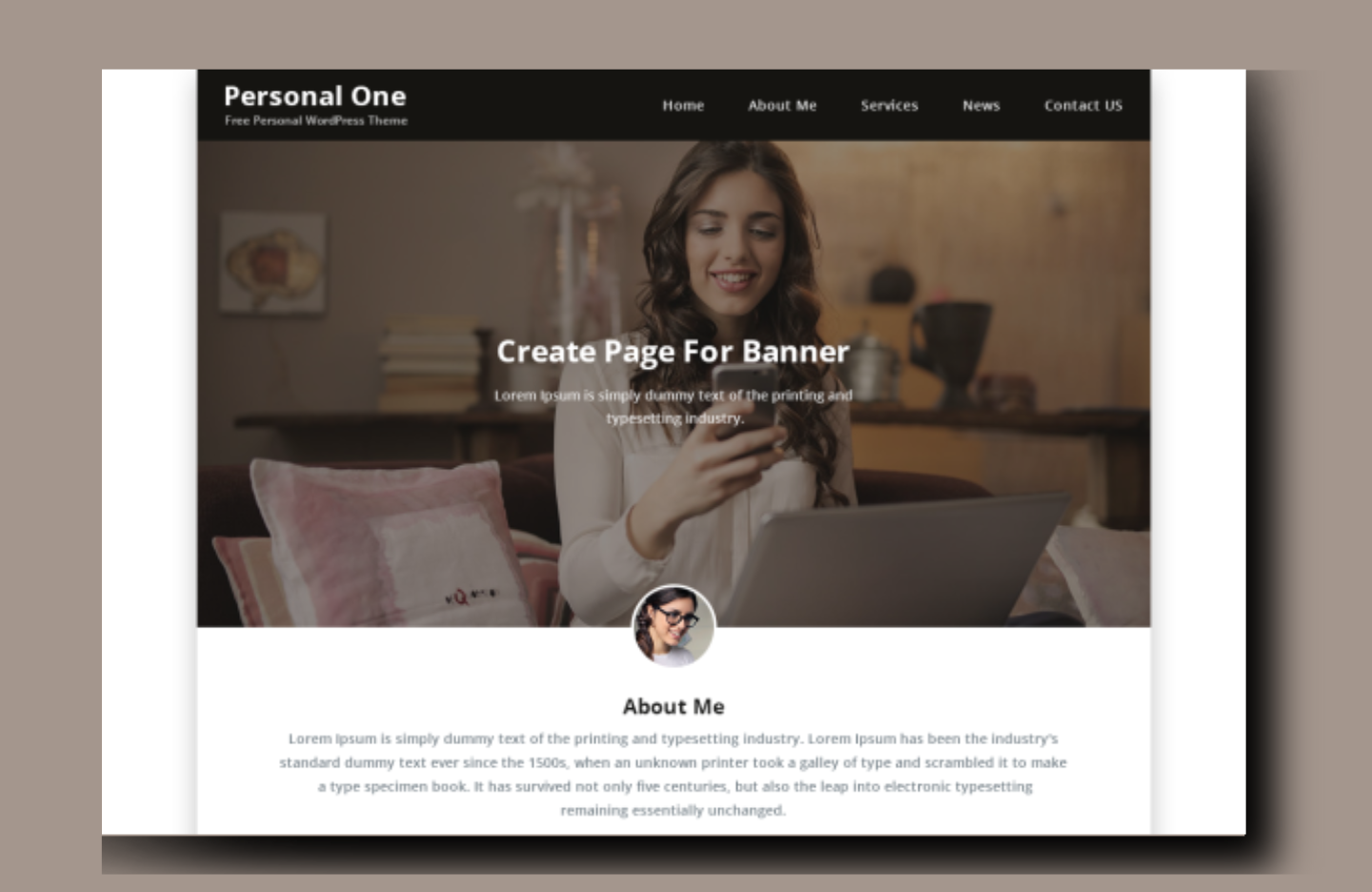
Credit: www.theclassictemplates.com
Installing Your Template
First, log in to your WordPress site. Use your username and password. Once inside, look for the dashboard. It’s your control panel. You can see all your options there.
Find the Appearance menu on the left. Click on it. Next, select Themes. You will see a button labeled Upload Theme. Click it. Choose your template file from your computer. Hit the Upload button.
Once uploaded, you will see your new template. Click on the Activate button. Your website will now use the new design. Check your site to see the changes. Make sure everything looks good.
Customizing Your Template
Theme options are key to creating a unique site. Explore settings to change fonts, colors, and more. Preview changes before saving them. This keeps your site looking fresh. Experiment with different styles until you find the best look. Remember, small tweaks can make big changes.
Layouts control how content appears. Try different layouts to see what fits. Adjust colors to match your brand. Bright colors can make your site pop. Neutral colors can give a calm feel. Use the color wheel to find perfect matches. Mix and match until you love the result.
Widgets add fun features to your site. Check the widget area in your theme settings. Drag and drop widgets to places you want. Custom widgets can include social media links, search bars, or recent posts. Choose wisely to improve user experience. Test each widget to ensure it works well.

Credit: themeforest.net
Optimizing For Seo
SEO plugins help your site be seen. They guide you in writing content that search engines like. Yoast SEO is a popular choice. It checks your posts and suggests changes. All in One SEO Pack is another tool. It helps with meta tags and titles. These plugins make it easy to improve your site’s ranking. You can install them from the WordPress plugin menu. They are easy to use. Follow their steps to boost your SEO.
Use simple words in your blog. Short sentences are better. Keep your paragraphs brief. Keywords are very important. Sprinkle them naturally in your text. Don’t overuse them. This keeps your content clear. Add headings and subheadings. This helps readers and search engines. Always check your spelling and grammar. It makes your blog look professional. Use images, but with alt tags. This tells search engines what the image is about.
Permalinks are the web addresses for your pages. They should be clear and simple. Go to your WordPress dashboard. Find the Settings menu. Click on Permalinks. Choose a style that makes sense. Many use the Post name option. This includes the title in the link. It helps search engines understand your page. Change the permalinks before posting. This keeps your links tidy. Good permalinks help users find your content easily.
Enhancing User Experience
Users love sites that work on phones and tablets. Responsive design makes sure your site looks good everywhere. This helps users stay on your site longer. Adjust images and text size for small screens. Keep buttons easy to press. Test your site on different devices. Fix any issues you find. Happy users mean more visits.
Slow sites lose visitors fast. Speed matters. Use fewer plugins to make your site faster. Compress images to save loading time. Choose a good hosting service. Lazy loading helps pages load quickly. Check your site speed often. Fix slow-loading pages. Faster sites keep users engaged.
Users need simple navigation to find what they want. Use clear menu titles. Keep important links easy to find. Group similar pages together. Use a search bar for quick access. Make sure links work. Easy navigation helps users stay longer. Happy users share your site with friends.
Integrating Essential Plugins
Choosing plugins is important. Some plugins are must-have. SEO plugins help your site get found. Security plugins keep your site safe. Backup plugins protect your data. Performance plugins make your site fast. Contact form plugins let visitors reach you. These plugins are popular and useful.
Setting up plugins is easy. Each plugin has settings. Read the instructions carefully. Adjust settings to fit your needs. Test the plugin after setup. Make sure it works well. Settings can be changed later. Keep plugins updated for best results.
Plugins must work together. Check plugin compatibility before installing. Some plugins conflict with others. Update plugins regularly. Updates fix bugs. Review compatibility notes on plugin pages. If problems occur, seek help from support. Compatibility is key for a smooth-running site.
Securing Your WordPress Site
Use strong passwords for your admin account. Keep your plugins and themes up-to-date. Install a security plugin to protect your site. This can help stop hackers. Also, use a firewall to keep bad traffic out. These steps can make your site safer.
Make backups of your site often. Use a backup plugin to help. This saves your data. If something goes wrong, you can restore your site. Store backups in a safe place. You can use cloud storage for this. Regular backups are important.
Check your site for malware regularly. Use tools to scan your site. Some plugins can do this for you. Set alerts for suspicious activity. Watch for any strange changes. This helps you catch problems early. Stay safe online.
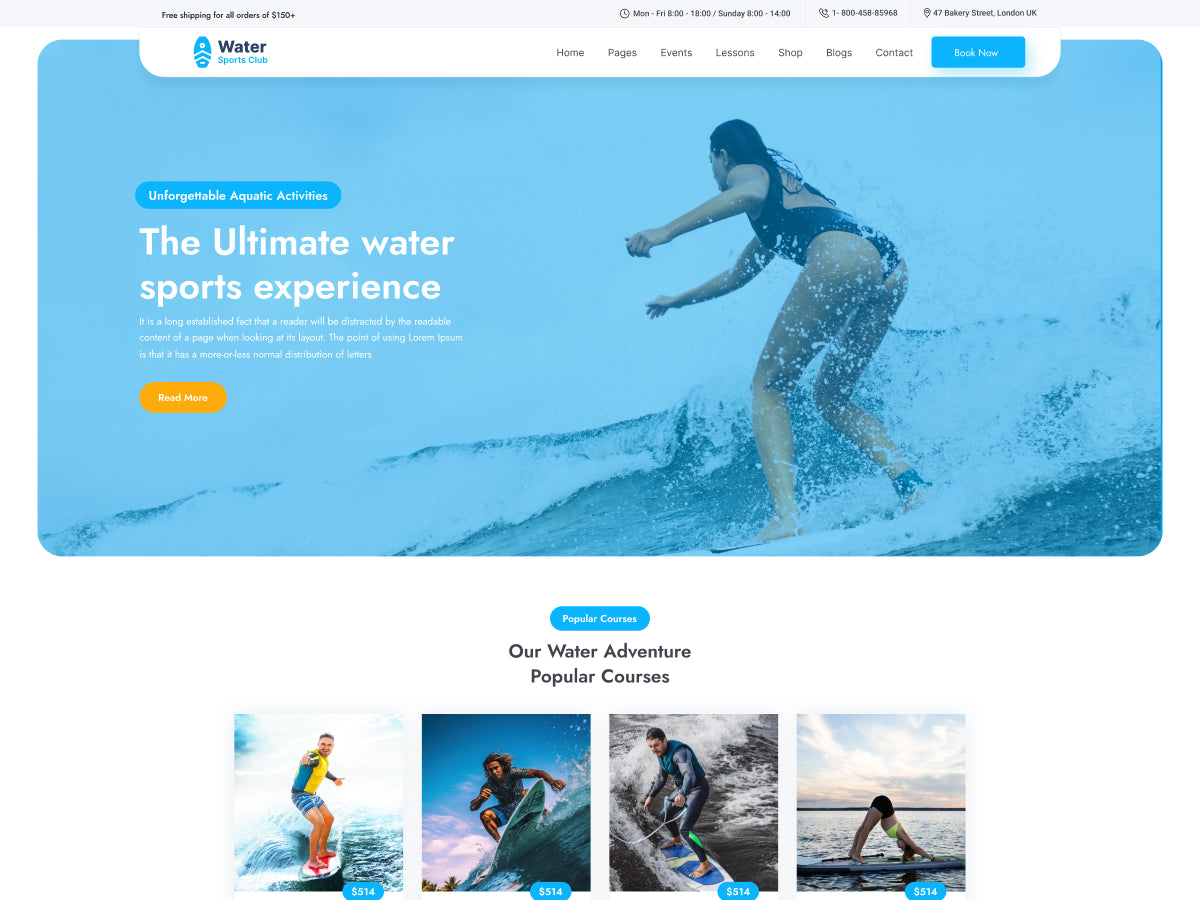
Credit: www.ovationthemes.com
Launching Your Site
Testing your site is very important. Click on every link and button. Make sure they all work. Check forms to see if they send data. Images should load quickly. Videos need to play without problems. Try using the site on a phone. It should look good there too. Ask a friend to test it. They might find issues you missed.
Tell people about your site. Share the link on social media. Email it to friends and family. Write a small post about it. Join groups that like your topic. Share your site there. Make sure to describe what your site offers. Use keywords people search for. This helps them find your site.
Ask for feedback from visitors. Create a simple feedback form. Ask what they like and dislike. This helps you improve. Listen to their suggestions. Feedback helps make your site better. You can even ask on social media. People like to share their thoughts. Always thank them for their time.
Frequently Asked Questions
How Do I Customize My WordPress Template?
Customizing your WordPress template involves editing theme settings, adding widgets, and modifying CSS. Access the WordPress Customizer under Appearance. Use it to change colors, fonts, and layouts. For advanced customization, consider using child themes or page builders like Elementor. Always backup your site before making major changes.
Can I Install Plugins On My WordPress Template?
Yes, installing plugins enhances your WordPress site’s functionality. Navigate to Plugins > Add New in your dashboard. Search for desired plugins, then click ‘Install’ and ‘Activate. ‘ Choose plugins carefully to avoid compatibility issues. Regularly update and delete unused plugins to maintain site performance and security.
How Do I Improve My Site’s Seo With WordPress?
Improving SEO involves optimizing content, using SEO plugins, and enhancing site speed. Install plugins like Yoast SEO to manage on-page SEO. Use keyword-rich titles, meta descriptions, and alt text. Compress images and leverage caching for better load times. Regularly update content to keep it relevant.
Can I Change My WordPress Template Later?
Yes, you can switch templates anytime. Go to Appearance > Themes, browse or upload a new template, then activate it. Ensure compatibility with your existing content and plugins. Test changes on a staging site first to avoid disruptions. Backup your site before changing themes for safety.
Conclusion
You’ve got your WordPress template. What’s next? Start customizing it. Change colors, fonts, and layout to fit your brand. Add essential plugins to enhance functionality. Create engaging content that speaks to your audience. Keep your site simple and easy to navigate.
Monitor performance regularly. Optimize for mobile users. Remember, your website reflects your brand. Make it user-friendly and visually appealing. Keep learning and improving your site. Stay updated with WordPress trends. With patience and effort, your website will grow. Enjoy your journey in building a successful online presence.


