
Are you ready to give your WordPress site a fresh new look? Uploading a theme is a simple way to transform your site’s appearance and functionality.
Whether you’re starting a blog, launching an online store, or revamping your business website, choosing the right theme can make all the difference. But how do you actually upload a theme to WordPress? The process might seem daunting at first, but fear not! This guide will walk you through each step, making it as easy as possible.
By the end of this article, you’ll not only know how to upload a theme but also feel confident in customizing your site to reflect your unique style and brand. Let’s dive in and unlock the potential of your WordPress site together!

Credit: wordpress.com
Preparing Your Theme Files
Your theme must be compatible with WordPress. Always check the version. Make sure the theme matches the latest WordPress version. Some features may not work on old versions. Review the theme’s documentation. This helps in understanding the requirements. Compatibility issues can cause errors. Ensure compatibility to avoid problems.
Keep theme files organized. Use clear folder names. Place files in the right folders. CSS, JS, and images need separate folders. This helps in easy access. Organized files are easier to manage. It makes uploading smooth. Label files properly. Avoid confusion later.
Credit: www.namecheap.com
Accessing WordPress Dashboard
Logging in to your WordPress site is easy. First, open your web browser. Next, type your website address. Add “/wp-admin” at the end of the address. Press enter. A login page will appear. Enter your username. Then, type your password. Click on the “Log In” button. Now, you will see the WordPress dashboard.
To find the theme settings, look for the Appearance tab. It is on the left side of the dashboard. Click on “Appearance”. A drop-down menu will appear. This menu lets you choose themes. It also lets you customize settings. You are now ready to upload your theme.
Uploading Theme Via Dashboard
To add a new theme, go to your WordPress dashboard. Click on Appearance, then select Themes. Next, click the Add New button. You will see a variety of themes. Choose the one you like. Click on Install to add it to your site. Once installed, click Activate to use it.
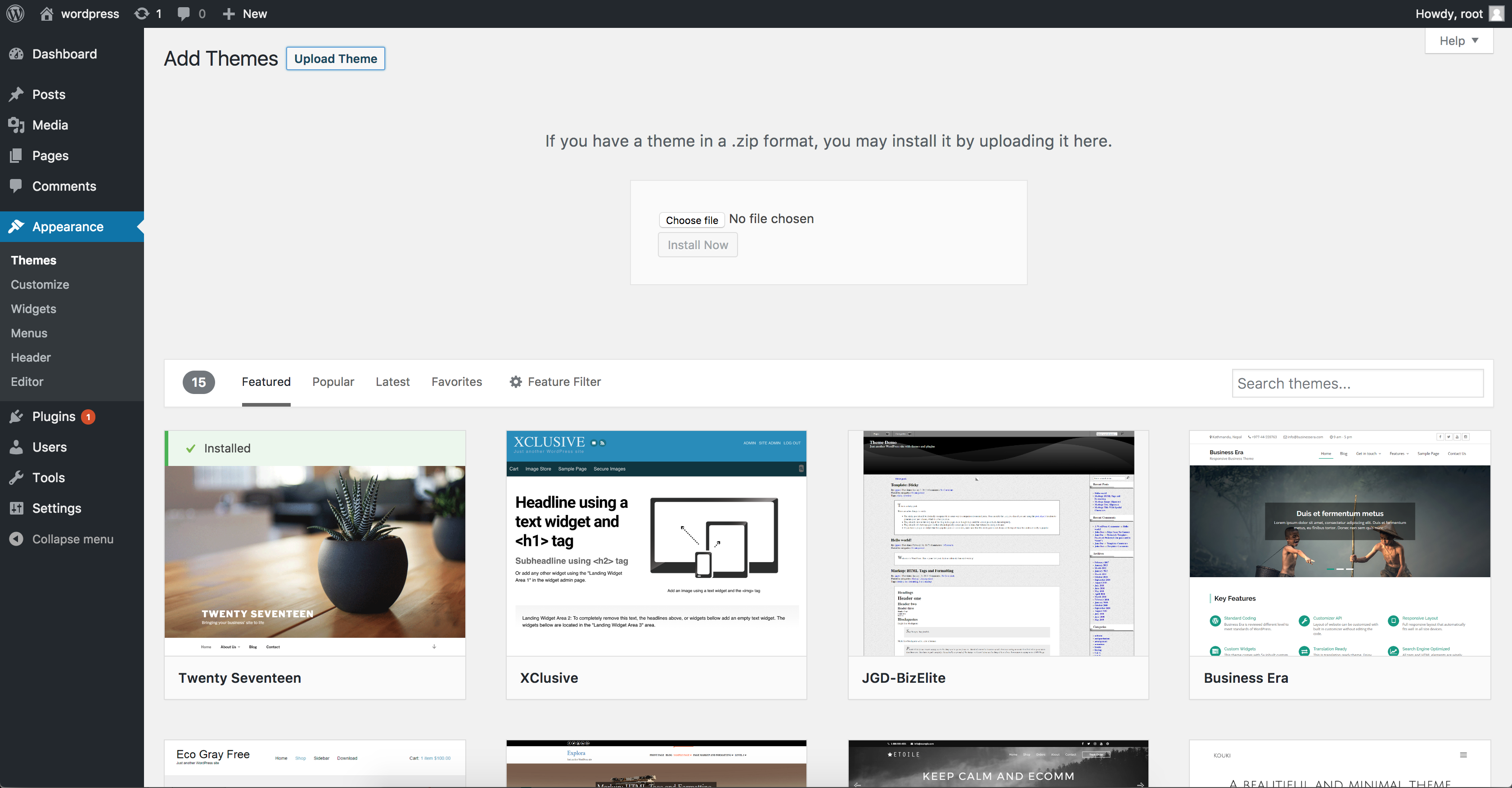
Have a theme file? Ensure it’s in ZIP format. Go to the WordPress dashboard and click on Appearance, then Themes. Choose Add New and then click Upload Theme. Select the ZIP file from your computer. Click Install Now. Wait for it to finish. Finally, click Activate to make it live.
Activating Your Theme
Start by logging into your WordPress dashboard. Look for the Appearance menu on the left. Click on it. Choose the Themes option. You will see many themes. Some are free. Some are paid. Pick the one you like most. Make sure it fits your site’s style. You can use the search bar for help.
Preview the theme before you select it. This helps you see how it looks. Check if it matches your needs. If you like it, proceed to the next step.
After choosing a theme, click on the Activate button. This will set the theme as your site’s active design. The new look will now show on your site. Check your site to see changes. Make sure everything looks good. If not, you can change themes anytime.
Uploading Theme Via Ftp
Choose an FTP client like FileZilla. Install it on your computer. Open the program. Enter your website details. You will need host name, username, and password. Click connect. Wait for connection.
Locate your theme files on your computer. Select the theme folder. Find your website folder in FTP client. Drag and drop the theme folder into the wp-content/themes directory. Wait for files to transfer. Check WordPress dashboard for new theme. Activate your theme.
Troubleshooting Common Issues
Uploading a theme to WordPress can bring challenges. Navigate the dashboard to find the ‘Appearance’ tab, then select ‘Themes. ‘ Use the ‘Upload Theme’ option to install your file. Ensure compatibility by checking theme requirements before starting.
Fixing Upload Errors
Upload errors can be frustrating. Make sure your theme is in a .zip file. The file should not be too large. Check the file size limit on your server. Sometimes, the server settings cause problems. Ask your hosting provider for help if needed.
Resolving Activation Problems
Themes may not activate for various reasons. Ensure the theme is compatible with your WordPress version. Older themes might not work well. Sometimes, plugins can cause conflicts. Try deactivating them one by one. If the problem continues, consider a different theme.
Testing Your Theme
View your theme on different devices. Check the layout on phones, tablets, and computers. Every element should be in the right place. Text should be clear and easy to read. Images should fit well on the screen. Navigation menus must be easy to use. Does the site look good? That’s important. Make sure everything aligns well.
Click on all links. They should go to the right page. Test the buttons. Do they work? Check forms too. Can you fill them out easily? Try out widgets. Are they doing their job? Look for errors or bugs. Fix them if you find any. Test the speed of your site. It should load fast. Slow sites can annoy users.
Credit: help.elements.envato.com
Frequently Asked Questions
How Do I Upload A Theme To WordPress?
To upload a theme, log into your WordPress dashboard. Navigate to Appearance > Themes > Add New. Click on “Upload Theme,” choose your theme file, and hit “Install Now. ” Once installed, click “Activate” to make it your site’s active theme.
Always ensure your theme is compatible with your WordPress version.
Can I Upload Any Theme To WordPress?
Yes, you can upload any theme, but ensure it’s compatible with WordPress. Check for theme updates and compatibility with your WordPress version. Using themes from reputable sources ensures better security and functionality. Always back up your site before making changes to the theme.
What File Format Should My Theme Be In?
Your theme should be in a. zip format for uploading. WordPress requires themes to be compressed into a. zip file. Ensure all theme files, including stylesheets and scripts, are inside the zipped folder. This format allows WordPress to correctly extract and install the theme components.
Why Can’t I Upload My Theme To WordPress?
There could be several reasons. Check if your theme is in. zip format and under the upload size limit. Ensure your WordPress version is compatible with the theme. Sometimes, server settings or permissions might block uploads. Contact your hosting provider if you encounter persistent issues.
Conclusion
Uploading a theme to WordPress is simple. Follow steps carefully. Start by logging into your dashboard. Navigate to the “Appearance” section. Click “Themes” then “Add New. ” Choose “Upload Theme” and select your file. Click “Install Now” and activate your theme.
Your site now has a new look. Remember, themes affect site design and function. Pick one that suits your needs. Regularly update your theme for security. Explore WordPress for more customization options. Enhance your site’s appearance and performance. Enjoy your new theme!


