

Are you ready to build your own website but don’t know where to start? Creating a WordPress website might sound tricky, but it’s easier than you think.
With just a few simple steps, you can have a professional-looking site up and running. Imagine having full control over your online space, whether it’s for your business, blog, or portfolio. This guide will walk you through everything you need to know to get your WordPress website live quickly and without confusion.
Keep reading, and you’ll discover how simple it can be to bring your ideas to life online.
Credit: neilpatel.com
Choosing The Right Hosting
Choosing the right hosting is a key step to start your WordPress website. Hosting affects your site’s speed, security, and reliability. A good host keeps your site online and fast. A poor host can cause slow loading and downtime.
Understand the different hosting types. Know which fits your budget and website needs. The right choice helps your site grow smoothly.
Shared Vs Dedicated Hosting
Shared hosting means many websites share one server. It costs less and is easy to use. Best for small sites or beginners. But, shared hosting can slow down if other sites use too many resources.
Dedicated hosting gives you a whole server. It costs more but offers fast speed and high security. Ideal for large websites with lots of visitors. You get full control and better performance.
Top Hosting Providers
Choose hosting providers with good reputation. Look for uptime guarantees and fast servers. Customer support is important for beginners. Some popular hosts are Bluehost, SiteGround, and HostGator. They offer plans for all budgets.
Setting Up Your Domain
Your domain is your website address online. Choose a simple and memorable name. Register your domain through your hosting provider or a domain registrar. Connect your domain to your hosting account. This makes your site live for visitors.
Credit: www.elegantthemes.com
Installing WordPress
Installing WordPress is the first step to building your website. It sets up the basic structure. This process can be quick or detailed, based on your choice. There are two main ways to install WordPress. One is easy and fast. The other is manual but gives more control.
One-click Installation
Many web hosts offer one-click WordPress installation. It saves time and effort. You only need to log in to your hosting account. Find the WordPress installer in the control panel. Click the install button and fill in some details. The system does the rest automatically. This method is perfect for beginners. It avoids technical steps and errors.
Manual Installation Steps
Manual installation takes a few more steps. First, download the WordPress files from the official website. Next, upload these files to your web server using FTP. Create a database in your hosting control panel. Note down the database name, user, and password. Then, open your website in a browser. WordPress will ask for the database details. Enter the information carefully. Finally, set your site title, username, and password. Click install and your WordPress site is ready.
Selecting A Theme
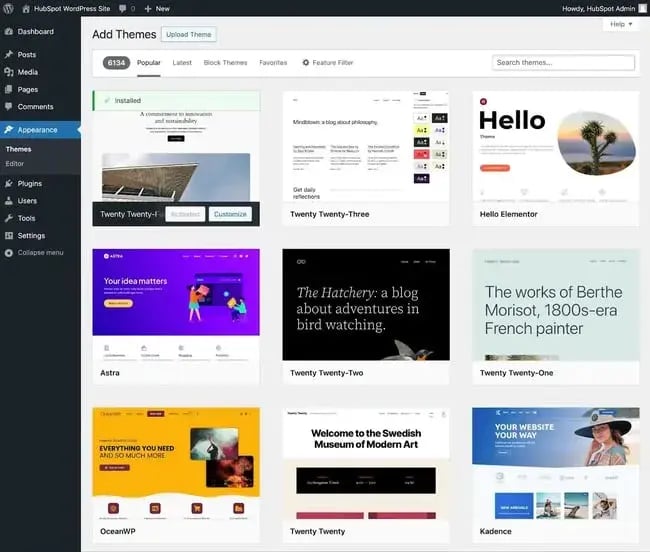
Selecting the right theme is a key step in building a WordPress website. It controls how your site looks and feels. A good theme makes your site easy to use and attractive. Choose a theme that fits your website’s purpose. It should also work well on phones and tablets. Themes can be changed anytime, so take your time to explore options.
Free Vs Premium Themes
Free themes are easy to find and use. They are good for beginners or small sites. Many free themes look nice and offer basic features. But, they may lack advanced options and support. Premium themes cost money but offer more features. These themes often include better designs and updates. They also come with support from developers. Pick a theme that matches your budget and needs.
Customizing Your Theme
Customization lets you change colors, fonts, and layouts. Many themes have built-in options for easy changes. Use the WordPress Customizer to see live previews. Customization helps make your site unique. Add your logo and change the header style. Adjust menus and widgets to improve navigation. Keep changes simple to keep your site fast and clean.
Essential Plugins To Install
Plugins add important features to your WordPress website. They help improve your site’s SEO, keep it safe, and make it faster. Choosing the right plugins is key for a strong website. Below are essential plugins every WordPress site should have.
Seo Plugins
SEO plugins help your website rank better on search engines. They guide you to use the right keywords and improve your content. These plugins also create sitemaps and control how your pages appear in search results. Popular SEO plugins are easy to use and give clear tips for improvement.
Security Plugins
Security plugins protect your site from hackers and malware. They monitor suspicious activity and block harmful traffic. These plugins can also back up your data and scan files for viruses. A good security plugin keeps your site safe without slowing it down.
Performance Plugins
Performance plugins speed up your website and improve user experience. They optimize images, enable caching, and reduce loading times. Faster sites rank better in search engines and keep visitors longer. These plugins work quietly in the background to make your site smooth and fast.
Creating Content Pages
Creating content pages is an essential step in building a WordPress website. Pages and posts form the backbone of your site’s information. They help you share your message clearly and organize your content effectively.
Understanding how to add and edit pages or posts gives you control over your website’s look and feel. This process is simple once you know the basics. It allows you to present your ideas in a clean and structured way.
Adding Pages And Posts
To add a new page or post, go to the WordPress dashboard. Click on “Pages” for static content like About or Contact pages. Choose “Posts” to create blog articles or news updates.
Click the “Add New” button at the top. This opens a blank page where you can start writing. Enter a title and add your content below. You can use text, images, videos, and links to make it engaging.
Using The Gutenberg Editor
WordPress uses the Gutenberg editor to build pages and posts. It works with blocks that hold different types of content. Each paragraph, image, or video is a separate block.
Blocks make it easy to move content around. You can add new blocks by clicking the plus (+) icon. Choose from text, headings, lists, images, and more.
The editor shows a clean workspace. It helps you focus on writing and arranging content. You can preview your page to see how it looks before publishing.
Design Tips For Stunning Sites
Design plays a big role in making a WordPress site stand out. A beautiful design keeps visitors interested and helps your message come through clearly. Simple changes can make your site look modern and easy to use.
Focus on clean layouts and clear fonts. Use colors that match your brand and make text easy to read. Keep your site organized so visitors find what they want fast.
Using Visual Builders
Visual builders let you design pages by dragging and dropping elements. They show changes live, so you see exactly how your site looks. No coding skills needed. Popular builders include Elementor and Beaver Builder. These tools save time and help create professional layouts.
Use columns, buttons, and images to create balance. Test your design on different screens. Visual builders often have templates to start from. Customize them to fit your style and content.
Incorporating Multimedia
Adding images and videos makes your site more lively. Use photos to explain ideas quickly. Videos can show your products or tell your story. Multimedia breaks up text and keeps visitors interested.
Choose high-quality files that load fast. Compress images to avoid slow pages. Use alt text for pictures to improve SEO and accessibility. Keep videos short and relevant to your content.
Mobile Responsiveness
Most visitors use phones to browse websites. Your WordPress site must look good on small screens. Responsive design adjusts layout automatically. Text stays readable and buttons easy to tap.
Test your site on different devices and browsers. Avoid large images that slow loading on mobile. Use simple navigation menus for easy browsing. Mobile-friendly sites rank better in search results.
Optimizing Site Speed
Optimizing site speed is key to a better user experience on your WordPress website. Fast-loading pages keep visitors interested and reduce bounce rates. A slow site can hurt your search engine rankings and lose potential customers.
Several techniques help improve site speed. Focus on reducing load times and making your website smooth to navigate. Two essential strategies are caching solutions and image optimization.
Caching Solutions
Caching saves a copy of your web pages for faster delivery. It reduces the work your server does each time someone visits. Many WordPress plugins offer easy caching options. These tools store static versions of your pages, so they load quickly for repeat visitors.
Choose a caching plugin that fits your site size and traffic. Popular options include WP Super Cache and W3 Total Cache. Set the caching rules to refresh content regularly but not too often. This balance keeps pages fast and up to date.
Image Optimization
Large images slow down your website. Compress images without losing quality to reduce file size. Use tools like TinyPNG or built-in WordPress features to optimize images before uploading. Proper image format choice also matters. JPEG works well for photos, and PNG is better for graphics.
Resize images to fit the space on your site. Avoid using very large images and scaling them down with code. This wastes bandwidth and increases load time. Optimized images improve speed and create a smoother browsing experience.
Securing Your Website
Securing your WordPress website protects your content and visitors. It keeps hackers and malware away. Simple steps can make your site much safer. Focus on backups and SSL to start strong.
Setting Up Backups
Backups save your website data regularly. They help restore your site after a crash or attack. Use plugins like UpdraftPlus or BackupBuddy for easy backup setup. Store backups in remote locations like cloud storage. Check backups often to ensure they work well. Having recent backups reduces stress during problems.
Implementing Ssl
SSL encrypts data between your site and users. It protects passwords, payments, and personal info. Most web hosts offer free SSL certificates via Let’s Encrypt. Activate SSL in your hosting control panel or WordPress plugin. SSL shows a padlock icon in the browser address bar. This builds trust and improves your search ranking.
Launching Your Site
Launching your WordPress website is an exciting step. It means your site is ready for visitors. Before going live, take time for careful preparation. This ensures your site works well and looks good on all devices. A smooth launch builds trust and attracts visitors.
Final Checks
Check every page for spelling and grammar errors. Test all links to make sure they work. Review your images to see if they load quickly. Confirm your site is mobile-friendly and looks good on phones. Verify your contact forms send messages correctly. Ensure your SEO settings are in place for better search results.
Promoting Your Website
Share your new site on social media platforms. Tell friends, family, and colleagues about it. Use email newsletters to reach your audience directly. Consider writing blog posts to attract visitors. Submit your site to search engines for faster indexing. Join online groups to discuss your website topic. Promotion helps more people discover your site quickly.
Credit: blog.hubspot.com
Frequently Asked Questions
How Do I Start Creating A WordPress Website?
Begin by choosing a domain and hosting provider. Install WordPress through your host’s control panel. Select a theme and customize it to fit your brand. Add essential plugins to enhance functionality and create content pages to launch your site effectively.
What Are The Best Plugins For WordPress Websites?
Essential plugins include Yoast SEO for optimization, WooCommerce for e-commerce, and Contact Form 7 for forms. Use caching plugins like W3 Total Cache to improve speed. Choose plugins that enhance security, SEO, and user experience without slowing your site.
How Can I Optimize My WordPress Website For Seo?
Use SEO-friendly themes and install an SEO plugin like Yoast. Optimize your content with relevant keywords and meta tags. Improve site speed, use descriptive URLs, and create a sitemap. Regularly update your website to maintain search engine rankings.
Is WordPress Suitable For Beginners?
Yes, WordPress is user-friendly with a simple dashboard and many tutorials. It requires no coding skills to build basic sites. Beginners can customize themes and add plugins easily. It’s a popular choice for first-time website creators.
Conclusion
Building a WordPress website is easier than you might think. Follow the steps carefully, and you can create a site that fits your needs. Choose themes and plugins that match your style and goals. Keep your content clear and simple for visitors to understand.
Regular updates keep your site safe and running well. Practice will help you improve over time. Start today, and watch your website grow bit by bit.


