
Have you ever dreamed of creating your own Minecraft universe where you and your friends can explore, build, and conquer together? Hosting your own Minecraft server can turn that dream into reality.
Imagine having full control over your game environment, setting your own rules, and inviting your friends to join in on the adventure whenever they want. Sounds exciting, right? But if you’re thinking this process is complicated, think again. You don’t need to be a tech wizard to get started.
With a few simple steps, you can transform your computer into a powerful playground for creativity and collaboration. This guide will walk you through everything you need to know about web hosting your own Minecraft server. You’ll discover not only how to set it up, but also tips and tricks to ensure it runs smoothly, keeping your gaming experience seamless and fun. Whether you’re a seasoned gamer or a curious newbie, stick around to unlock the secrets of hosting your very own Minecraft world. Let’s dive in and get your server up and running!
Choosing The Right Hosting Option
Dedicated servers give you full control. No sharing with others. Perfect for big Minecraft communities. More expensive but reliable. Shared hosting means sharing resources. Less costly but less control. Others might slow down your server.
Cloud hosting offers flexibility. Scale up or down based on needs. Pay for what you use. Great for growing servers. Backups keep data safe. Access server from anywhere. Good for teams working remotely.

Credit: www.youtube.com
Setting Up Your Server
To host a Minecraft server, your computer needs to be strong. It should have at least 4GB RAM. A fast CPU is also needed. Windows, Mac, or Linux can run the server. An internet connection is important too. Make sure it’s stable and fast. Enough disk space is necessary for game files. Always check your computer meets these needs before starting. This will help the game run smoothly.
First, install Java on your computer. Minecraft needs Java to run. Visit the official Java website. Download the latest version from there. Follow the steps to install it. Next, download the Minecraft server file from Minecraft’s site. Save it to a folder on your computer. Run the file to start the server. Make sure to agree to the terms and conditions. Now, your server is ready to use.
Configuring Server Settings
Setting up a Minecraft server involves adjusting server settings for optimal gameplay. Customize server properties for player limits, world size, and game mode. Ensure secure connections by configuring firewall rules and port forwarding correctly.
Adjusting Memory Allocation
Minecraft needs memory to run smoothly. It’s important to give it enough. More memory makes the game run better. Open your server files. Find the launch file. Look for the line with “-Xmx” and “-Xms”. These control memory. Change them to a higher number. But don’t use all your computer’s memory. Leave some for other programs. More memory means less lag.
Editing Server Properties
Server properties change how your server works. Open the “server.properties” file. Use a text editor to make changes. Each line does something special. The “motd” line shows your server name. Change it to something fun. “difficulty” changes how hard the game is. Choose easy, normal, or hard. “gamemode” sets the game mode. Pick survival or creative. Make changes, then save the file. Restart the server to see them.
Network Configuration
Port forwarding helps connect your Minecraft server to the internet. First, access your router settings. Find the port forwarding section. Enter the Minecraft server port, usually 25565. Set your device’s IP address. This tells the router where to send game data. Save changes when done. Now, players can join your server from anywhere. Make sure to follow all steps. It’s important for a successful setup.
A static IP is important for a stable connection. Go to your network settings. Find the option for setting a static IP. Choose an IP address outside the DHCP range. This avoids conflicts with other devices. Enter the subnet mask and default gateway. Save the settings. Your server now has a fixed IP. This helps other players find your server easily. Always double-check your entries. Mistakes can cause connection issues.
Enhancing Server Security
A firewall is like a safety guard for your server. It blocks unwanted visitors. Set up rules to allow safe connections. Keep your server safe from hackers. Use simple software for this. It helps to protect your server better. Always check your firewall settings. Change them if needed. This keeps your server secure.
Backups are copies of your server data. They save your work if something goes wrong. Make backups often. Use automated tools to help. Store backups in a safe place. Cloud storage is a good choice. It’s easy to access when needed. Backups protect your progress. Don’t forget to make them regularly.
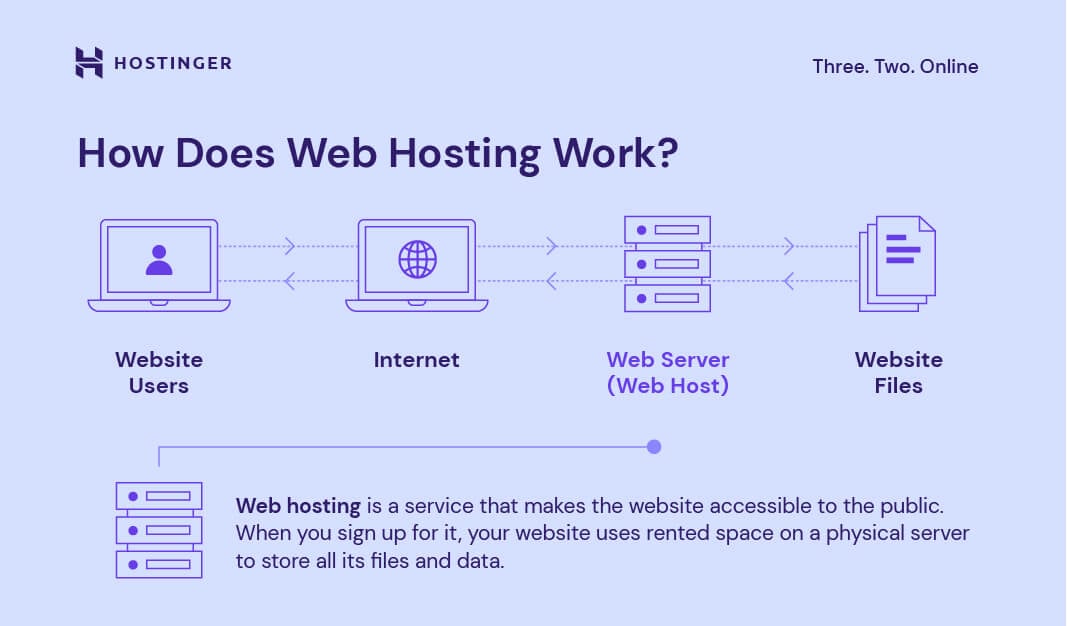
Credit: www.hostinger.com
Managing Server Performance
Every Minecraft server needs enough resources. This includes CPU, RAM, and storage. Too many plugins or mods can slow it down. Use only what you need. Allocate enough RAM for smooth gameplay. Avoid overloading the server with many tasks. Fewer tasks mean better performance. Keep your server software updated. Updates fix bugs and improve speed.
Regular checks are vital. Keep an eye on server health. Use monitoring tools to track performance. Tools show how much CPU and RAM are used. Look for any unusual spikes. High usage can mean trouble. Check for errors in the server logs. Logs help find and fix problems quickly. A healthy server means happy players.
Customizing The Minecraft Experience
Mods and plugins make Minecraft more fun. They add new features and tools. Mods change how the game looks and feels. Plugins can add new commands or even mini-games. Always check if a mod or plugin is safe. Download them from trusted sites. Follow the install instructions. Each mod or plugin has its own steps. Keep your game updated. This helps mods and plugins work well.
You can make your own Minecraft world. Use a world editor to change the land and sky. Add mountains, rivers, and forests. Choose where animals and villages appear. Some tools let you paint the land. Others help you plan big builds. Save your work often. Custom worlds make the game exciting.
Building A Community
Clear rules make games fun. Everyone knows what to do. This keeps the game fair. Safety is important too. Bad words or actions are not okay. Rules help keep players safe. Write rules that are easy to understand. Share them with all players. Ask players to agree to the rules. This helps everyone have fun. Players like clear rules.
Talk to players often. Ask them if they need help. Listen to their ideas. This makes them feel important. Thank players for good ideas. Hold fun events in the game. Everyone can join. Make special days like game nights. Celebrate small wins together. This makes the game exciting. Players will want to come back.
Troubleshooting Common Issues
Setting up a Minecraft server can have hiccups like connection issues or lag. Check firewall settings and ensure proper port forwarding. Regularly update server software to fix bugs.
Resolving Connection Problems
Connection issues can be frustrating. Check your internet connection. Ensure the router is working fine. Use a wired connection if possible. This can help stability. Check the server address. Make sure it’s typed correctly. If not, you can’t connect. Firewalls can block connections. Ensure they allow Minecraft traffic. Sometimes, restarting the server helps. It can clear minor glitches.
Fixing Lag And Performance Issues
Lag can ruin the game experience. Check the server’s RAM. Minecraft needs enough memory to run smoothly. Reduce player count if needed. Too many players can cause lag. Plugins can slow down the server. Disable any unnecessary ones. Update server software regularly. New updates fix bugs and improve performance. Ensure the server hardware is up to the task. Older hardware might struggle.

Credit: www.bitcatcha.com
Frequently Asked Questions
Can I Host A Minecraft Server For Free?
Yes, you can host a Minecraft server for free using platforms like Aternos or Minehut. These services provide free hosting with limitations on server size and customization. They are suitable for small, casual groups. For more control, consider paid hosting options.
Always check terms of service for details.
How Do I Host A Minecraft World For Friends?
Host a Minecraft world by setting up a dedicated server. Download server software from Minecraft’s official site. Configure settings, ensure your network supports port forwarding, and share the server IP with friends. Alternatively, use third-party hosting services for ease and reliability.
Can A Minecraft Server Always Be Online?
A Minecraft server can stay online constantly if hosted on a reliable platform or dedicated hardware. Ensure sufficient RAM, CPU, and bandwidth. Regular maintenance and monitoring help prevent downtime. Choose a dependable hosting provider for round-the-clock availability.
Is There A 24 7 Free Hosting For Minecraft?
Free 24/7 Minecraft hosting is rare. Most services have limitations or require upgrades for uninterrupted access. Consider using reliable paid options for stable, continuous gameplay.
Conclusion
Setting up a Minecraft server is straightforward with the right steps. Choose a reliable hosting provider. Configure your server settings carefully. Ensure your internet connection is strong. Regularly update your server to avoid issues. Engage with your community for feedback.
A well-hosted server provides endless fun and creativity. Enjoy building, exploring, and playing with friends. Embrace the adventure that awaits in the Minecraft world. Happy hosting!


