
Have you ever downloaded a WordPress theme and then found yourself wondering, “What do I do next?” You’re not alone.
Many people grab a theme they love but feel stuck when it comes to actually using it. Whether you’re launching your first blog or revamping an existing site, knowing how to effectively use your downloaded WordPress theme can make all the difference.
Imagine turning your vision into reality with just a few clicks. In this guide, we’ll walk you through everything you need to know to make your theme work for you. You’ll discover simple, actionable steps that will empower you to take full control of your website design. Keep reading to unlock the secrets of transforming your site into something truly remarkable.
Installing The Theme
First, log into your WordPress Dashboard. This is your site’s control center. You will see many options here. Find the one named “Appearance”. Click on it.
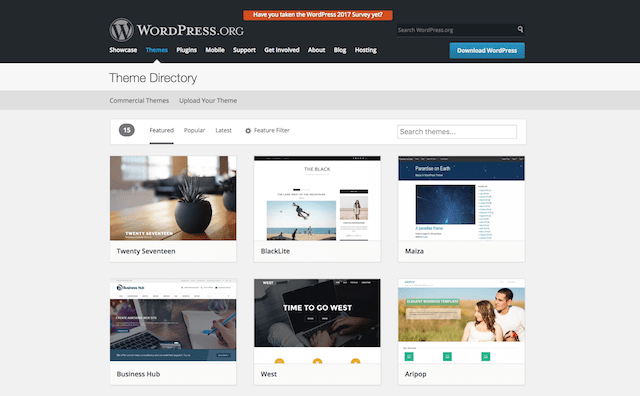
Under “Appearance”, click on “Themes”. You will see a button called “Add New”. Click it. Next, choose “Upload Theme”. Select the theme file you downloaded.
Make sure the file is in .zip format. Click “Install Now”. Wait a few moments. The upload will complete.
Once the theme is uploaded, click “Activate”. Your new theme will be live. Check your site to see changes. If needed, customize it further. Themes often have settings to tweak.

Credit: hostadvice.com
Customizing Your Theme
Explore how to personalize your downloaded WordPress theme effortlessly. Start by installing the theme from your dashboard. Customize appearance with built-in options to align with your brand’s style and needs.
Using The Theme Customizer
The Theme Customizer lets you change your site’s look. You can see changes in real time. This tool is easy to use. Open the WordPress dashboard. Then click on “Appearance”. Next, click “Customize”. Now, you can start making changes. Always save your changes. Your site will look just how you want.
Adjusting Colors And Fonts
Colors and fonts can make your site unique. Choose colors that match your brand. Pick fonts that are easy to read. Go to the “Colors” section. Here, you can change the color scheme. Go to “Fonts” to select your text style. Always check how it looks on different devices.
Configuring Header And Footer
Headers and footers show important info. Go to the “Header” section to customize. You can add a logo or change the menu. In the “Footer” section, add contact info. Include links to social media. Make sure everything looks neat and tidy.
Adding Essential Plugins
Enhance your WordPress theme with essential plugins for added functionality. Boost site performance and improve user experience effortlessly. Select and install the right plugins to complement your theme’s design.
Choosing Compatible Plugins
Compatible plugins keep your WordPress site running smooth. Search for plugins that fit your theme. Check reviews and ratings. Make sure they work with your WordPress version. Avoid plugins with low ratings or bad feedback.
Installing And Activating Plugins
Go to your WordPress dashboard. Find the Plugins section. Click on “Add New”. Search for the plugin you need. Click Install Now. Once installed, click Activate. The plugin is now ready to use.
Enhancing Functionality With Plugins
Plugins add more features to your site. Use them to improve security, speed, and design. Some plugins help with SEO. Others make your site load faster. Choose plugins that meet your needs. This will make your site better.
Credit: www.godaddy.com
Managing Theme Settings
WordPress themes have many options. You can change the look and feel. Start by checking the theme options menu. It is usually found in the dashboard. Colors, fonts, and backgrounds can be changed here. Look for settings that make your site special. Each theme is different. Explore the options available. Try different combinations. Find what looks best for your site.
The layout is how things are placed on your site. Themes offer different designs. Choose a design that fits your needs. Grid layout or single column? It’s your choice. Design affects how users see your site. Make sure it is easy to navigate. Good design keeps visitors longer. Play around with it. Adjust the header and footer. Make your site unique.
Widgets add fun tools to your site. Sidebars hold these widgets. Click on the widgets menu in the dashboard. Add or remove widgets easily. Some widgets show recent posts. Others show social media links. Sidebars can have many widgets. Choose ones that are helpful. Place widgets where users can see them. Sidebars make your site organized.
Optimizing For Performance
Improving Load Times is crucial for a website. Reduce image sizes to speed up. Compress files for better loading. Use lightweight plugins to avoid lag. A fast site keeps visitors happy.
Ensuring Mobile Responsiveness makes your site fit all screens. Check your theme adjusts well on phones and tablets. A responsive site welcomes mobile users. Test your site on different devices often.
Utilizing Caching Solutions saves your site’s data for quick access. Use caching plugins to store content. Cached pages load faster for users. This boosts your site’s performance greatly.
Troubleshooting Common Issues
Downloading a WordPress theme opens new design possibilities. Activate your theme via the WordPress dashboard. Navigate to Appearance > Themes, then click “Activate” for your downloaded theme. Adjust settings under “Customize” for a tailored look. Troubleshooting can involve checking theme compatibility or plugin conflicts.
Resolving Theme Conflicts
Theme conflicts can cause problems. Start by deactivating all plugins. Then, activate them one by one. This helps find the troublesome plugin. If this doesn’t work, change the theme to a default one. Check if the issue goes away. Always keep your themes and plugins updated.
Handling Update Problems
Updates can sometimes break things. Before updating, backup your site. If something goes wrong, you can restore it. If an update fails, try manually updating the theme. This can be done through FTP. Make sure your hosting supports the latest PHP version.
Fixing Display Errors
Display errors make your site look bad. Clear your browser cache first. This often solves the issue. If not, check your theme settings. Sometimes settings can reset. Also, ensure that custom CSS is correct. Invalid CSS can cause display errors. If errors persist, contact theme support.
Seeking Support And Resources
Download a WordPress theme and explore support forums and tutorials to set it up. Online resources simplify theme customization. Learning step-by-step ensures a smooth website creation journey.
Accessing Theme Documentation
Theme documentation helps to understand your theme better. Many themes come with a user guide or a detailed manual. This explains how to set up and use the theme. Always read the documentation first. It saves time and reduces confusion.
Joining Community Forums
Forums are great for getting help. Many people ask and answer questions. You can learn from their experiences. Forums are places where users share tips and tricks. Be active and participate. It helps to solve problems faster.
Contacting Theme Developers
Developers know their themes best. If you face issues, you can reach out to them. They offer guidance and support. Always be polite and clear when describing your problem. This helps them to assist you better.
Credit: themeforest.net
Frequently Asked Questions
How To Upload A Downloaded WordPress Theme?
To upload a theme, log into your WordPress dashboard. Navigate to “Appearance” and then “Themes. ” Click “Add New” and then “Upload Theme. ” Choose your downloaded theme file and click “Install Now. ” Once installed, activate the theme to apply it to your site.
Can I Customize The Downloaded WordPress Theme?
Yes, you can customize it. Use the WordPress Customizer by going to “Appearance” and then “Customize. ” Here, you can adjust settings like colors, fonts, and layout. Some themes might offer additional options through their specific settings panel.
What If The WordPress Theme Is Not Working?
First, ensure the theme is compatible with your WordPress version. Check for theme updates or conflicts with plugins. Deactivate all plugins and reactivate them one-by-one to identify issues. If problems persist, consider contacting the theme developer for support.
How To Change WordPress Theme Without Losing Content?
Switching themes won’t delete your content. Go to “Appearance” and then “Themes. ” Click “Activate” on your new theme. Check that your content displays correctly. Ensure widgets and menus are set up properly after the switch, as they might need adjustments.
Conclusion
You’ve learned how to use the WordPress theme you downloaded. Start by activating it through your dashboard. Customize colors and fonts to match your style. Add widgets to enhance functionality. Don’t forget to check for theme updates. Regular updates improve security and performance.
Explore plugins for added features. Always test changes before making them live. This ensures your site looks and works well. With these steps, your WordPress site will shine. Enjoy creating and sharing your content online. Happy blogging!


