

If you’ve ever thought about building your own website but felt overwhelmed by where to start, WordPress software is here to make it simple for you. Whether you want to create a personal blog, an online store, or a professional portfolio, WordPress gives you the tools to bring your ideas to life without needing to be a tech expert.
In this guide, you’ll discover clear, step-by-step instructions on how to use WordPress software effectively — from setting up your site to customizing it just the way you want. Stick with me, and you’ll soon see how easy it can be to create a powerful website that works for you.
Ready to get started? Let’s dive in!
WordPress Basics
Understanding the basics of WordPress is essential for anyone starting a website.
It is a popular platform that allows you to create and manage websites with ease.
Knowing what WordPress is, its types, and how it works helps you use it effectively.
What Is WordPress
WordPress is a content management system (CMS) used to build websites.
It lets you create pages, posts, and manage media without coding skills.
It is free and open-source software, making it accessible for all users.
Types Of WordPress
There are two main types: WordPress.com and WordPress.org.
WordPress.com is hosted for you; it handles security and backups.
WordPress.org is self-hosted; you install the software on your own server.
Self-hosted WordPress offers more control and customization options.
How WordPress Works
WordPress runs on a web server using PHP and a database called MySQL.
It uses themes to control the site’s design and plugins to add features.
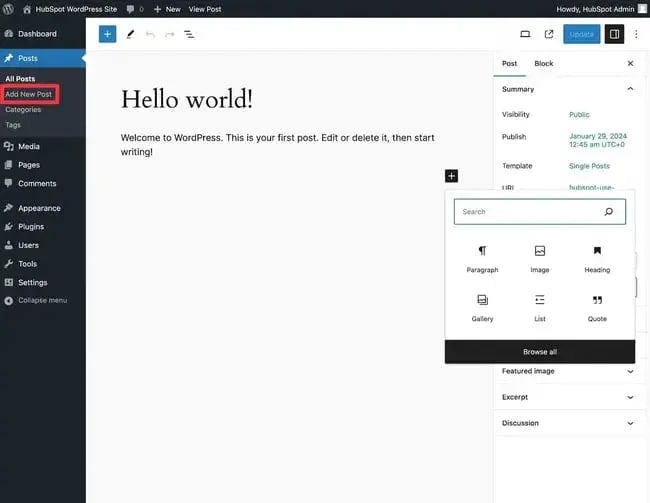
You manage your site through an admin dashboard with easy controls.
All content is stored in the database and shown on your site dynamically.
Credit: blog.hubspot.com
Setting Up WordPress
Setting up WordPress is the first step to creating your website. It involves choosing the right hosting and domain, installing the software, and configuring the basic settings. These tasks prepare your site to be visible and functional on the web. Follow these steps carefully to get your WordPress site running smoothly.
Choosing Hosting And Domain
Select a reliable hosting provider that fits your budget and needs. Hosting stores your website files and makes them accessible online. Pick a domain name that matches your brand or topic. The domain is your website’s address on the internet. Make sure it is easy to remember and spell.
Installing WordPress
Many hosting services offer one-click WordPress installation. This option saves time and simplifies the setup. If one-click install is unavailable, download WordPress from the official site. Upload the files to your hosting account using FTP. Then, run the installation script by visiting your domain in a browser.
Configuring Basic Settings
After installation, log in to your WordPress dashboard. Set your site title and tagline in the settings menu. Choose a preferred timezone and language for your site. Configure the permalink structure to improve SEO. Save these changes to ensure your site runs as expected.
Navigating The Dashboard
Navigating the WordPress dashboard is your first step to managing a website. The dashboard is the control center where you handle all site functions. Understanding its layout helps you work faster and avoid confusion.
The dashboard shows you an overview of your site, posts, and settings. It also lets you control users and customize menus. Let’s explore the key parts of the dashboard to get you started.
Dashboard Overview
The dashboard opens with a summary of your site’s activity. You see recent posts, comments, and updates here. A menu on the left side guides you to different sections. These include posts, media, pages, comments, and settings.
At the top, you find quick links to create new posts or view your site. The dashboard also shows alerts for updates or important notices. This overview helps you keep track of your website’s health and content.
Managing Users
The Users section helps you add, edit, or remove people with site access. You can assign roles like Administrator, Editor, Author, or Subscriber. Each role has different permissions to keep your site secure.
Adding users is simple: enter their email and choose a role. You can also edit user profiles to update contact info or passwords. Managing users ensures the right people have the right access.
Understanding Menus
Menus control the navigation links visitors see on your site. You can create new menus or edit existing ones in the Appearance section. Drag and drop menu items to change their order.
Menus can include pages, posts, categories, or custom links. Assign a menu to a specific location like header or footer. Well-organized menus improve user experience and site navigation.
Credit: www.whitepeakdigital.com
Creating Content
Creating content is a key part of using WordPress effectively. It lets you share your ideas, products, or services with visitors. WordPress makes content creation simple and flexible. You can write articles, build pages, and manage your media easily. Understanding how to create content helps you keep your site fresh and engaging.
Using The Gutenberg Editor
The Gutenberg editor uses blocks to build content. Each block can be a paragraph, image, video, or other element. This method allows you to arrange content visually. You can add, move, or delete blocks with a few clicks. The editor also offers styling options for each block. It works well for beginners and advanced users alike.
Adding Posts And Pages
Posts are for timely content like news or blog updates. Pages are for static content like About or Contact pages. To add a new post or page, go to the WordPress dashboard. Click on “Add New” under Posts or Pages. Enter your title and use the Gutenberg editor to add content. When ready, publish your post or page to make it live.
Managing Media Files
Media files include images, videos, and documents. WordPress lets you upload and organize these files easily. Use the Media Library to view and manage all your uploads. When editing content, you can insert media directly from the library. Proper media management keeps your site organized and speeds up loading times.
Customizing Appearance
Customizing the appearance of your WordPress site helps create a unique look. It reflects your style and brand. WordPress offers many tools to change how your site looks. You can select themes, adjust settings, and add features. These options work without needing to code.
Selecting And Installing Themes
The theme controls the overall design of your site. WordPress has thousands of free and paid themes. You can find themes in the WordPress Theme Directory. To install a theme, go to your dashboard, then Appearance > Themes > Add New. Choose a theme that fits your style and click Install. After that, activate the theme to apply it to your site.
Using The Customizer
The Customizer lets you change many parts of your site in real time. Access it via Appearance > Customize in your dashboard. You can edit colors, fonts, and site identity like the logo and title. The live preview shows changes before saving. Adjusting settings here is simple and quick. It helps make your site look just right.
Adding Widgets And Menus
Widgets add extra features to sidebars, footers, and other areas. Examples include search bars, recent posts, and calendars. Find widgets under Appearance > Widgets. Drag and drop widgets into widget areas. Menus control your site’s navigation. Create menus in Appearance > Menus. Add pages, posts, or links to menus. Organize menu items by dragging them into place.

Credit: jetpack.com
Extending Functionality
WordPress is a flexible platform that grows with your needs. Extending its functionality allows you to add new features easily. This process makes your website more powerful and tailored to your goals.
Plugins are the key to expanding what WordPress can do. They add everything from contact forms to SEO tools. Understanding how to install and manage plugins helps you keep your site running smoothly.
Installing Plugins
To install a plugin, go to your WordPress dashboard. Click on “Plugins” and then “Add New.” Search for a plugin by name or feature. Click “Install Now” and then “Activate.” The plugin is now ready to use.
Always choose plugins with good ratings and recent updates. This ensures compatibility and security for your site.
Essential Plugins For Beginners
Some plugins are great for starting out. Consider installing a security plugin to protect your site. SEO plugins help improve your search engine ranking. Contact form plugins make it easy for visitors to reach you.
Other useful plugins include caching tools for faster loading and backup plugins to save your data.
Managing Plugin Updates
Plugins need regular updates for best performance. Updates fix bugs and improve security. Check your dashboard often for available updates. Click “Update Now” to apply changes safely.
Before updating, back up your site. This prevents data loss if something goes wrong. Keeping plugins up to date helps your website stay secure and fast.
Managing Seo
Managing SEO on your WordPress site is vital to improve visibility on search engines. Good SEO helps attract more visitors and grows your audience.
WordPress offers several ways to manage SEO effectively. You can adjust basic settings, use specialized plugins, and optimize your content. Each step plays a key role in boosting your site’s ranking.
Basic Seo Settings
Start by setting your site title and tagline clearly. These appear in search results and must describe your site well. Enable search engine visibility in your WordPress settings to allow indexing. Use clean and simple URLs by activating the permalink structure in settings. This makes links easier to read and share.
Using Seo Plugins
SEO plugins simplify managing your site’s SEO. Popular plugins like Yoast SEO and All in One SEO provide tools to edit titles, meta descriptions, and keywords. They also generate XML sitemaps automatically. These sitemaps help search engines find your pages faster. Plugins offer content analysis to improve readability and keyword use.
Optimizing Content For Search
Write clear and concise titles with relevant keywords. Include keywords naturally in your text, headings, and image alt tags. Use short paragraphs and bullet points to improve readability. Add internal links to other pages on your site to keep visitors engaged. Regularly update your content to keep it fresh and relevant. Fast loading speed and mobile-friendly design also improve SEO.
Handling Security
Handling security is a vital part of managing a WordPress website. Protecting your site keeps your data safe and your visitors secure. Understanding common risks, following best practices, and using the right tools can reduce threats. A secure site builds trust and improves your site’s reputation.
Common Security Risks
WordPress sites face risks like hacking attempts and malware infections. Outdated plugins or themes can open doors to attackers. Weak passwords make it easier for hackers to gain access. Poor hosting settings can also cause vulnerabilities. Understanding these risks helps you prevent problems early.
Best Security Practices
Keep WordPress, themes, and plugins updated regularly. Use strong passwords with a mix of letters, numbers, and symbols. Limit login attempts to stop brute force attacks. Set correct user roles and permissions carefully. Always back up your site to recover from any issues fast.
Using Security Plugins
Security plugins add extra protection to your WordPress site. They scan for malware and block suspicious activities. Some plugins offer firewall protection and login security features. Choose trusted plugins with good reviews and regular updates. Install only what you need to avoid slowing down your site.
Maintaining Your Site
Maintaining your WordPress site is essential for its performance and security. Regular care keeps the site running smoothly. It also protects your content and visitors.
Simple tasks done often prevent bigger problems later. This section covers key maintenance steps every WordPress user should know.
Backing Up Your Site
Backing up creates a copy of your entire site. It saves your content, themes, and settings. Use plugins like UpdraftPlus or BackupBuddy for easy backups.
Schedule backups regularly, such as weekly or monthly. Store backups on a different location, like cloud storage or your computer. This keeps your data safe in case of errors or hacking.
Updating WordPress Core
WordPress releases updates to improve features and fix security issues. Update the WordPress core often to keep your site safe. Updates also help your site work with new themes and plugins.
Before updating, backup your site to avoid data loss. Check if your plugins and themes are compatible with the new version. Then, update from the WordPress dashboard with one click.
Troubleshooting Common Issues
Problems can happen, like slow loading or plugin conflicts. Start troubleshooting by disabling all plugins. Then, activate them one by one to find the issue.
Switch to a default theme like Twenty Twenty-One to check theme problems. Clear your browser and site cache to fix display errors. If problems persist, contact your hosting provider or check WordPress forums for help.
Learning Resources
Learning WordPress software opens many doors for building websites. A variety of resources exist to guide beginners and experienced users. These resources help users understand WordPress’s features and tools. They offer step-by-step instructions for creating and managing websites.
Choosing the right learning material speeds up the process. It builds confidence in handling the WordPress platform. The options range from free tutorials to paid courses. Each type suits different learning styles and budgets.
Free Tutorials And Guides
Free tutorials and guides offer a great start for beginners. Many websites and YouTube channels provide clear, simple instructions. These cover topics like setting up a site, using themes, and adding plugins. They allow learners to move at their own pace without cost. Beginners can explore WordPress basics without pressure. Examples include video tutorials, blog posts, and downloadable PDFs.
Official WordPress Support
The official WordPress support site is a reliable resource. It contains detailed documentation for all WordPress versions. Users find answers to common questions and troubleshooting tips. The support forums connect users with a community of experts. This helps solve specific problems quickly. The official site also updates regularly with new features and guides.
Paid Courses And Training
Paid courses offer structured learning for deeper knowledge. They often include video lessons, quizzes, and direct instructor support. These courses cover advanced topics like custom themes and plugin development. Many platforms offer certification after course completion. Paid training suits users who want fast progress and expert guidance. It provides a clear learning path and practical projects.
Frequently Asked Questions
How To Use WordPress As A Beginner?
Start by choosing a hosting service and installing WordPress. Use the intuitive dashboard to create posts and pages. Customize your site with themes and plugins. Explore the block editor for easy content formatting. Practice regularly and use free tutorials to enhance your skills.
Why Are People Moving Away From WordPress?
People move away from WordPress due to security concerns, complex customization, plugin conflicts, and performance issues. Some prefer simpler, more secure alternatives.
How Difficult Is It To Learn WordPress?
Learning WordPress basics is easy due to its user-friendly interface. Advanced features require more time and technical skills. Creating simple sites takes less effort, while mastering customization and development demands dedication and coding knowledge. Many free tutorials and courses help beginners learn effectively.
How Does WordPress Work Step By Step?
WordPress works by installing on a web server, choosing a theme, and adding plugins. Users create content via the editor. The system stores data in a database and displays pages dynamically to visitors. Regular updates keep the site secure and functional.
Conclusion
WordPress software offers a simple way to create websites. Its user-friendly tools help beginners start quickly. Exploring themes and plugins adds more features to your site. Regular updates keep your site safe and running well. Practice and patience improve your WordPress skills over time.
Keep learning step-by-step to build a strong online presence. Start small, stay consistent, and enjoy the process. WordPress is a useful tool for many website needs.


