
Are you looking to supercharge your WordPress theme with custom functions but unsure where to start? You’re not alone.
Many WordPress users and developers want to enhance their website’s functionality without relying solely on plugins. The good news? You can do this by tapping into WordPress functions directly within your theme. This approach not only streamlines your site but also grants you greater control over its features and performance.
Imagine the possibilities of crafting a unique user experience that stands out. Curious to learn how to leverage these powerful tools to transform your website? Keep reading to discover simple, actionable steps that can elevate your WordPress theme to new heights.

Credit: jetpack.com
Setting Up The Theme Environment
Selecting a theme is important. A good theme makes your site look nice. Pick a theme that fits your needs. Check if it’s responsive. This means it looks good on phones and computers. Look for themes with good support. This helps if you have problems later. Read reviews to see what others think. A theme with updates is better. It keeps your site secure.
A child theme is useful. It lets you change things easily. You don’t lose changes when the theme updates. First, create a new folder for the child theme. Name it something easy to remember. Add a style.css file. Write some basic information in it. Link it to the main theme. Use the functions.php file to add more features. This keeps your main theme safe.
Understanding WordPress Functions
WordPress has many core functions. They help in creating themes. These functions are built-in. They make coding easy. Functions such as get_header() and get_footer() are vital. They fetch parts of the theme. Using these functions saves time. They are reliable and tested. Developers use them often.
Sometimes, you need custom functions. These are special functions. You write them yourself. They meet specific needs. Use them for unique features. Custom functions add personal touch. They enhance the theme. Write simple code. Test it well. Integrate it smoothly. Custom functions make your theme stand out.
Adding Custom Functions
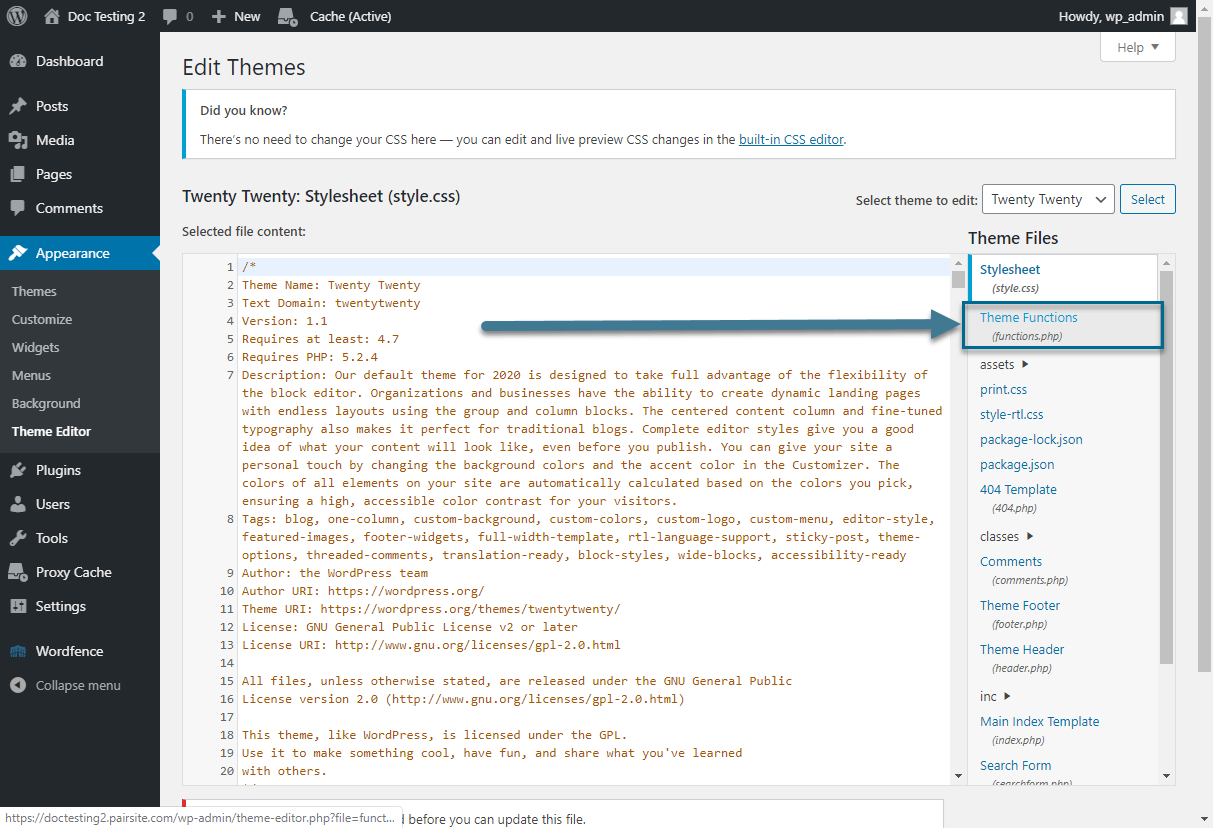
The functions.php file is important for your theme. It helps you add custom features. First, create the file in your theme folder. Use a simple text editor to write the code. This file can hold many functions. Each function should be useful and clear.
Avoid adding too many functions at once. Test each function before using it. Mistakes can break your site. Always keep a backup of your files. This helps if something goes wrong.
Use clear names for functions. This makes them easy to understand. Good function names help avoid confusion. For example, use mytheme_add_menu instead of just add_menu. This shows which theme the function belongs to.
Avoid using common names. They might conflict with other themes or plugins. Use your theme name as a prefix. This keeps names unique. Follow these tips to keep your code clean and organized.
Integrating Functions Into Themes
Hooks and filters help customize a theme. Hooks are like events in the code. They let you add or change things. Filters let you change data before it’s shown. Use them to modify content or styles. They are very powerful. But, they are also easy to use. Developers like using them. They make themes more flexible.
Template tags are special codes in WordPress. They help display content in themes. Use them to show titles, dates, or authors. They make your theme look better. They are like shortcuts for coding. Easy to use and understand. Even beginners can use them. They make your theme more interactive.
Testing And Debugging
WordPress functions bring flexibility to theme development. Testing ensures functions work as expected. Debugging helps identify and fix errors, enhancing the theme’s performance.
Common Errors And Solutions
Many people face common errors in WordPress themes. Missing functions is a frequent issue. It happens when themes call functions that don’t exist. A simple fix is checking the functions.php file. Ensure all functions are defined there. Another error is syntax mistakes. A small typo can break the theme. Double-check code for missing semicolons or brackets. Always keep a backup before changing files. This helps in case things go wrong.
Debugging Tools And Techniques
Debugging tools help find problems in WordPress. WP_DEBUG is a built-in tool. It shows errors and warnings on the screen. Enable it in the wp-config.php file. Use console log for JavaScript errors. It shows details in the browser console. Error logs are also helpful. They keep a record of all errors. Check them to find out what went wrong. Always test changes on a local server. This prevents issues on the live site.

Credit: jetpack.com
Optimizing Theme Performance
Enhance your theme’s performance by integrating essential WordPress functions. Streamline your code for faster load times. Optimize user experience with efficient function usage.
Minimizing Load Times
Fast websites are happy websites. They make users smile. Start by using lightweight images. Heavy images slow things down. Compress them for speed. Next, use fewer plugins. Too many plugins make sites slow. Choose only the most needed. Also, keep code clean. Messy code confuses browsers. Clean code runs faster. Finally, use caching. Caching saves data for later use. This helps load pages quickly.
Ensuring Compatibility
Websites should work everywhere. They must be friendly with all devices. Test your theme on different browsers. Some users prefer Firefox. Others use Chrome or Safari. Make sure everything looks right. Also, check on mobile phones. Many people browse on their phones. The site should look good there too. Keep WordPress updated. Updates fix bugs and improve features. This helps with compatibility. Lastly, ensure all plugins and themes are up-to-date. Old ones might not work well.
Deploying The Custom Theme
Start by checking your theme files. Ensure all functions are correctly placed. Test every feature in a local environment first. This helps catch errors early. Verify compatibility with different browsers. Check responsiveness on mobile devices. Adjust settings for better performance. Make a backup before the final step. It’s crucial to avoid losing any work. Connect your site to an online host. Use a secure connection for uploads. Review the site once it’s live. Ensure every link works properly. Fix any broken links immediately. This ensures a smooth user experience.
Keep an eye on the site’s speed. Slow sites can frustrate users. Check loading times regularly. Use tools to analyze traffic. Understand where visitors come from. Look at user behavior on the site. Identify popular pages and content. Make improvements based on this data. Adjust content for better engagement. Regular updates help maintain interest. Watch for error messages in the dashboard. Resolve issues promptly to ensure functionality. Security checks are vital. Protect your site from threats. Regular monitoring keeps your site safe.
Credit: www.pair.com
Frequently Asked Questions
How Do I Add Functions To A WordPress Theme?
To add functions, edit the theme’s `functions. php` file. Locate the file in your theme’s directory and insert your custom function code. Ensure you’re writing clean and error-free code to avoid issues. Functions can enhance theme features and improve website performance.
Can I Use Custom Functions In WordPress Themes?
Yes, you can use custom functions in WordPress themes. Add them to the `functions. php` file of your theme. This allows you to extend theme capabilities and integrate unique features tailored to your specific needs. Make sure your code is efficient and well-structured.
Where Is The Functions.php File Located?
The `functions. php` file is located in your theme directory. Access it through your WordPress dashboard or via FTP. Navigate to `wp-content/themes/your-theme-name/` to find it. This file is essential for adding custom code to modify theme behavior and functionality.
Why Use Functions In WordPress Themes?
Functions in WordPress themes enhance customization. They allow you to modify theme behavior without altering core WordPress files. You can add features, improve performance, and ensure your site meets specific needs. Using functions keeps your theme flexible and adaptable.
Conclusion
Using WordPress functions in your theme can seem tricky. But practice makes it easier. Start small and build your skills gradually. Experiment with basic functions first. Then, slowly add more complex ones. Always refer to the official WordPress documentation. It’s a great resource for learning.
Remember, errors are part of the learning process. Fixing them helps you grow. With time, you will create themes that work smoothly. Enjoy the journey of learning and creating. Happy theming!


