
Are you ready to make your WordPress site look professional and responsive without diving deep into complicated coding? If so, you’re in the right place.
Learning how to use a WordPress Bootstrap theme can transform your website into a sleek, modern platform that adapts beautifully to any device. Picture this: a website that not only looks stunning but also loads quickly and functions seamlessly. You deserve a site that captures your audience’s attention and keeps them engaged, and with the right tools, achieving this becomes a breeze.
Dive into this guide, and discover how you can effortlessly elevate your website’s design and functionality. Your path to a standout site starts here.
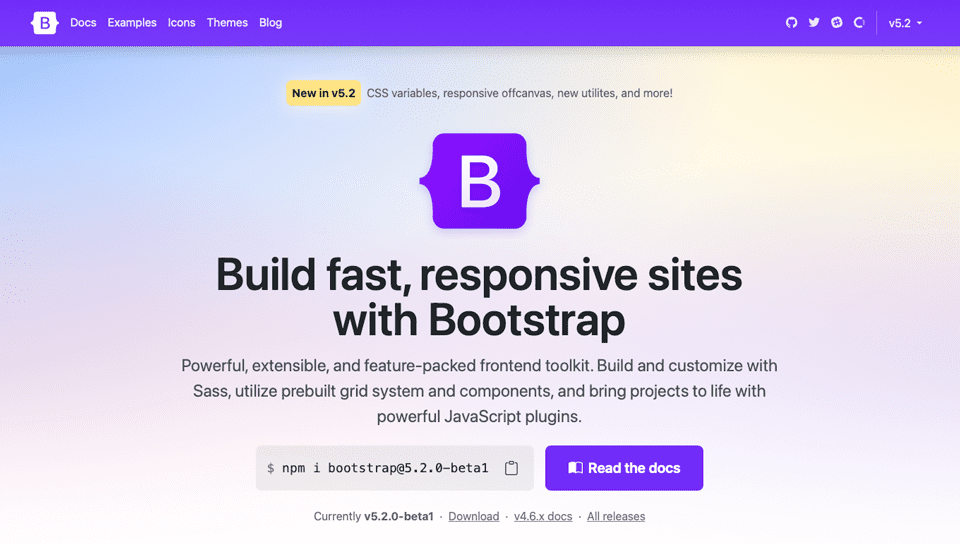
Credit: www.elegantthemes.com
Choosing The Right Bootstrap Theme
Good themes have responsive designeasy to customize. Users can change colors and fonts. Find themes with clean code. Clean code helps sites load fast. Check for browser compatibility. Themes should work on all browsers. Look for good support. Good support helps fix problems fast.
Many websites offer free themes. Some sites sell themes. Check WordPress.org for themes. It has many choices. Try ThemeForest. It offers themes for money. BootstrapMade has good themes too. Users can find themes on GitHub. GitHub is free to use. Explore Colorlib for free themes. It has many designs.
Installing The Bootstrap Theme
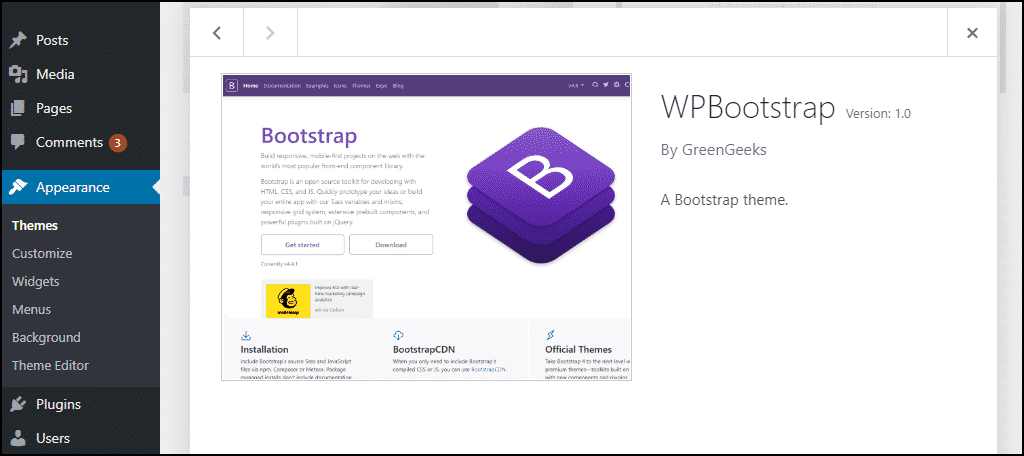
First, open your WordPress dashboard. Then, go to the Appearance menu. Click on Themes. Next, click the Add New button at the top. You will see an Upload Theme option. Click on it. Choose the Bootstrap theme file from your computer. Make sure it’s a .zip file. After uploading, click Install Now. Lastly, click Activate to use the theme.
First, connect to your server using FTP. You will need a FTP client like FileZilla. Find the wp-content/themes directory. Upload your Bootstrap theme folder here. Make sure the folder is unzipped. Then, go to your WordPress dashboard. Visit the Appearance section. Find the new theme and click Activate.
Customizing Theme Settings
Find the Theme Customizer in the WordPress dashboard. This tool helps you change your site’s look. Click on it to start customizing your theme. You can preview changes as you make them. It’s easy to use and saves time.
Adjusting Layout And Colors
Choose different layouts for your pages. You can select from several options. Change colors to match your brand. Pick colors that are easy to read and pleasing to the eye. Try different combinations to see what works best. Save your changes when you’re happy with the new look.
Incorporating Bootstrap Components
Explore how to use a WordPress Bootstrap theme by incorporating Bootstrap components. Enhance your website’s design with simple and flexible elements. Create responsive layouts with ease, ensuring a seamless user experience.
Utilizing Bootstrap Grids
Bootstrap grids help to organize your page. They use rows and columns. Each page section fits inside these grids. This system makes your website responsive. It looks good on any device. A grid can have up to 12 columns. You can mix and match these columns. This gives you many layout options. Use this to create a clean design.
Adding Buttons And Forms
Bootstrap makes buttons look nice. They can be large or small. You can choose different colors too. Forms are easy to make with Bootstrap. They include text boxes and checkboxes. These forms can collect user information. Adding these features is simple. It makes your site more interactive.
Enhancing With Plugins
Boost your WordPress Bootstrap theme with plugins for better features. Plugins add functionality, making your site more dynamic and user-friendly. Customize your theme effortlessly, enhancing your website’s design and performance.
Recommended Plugins For Bootstrap
Plugins make Bootstrap themes better. Some plugins help with design. Others help with performance. Elementor is a popular page builder. It works well with Bootstrap themes. Yoast SEO helps with search engines. It makes the site easier to find. WPForms is great for making forms. It is easy and fast. These plugins are loved by many users. They make websites look good and work well. Choose plugins wisely for best results.
Integrating With Page Builders
Page builders make websites easy. They help with layout and design. Elementor is very popular. It has many features. It is easy to use for beginners. Beaver Builder is another option. It works well with Bootstrap. Page builders can save time. They make building a site fun. They help create beautiful pages with ease.
Optimizing For Performance
Your theme should look good on all devices. This includes phones and tablets. Use a responsive design for this. Check the theme in different screen sizes. Make sure text and images fit well. Avoid using large files. They slow down loading time.
Speed is important for users. It also affects search ranking. Use compressed images to load faster. Choose a good hosting service. It helps improve speed. Activate a caching plugin for better performance. Minimize the use of plugins. Each one can slow down your site. Keep your theme updated. This helps fix bugs and improve speed.
Troubleshooting Common Issues
Sometimes themes and plugins do not get along. Compatibility problems can make your site look odd. Start by checking the plugin version. Make sure it’s up to date. If not, update it. Next, check the theme version. An old theme might cause issues. Updating the theme can fix this. If problems persist, try disabling plugins one by one. This helps find the problem plugin.
Styling conflicts change how your site looks. One style might cover another. Use the browser’s inspect tool to find the problem. Look for CSS overrides. Change the CSS to fix your site. Or, add custom CSS to your theme. This can solve conflicts and make your site look nice again.
Credit: www.greengeeks.com
Keeping Themes Updated
Regular updates keep your theme safe and running well. Updates fix bugs and add new features. Themes can break without updates. Hackers can find old theme flaws. So, update often.
Always backup your site first. Backups save your work if things go wrong. Check for update notices on your WordPress dashboard. Click “update” for new versions. Avoid too many updates at once. Test your site after updates. Make sure everything works.

Credit: www.youtube.com
Frequently Asked Questions
What Is A WordPress Bootstrap Theme?
A WordPress Bootstrap theme is a design framework that combines WordPress’s content management capabilities with Bootstrap’s responsive design features. It enables developers to create mobile-friendly, visually appealing websites. This combination ensures a seamless and efficient design process, providing users with a modern, flexible website layout.
How To Install A Bootstrap Theme On WordPress?
To install a Bootstrap theme on WordPress, first, download the theme file. Go to your WordPress dashboard, navigate to “Appearance,” then “Themes. ” Click “Add New,” then “Upload Theme. ” Choose the downloaded file and click “Install Now. ” After installation, activate the theme to apply it to your site.
Why Use Bootstrap With WordPress?
Using Bootstrap with WordPress offers responsive design, ensuring your site looks good on all devices. It simplifies the development process with pre-designed components. This combination enhances website performance and user experience, making it easier to maintain and customize. It’s a popular choice among developers for its flexibility and efficiency.
Can I Customize A WordPress Bootstrap Theme?
Yes, you can customize a WordPress Bootstrap theme. Use the WordPress Customizer for basic changes like colors and fonts. For advanced customization, modify the theme’s CSS and HTML files. Ensure you create a child theme to prevent losing customizations during updates.
This approach offers flexibility and personalization.
Conclusion
WordPress Bootstrap themes simplify website design. They offer flexibility and style. Even beginners can create professional sites. Focus on choosing a theme that fits your needs. Customize elements like colors and fonts. Use plugins to enhance functionality. Regular updates keep your site fresh.
Practice makes perfect. Explore different settings and features. Stay patient and creative. Your unique site will attract visitors. Remember, simple changes can make a big difference. Enjoy the process. Let your website reflect your vision. Engage your audience with compelling content.
Keep learning and experimenting. The possibilities are endless with WordPress Bootstrap themes.


