
Are you looking to create a unique WordPress theme but don’t know where to start? Imagine having complete control over the design and functionality of your website.
With Adobe Dreamweaver, you can easily craft a stunning WordPress theme that stands out. Whether you’re a beginner or have some coding experience, Dreamweaver offers a user-friendly interface that makes theme creation accessible. You’ll soon discover how to transform your creative vision into a beautiful, functional WordPress site.
Dive into this guide to unlock the secrets of using Dreamweaver for your WordPress themes, and watch your ideas come to life!
Credit: www.elegantthemes.com
Getting Started With Dreamweaver
Dreamweaver is a tool for building websites. First, open Dreamweaver on your computer. Look at the screen. You will see many options. Find the one that says “Create New” and click it. Now, you can pick the type of document. Choose HTML. This is important for making a theme.
On the right, find the panel. It helps you see files. Drag the edges to make it bigger or smaller. Make sure you have space to work. Change colors if needed. This helps you see better. Now, your workspace is ready.
Plugins make Dreamweaver better. Go to the menu at the top. Click on “Extensions”. Find the option to add a new one. Look for useful plugins. Some help with coding. Others check for errors. Pick the ones you need.
After picking, click “Install”. The computer will do the rest. Wait a few minutes. Then, you can use the new features. These plugins will help make themes faster. Now, you are ready to start designing.
Basics Of WordPress Theme Development
WordPress themes are like clothes for websites. They change how sites look. Themes have special files that tell the website how to show things. Every theme has a style.css file. This file is like the theme’s name tag. It tells the site the theme name, author, and version.
Themes need index.php to work. It is the main file. WordPress uses it to show content. Another important file is functions.php. This file helps add features to themes.
Themes also use header.php and footer.php. Header shows top parts. Footer shows bottom parts. These files are key for making themes look good.
Designing Your Theme
Dreamweaver offers many tools for theme design. Use the drag-and-drop feature to place elements. It helps to visualize your theme. You can also edit the HTML and CSS directly. This gives more control over your design. The color picker is great for choosing colors. Create a unique look for your theme. Dreamweaver’s tools make designing easy and fun.
Responsive layouts work on all devices. Use Dreamweaver to make your theme responsive. Check the layout on different screen sizes. Use the preview feature. It shows how your theme looks on phones and tablets. Adjust the design as needed. Keep your layout simple and clean. This makes it easy to use on any device. A responsive theme looks good everywhere.
Coding With Dreamweaver
Dreamweaver helps you create WordPress themes with ease. Start by designing your page using HTML. This sets up the structure. Next, style your page with CSS. CSS changes how your page looks. You can use colors, fonts, and layout styles. Dreamweaver shows changes live. You can see how your site looks as you work. This helps in making quick changes. Keep your code simple for better understanding. Use comments in your code. They help you remember what each part does.
JavaScript makes your web pages interactive. It adds fun elements like sliders and pop-ups. Dreamweaver supports JavaScript well. You can write and test scripts within the platform. Start with small scripts to learn. Then, add them to your theme. JavaScript works with HTML and CSS. Together, they make your site functional and beautiful. Always test your scripts. Ensure they work on all browsers. This keeps your users happy.
Converting Html To WordPress
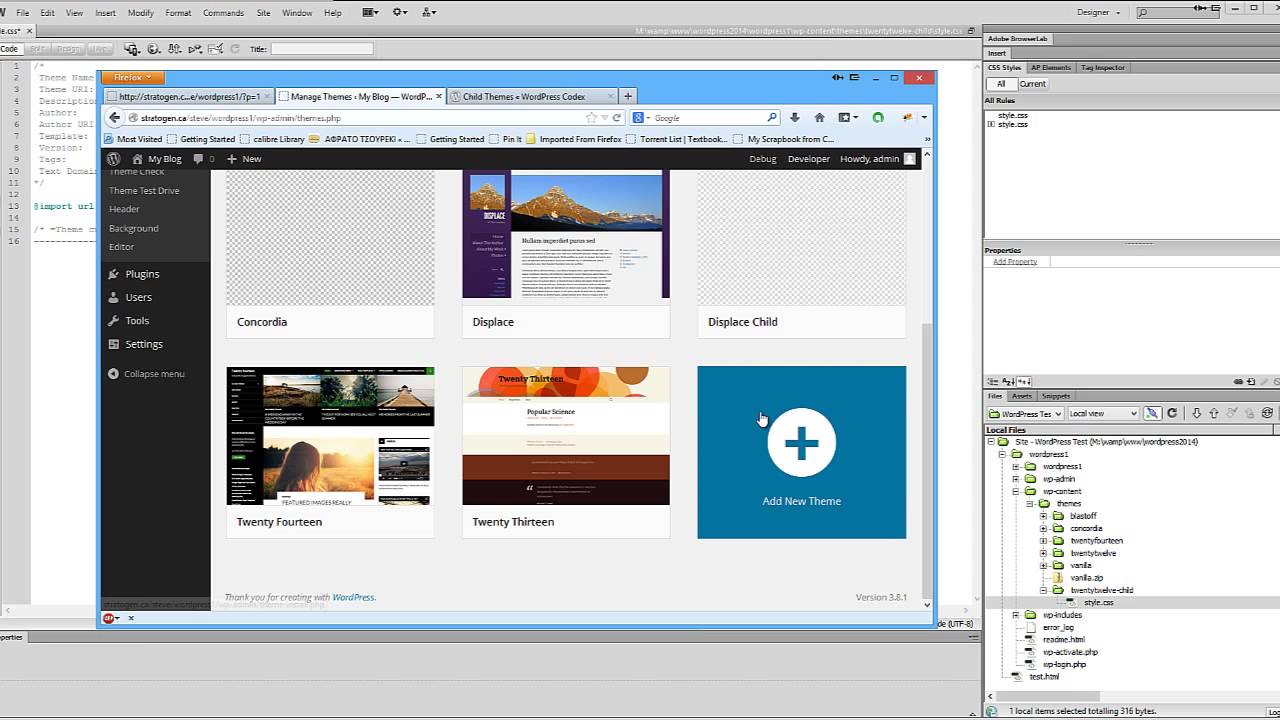
Start by creating a folder. Name it after your theme. Inside this folder, make new files. You need index.php, style.css, and functions.php. These are the basic files for your theme. Save your HTML code in index.php. Copy the CSS code into style.css. Write the theme’s name at the top of the style file.
Open the functions.php file. This file holds special codes. Add WordPress functions here. Use wp_head() for the header. Use wp_footer() for the footer. These functions help WordPress work with your theme. Save all changes. Now your theme is ready for WordPress.
Credit: profiletree.com
Customizing The Theme
WordPress hooks and filters are like magic tools. They help change your theme. Hooks are like signals. They tell WordPress when to do something. Filters change the data before it shows. Use hooks to add new features. Use filters to change content. Both are important for customizing. They let you make your theme unique.
You don’t need to change the core files. This keeps your theme safe. Always test your changes. See if everything works well. Practice makes perfect.
Widgets add fun features to your site. They can show text, images, or links. Dreamweaver helps create custom widgets. Start by writing simple code. Use HTML and CSS to style them. Widgets make your site more useful. Users can find things easily.
Place widgets in sidebars or footers. They fit well in these spots. Always check how they look. Make sure they fit the design. Custom widgets make your site special.
Testing And Debugging
Dreamweaver simplifies testing and debugging for WordPress theme creation. With its intuitive interface, developers easily spot and correct errors. Efficiently streamline the theme development process without extensive coding knowledge.
Using Dreamweaver’s Preview Feature
Dreamweaver’s Preview feature is very useful. It helps see how your theme looks. You can view changes instantly. This saves a lot of time. Previewing lets you spot mistakes early. You can fix them before they cause problems.
Identifying And Fixing Errors
Errors can be tricky. Dreamweaver makes it easier to find them. It shows error messages clearly. These messages guide you to the problem. Fixing errors becomes simple with Dreamweaver. Follow the instructions to correct mistakes. This keeps your theme working well. Testing and debugging are crucial steps. They ensure your theme is perfect.
Deploying Your Theme
Dreamweaver simplifies creating WordPress themes. Customize designs and manage files easily. Deploy your theme efficiently to enhance your site’s appearance.
Exporting The Theme
Save your Dreamweaver work in a folder. Use simple names for files. Check all files are complete. Click on the export option in Dreamweaver. Choose the folder with your theme files. Export the theme as a zip file. This makes it easy to share and upload.
Installing On WordPress
Go to your WordPress dashboard. Select “Appearance” and then “Themes”. Click on “Add New” and choose “Upload Theme”. Find the zip file you made earlier. Click “Install Now” to upload the theme. Once uploaded, activate it. Your new theme is now live. Check your site to see changes. Make sure everything looks good.
Optimizing For Performance
Minifying makes files smaller. This helps the site load faster. Remove extra spaces and lines in the code. This makes CSS and JavaScript files neat. Small files run quicker. Use tools like Minify or UglifyJS. These tools do the job well. They save time too.
Check the site’s speed. Tools like Google PageSpeed are useful. They show how fast the site is. Follow their tips for better speed. Speed matters a lot. It helps users stay on your site.
Enhance load times by using fewer plugins. Each plugin adds weight. Too many plugins slow the site. Only use what you need. Pick plugins with good reviews. They are usually faster.
Use a Content Delivery Network (CDN). It keeps copies of your site in many places. This means users can access the site faster. They get data from the nearest server. CDNs help a lot with speed.
Credit: www.youtube.com
Maintaining And Updating
Dreamweaver simplifies the process of maintaining and updating WordPress themes. Effortlessly tweak design elements and ensure compatibility with the latest plugins. Regular updates keep your theme fresh and functional, enhancing user experience.
Regular Theme Updates
Updating your WordPress theme keeps it safe. New updates fix bugs. They also improve the theme. Check for updates often. Updating is easy. Follow the steps on Dreamweaver. Click the update button. This makes your theme better. It also helps your website run smoothly.
Incorporating User Feedback
User feedback is very helpful. It shows what users like. It also shows what they don’t like. Listen to your users. Make changes based on feedback. This improves your theme. Happy users visit your site more. They also tell others about it. Use Dreamweaver to make changes. This keeps your theme fresh and interesting.
Frequently Asked Questions
Can Dreamweaver Be Used To Create WordPress Themes?
Yes, Dreamweaver can be used to create WordPress themes. It offers a visual interface for designing and coding. You can manage files, edit CSS, and customize PHP files. This integration makes it suitable for designing responsive and modern WordPress themes efficiently.
Is Dreamweaver Good For Beginners In WordPress?
Dreamweaver is user-friendly for beginners in WordPress. It provides a visual editor, making design simpler. Code hints and suggestions help those unfamiliar with coding. The software also offers tutorials and support, which is beneficial for new users.
How Do I Link Dreamweaver To WordPress?
To link Dreamweaver to WordPress, set up a new site in Dreamweaver. Enter your WordPress site’s URL and server details. This allows you to access and edit WordPress files directly. Ensure you have FTP credentials for seamless integration and file management.
What Are The Benefits Of Using Dreamweaver?
Dreamweaver offers a visual design interface and powerful coding tools. It supports multiple languages like HTML, CSS, and PHP. The software provides live previews, making it easier to see changes. It also integrates well with other Adobe products for enhanced design capabilities.
Conclusion
Dreamweaver offers a straightforward way to create WordPress themes. Its user-friendly interface makes design simple. You can craft unique themes that suit your needs. Explore Dreamweaver’s features to enhance your projects. Integrating WordPress becomes easier with practice. Keep experimenting and refining your skills.
Every theme you build adds to your experience. Enjoy the creative process and watch your ideas come to life. Remember, patience and practice lead to mastery. Happy designing!


