
Are you excited about spicing up your WordPress site with a fresh new look? A downloaded theme might be just what you need.
It’s like giving your website a brand-new outfit, boosting its appeal and functionality. But how exactly do you go from downloading a theme to seeing it live on your site? Don’t worry; you’re not alone in wondering how this process works.
This guide will walk you through each step, ensuring you feel confident and empowered to transform your site’s appearance. Imagine your website catching visitors’ attention right from the first glance. Ready to get started? Let’s dive in!
Choosing The Right Theme
Picking the correct theme is important. It affects your site’s look. Make sure the theme suits your site type. Some themes are good for blogs. Others work well for businesses. Check if the theme is responsive. It should look nice on phones and computers.
Read user reviews. This helps you know if a theme has problems. Also, see how often the theme is updated. Regular updates mean better security. Always choose a theme that is easy to customize. You may want to change colors or fonts. An easy theme saves time.
Downloading A WordPress Theme
WordPress themes can change the way your website looks. First, find a theme you like online. Many websites offer free and paid themes. Make sure the theme is compatible with your WordPress version. Click the download button to save the theme file. The file will be in a .zip format.
Keep the theme file on your computer. Do not open or change it yet. You need this file to install the theme later. Always download themes from trusted sources to keep your website safe. Check reviews and ratings before downloading. This helps you choose the best theme for your needs.
Preparing Your WordPress Dashboard
First, open your browser. Type your site’s URL. Add /wp-admin at the end. Press enter. The login page will appear. Enter your username and password. Click the login button. Now, you are in the WordPress dashboard. It is the control center of your website. You can manage all settings here. Explore the dashboard if you like.
Backing up your site is crucial. It saves your data. Use a plugin like UpdraftPlus. Go to the plugin section. Click “Add New.” Search for UpdraftPlus. Install and activate it. Go to settings. Choose backup now. It will save your files. Safe and sound. Always backup before changes.
Installing The Theme
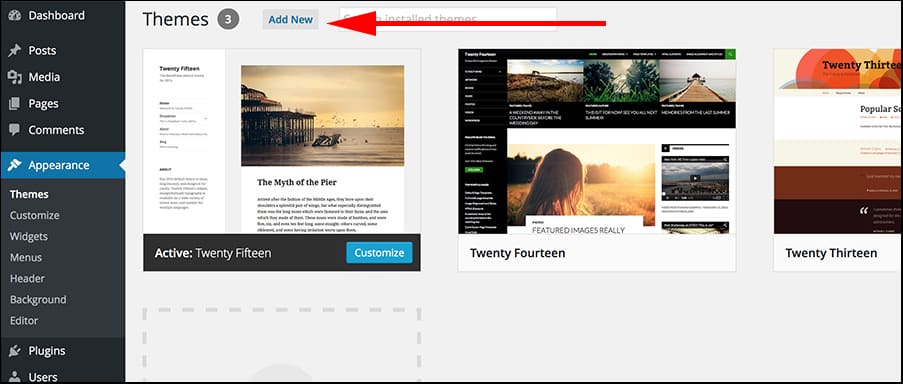
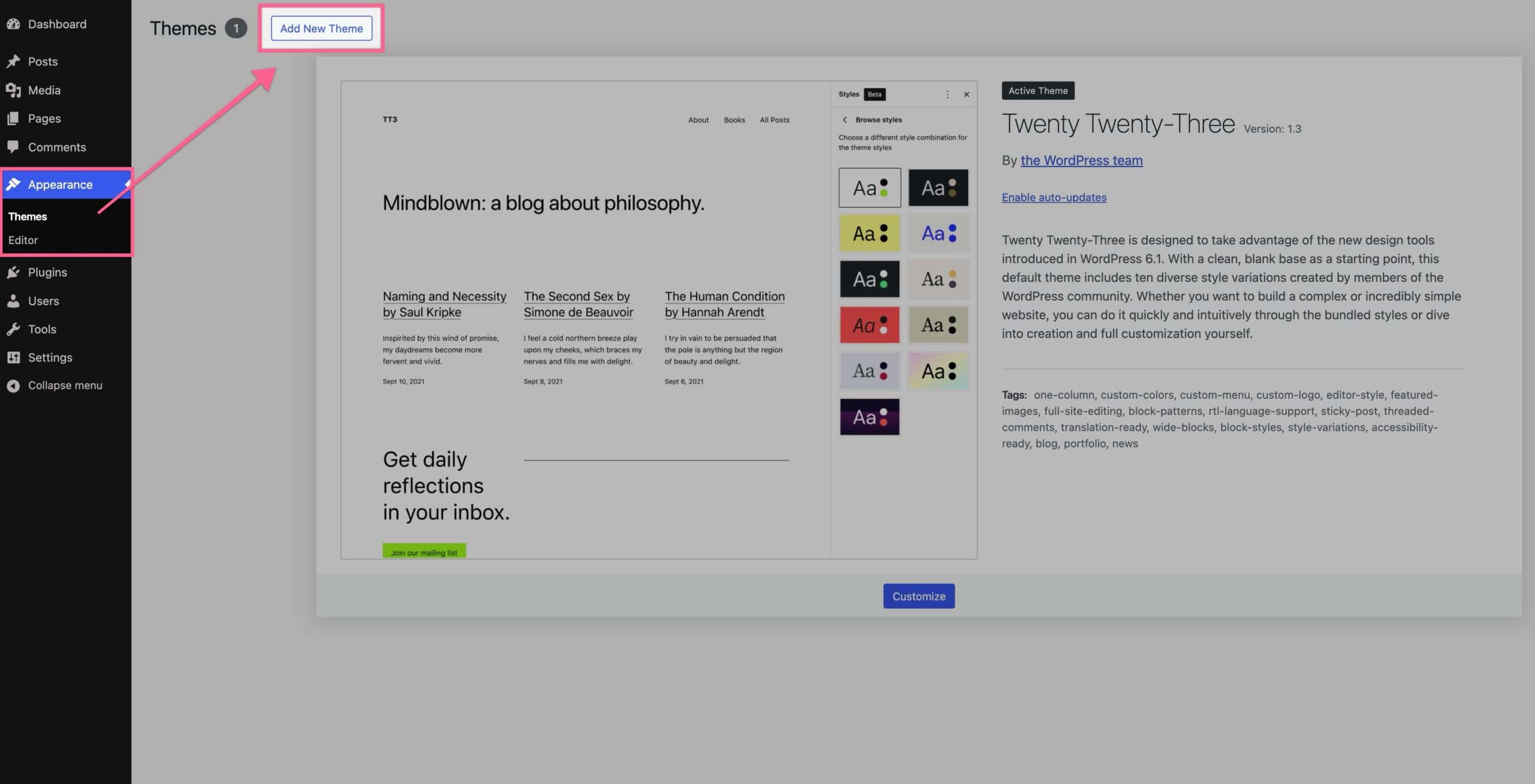
First, open your WordPress dashboard. Look for the Appearance section on the left. Click on Themes. Then, find the Add New button at the top. Next, select the Upload Theme option. A box will appear. Click Choose File and find your theme file. Make sure it is in .zip format. Once selected, click Install Now. Wait for the upload to finish. Finally, click Activate to use your new theme. Easy and simple!
Start with an FTP client. Connect it to your website. Enter your FTP credentials. Once connected, go to the wp-content/themes folder. Upload your theme folder here. Make sure the folder is not zipped. After uploading, go back to the WordPress dashboard. Head to Appearance and then Themes. You will see your new theme there. Click Activate to use it. That’s it!
Activating The Theme
To use a downloaded theme in WordPress, navigate to the dashboard. Select “Appearance,” then “Themes. ” Click “Add New,” and upload your theme file. After uploading, activate the theme to apply it to your site.
Theme Activation In Dashboard
Go to your WordPress dashboard first. Find the Appearance tab. Click it. Then, select Themes. You will see your downloaded theme. Click Activate to use it. Now, your new theme is live. Check your site to see changes.
Handling Activation Errors
Sometimes, an error may occur. Don’t worry. Check if your theme needs an update. Go to the theme’s website for help. Ensure your WordPress version is up-to-date. If the problem stays, ask for help. Visit the WordPress forums. Many people there can help you. Or contact your theme’s support team. They know how to fix it.
Customizing The Theme
Open the WordPress Customizer from the dashboard. Find it under the Appearance tab. It helps change theme settings fast. You can add a logo and change colors. Modify fonts to suit your taste. Make sure the site looks good. Preview changes before saving them. This tool is very handy. It makes theme adjustments easy.
Theme settings offer many options. Check them out one by one. You can adjust the homepage layout. Set the header and footer. These sections are important. They create a good impression. Change sidebar settings if needed. Explore different widgets. Widgets add functionality to the site. They enhance user experience. Save changes to keep them.
Testing The Theme
Open your theme on a smartphone. Does it look good? Try on a tablet, too. Make sure buttons are easy to tap. Text should not be too small. Every part should adjust to the screen size. Images should not spill out of the screen. It is important for all users. They might use different devices.
View your theme in various browsers. Check it in Chrome and Firefox. Also try Safari and Edge. Every browser should show your site clearly. No part should be missing or broken. Links should work well everywhere. This makes the site friendly to everyone. Keep your theme updated. It helps with browser changes.
Credit: www.greengeeks.com
Optimizing Theme Performance
Large images slow down your website. Use tools to compress images. They make images smaller without losing quality. Choose the right format. JPEGs are good for photos. PNGs work well for graphics. Limit image size to improve speed. Smaller images load faster. Faster load times help your site rank better.
Clean code makes your theme run faster. Remove unnecessary spaces and lines. Use a minifier tool. It shrinks your code. Smaller code helps pages load quickly. Quick loading is important. It keeps visitors happy. Happy visitors spend more time on your site.
Troubleshooting Common Issues
Installing a downloaded theme in WordPress can sometimes lead to issues. Ensure the theme file is in. zip format before uploading. Check compatibility with your current WordPress version to avoid errors.
Resolving Installation Errors
Sometimes themes won’t install properly. This could happen due to missing files or compatibility issues. First, make sure the theme file is complete. Check if the file ends with “.zip”. If the file is corrupted, try downloading it again. Ensure your WordPress version supports the theme. If not, update your WordPress. You can also check theme documentation for specific requirements. If there’s an error message, search it online. You might find helpful solutions in forums.
Fixing Display Problems
A theme might not display correctly. This usually happens due to plugin conflicts or incorrect settings. Disable all plugins and see if the theme works. If it does, enable them one by one. This helps identify the conflicting plugin. Check your theme settings. Sometimes settings need adjustments for proper display. Ensure your images are the right size. Large images can distort the layout. If problems persist, contact the theme support. They can provide tailored advice.

Credit: themeforest.net
Updating Your Theme
Start by backing up your website. This keeps your data safe. Next, download the latest theme version. Go to your WordPress dashboard. Click on Appearance, then Themes. Click on Add New and upload the new theme file. Activate the new theme. Check your site to ensure everything works well. Always back up before making changes.
Plugins make theme updates easy. Install a plugin like Easy Theme and Plugin Upgrades. This plugin handles theme updates. First, download the plugin. Next, install and activate it. Go to your dashboard. Click on Plugins, then Add New. Search and install the plugin. Upload the new theme file. The plugin will replace the old theme. This method saves time and reduces errors.
Credit: www.kadencewp.com
Frequently Asked Questions
How To Use A Downloaded Theme On WordPress?
To use a downloaded theme on WordPress, log in to your dashboard, navigate to “Appearance,” then “Themes. ” Click “Add New,” then “Upload Theme. ” Choose your downloaded theme file, click “Install Now,” and then “Activate” to apply it to your site.
How Do I Apply A Downloaded Theme?
To apply a downloaded theme, upload the theme file to your website’s theme directory. Activate it via the admin panel. Make sure to check compatibility and customize settings for optimal appearance. Backup your site before changes. Enjoy your new design!
How To Install And Activate A Theme In WordPress?
To install a theme in WordPress, navigate to Appearance > Themes > Add New. Search or upload your desired theme, then click “Install. ” After installation, click “Activate” to apply the theme to your site. Ensure your theme is compatible and updated for best performance.
How Do I Use A Custom Theme In WordPress?
Install your custom theme via the WordPress dashboard. Navigate to “Appearance” and click “Themes. ” Select “Add New” and then “Upload Theme. ” Choose your theme file, upload, and activate. Ensure compatibility and customize settings for optimal functionality.
Conclusion
Using downloaded themes in WordPress is simple and rewarding. Follow each step carefully. Install the theme through your WordPress dashboard. Customize it to match your style. Check for compatibility and responsiveness. Ensure your site looks good on all devices. Keep your theme updated for security and new features.
Themes offer a fresh look without coding skills. Experiment with different layouts and designs. This enhances your site’s appeal and functionality. Enjoy the creative process and make your website shine. Your WordPress journey just got easier. Happy blogging!


