
Are you ready to give your WordPress site a fresh new look? Changing your theme can be like giving your website a complete makeover, and it’s easier than you might think.
Imagine transforming your site’s appearance, making it more appealing to your audience, and standing out in the crowded digital space. In this guide, you’ll discover simple steps to switch themes without losing your content or compromising your site’s functionality. Whether you’re looking for something sleek and modern or fun and vibrant, you’ll learn how to choose and apply the perfect theme for your brand.
Keep reading to find out how a new theme can enhance your website’s appeal and keep your visitors coming back for more.
Choosing The Right Theme
First, think about what your website needs. Do you want a blog or a store? Maybe a photo gallery? Knowing your needs helps in picking the right theme. A simple blog might need a clean look. A store might need shopping features. List your needs on paper. This makes choosing easier.
Next, explore theme options. WordPress offers many themes. Some are free. Some need payment. Look for themes that match your needs. Check the reviews. Good reviews mean happy users. Try a demo if you can. See if you like how it looks and works.
Free themes are good for beginners. They cost nothing and are easy to use. But they might lack features. Premium themes cost money. They offer more options and support. Choose free themes if you are starting. Pick premium themes for advanced needs.
| Theme Type | Cost | Features |
|---|---|---|
| Free | $0 | Basic |
| Premium | Varies | Advanced |

Credit: www.liquidweb.com
Installing A WordPress Theme
Find themes in the WordPress Repository. Open your dashboard. Click on Appearance, then choose Themes. Explore many free themes. Use the search bar to find themes. Click Install for your choice. Activate the theme to use it.
Download your theme as a ZIP file. Open the dashboard. Go to Appearance, then Themes. Click on Add New. Choose Upload Theme. Select your ZIP file. Click Install Now. Once installed, activate the theme.
Use FTP for theme uploads. Connect to your site. Open the wp-content/themes folder. Upload the theme folder here. Access your dashboard. Go to Appearance, then Themes. Find your uploaded theme. Activate it to apply changes.
Customizing Your Theme
The WordPress Customizer is easy to use. It lets you change your theme. You can adjust colors, fonts, and more. Preview changes in real-time. This helps to make sure everything looks right. Save your changes when done.
Theme settings offer many options. You can set a logo and choose a header. Some themes have extra settings. Explore these to make your site unique. Always remember to save your changes.
Custom CSS gives extra control. It helps you change small details. You can adjust spacing or colors. Add CSS in the customizer under “Additional CSS”. Test your CSS to see how it looks. Keep it simple for better results.
Switching Themes Safely
Backup your website before changing themes. Use plugins like UpdraftPlus or BackupBuddy. This saves your data. It’s a safety net. If something goes wrong, you’re protected. Backups are essential.
Check your site’s content. Ensure all posts and pages are up to date. Fix any broken links. Make sure images are in the right place. This keeps your site looking good. Content preparation is key.
Install the new theme on a test site. Do not use your live site. Check all features. Make sure everything works. Test links and images. This helps avoid problems later. Testing is important for a smooth change.
Common Theme Issues
Exploring different themes in WordPress can enhance your site’s look. Each theme brings unique layouts and features. Changing themes is simple and can be done without coding.
Handling Compatibility Problems
Themes might not work with some WordPress versions. This can cause errors. Always check the theme’s compatibility before use. Make sure it works with your WordPress version. Updating WordPress can fix many issues. If problems persist, contact the theme’s support team.
Fixing Layout Discrepancies
Sometimes, the theme layout looks different on your site. This can be due to customizations or settings. Check your theme’s settings first. Adjust the layout options. If the layout remains wrong, try a different theme. Always back up your site before making changes.
Resolving Plugin Conflicts
Plugins can clash with themes. This can make your site unstable. Deactivate all plugins first. Then activate them one by one. See which plugin causes the issue. Use another plugin if conflicts continue.

Credit: wpmudev.com
Enhancing Theme Functionality
Plugins add extra features to your theme. They can make your site more powerful. WordPress plugins are easy to install. Just find the one you need. Click to install, then activate. Always choose plugins from trusted sources. This keeps your website safe and secure.
Child themes let you customize safely. They keep the original theme unchanged. This means updates won’t erase your changes. Create a child theme to start. Then, you can add your own styles or layouts. It’s a smart way to design without worry.
A fast site is a good site. To speed up, remove unused plugins. Optimize images to load faster. Use tools like lazy loading. Also, consider a caching plugin. It helps pages load quicker. Always test your site speed. Fast sites keep visitors happy.
Staying Updated With Themes
Themes need updates often. These updates bring new features. They fix bugs and improve security. Keep your theme updated to enjoy new tools. Updated themes work better with WordPress. Old themes can cause problems. Developers update themes to make them safer. Updates ensure your site runs smoothly. Set auto-updates for ease. Manual updates can be done too. Check for updates regularly. Keeping your theme fresh is smart. Updates help you stay ahead.
Security is very important for your site. Themes can have security risks. Outdated themes are unsafe. Hackers can exploit old themes. Updated themes fix security holes. Regular theme updates protect your site. Always choose themes from trusted sources. Check reviews before installing themes. Use security plugins for extra safety. Stay vigilant against threats. Secure themes keep your site safe.
Trends change fast. Themes follow design trends. New themes bring fresh looks. They have modern layouts. Trendy themes attract visitors. Old themes look outdated. Updated themes match current styles. Visitors like sites that look new. Choose themes that fit trends. Stay current with theme designs. Trends make sites appealing. Trendy sites get more visits.
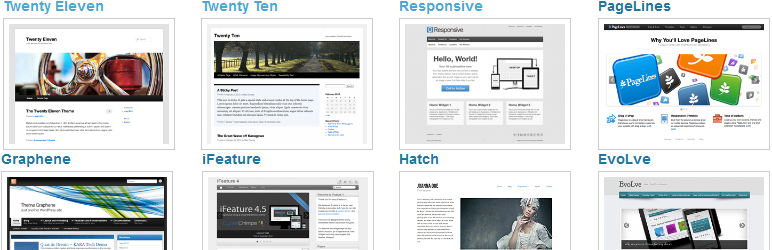
Credit: wordpress.com
Frequently Asked Questions
How To Change WordPress Theme Easily?
To change your WordPress theme, go to your dashboard, click on ‘Appearance’, then ‘Themes’. Browse available themes or upload a new one. Click ‘Activate’ to set your chosen theme live. Always preview and ensure compatibility with your site’s plugins and content before activation.
Can I Customize My WordPress Theme?
Yes, you can customize your WordPress theme. Use the built-in Customizer under ‘Appearance’ to adjust colors, fonts, and layouts. For more detailed changes, consider using a page builder plugin or editing theme files directly. Always back up your site before making major changes.
Is Switching WordPress Themes Safe?
Switching themes is generally safe, but proceed with caution. Some settings and customizations might not transfer seamlessly. Always back up your site and check compatibility with plugins. Preview your site after switching to ensure everything displays correctly and functions as expected.
Do WordPress Themes Affect Seo?
Yes, WordPress themes can impact SEO. Choose a theme that’s fast, responsive, and follows best practices like clean code and schema markup. Ensure your theme supports SEO plugins and has optimized meta tags and headings. A well-coded theme can enhance your site’s visibility and performance.
Conclusion
Choosing the right theme shapes your WordPress site’s identity. Different themes offer unique designs and functionalities. Experiment with options to find what fits your vision best. Remember, a theme should complement your content, not overshadow it. Start simple, then explore advanced features as your skills grow.
Keep your audience in mind; their experience matters most. Don’t hesitate to switch themes if your current one feels limiting. Stay updated with new themes to keep your site fresh and engaging. A good theme enhances your site’s appeal and boosts user satisfaction.
Enjoy creating and customizing your WordPress site!


