
Are you feeling overwhelmed by the idea of uploading a WordPress theme? You’re not alone.
Many WordPress beginners find the process daunting, but it doesn’t have to be. Imagine transforming your website into a stunning, professional-looking platform with just a few clicks. That’s the magic of WordPress themes! In this guide, you’ll learn how to seamlessly upload a theme to your WordPress site, making it look exactly how you’ve envisioned.
Whether you’re aiming to revamp your blog’s appearance or launch a new site, mastering this skill will give you the power to customize your online presence effortlessly. Ready to dive in and take control of your website’s design? Let’s get started!

Credit: www.greengeeks.com
Pre-upload Preparations
Start by picking a theme that suits your website’s style. Consider the theme’s features and layout. Look at the ratings and reviews. Make sure the theme is compatible with your WordPress version. Check if it supports mobile devices. Choose a theme that is easy to customize. Think about your site’s purpose and audience. Select a theme that enhances user experience.
Download the theme from a trusted source. Go to the theme website and find the download button. Click on the button to start the download. Save the theme file to your computer. The file usually comes as a ZIP archive. Keep the file safe and ready for upload. Remember where you saved it. Ensure the file is complete and not corrupted.
Accessing The WordPress Dashboard
First, open your browser. Type your website URL. Add “/wp-admin” at the end. Press enter. A login page will appear. Enter your username and password. Click “Login”. If details are correct, you will see the dashboard. This is your WordPress control center.
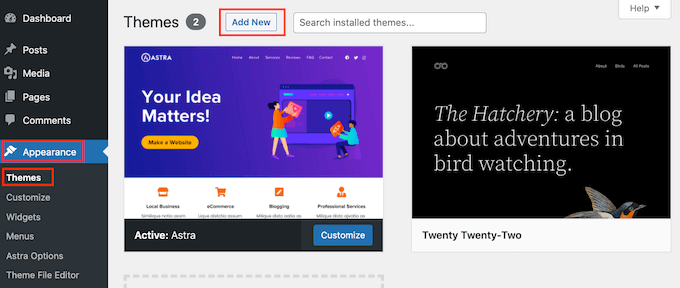
Look at the left side of the dashboard. Find the Appearance tab. Click on it. A menu will appear. In the menu, find “Themes”. Click “Themes”. Now, you are ready to manage themes. You can add, change, or delete themes here.
Uploading The Theme
First, go to your WordPress dashboard. Click on “Appearance”, then “Themes”. You will see an “Add New” button at the top. Click it and then click the “Upload Theme” button. Browse your computer for the theme file. The file must be in .zip format. Once selected, click “Install Now”. WordPress will upload and install the theme for you.
After the theme is uploaded, you will see an “Activate” link. Click on it to make the theme live on your site. This will change the look of your site. Check your site to see the new design. If you don’t like it, you can switch back. Just go to the “Themes” page again. Choose another theme and activate it.

Credit: www.elegantthemes.com
Installing Via Ftp
First, download an FTP client like FileZilla. Open the program. Enter your website’s FTP details. These include host, username, and password. Look for the quick connect button. Click it. You will see your site files now.
Find the theme files on your computer. These are usually in a folder. On the FTP client, go to /wp-content/themes/. Drag the theme folder from your computer to this spot. Wait as the files transfer. After the transfer, check your WordPress dashboard. Go to appearance and then themes. Your new theme should be there. Activate it to use the theme.
Troubleshooting Common Issues
Easily solve theme upload problems in WordPress by checking file formats and sizes. Ensure your internet connection is stable. Verify you have the necessary permissions to upload themes in the dashboard.
Resolving Upload Errors
Sometimes, themes don’t upload smoothly. Check your internet connection first. Slow internet causes upload errors. Make sure the theme file is complete and not corrupted. A damaged file won’t upload. Check the file size too. Large files may exceed server limits. Reduce file size if necessary. Use FTP for large files. FTP helps bypass size limits. Another trick is clearing browser cache. Cache issues might cause upload errors. Use a different browser if problems persist. Different browsers behave differently.
Fixing Compatibility Problems
Not all themes work with every WordPress version. Check theme compatibility first. Visit the theme’s website. Look for compatibility notes. Update WordPress if needed. Newer versions fix many issues. If the theme still doesn’t work, contact the developer. Developers often provide updates. Updates fix compatibility problems. Check plugin conflicts too. Plugins sometimes clash with themes. Disable plugins one by one. Find the problematic plugin. Then, replace or update it. Always check compatibility before installing themes.
Customizing The Theme
Uploading a WordPress theme is simple. Begin by accessing the WordPress dashboard, then navigate to ‘Appearance’. Choose ‘Themes’, click ‘Add New’, and select ‘Upload Theme’. Finally, choose your theme file and click ‘Install Now’. Enjoy a fresh look for your site.
Using The Customizer
The WordPress customizer is a simple tool. It helps you change your theme. You can see changes as you make them. Start by clicking on Appearance in your dashboard. Then, click Customize. This opens the customizer. Here, you can change colors, fonts, and more. You can upload a logo too. The live preview shows your changes. Make sure to save them when done. This way, your site looks just how you like.
Adding Widgets
Widgets add extra features to your site. They are small blocks with different functions. To add widgets, go to Appearance and then Widgets. You will see different widget options. Drag and drop the ones you like. Place them in sidebars or footers. Common widgets include search bars and calendars. Each widget has its own settings. Adjust them to fit your needs. Widgets make your site more useful and fun.
Maintaining Your Theme
Uploading a WordPress theme involves a few simple steps. Begin by accessing the WordPress dashboard, then navigate to ‘Appearance’ and select ‘Themes’. Click ‘Add New’, choose ‘Upload Theme’, select your theme file, and activate it.
Updating Themes
WordPress themes need updates. Updates fix bugs and add new features. Always check for theme updates. Look in the WordPress dashboard. Updates keep your site safe. They improve performance too. Click “update” to get the latest version. Never skip updates. They are important.
Backing Up Customizations
Customizations make your site unique. Always back them up. Use a plugin for backups. Save changes before updating themes. This prevents loss of work. Backups are like safety nets. They protect your hard work. Keep backups in a safe place. You can restore them if needed.
Credit: www.wpbeginner.com
Frequently Asked Questions
How Do I Upload A Theme To WordPress?
To upload a theme, go to your WordPress dashboard. Click on “Appearance,” then “Themes,” and select “Add New. ” Choose “Upload Theme,” browse your computer for the theme file, and click “Install Now. ” After installation, click “Activate” to use the theme.
Can I Upload A Theme Without Ftp?
Yes, you can upload a theme without FTP. Use the WordPress dashboard to upload themes directly. Navigate to “Appearance,” then “Themes,” and select “Add New. ” Click “Upload Theme,” choose your theme file, and install. This method is simple and efficient.
Why Can’t I Upload My Theme?
If you can’t upload your theme, check file size and format. Ensure the theme is a. zip file and meets WordPress size limits. Also, verify your user role has the necessary permissions to upload themes. If issues persist, contact your hosting provider for assistance.
What Is The Best Way To Upload Themes?
The best way is through the WordPress dashboard. It’s user-friendly and requires no technical skills. Navigate to “Appearance,” then “Themes,” and select “Add New. ” Click “Upload Theme” to easily install your theme. This method is convenient for most users.
Conclusion
Uploading a WordPress theme is simple and quick. First, access your WordPress dashboard. Then, navigate to the “Appearance” tab. Choose “Themes” and click “Add New. ” Upload your theme file. Activate the theme by clicking “Activate. ” Your new theme will be live.
Check your site to see the changes. Adjust settings to fit your needs. Remember to update themes regularly. This keeps your site secure and fresh. With these steps, your WordPress experience improves. Enjoy customizing your website easily. Feel free to explore more themes for variety.


