
Are you ready to give your WordPress site a fresh, new look? Uploading a theme file is one of the easiest ways to transform your website’s appearance.
But if you’re not sure how to do it, don’t worry—you’re not alone. Many WordPress users find this step a bit daunting at first. The good news? It’s much simpler than it seems, and we’re here to guide you through the entire process.
In this guide, you’ll discover a straightforward, step-by-step method to upload a theme file to WordPress, ensuring your site stands out and reflects your unique style. By the end, you’ll feel confident and empowered to make your website truly yours. Curious to see how simple it can be? Let’s dive in!

Credit: visualmodo.com
Preparing Your Theme File
Ensure the theme works with your WordPress version. Visit the theme page for details. Look for minimum WordPress version needed. This ensures no errors occur.
Make sure the theme is responsive. Check if it works on phones and tablets. A good theme adapts to all screen sizes. This is important for a better user experience.
Download the theme file from a trusted source. Popular theme sites are good choices. Avoid unknown websites. They might have unsafe files.
Save the theme file on your computer. Usually, it comes as a .zip file. Do not unzip it. WordPress needs it in this format for uploading.
Accessing WordPress Dashboard
First, find the login page for your WordPress site. This page often ends with “/wp-admin”. Enter your username and password. Click the “Log In” button. Now, you are in the WordPress dashboard. This is where all the magic happens.
Look for the menu on the left side. Find the Appearance option. Click on it. A new menu will appear. Here, you can see different options. Choose the Themes option. Now you are ready to upload a new theme.
Uploading Theme Via WordPress
First, visit your WordPress dashboard. Click on Appearance. Then, select Themes. Next, click on the Add New button. You will see an Upload Theme button. Click it to proceed. Choose the theme file you want to upload. Make sure it’s in a .zip format. Now, click on Install Now. Your theme will upload and install. Wait a few seconds for this to finish.
After the theme installs, you will see an Activate button. Click on it to make the theme active. Your site will now use the new theme. Check your site to see the changes. If you want to change back, go to the Themes page again. Pick another theme and activate it. You can switch themes anytime you like.
Credit: www.name.com
Uploading Theme Via Ftp
Setting Up FTP Client is easy. Choose a reliable FTP client like FileZilla. Download and install it on your computer. Open the FTP client and enter your server details. You need the host address, username, and password. Connect to your server.
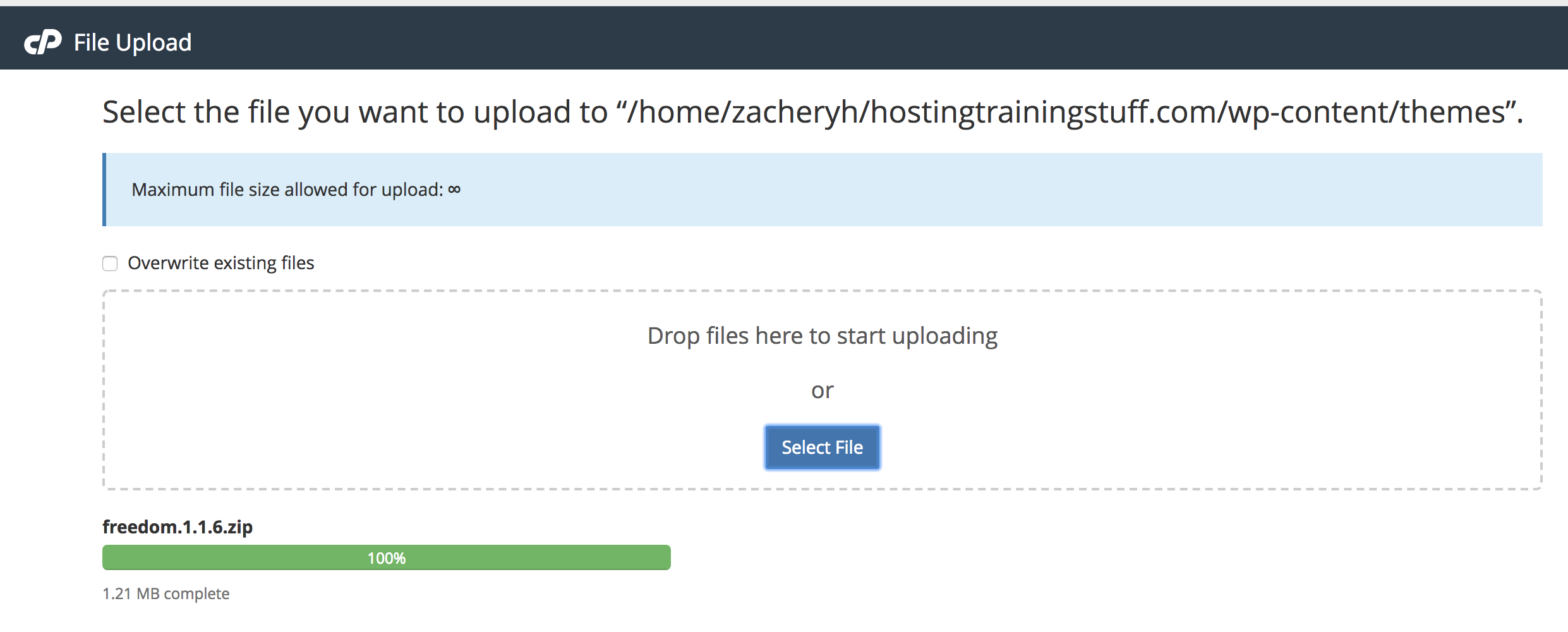
Uploading Theme Files to Server comes next. Locate your theme files on your computer. Drag and drop them into the theme folder on the server. The theme folder is usually in “wp-content/themes”. Wait for the transfer to finish.
Activating Theme in WordPress is the last step. Log in to your WordPress dashboard. Go to “Appearance” and then “Themes”. Find the new theme you uploaded. Click “Activate” to make it live. Enjoy your new look!
Troubleshooting Common Issues
Uploading a theme file to WordPress sometimes causes problems. Ensure the theme file is in a. zip format before uploading. Check file size limits and increase if needed in your hosting settings.
Resolving Theme Installation Errors
Sometimes, themes may not install. Check the file size first. Files over 2MB might not upload. Use FTP for large files. Ensure the theme is in a .zip format. Only .zip files can be uploaded. Also, verify the WordPress version. Some themes need the latest version. Update WordPress if needed. Enable debugging to see errors. It helps find what went wrong. Look for error messages in the dashboard.
Fixing Broken Themes
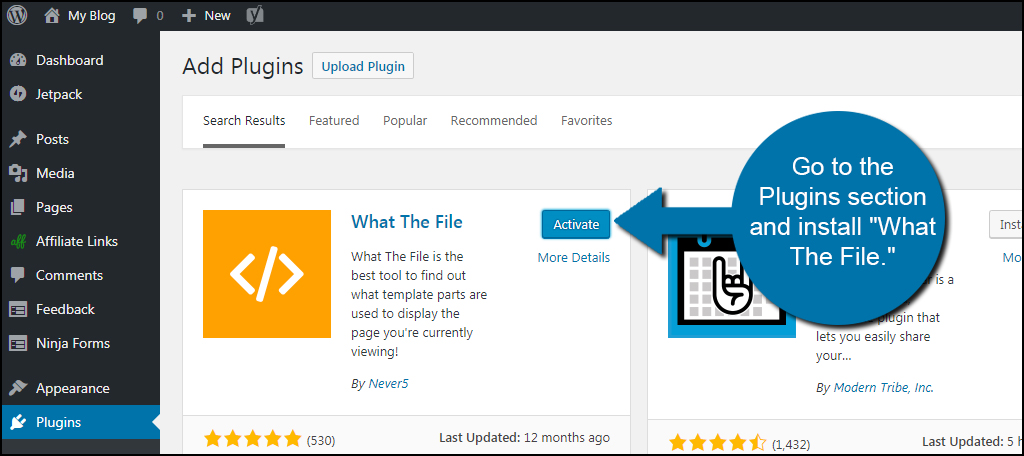
A theme might break after installation. This happens due to plugin conflicts. Disable all plugins first. Then, activate them one by one. This will find the conflicting plugin. Also, check the theme’s files. Files might be missing or corrupted. Re-upload the theme if needed. Ensure all files are in place. Finally, clear the browser cache. Sometimes, old cache causes display issues.
Credit: www.greengeeks.com
Frequently Asked Questions
How Do I Upload A Theme To WordPress?
To upload a theme, log into your WordPress dashboard. Navigate to Appearance > Themes > Add New. Click ‘Upload Theme’, choose your theme file, and hit ‘Install Now’. Once installed, activate the theme to apply changes. Ensure your theme is compatible with your WordPress version.
Can I Upload A Theme Via Ftp?
Yes, you can upload a theme using FTP. Connect to your server using an FTP client. Navigate to wp-content/themes directory. Upload your theme folder here. After uploading, go to WordPress dashboard, navigate to Appearance > Themes, and activate your theme.
Are Theme Files Safe To Upload?
Uploading theme files is safe if sourced from reputable providers. Ensure your theme is regularly updated and compatible with your WordPress version. Avoid downloading themes from unknown sources to prevent security risks. Always check reviews and ratings before downloading a theme.
What If My Theme Upload Fails?
If your theme upload fails, check file size and format. Ensure your theme is a. zip file and doesn’t exceed upload limits. Verify server permissions and try uploading via FTP. Consult your hosting provider for server-related issues or increase upload limit in php.
ini file.
Conclusion
Uploading a theme file to WordPress is straightforward. Follow these steps. First, access your WordPress dashboard. Next, navigate to ‘Appearance’ then ‘Themes’. Click ‘Add New’. Choose ‘Upload Theme’. Select your theme file from your computer. Click ‘Install Now’. Once installed, activate your theme.
Double-check your site’s appearance. Make sure all settings are correct. Customize as needed. Explore theme options. Enhance your website’s look and feel. Remember, themes can be changed anytime. Experiment with different designs. Find what suits your needs best. Keep your site fresh and engaging.
Enjoy your new WordPress theme!


