
Is your WordPress site looking a bit outdated? It might be time for a theme update.
Keeping your WordPress theme current is not just about aesthetics; it’s about security, functionality, and ensuring the best user experience for your visitors. Imagine your website as your digital storefront. You want it to be inviting, secure, and easy to navigate, right?
By updating your theme, you’re not only refreshing its appearance but also enhancing its performance. But don’t worry, updating your theme doesn’t have to be complicated. You might be wondering how to do it without causing a disruption or losing your personal touch. In this guide, we’ll walk you through the process step-by-step, ensuring your website remains sleek and efficient. Stick around, and you’ll soon master the art of theme updating with confidence and ease.
Choosing The Right Theme
Check if your current theme meets your needs. Is it easy to use? Does it have the features you want? If it feels slow, it might be time for a change. A good theme should be fast and responsive. A slow theme can make your site boring. Make a list of what you like and don’t like. This will help you in choosing a new theme.
Think about what your website needs. Do you need a blog or a store? List your must-have features. Some people need a theme with a gallery. Others need a simple layout. Knowing your needs makes choosing easier. Always aim for a theme that fits your site’s purpose.
Visit the WordPress theme directory. You can find many free themes there. Look for themes with good reviews. Check if they have regular updates. Updated themes are more secure. You can also check premium themes for more features. Compare a few themes and pick the best one. Make sure it fits your needs and looks good.

Credit: jetpack.com
Preparing For The Update
Always back up your site before updating. This keeps your data safe. Use a plugin like UpdraftPlus. It makes backing up easy. Store your backup in a secure location. You can use cloud storage. This way, you can restore your site if something goes wrong.
Test the update in a staging environment. This is like a practice site. It helps you find problems without affecting your real site. Use plugins like WP Staging. It creates a safe test area. Check everything works fine before updating live. This step protects your site from unexpected issues.
Installing The New Theme
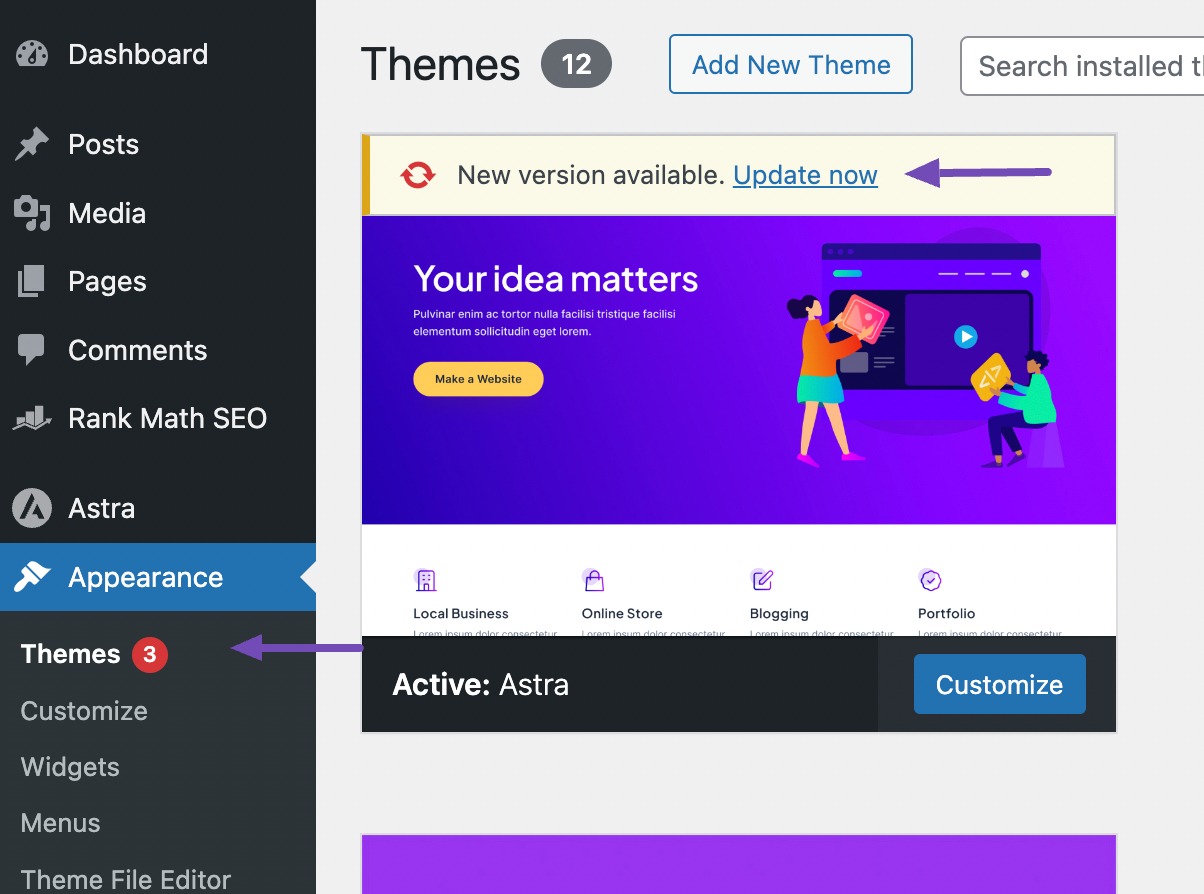
First, open your WordPress dashboard. Look for the Appearance option on the left side. Click on it, then choose Themes. A new page will open. Here, click on the Add New button. You can see it at the top. Next, click on Upload Theme. Browse your computer for the theme file. It should be in a .zip format. Select the file and click Install Now. After installation, click Activate. Your new theme is ready!
To use FTP, you need an FTP client like FileZilla. Start by opening the FTP client. Connect to your website. You will need your FTP credentials. Once connected, find the wp-content folder. Open it and look for themes. Upload your theme folder here. Make sure it is unzipped. After uploading, go back to your WordPress dashboard. Go to Appearance and then Themes. Your uploaded theme should appear. Click Activate to use it.
Credit: rankmath.com
Customizing Your Theme
Themes in WordPress help make your site unique. Each theme has its own settings. You can find these settings in the WordPress dashboard. Look for the Appearance menu. Click on Customize. Here, you can change colors and fonts. You can also change the layout. Save your changes when done. This makes sure your site looks great.
Custom CSS allows you to change the look of your site. It is a special code. This code tells your theme what to do. Go to the Appearance menu. Click on Customize. Find the Additional CSS option. Here, you can add your code. You can change text color or size. You can also change background color. Make sure to save your changes. This keeps your site looking fresh and new.
Checking Compatibility
Reviewing Plugin Compatibility is important before updating your theme. Some plugins may not work well with new themes. Check if your plugins are compatible with the theme update. Look for any messages or warnings about compatibility. You can visit the plugin’s page for details. Some plugins have updates that fix compatibility issues. Update these plugins first if needed. This ensures your site works smoothly after the theme update.
Resolving Conflicts requires careful attention. Conflicts may arise between your theme and plugins. You need to identify which plugins cause problems. Disable plugins one by one to find the culprit. If a plugin is causing issues, check for updates or alternatives. Sometimes, themes and plugins have updates that fix these conflicts. Always back up your site before making changes. This helps you restore your site if things go wrong.
Finalizing The Update
Updating your WordPress theme involves several important steps. Start by backing up your site to prevent data loss. Then, navigate to your dashboard and access the theme update section. Confirm compatibility with your plugins before finalizing the update to ensure seamless integration.
Testing Site Functionality
After updating your theme, check the site. Ensure all features work. Click on links and buttons. Make sure they lead to the right places. Look at your pages. Verify they display correctly. This ensures your users have a smooth experience.
Optimizing Site Performance
A new theme can affect speed. Check how fast your site loads. Use online tools for this. Fast websites keep users happy. If it’s slow, try reducing image sizes. Also, deactivate unused plugins. This can help your site run faster.
Maintaining Your Theme
Updating your WordPress theme ensures security and enhances functionality. Navigate to your dashboard, select “Appearance,” and click “Themes. ” Choose “Update” for the desired theme. Regular updates keep your site running smoothly and efficiently.
Regular Updates
Updating your theme is important. Themes get new features. These updates fix bugs. They improve security. Check for updates often. Use the WordPress dashboard. It shows if updates are available. Click on “Updates” in the dashboard. Follow the steps to update. Always backup your site first. This keeps your data safe.
Monitoring For Issues
Look for theme issues after updates. Check your site regularly. Make sure everything works. Sometimes updates cause problems. Test your site on different devices. Use a mobile phone. Try a tablet and a laptop. Ensure everything looks good. Monitor site speed. Slow sites lose visitors. Fast sites keep users happy. Use tools to check speed. Google PageSpeed Insights is helpful.
Credit: duplicator.com
Frequently Asked Questions
How Do I Update My WordPress Theme?
To update your WordPress theme, go to your dashboard, click “Appearance,” then “Themes. ” Select the theme, click “Update Now. ” Ensure you have backups before updating. Check the theme developer’s instructions for any specific update steps. Regular updates help maintain security and functionality.
Do WordPress Themes Update Automatically?
WordPress themes do not update automatically by default. Users must enable automatic updates or update them manually.
How Do I Edit An Existing WordPress Theme?
To edit a WordPress theme, access your WordPress dashboard. Navigate to “Appearance” and click “Theme Editor. ” Use the editor to modify theme files. Always create a child theme before editing to prevent data loss during updates. For advanced changes, use a code editor like Sublime Text or Visual Studio Code.
How Do I Change My Theme On WordPress?
To change your theme on WordPress, navigate to the dashboard. Click on “Appearance” and then “Themes. ” Browse available themes or upload a new one. Select your desired theme and click “Activate. ” Always preview before activating to ensure compatibility with your content.
Conclusion
Updating your WordPress theme keeps your site fresh and secure. It’s essential to follow simple steps to ensure a smooth update. Always back up your site before making changes. Choose a compatible theme version to avoid issues. Test the new theme on a staging site first.
This helps identify potential problems early. Keep your plugins updated too. They work best with the latest themes. Regularly updating your theme ensures a better user experience. And a more secure website. Stay informed about updates to maintain your site’s performance.
Happy updating!


