
Are you looking to refresh your WordPress site but worried about losing your customizations? Updating a WordPress theme can be daunting, especially if you’re using a child theme.
But fear not! This guide will walk you through the process, ensuring your unique tweaks and designs remain intact. Whether you’re a seasoned pro or a beginner, understanding how to effectively update your WordPress theme while using a child theme is crucial for maintaining your website’s functionality and appearance.
By the end of this article, you’ll have the confidence and knowledge to keep your site up-to-date without breaking a sweat. Ready to dive in and safeguard your customizations? Let’s get started!
Credit: elementor.com
Understanding Child Themes
A child theme is a small theme. It changes a main theme without touching it. It is like a copy. You can make changes safely. The main theme stays the same. This is very helpful. You won’t lose changes when updating.
Child themes keep your work safe. You can update the parent theme. Your changes stay. This saves time. You can focus on design. Not on fixing problems. Child themes are simple. Even beginners can use them.
Credit: support.yithemes.com
Preparing For A Theme Update
Always backup your website before updating. Use a plugin or manual method. Save copies of files and database. This keeps your data safe. Mistakes can happen during updates. A backup helps you restore the site. It’s like a safety net. Some plugins make this easy. Try using one if you’re new.
Check the parent theme for changes. Look at the changelog. This shows updates and fixes. Compare with your child theme. Some updates might affect your site. You need to know what changed. Make adjustments if needed. Keep your site running smoothly. Always stay informed about changes.
Updating The Parent Theme
To update a WordPress parent theme while using a child theme, first backup your site. Download and install the latest parent theme version. Ensure compatibility with your child theme by testing changes in a staging environment. This process preserves customizations and prevents data loss.
Using The WordPress Dashboard
Open your WordPress dashboard. Click on Appearance. Then click on Themes. Find the parent theme. It may show an update notification. Click Update Now. Wait for the update to finish. The child theme stays safe. No changes happen to it. Always backup before updates. Keep your site secure. Updates fix bugs and improve features.
Updating Via Ftp
Open your FTP client. Connect to your server. Go to wp-content/themes. Find the parent theme folder. Download the latest theme version. Delete old theme files. Upload new theme files. Refresh your website. Check if everything works. The child theme remains unchanged. Updates can improve site performance. Always backup files first.
Testing The Updated Theme
Easily update your WordPress theme while using a child theme. Ensure the parent theme is up-to-date. Test the updated theme on a staging site first.
Checking For Compatibility Issues
Ensure all plugins work well with the new theme. Sometimes, updates can cause conflicts. Check your website’s appearance. Look for any changes that seem strange. Test navigation links. They should direct to the right pages. Use different devices like phones and tablets. Make sure the site looks good on each one. All images should display correctly. No missing parts or slow loading times. If you find issues, note them down. You may need to adjust some settings or ask for help.
Verifying Customizations
Check if your custom settings remain intact. Sometimes updates can reset things. Look at your custom code. Ensure it still works fine. Review the layout changes. Do you see what you expect? Test the color scheme and fonts. These should match your previous choices. If you notice any discrepancies, consider making corrections. Keep a backup of your original settings. This will help in restoring if needed. Your site should feel like home even after updates.
Maintaining Customizations
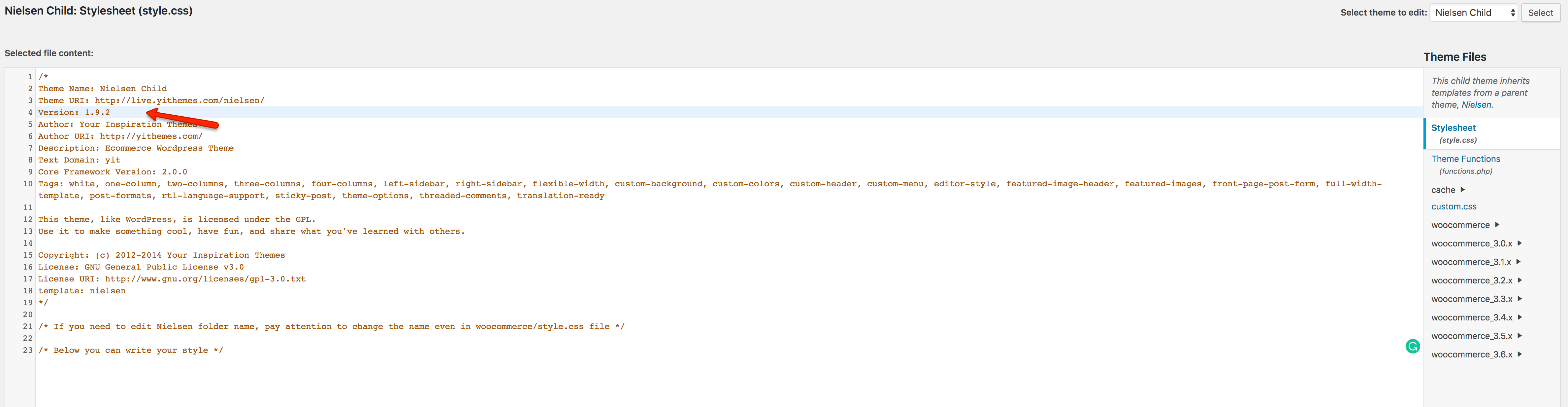
Custom CSS helps your site look unique. It changes colors, fonts, and styles. Always save your custom CSS before updating. Use a text file for backup. This keeps your changes safe. Check your child theme’s style.css file. Make sure your custom CSS is there. After updating, copy the saved CSS back. This restores your site’s look.
Custom functions add special features to your site. They might be in your child theme’s functions.php file. Always backup functions before updating. Save them in a text file. Check the updated theme for new functions. Compare them with your saved functions. Add your custom functions back. This keeps your site working well. Test your site after updating. Make sure all functions work smoothly.

Credit: thewhitelabelagency.com
Troubleshooting Common Issues
Updating a WordPress theme while using a child theme can prevent loss of customization. Backup your site and deactivate plugins before starting. Follow simple steps to ensure seamless updates without affecting your unique design.
Resolving Display Errors
Display errors can be frustrating. First, check your child theme’s CSS. Ensure no missing brackets or semicolons. These can cause problems. Next, review your functions.php file. Look for any extra spaces or lines. Remove them. Clear your cache to see changes. Sometimes, old data causes display issues. Restart your browser if needed.
Handling Plugin Conflicts
Plugins can conflict with themes. Deactivate all plugins first. Then, activate them one by one. This helps find the problematic plugin. Once found, look for updates. Developers often fix compatibility issues. Contact the plugin’s support if the issue persists. They may offer a solution. Regular backups can prevent data loss during troubleshooting.
Best Practices For Future Updates
Set a specific day each month for theme updates. This ensures you never miss an update. Choose a day with less website traffic. This reduces the risk of disruption. Keep a checklist ready. Include tasks like backing up data and testing changes. Regular updates keep your site secure and efficient.
Write down every change you make to the theme. Use a simple notebook or a digital document. This helps in tracking changes over time. If something breaks, you can easily find the cause. Documenting also helps when teaching others. They can learn from your notes. Keep it simple but detailed enough to understand later.
Frequently Asked Questions
What Is A Child Theme In WordPress?
A child theme in WordPress allows customization without altering the parent theme. It inherits the functionalities of the parent theme. This ensures updates to the parent theme won’t overwrite your customizations. Using a child theme is a recommended practice for developers to maintain their modifications safely.
Why Update A WordPress Theme?
Updating a WordPress theme ensures you get new features and improved security. It also fixes bugs that might affect your site performance. Regular updates can enhance compatibility with plugins and improve the overall user experience. Keeping your theme updated is crucial for site stability.
How Do You Update A Theme Using A Child Theme?
To update a theme with a child theme, first back up your site. Then, update the parent theme from your WordPress dashboard. The child theme remains untouched, preserving your customizations. Check for compatibility and test your site after updating to ensure everything works correctly.
Does Updating Affect Child Theme Customizations?
Updating the parent theme does not affect child theme customizations. Child themes are designed to remain unchanged during updates. This allows you to keep your custom styling and functionality. Always ensure your child theme is properly set up to prevent any issues during updates.
Conclusion
Updating your WordPress theme with a child theme is simple. Follow the steps carefully. Ensure you back up your site first. This prevents data loss. Use the WordPress dashboard for updates. It’s user-friendly and efficient. Test your site after updating.
Look for any broken links or errors. Fix them promptly to ensure smooth operation. Regular updates keep your site secure. They also improve performance. Stay informed about new theme versions. This helps in maintaining a functional website. Practice these steps regularly.
Your WordPress site will remain updated and secure. Keep learning and experimenting. You’ll become more confident over time.


