
Are you ready to give your WordPress site a fresh new look but unsure how to update your theme manually? You’re not alone.
Many website owners want to keep their sites looking modern and functioning smoothly, yet the thought of manually updating a WordPress theme can seem daunting. Fear not! This guide is designed with you in mind, breaking down each step into simple, actionable tasks.
Imagine the satisfaction of knowing you have full control over your site’s appearance, without the fear of losing your hard work. By the end of this article, you’ll feel confident in your ability to update your theme manually, ensuring that your site remains as engaging and effective as ever. Stay with us, and unlock the secrets to mastering your WordPress theme updates effortlessly!
Credit: www.wpzoom.com
Benefits Of Manual Theme Updates
Manual updates keep your WordPress theme secure. You get the latest features. Your site stays fast and efficient. Automatic updates might miss some changes. Manual updates let you see every change. This keeps your site running smoothly.
Sometimes themes have bugs. Manual updates can fix them. This helps your site work better. Manual updates also let you customize more. You can choose what to change. This gives you more control over your site.
Preparation Steps
Backing up is the first step. It keeps your data safe. Use a backup plugin. Store files in a secure location. This ensures your site can be restored. Mistakes happen. Always be ready. Protect your hard work. Save your site’s files regularly.
Compatibility is crucial. Check if your theme works with the new update. Visit the theme’s website. Look for update notes. Ensure plugins are also compatible. Compatibility issues can break your site. Always test changes on a staging site first. This keeps your live site safe.
Download Latest Theme Version
Find the website where you bought the theme. This is the theme source. Log in to your account on that website. Check for a downloads section. Here, you will see the latest version of your theme. Make sure it matches your current theme. This step is important for keeping your site updated.
Click the download button. Save the theme file on your computer. Usually, it is a .zip file. Remember where you save it. You will need this file later. Do not unzip the file yet. It must stay as a .zip file to upload it later. This file is crucial for updating your WordPress theme.
Credit: www.themeum.com
Deactivate Current Theme
First, go to your WordPress dashboard. Click on Appearance. Then select Themes. You will see a list of themes. Find the default theme, like Twenty Twenty-One. Hover over it and click Activate. Your site will now use the default theme. This step helps you update safely. The default theme is basic but stable.
After switching themes, check your site. Visit different pages to see if everything loads. Look for broken images or links. Make sure your contact forms work. Test navigation menus. Sometimes plugins conflict with themes. If you notice issues, they might need attention. A working site keeps visitors happy. It’s crucial before updating anything further.
Upload New Theme Files
Access WordPress Dashboard. First, log in to your WordPress dashboard. Click on “Appearance”. Then select “Themes”. This section shows all your themes.
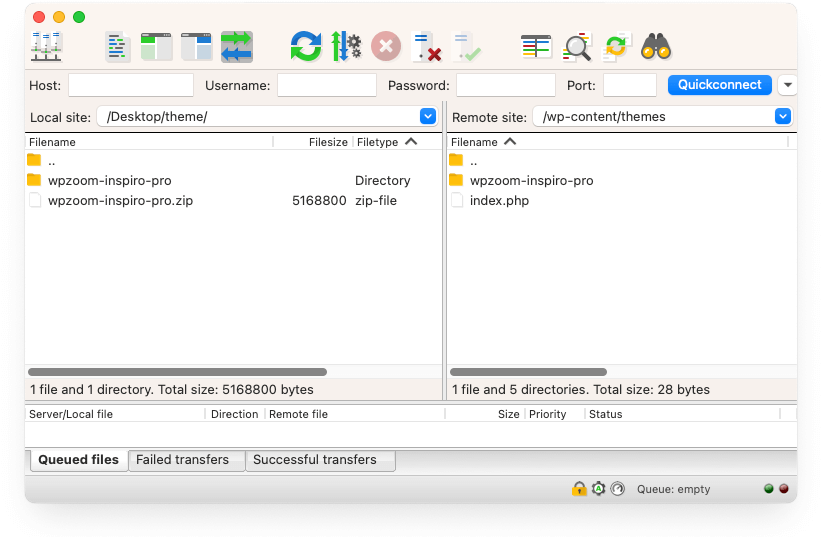
Use FTP for File Upload. FTP helps upload files safely. Get an FTP client like FileZilla. Connect to your website server. Enter your host, username, and password. Navigate to the “wp-content/themes” directory. Select your new theme files. Upload them here. Always check file permissions. They should be set correctly.
Once uploaded, return to the dashboard. Activate your new theme. Check your website. Ensure everything works well. Sometimes, adjustments are needed. Test all functions. Make sure nothing breaks.

Credit: www.youtube.com
Activate Updated Theme
First, go to your WordPress Dashboard. Find the Appearance section. Then, click on Themes. You will see a list of themes. The updated theme should be there. Click Activate under the updated theme. Your new theme is now live.
If the theme is not working, you can switch back. Go to the Themes section again. Find your previous theme. Click Activate under it. The old theme will be active again. This keeps your site safe.
Check if the theme is active. Go to your website. See if the new look is there. If not, refresh the page. Sometimes, changes take a moment. Your theme should show as expected.
Test Website Functionality
Check Website Appearance after updating the theme. Ensure everything looks right. Images should display clearly. Text must be readable. Buttons need to function properly. Don’t miss checking the homepage. Verify that the layout remains consistent. Look at different sections of your site. Make sure colors are not altered. Fonts should remain the same. Check how the site appears on different devices. Use mobile phones and tablets to test. The site should respond well on all platforms.
Verify Plugin Compatibility is crucial after theme updates. Plugins may stop working if not compatible. Check each plugin carefully. See if functions are smooth. Look for errors or broken parts. Update plugins if needed. Sometimes, you may need to disable a plugin. This can help find which plugin causes issues. Some plugins may need re-installing. Always keep a backup before making changes. Plugins help your site work better. Ensure they work with the new theme.
Troubleshooting Common Issues
Updating a WordPress theme manually can resolve various issues. Begin by backing up your site to prevent data loss. Then, download the latest theme version from the official source and upload it via FTP. Ensure compatibility by checking theme documentation for potential conflicts with plugins.
Resolve Style And Layout Problems
Updating a theme may cause style issues. Some parts might look different. To fix this, check your CSS files. Ensure they are correct. Sometimes, clearing the browser cache helps. Refresh the page and look again. If styles are still off, use the customizer tool. Adjust settings to match your design. This may take some time, but it works well.
Fix Broken Links Or Errors
Broken links are frustrating. They confuse visitors. Check all links on your site. Use a tool to find broken ones. Fix these links quickly. Update or remove them as needed. Errors can also occur in the code. Check for typos or mistakes. Review any error messages shown. Follow instructions to resolve them. This keeps your site running smoothly.
Best Practices For Future Updates
Backing up your site is very important. It keeps your data safe. Do this before making any big changes. Use tools like UpdraftPlus or BackupBuddy. They make backups easy and quick. Save backups to a safe place. This can be cloud storage or an external drive. Check your backups often. Make sure they are working well.
Stay updated with notifications. Themes often have new updates. These updates fix bugs and improve features. Enable notifications in your WordPress settings. This helps you know when to update. Don’t ignore these alerts. Updating themes keeps your site secure and fast.
Frequently Asked Questions
How Do I Update WordPress Theme Manually?
To manually update a WordPress theme, first download the latest version. Then, access your WordPress files via FTP. Navigate to the ‘wp-content/themes’ directory. Upload the new theme files, replacing the old ones. Ensure you back up your site before proceeding to avoid any data loss.
Can I Lose Data When Updating Theme Manually?
Updating a theme manually can potentially lead to data loss. To prevent this, always back up your site before making changes. Use a reliable backup plugin or your hosting service’s backup feature. Restoring from a backup is easier than recovering lost data manually.
Is Ftp Necessary For Manual Theme Updates?
Yes, FTP is necessary for manual theme updates as it allows you to access and modify your site’s files directly. You can use FTP clients like FileZilla or Cyberduck. These tools enable you to upload, replace, and manage your WordPress theme files efficiently.
What Precautions Should I Take Before Updating?
Before updating, back up your website to prevent data loss. Check compatibility with your current plugins and WordPress version. Review the theme documentation for any specific update instructions. Consider testing the update on a staging environment first to ensure everything works smoothly.
Conclusion
Updating your WordPress theme manually is straightforward. Follow the steps carefully for smooth updates. Backup your site before making changes. Always check theme compatibility. This prevents issues later. Manual updates offer more control. You can customize without restrictions. Regular updates keep your site secure.
They also ensure optimal performance. Stay informed about new theme features. These can improve your site’s functionality. By updating manually, you maintain a clean and efficient website. This enhances user experience. Keep your WordPress site fresh and functional. Your efforts will pay off in the long run.


