
Are you struggling with keeping your website looking fresh and up-to-date? If you’re using the Divi theme on WordPress, knowing how to update it can make all the difference in maintaining a sleek, efficient site.
Keeping your theme updated not only enhances its functionality but also keeps your site secure and running smoothly. Imagine the peace of mind you’ll feel, knowing your website is performing at its best and giving your visitors an optimal experience.
In this guide, you’ll discover simple steps to ensure your Divi theme is always current, helping you stay ahead of the curve. Stick around, and let’s simplify this process together!
Preparing For The Update
Updating the Divi Theme in WordPress ensures optimal performance and security. Start by backing up your site to prevent data loss. Follow the update prompts in WordPress, ensuring all plugins are compatible for a seamless transition.
Backup Your Site
Before updating Divi, backup your site. This keeps your data safe. Use plugins like UpdraftPlus or BackWPup. They save your site’s files and database. Download the backup files. Store them on your computer or cloud. This ensures you can restore your site if needed.
Check Plugin Compatibility
Check if your plugins are compatible with the new Divi version. Outdated plugins might cause errors. Visit the plugin page or developer’s site. Look for updates or compatibility notes. Update plugins before updating Divi. This reduces the risk of issues. Test them on a staging site first. This helps confirm everything works well.
Credit: wpzone.co
Updating Divi Theme Automatically
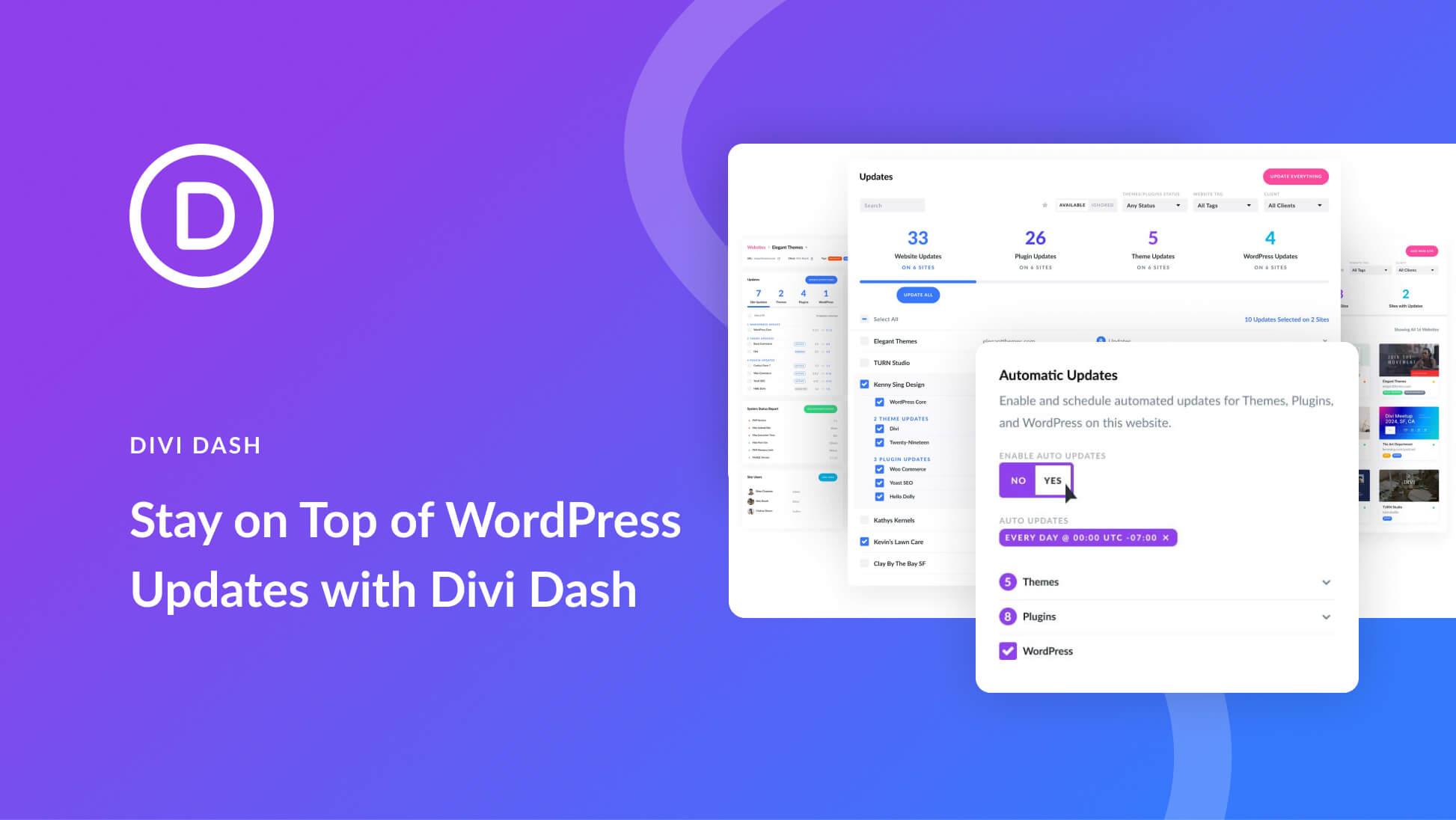
It’s easy to enable automatic updates for Divi. First, go to your WordPress dashboard. Find the Divi option in the menu. Click on it. Look for theme options. There, you will see updates settings. Enter your API key. This key comes from your Elegant Themes account. Then, save your changes. Now, Divi can update itself. No need to do it manually. This keeps your site secure and up-to-date.
After setting up updates, check the settings. Go back to the theme options. Look at the update section again. Ensure the API key is correct. If it’s wrong, updates won’t work. Check if automatic updates are enabled. If not, turn them on. This ensures your site stays current. Regular updates prevent bugs and improve performance.
Manual Update Process
First, log into your Elegant Themes account. Find the Divi theme on the download page. Click to download the latest version. Save the downloaded file to your computer. Make sure to remember where you saved it. This file is usually in a ZIP format.
Go to your WordPress dashboard. Click on Appearance and then Themes. Click on Add New at the top. Choose the option to Upload Theme. Select the Divi ZIP file you saved. Click Install Now. Wait for the upload to finish. Once done, click Activate to use the new version. Check your site to ensure everything works fine.
Troubleshooting Common Issues
Updating the Divi Theme in WordPress can solve many issues. First, back up your website. Then, navigate to your WordPress dashboard, and check for theme updates. Select “Update” to keep your Divi Theme current and running smoothly.
Resolving Update Errors
Errors can occur during Divi updates. Clear your browser cache first. This often resolves minor issues. Next, check your internet connection. A weak connection might interrupt updates. Always ensure your WordPress is up-to-date. Outdated versions cause problems. Backup your site before updating. This protects your data. Ensure you have enough server space. Lack of space prevents updates. Check if your PHP version is compatible. Older versions may not support Divi updates. Deactivate plugins temporarily. Some plugins conflict with updates. Re-activate them after updating. If errors persist, contact Divi support. They offer expert help.
Fixing Compatibility Problems
Compatibility problems can arise after updates. Check theme settings first. Sometimes settings change during updates. Ensure your plugins are compatible with Divi. Update them regularly. Inspect your custom code. Updates might break customizations. Restore your backup if needed. Check your hosting environment. It should support Divi’s requirements. Test your site after updates. Ensure everything works smoothly. If problems remain, contact Divi support. They provide solutions for compatibility issues. Consider a staging site. Test updates there first. This prevents live site issues.
Post-update Checks
Test Site Functionality is important after updating Divi theme. Ensure all links work. Click on buttons to see if they respond. Check forms to make sure they send information correctly. Look for errors on pages. Refresh pages to see if they load well.
Review Design Elements to ensure nothing changed unexpectedly. Check fonts for size and style. Look at colors on different sections. Make sure images appear correctly. Ensure layouts display properly on mobile devices. Verify that text is easy to read.
Credit: www.elegantthemes.com
Optimizing Divi After Update
Keep your site fast and smooth. Clear the cache regularly. This helps remove old files. Make images smaller for quicker load times. Use a CDN to serve content faster. This helps users far away. Check for plugins that slow down your site. Remove or replace them with better ones. Always test your site speed with tools. Aim for a fast score.
Explore new tools in Divi after updates. New features can help design better pages. Try new modules to add cool stuff. Look at the new design options. They might make your site prettier. Always check the settings for new features. They can change how your site works. Be sure to read the update notes. They tell you what’s new.
Credit: colorlib.com
Frequently Asked Questions
How Do I Update My Divi Theme?
To update your Divi theme, log into WordPress. Navigate to “Dashboard” > “Updates”. Click “Update” next to Divi. Ensure your Elegant Themes API key is active in “Divi” > “Theme Options” for seamless updates. Regular updates enhance security and features.
How Do I Manually Update My WordPress Theme?
To manually update your WordPress theme, download the latest version. Go to Appearance > Themes in your dashboard. Activate a temporary theme, then delete your current theme. Upload and activate the new version. Ensure to backup your website before proceeding to avoid data loss.
How Do You Change The Theme In Divi?
To change the theme in Divi, navigate to WordPress Dashboard, click “Appearance,” then “Themes. ” Choose Divi and activate it. Ensure Divi is installed before activating. Customize settings via the Divi Builder for personalized design. Save changes to update the look.
Enjoy new features and design options.
Why Is My Divi Page Not Updating?
Clear your browser cache and Divi cache. Check for plugin conflicts. Update Divi theme and WordPress. Ensure all changes are saved.
Conclusion
Updating your Divi theme is a simple yet essential task. It enhances performance and ensures security. Regular updates keep your website fresh and functional. Follow the steps carefully to avoid issues. Always back up your site before updating. A well-maintained theme contributes to a successful website.
Stay informed about new features and improvements. This practice benefits your site’s user experience. Take the time to update Divi routinely. Your efforts will pay off in a seamless online presence. Enjoy a better, more reliable WordPress site with each update.
Keep your site at its best.


