
Struggling with an outdated WordPress theme? Maybe it’s just not fitting your style anymore, or perhaps it’s slowing down your site.
Whatever the reason, you’ve decided it’s time for a change. But how do you uninstall a WordPress theme from Cpanel without causing a headache? You might be worried about messing things up or losing important data. Don’t fret! We’ve got your back.
In this guide, you’ll discover a straightforward, step-by-step process to safely remove that theme using Cpanel. By the end, you’ll feel confident and in control, ready to give your website a fresh new look. Ready to dive in? Let’s simplify this task together!

Credit: wpmarmite.com
Accessing Cpanel
Start by visiting your hosting provider’s website. Enter your username and password. You will see a dashboard after you log in. Look for the option called “Cpanel”. This is where you will manage your website. Make sure to keep your login details safe.
Once logged in, find the Cpanel icon. Click on it to open the Cpanel dashboard. The dashboard has many icons and options. Look for a section labeled “Files” or “File Manager”. This is where you will make changes to your website files. Always be careful when making changes here.
Locating The File Manager
First, log into your cPanel account. This is the place where you manage your website. Look for the File Manager icon. It usually looks like a folder. This icon helps you access all your website files. Sometimes, it’s in the Files section. Click on it when you find it.
After clicking, a new page opens. This page shows all your website files. It’s like a big storage room. You can see folders and files here. Find the folder named public_html. This is where your website files are stored. Double-click on it to open.
Navigating To WordPress Directory
First, open your Cpanel. Use the File Manager option. Look for the public_html folder. This is usually the root directory. Inside, you’ll find folders that belong to WordPress.
Identifying The Root Directory
The root directory holds main website files. It’s crucial to find it correctly. Check for wp-admin, wp-content, and wp-includes folders. These folders confirm the WordPress directory.
Accessing Wp-content Folder
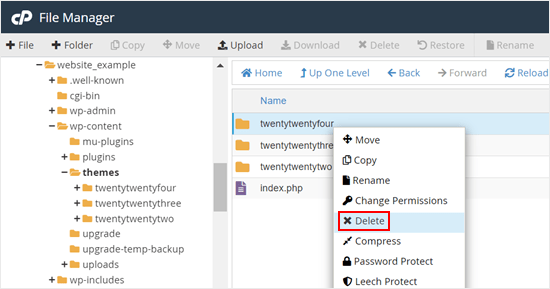
Locate the wp-content folder. This folder contains themes and plugins. Click to open it. Inside, find the themes folder. Here, all installed themes are stored. Delete the theme you want to remove. Be careful not to delete the active theme.
Removing The Theme
First, log into your Cpanel. Look for the File Manager icon. Click it to open. Find the folder named public_html. Click it to open it. Look for the wp-content folder inside. Click on it. Inside, you will see the themes folder. This is where your themes are stored.
Inside the themes folder, look for the theme you wish to delete. Right-click on the theme folder. A menu will appear. Choose Delete from the menu. A window may pop up asking to confirm. Click OK to proceed. The theme will be deleted from your site.
Verifying Theme Removal
After uninstalling a theme, visit the WordPress Admin Panel. Ensure the theme is no longer visible there. Check the Appearance section to confirm its removal. This will show you all active themes.
It’s crucial to verify the site’s functionality. Load your website and check for errors. Ensure the layout looks proper and all features work. A broken site could mean theme removal wasn’t successful.
Checking WordPress Admin Panel
Log into your WordPress Admin Panel. Navigate to Appearance > Themes. Ensure the removed theme isn’t listed. Only active themes should be visible. If the theme still appears, repeat the removal steps.
Ensuring Site Functionality
Visit your website’s homepage. Check if it loads correctly. Look for missing elements or broken links. Verify that pages display normally. Ensure menus and images appear as expected. This confirms theme removal did not affect site functionality.
Troubleshooting Common Issues
Removing a WordPress theme via cPanel involves a few simple steps. Access the File Manager, navigate to ‘wp-content/themes’, and delete the unwanted theme folder. Ensure backup before making changes for safety.
Handling File Permission Errors
Sometimes, file permission errors can stop theme removal. First, check the file permissions. They should be set correctly. Use Cpanel’s File Manager for this. Right-click the theme folder. Select Permissions. Change settings to 755 for folders. Set files to 644. Save your changes. If problems persist, contact your hosting provider for help.
Restoring Backup If Needed
Backups are important. They help fix errors. Use Cpanel’s Backup Wizard. Choose Restore. Follow steps to bring your site back. Always keep a recent backup. It can save time during problems. If no backup exists, consider manual file recovery. Ask your host for assistance if needed.
Best Practices For Theme Management
Easily uninstall a WordPress theme from cPanel by accessing the file manager. Delete the theme folder under “wp-content/themes”. This simple method helps manage your site’s themes efficiently.
Keeping Backups
Always keep a backup of your WordPress site. This ensures safety. If something breaks, you can restore it. A backup can save time and stress. You can use plugins for this task. They help in creating backups easily. Some plugins are free. Others may charge a fee. Choose one that suits your needs. Regular backups keep your site safe. Never skip this step. It is very important.
Regularly Updating Themes
Themes need regular updates for security. Updates fix bugs and add features. They keep your site running smoothly. Check for updates often. Do not ignore update alerts. Keeping themes updated improves site performance. It also secures data from threats. Updated themes are less prone to hacks. Stay vigilant with theme updates. This keeps your website safe and fast.

Credit: wpmarmite.com
Credit: www.wpbeginner.com
Frequently Asked Questions
How Do I Access Cpanel For WordPress?
Log into your hosting account and find the cPanel section. Typically, you’ll see a “cPanel” link or icon. Click it to access the dashboard where you can manage WordPress files, databases, and themes. Make sure you have your login credentials handy to proceed securely.
Can I Uninstall A WordPress Theme Via Cpanel?
Yes, you can uninstall a WordPress theme through cPanel. Navigate to the “File Manager” and open the “wp-content/themes” directory. Locate the theme folder you wish to uninstall. Right-click the folder and select “Delete” to remove the theme from your WordPress installation.
Is Deleting A Theme From Cpanel Safe?
Deleting a theme from cPanel is generally safe. Ensure you’re not deleting the active theme to avoid site issues. Backup your site before making changes. This ensures you can restore it if any problems arise. Always confirm you’re deleting the correct theme folder.
Will Uninstalling A Theme Affect My Site?
Uninstalling a theme won’t affect your site if it’s inactive. Active theme deletion can disrupt your site’s design. Ensure you have another theme activated before uninstalling. Backup your website to safeguard against potential data loss or errors during the process.
Conclusion
Uninstalling a WordPress theme via cPanel is straightforward. Follow the steps carefully. Start by logging into your cPanel account. Navigate to the File Manager. Locate your WordPress installation directory. Find the ‘themes’ folder. Delete the unwanted theme from there. Always check twice before deleting any files.
This ensures you don’t remove anything important. Regular backups are a good practice. They keep your data safe. Feel free to explore other themes. Customize your WordPress site to fit your needs. With this guide, you’re all set to manage themes confidently.
Keep your website fresh and updated.


