
Have you ever felt overwhelmed by the clutter of themes on your WordPress site? Maybe you’ve tried a few, and now your dashboard feels like a crowded closet.
Unused themes can slow down your website and leave it vulnerable to security risks. But don’t worry, getting rid of them is easier than you think. In this guide, you’ll learn exactly how to uninstall a theme on WordPress. By the end, your site will be leaner, faster, and more secure.
Ready to give your website a fresh start? Let’s dive in and declutter your digital space!
Accessing The WordPress Dashboard
First, open your web browser. Type your website’s URL. Add /wp-admin at the end. Press Enter. A login page will show up. Enter your username and password. Click on the Log In button. You will reach the WordPress Dashboard.
The Dashboard is the main area. Here, you control your website. You can add posts, pages, and more. Look at the left side. You will see a menu. This menu helps you go to different sections. Find the section you need to manage themes.

Credit: wpmarmite.com
Navigating To The Themes Section
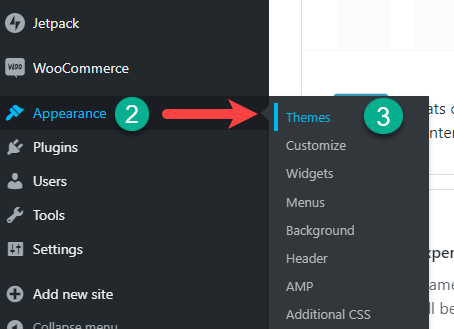
First, log into your WordPress dashboard. It’s the main area to manage your site. Look on the left-hand menu. Find the option labeled “Appearance”. Click on it. This takes you to the Themes section. Here, you can see all your installed themes. The active theme is at the top. Others are below it. You can switch between them easily.
To remove a theme, hover over it. A menu appears. Click on the “Theme Details” button. A new window will open. Look for the “Delete” option at the bottom right. Click to uninstall. Confirm your choice. The theme is now removed from your site.
Identifying The Active Theme
Open your WordPress dashboard. Go to the Appearance section. Here, you see the Themes option. Click on it. You will see all your themes. The active theme will have a big label. It says “Active.” This is the theme currently in use. The active theme usually appears first. It often has a colorful border. You can also see theme details. Just hover over the theme image. A button will appear. It says “Theme Details.” Click to get more information. This helps you know more about the active theme. Make sure you know which theme is active before uninstalling any.
Credit: www.domain.com
Deactivating The Current Theme
Start by opening your WordPress dashboard. Find the Appearance tab on the left. Click it to see your current theme. It’s important to switch to a default theme first. This ensures no issues on your site. Look for the Twenty Twenty-One theme. This is a safe choice.
Click on Activate next to the default theme. This will deactivate your current theme. Make sure your site looks okay. Check if everything works fine. Once done, you can remove the unwanted theme. Navigate to the Themes page again. Select the theme you want to delete. Click on Delete to remove it permanently. Your site should now run smoothly.
Locating The Theme For Removal
Find your theme in the WordPress dashboard. First, log in to your WordPress account. Then go to the Appearance section. You can see it on the left side. Click on Themes. All your themes show here. The active theme has a label. You cannot remove it directly. Choose another theme to activate first.
Now, select the theme you want to remove. Click on it. A window will pop up. Look for the Delete button at the bottom. Click delete. A message will ask for confirmation. Click OK to remove the theme. It is simple and quick. Your theme is now gone.
Uninstalling The Theme
To remove a theme, go to the WordPress dashboard. Click on Appearance. Find the theme you want to delete. Hover over the theme image. Click on Theme Details. You will see a Delete button at the bottom. Click on it. A pop-up will ask you to confirm. Click OK to confirm.
Once you click OK, the theme will be gone. This will free up space. Make sure you do not need the theme anymore. Deleted themes cannot be recovered. Always double-check before you delete. Keep your site tidy by removing unused themes.
Cleaning Up Theme Files
Removing a theme helps keep your site clean. After uninstalling, some files may stay. These can slow down your site. Use FTP or File Manager in cPanel. Go to the wp-content/themes folder. Check for extra files or folders. Delete anything related to the old theme. Be careful not to delete important files. Back up your site before changes. This keeps your data safe. Also, check your database. Some themes add tables. Use a plugin like WP-Optimize. It helps clean up unused tables. A clean database improves site speed. Remember, always double-check before deleting. Safety first!
Ensuring No Conflicts
After uninstalling a theme, check your site. Ensure all links work. Use online tools to find broken links. Broken links can confuse visitors. They harm your site’s reputation. Fix them quickly. Replace or update broken links. This keeps your site user-friendly.
Test your site after removing a theme. Check if all features work well. Ensure pages load properly. Look for missing elements. Ensure menus, buttons, and forms function as expected. This step helps maintain a smooth user experience. A well-functioning site keeps visitors happy.
Exploring Alternative Themes
Choosing a New Theme is an exciting task. There are many themes available on WordPress. Pick a theme that suits your style. You can browse through the theme directory. Look for themes with good reviews. Pay attention to the features they offer. Make sure the theme is responsive.
Installing and Activating a new theme is simple. First, go to the WordPress dashboard. Navigate to the “Appearance” section. Click on “Themes” to open the theme page. You can search for themes using the search bar. After finding your theme, click “Install”. Once installed, click “Activate”. Your new theme is now ready to use. You can customize it further under the “Customize” option.

Credit: themelooks.com
Frequently Asked Questions
How Do I Uninstall A Theme From WordPress?
To uninstall a WordPress theme, go to your WordPress dashboard. Click on “Appearance” and select “Themes. ” Find the theme you want to delete, click on “Theme Details,” and press the “Delete” button. Confirm the deletion to remove the theme completely.
How Do I Uninstall The Theme?
Go to your WordPress dashboard. Navigate to “Appearance” and select “Themes. ” Locate the active theme and click “Deactivate. ” After deactivation, hover over the theme and click “Delete. ” Confirm the deletion to uninstall the theme completely.
How Do I Delete Unused WordPress Themes?
Go to your WordPress dashboard, click “Appearance” then “Themes. ” Hover over the theme, click “Theme Details,” and select “Delete. ” Confirm the deletion. Repeat for all unused themes to keep your site optimized.
How Do I Remove A Theme From My Website?
To remove a theme, log into your website’s admin panel. Navigate to “Appearance” and then “Themes. ” Activate a different theme. Hover over the theme you want to delete, click “Theme Details,” and then select “Delete. ” Confirm the deletion to remove the theme completely.
Conclusion
Uninstalling a theme on WordPress is straightforward. Follow the steps closely. First, log into your WordPress dashboard. Next, navigate to the “Appearance” section. There, select “Themes. ” Choose the theme you want to remove. Click on “Theme Details. ” Then, press “Delete.
” Confirm your choice. Always ensure your site’s functionality remains intact. Test your website after changes. Regular theme updates help maintain site performance. Keep your site clean and organized. Removing unused themes can enhance security. It also frees up resources.
Simplify your WordPress experience. Enjoy a smoother, clutter-free WordPress journey.


