
Are you trying to figure out which MySQL database is connected to your WordPress site? You’re not alone.
This can be a puzzling task, especially if you’re managing multiple websites or if someone else set up your WordPress installation. But don’t worry; finding the right database doesn’t have to be a daunting challenge. You’ll learn simple steps to identify the MySQL database linked to your WordPress site.
Understanding this connection is crucial for effective site management and troubleshooting any issues that may arise. Stay with us, and by the end, you’ll have the confidence and knowledge to manage your WordPress database like a pro.
Locating The Wp-config.php File
The wp-config.php file is very important. It holds the database connection details. You can find it in the main folder. This folder is called the root directory. It is where your WordPress files are located.
Use a file manager to see your files. Many hosting services have this tool. Look for a folder named public_html. Inside, you will see the wp-config.php file. Click on it to open.
Inside the file, you will find database settings. These settings tell WordPress how to connect to MySQL. They include the database name, username, and password. Make sure these details are correct.

Credit: veppa.com
Database Name In Wp-config.php
Open your WordPress folder. Find the wp-config.php file. It holds important settings. Locate the line that says DB_NAME. This is your database name. It shows which MySQL is connected. The database name is inside quotes. It looks like define('DB_NAME', 'your_database_name');. Write it down. Keep it safe. This name is very important. It links WordPress to its data.
You also see DB_USER and DB_PASSWORD. These are your login details. They help WordPress talk to MySQL. Always keep them private. They protect your website. Never share them with others. Check these details carefully. Make sure they match your database info. If they mismatch, WordPress won’t work. Fix any errors here to solve connection issues.
Identifying Mysql Host
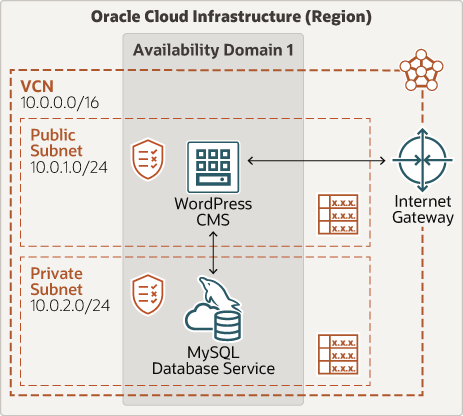
WordPress connects to a MySQL database. This is where your data lives. The database host is often ‘localhost’. Sometimes, it might be a server name or an IP address. Find this in the wp-config.php file. This file is in your WordPress folder. Open it with a text editor. Look for the line that says DB_HOST. This shows where MySQL is hosted. If it’s not ‘localhost’, it will show a different name.
Some hosting providers use special names for database servers. Check their documentation for more info. Knowing the correct host helps in fixing connection issues. It’s crucial for your site’s performance. Always keep a backup of your wp-config.php file. This helps in recovering from errors.
Credit: docs.oracle.com
Checking Mysql Username
Finding the MySQL username for WordPress is simple. First, locate the wp-config.php file. This file holds key information. It is usually in the root folder. Open this file with a text editor.
Look for DB_USER in the file. This line shows the username. It looks like this: define('DB_USER', 'username_here');. The word inside quotes is your MySQL username. Remember, this file also shows other database details.
Protect this file. It has sensitive data. Keep it secure and backed up. This way, your WordPress site stays safe.
Finding Mysql Password
To find the MySQL password, open your WordPress files. Look for a file named wp-config.php. This file holds important details. Inside, you will find a line starting with define('DB_PASSWORD'. The password is between the quotes.
The username is also in the same file. Look for DB_USER to see it. These details help WordPress connect to MySQL. Keep them safe. They are important for your website.
Using Phpmyadmin For Verification
Explore phpMyAdmin to identify which MySQL database connects to your WordPress. Navigate to the databases section and match the WordPress database name with its connection details. This process ensures a seamless integration, helping you manage your WordPress effectively.
Accessing Phpmyadmin
First, log in to your web hosting account. Find the phpMyAdmin tool in the control panel. Click on it to open. This tool helps you manage databases. It shows all databases linked to your account. Make sure you have login credentials ready. You need them to access phpMyAdmin.
Verifying Database Connection
Locate the current database used by WordPress. Check the wp-config.php file in your WordPress folder. Look for the line that says define('DB_NAME'). This line contains your database name. Match this name in phpMyAdmin. If it matches, the connection is correct.
Command Line Verification
Open your Terminal or command prompt. Type ssh to connect to your server. Use your server credentials for access. Once logged in, you need to navigate to your WordPress directory. Usually, it is named public_html or www. Use the command cd to move into this directory. You will find a file named wp-config.php. This file contains your database information.
Locate the database name in wp-config.php. Use the command mysql -u username -p. Replace “username” with your database username. Enter your password when prompted. Once logged into MySQL, type SHOW DATABASES;. You should see your database name listed. This confirms your connection. If not, check your credentials and try again.
Troubleshooting Connection Issues
Many people face issues with MySQL connections. A common error is “Error Establishing a Database Connection”. This error means WordPress can’t connect to MySQL. Another error is “Access Denied”. It happens if your username or password is wrong. Sometimes, the error “Too Many Connections” appears. It shows the server is too busy. These errors confuse many users. Each one needs a different solution.
Check your wp-config.php file first. It contains important settings. Look for DB_NAME, DB_USER, and DB_PASSWORD. Make sure they match your database. Also, check the DB_HOST setting. Usually, it is “localhost”. Sometimes, it might be different. Double-check all these details. Small mistakes can cause big problems. Fixing these can solve many issues.
Security Considerations
The wp-config.php file is crucial for WordPress security. It holds important settings and database details. Keeping this file safe is key. Start by moving it to a non-public directory. This makes it harder for attackers to find. Only allow trusted users to access it. Adjust file permissions to restrict changes. This prevents unauthorized edits.
Use strong passwords for database connections. Avoid using default usernames like “admin.” Always choose unique usernames. Change your database prefix from “wp_” to something unique. This confuses hackers, making attacks harder. Regularly update WordPress and plugins. Updates fix security gaps. Back up your data often. If something goes wrong, you can restore it.
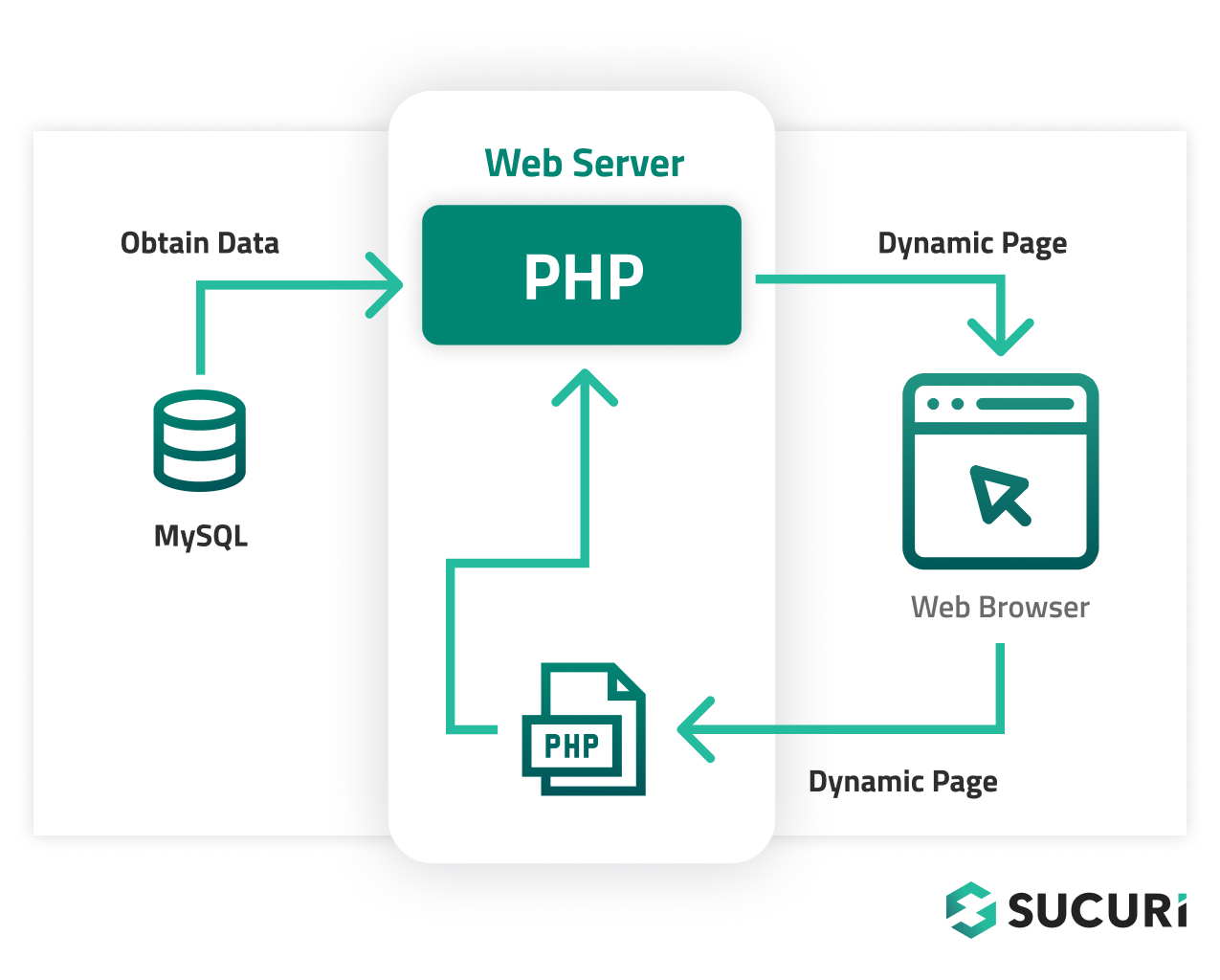
Database credentials are like keys to your house. Keep them secret. Use a strong and complex password. Avoid using the same password across multiple sites. Store credentials in a secure place. Never share them openly. Rotate passwords regularly. This helps in case of leaks. Consider using tools to manage passwords safely. Always remember, security is ongoing. Stay alert and protect your data.
Credit: blog.sucuri.net
Frequently Asked Questions
How Do I Find My WordPress Mysql Database?
To find your WordPress MySQL database, check the `wp-config. php` file in your WordPress directory. Look for the line starting with `define(‘DB_NAME’`, which contains your database name. This file also contains your database username and password information, crucial for accessing your MySQL database.
What Mysql Version Is Compatible With WordPress?
WordPress recommends using MySQL version 5. 7 or higher for optimal performance. Using a compatible version ensures better security, speed, and feature support. Always check WordPress’s requirements before upgrading your MySQL version to avoid any potential conflicts or issues with your website.
How Can I Change My WordPress Database?
To change your WordPress database, access the `wp-config. php` file. Update the database name, username, and password fields with your new database credentials. Ensure your new database is correctly configured and accessible. Remember to back up your data before making any changes to avoid data loss.
Can I Connect WordPress To Multiple Databases?
WordPress does not support multiple databases natively. However, you can achieve this with custom development or plugins. Connecting to multiple databases requires advanced knowledge of PHP and WordPress coding. It’s best suited for complex sites with specific needs, like multiple site installations or custom data sources.
Conclusion
Finding the right MySQL connection for WordPress doesn’t have to be hard. Start by checking your wp-config. php file. It’s your main guide. Look for the database name and host information. These details reveal which MySQL database connects to your WordPress site.
Always keep your credentials safe. Regularly update your settings for security. Knowing your MySQL connection helps maintain your website’s performance. It ensures your site runs smoothly. With these steps, managing WordPress becomes easier. You gain confidence in handling your website’s technical aspects.
Stay informed, and your site will thrive.


