
Are you feeling overwhelmed by the clutter of your current WordPress theme? If you’re yearning for simplicity and a fresh start, switching to a blank theme might be the perfect solution for you.
Imagine a clean slate, free from unnecessary distractions, allowing your content to shine and your creativity to flow. A blank theme can give you the ultimate control over your website’s appearance and functionality. But how do you make this transition seamlessly?
The process might seem daunting, but it doesn’t have to be. In this guide, you’ll discover step-by-step how to switch to a blank theme in WordPress without losing your existing content or compromising your site’s performance. By the end, you’ll be equipped with the knowledge to transform your website into a minimalist masterpiece, tailored exactly to your vision. Dive in and find out how to take control of your WordPress site today!
Benefits Of A Blank Theme
Using a blank theme in WordPress has many benefits. It gives you a clean slate to work from. This means no extra code or styles. You can add only what you need. This makes your site faster and more efficient.
It also helps in learning. You can see how WordPress works. You can build your skills by adding features yourself. This is great for beginners. It also helps to create a unique design. No other site will look like yours.
A blank theme is often responsive. It works well on phones and tablets. This is important today. Everyone uses different devices to browse. Using a blank theme makes sure your site looks good everywhere.
Choosing The Right Blank Theme
Blank themes are simple. They have no extra designs. These themes are perfect for beginners. Customization is easy with them. You can add your own style. Many blank themes are free. Some offer more features for a price. Always check for compatibility with plugins. This ensures smooth performance. Read reviews from other users. They share helpful tips. Research is key before choosing.
Look for themes with support options. This helps if you get stuck. Updates are important too. They keep your site safe. Make sure the theme fits your project. A good theme can make building a site fun. Take your time to pick the best one.
Preparing Your WordPress Site
It is crucial to keep your site safe. First, make a backup of your current site. Use a plugin or manual method. Saving all files and database is important. Store the backup in a secure location. You might need it later.
Plugins help your site work well. Check if they are compatible with a blank theme. Some plugins may not work properly. Look for updates or replacements. Ensuring compatibility prevents errors. Your site will run smoothly. Always check before switching themes.
Installing A Blank Theme
Begin by searching for a blank theme online. Many websites offer free themes. Choose one you like. Look for the download button. Click it. Save the file on your computer. Make sure to remember the location.
Open your WordPress dashboard. Find the Appearance menu. Click on Themes. Next, click the Add New button. Choose the Upload Theme option. Click Choose File. Find the theme file on your computer. Select it. Click Install Now. Wait a moment. Your theme will upload. Once done, click Activate to use the new theme.
Customizing Your Blank Theme
Layouts shape how your website looks. You can choose from full-width or boxed layouts. Try out different styles. Find what suits your site best. Don’t forget to save changes. This keeps your layout just right.
Fonts give personality to your site. Pick fonts that are easy to read. Colors make your site stand out. Use colors that match your brand. Keep it simple. Too many colors can be confusing. Save your choices.
Custom code adds special features to your site. HTML, CSS, and JavaScript are common codes. Make sure code is correct. Wrong code can break your site. Test your code before saving. This ensures it works well.

Credit: motopress.com
Testing Your Site
Switching to a blank theme in WordPress helps test your site’s functionality without design distractions. Navigate to your WordPress dashboard, select ‘Themes’ under ‘Appearance’, and activate a blank theme. This allows you to focus on content and structure, ensuring everything works smoothly.
Check Responsiveness
Ensure your site looks good on all devices. Test on phones, tablets, and computers. Adjust settings to fit different screen sizes. Use tools like Google’s Mobile-Friendly Test. It helps check if your site is easy to view on mobile.
Verify Browser Compatibility
Websites can look different in each browser. Test your site on Chrome, Firefox, Safari, and Edge. Make sure everything works well. Check for broken links or images. Fix any errors you find. Browsers update often, so keep testing regularly.
Troubleshooting Common Issues
Switching to a blank theme in WordPress can solve many design issues. First, deactivate your current theme. Then, install and activate a blank theme from the WordPress theme directory for a fresh start.
Resolving Installation Errors
Sometimes, installing a blank theme in WordPress can be tricky. Errors might pop up during the process. First, check your internet connection. A bad connection can cause installation errors. Ensure your WordPress version is up-to-date. Outdated versions often cause issues. Next, verify the theme file is not corrupted. Download it again if needed. Also, ensure your hosting server meets WordPress requirements. Memory limits or PHP version mismatches can block installations. If errors persist, contact your hosting provider for help. They can provide specific solutions for server-related issues.
Fixing Display Problems
After installation, the theme might not display correctly. This is common with new themes. First, clear your browser cache. Cached files might show old versions of your site. Next, check your theme settings. Sometimes, default settings need changes for proper display. Also, ensure all plugins are compatible with the theme. Conflicting plugins can cause display issues. Deactivate them one by one to find the culprit. Lastly, review your custom CSS code. Incorrect code can break your site’s look. Fix any errors in your custom styles.
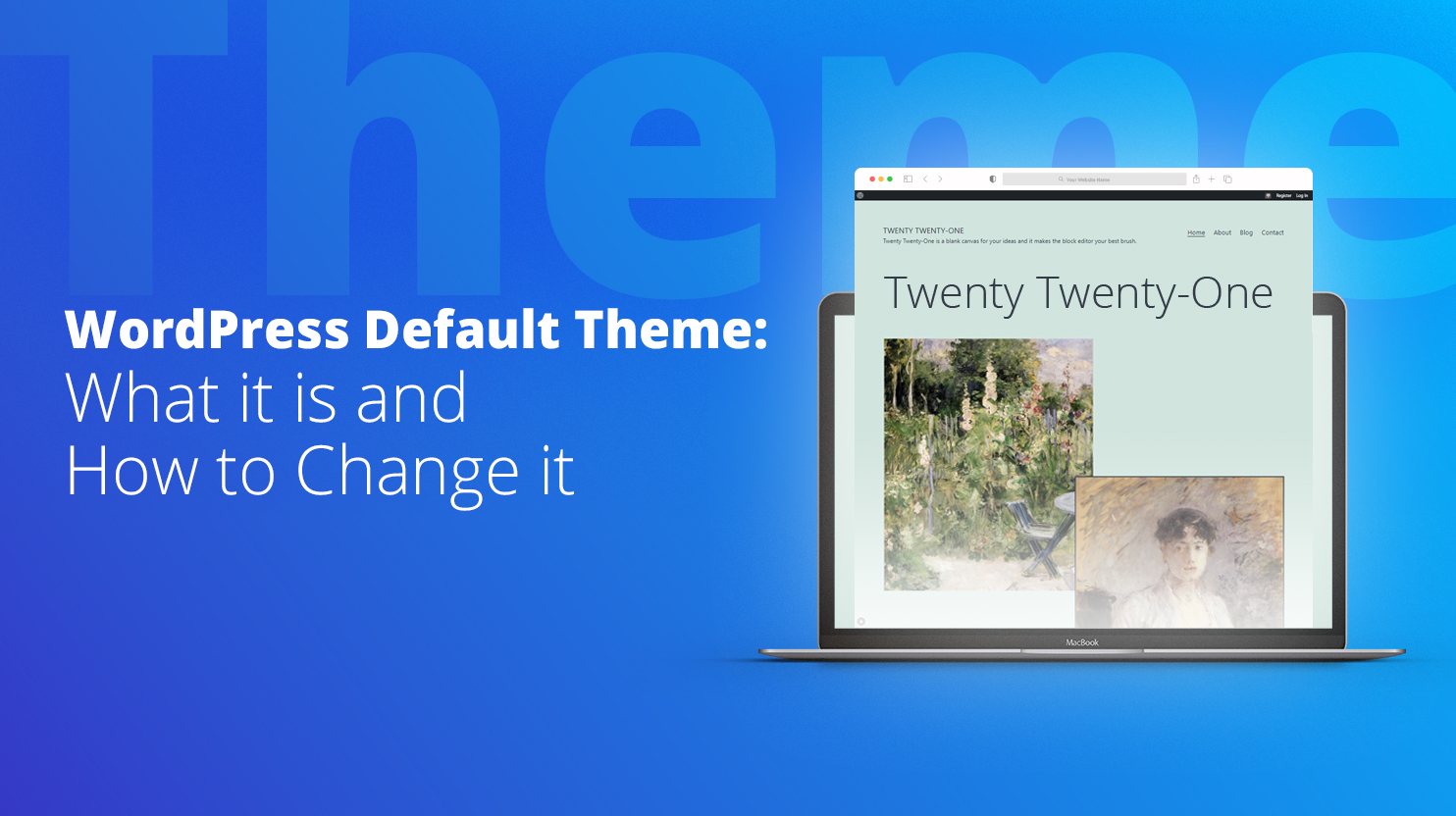
Credit: 10web.io

Credit: stackoverflow.com
Frequently Asked Questions
What Is A Blank Theme In WordPress?
A blank theme is a minimalistic WordPress template. It provides a clean slate for customization. Developers use it to create unique designs. It has no pre-set styles or features. It allows for more creative freedom. It’s ideal for building a site from scratch.
How Do I Install A Blank Theme?
To install a blank theme, first download it. Then, go to your WordPress dashboard. Navigate to “Appearance” and click “Themes. ” Select “Add New” and upload the theme file. Activate it once uploaded. Ensure compatibility with your plugins and settings.
Why Switch To A Blank Theme?
Switching to a blank theme offers customization freedom. It reduces unnecessary code and features. It improves site speed and performance. Designers prefer it for flexibility. Blank themes allow full control over design elements. It’s perfect for crafting a unique website.
Can I Customize A Blank Theme Easily?
Yes, customizing a blank theme is straightforward. It offers a flexible framework for changes. Use WordPress customizer or CSS for tweaks. Add plugins to enhance functionality. Blank themes are developer-friendly. They allow for extensive modifications without restrictions.
Conclusion
Switching to a blank theme in WordPress is straightforward. It offers flexibility and simplicity. Customize your site without limits. A blank theme is like a blank canvas. Let your creativity flow. You can create a unique look. No distractions, just your vision.
Remember to back up your site first. Keep experimenting and learning. Your website will reflect your personal style. Enjoy the process. It’s rewarding to see your ideas come to life. With practice, you’ll improve. Enjoy the journey of web design.
Your WordPress skills will grow stronger. Happy designing!


