
Switching themes on your WordPress site can feel like a daunting task. You might worry about losing your content, breaking your site, or simply not knowing where to start.
But what if changing themes could be a smooth, stress-free process? Imagine transforming your website’s look and feel with just a few clicks, without the fear of losing what you’ve built. In this guide, you’ll discover how to change themes on WordPress effortlessly.
Learn the exact steps you need to take, minimize potential hiccups, and ensure a seamless transition. Ready to give your site a fresh new look without the headaches? Let’s dive in and make your theme switch as smooth as possible.
Credit: www.wpzoom.com
Choosing The Right Theme
Think about what your website needs. Does it need a shop or a blog? Different websites need different themes. Make a list of must-have features. This helps in picking the right theme.
Look for themes that fit your needs. Check both free and paid options. Free themes have fewer features. Paid themes offer more customization. Read reviews to know what others think. This gives a better idea of theme quality.
Choose a theme that lets you make changes. Some themes are very flexible. This means you can change colors and fonts easily. Flexibility helps in making your site unique. Try demo versions to see how themes work.

Credit: themeforest.net
Preparing For The Theme Change
Ensure your website is safe. Use plugins like UpdraftPlus or BackupBuddy. These tools help you keep a copy of your site. This prevents data loss during the theme change. Always have a backup before making changes.
Verify that your plugins work with the new theme. Some plugins may conflict with certain themes. Visit the plugin page for compatibility info. This step avoids errors and broken features.
A child theme preserves your custom changes. It inherits features from the parent theme. Create one to keep your settings safe. This helps in future updates and modifications.
Installing The New Theme
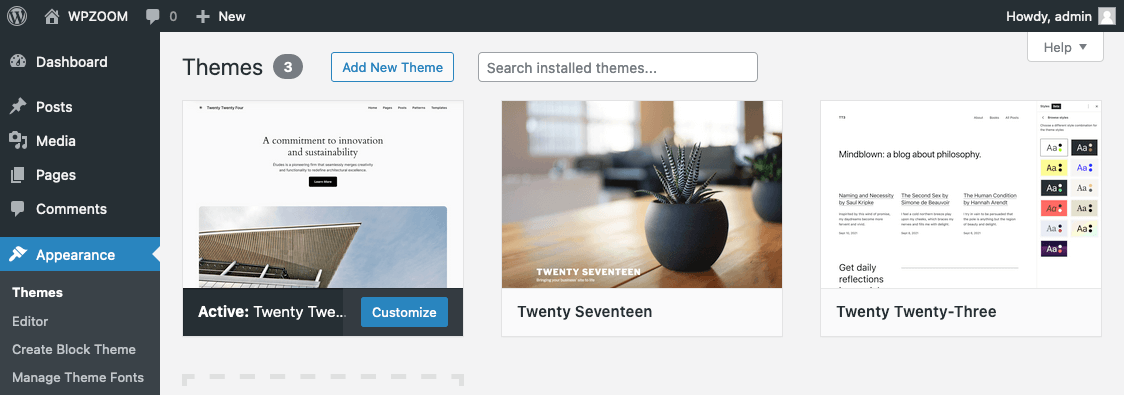
Click on the Appearance tab in the dashboard. Find the Themes option and click on it. Look for the Add New button on top. Press it to open the theme search. To upload a theme, click on Upload Theme. Choose the theme file from your computer. Click Install Now and wait for it to finish.
Open your FTP client and connect to your server. Find the wp-content/themes folder. Upload the theme folder here. Make sure the theme folder is unzipped. Check if the upload is complete.
Go back to the WordPress dashboard. Open the Appearance tab again. Locate the Themes section. Find the new theme you uploaded. Click on the Activate button to make it live. Your new theme should now be visible.
Customizing The New Theme
Easily switch your WordPress theme with a few clicks. Begin by installing the new theme and previewing it. Customize settings to match your style, ensuring seamless navigation and appearance.
Adjust Layout And Design
Begin by exploring the layout options of your new theme. Try different arrangements to find what looks best. Play around with design elements like spacing, borders, and columns. Ensure that everything looks neat and tidy. Don’t forget to check how it looks on mobile devices. Mobile-friendly design is very important.
Update Colors And Fonts
Choose colors that match your brand. Bright colors can catch attention. Soft colors make it calming. Pick easy-to-read fonts. The size and style should be consistent. This helps make your website look professional and organized.
Configure Widgets And Menus
Place widgets in the sidebars or footer. These can be calendars, search bars, or recent posts. Menus help visitors find their way around. Organize them clearly. Make sure all links work properly. Broken links can frustrate visitors. Check everything twice. This ensures a smooth user experience.
Testing The New Theme
Check for broken links that might confuse users. Use a plugin to help. Broken links affect user experience. They can also hurt your site’s SEO. Fix them quickly to keep visitors happy.
Test on different devices like phones and tablets. Make sure your site looks good everywhere. Some themes may not fit all screens. Adjust settings for a neat look on all devices. Happy users stay longer on your site.
Ensure speed and performance for a smooth user experience. Slow sites make visitors leave. Use tools to check your site’s speed. Reduce image sizes for faster loading. Keep your site fast to please your audience.
Launching The Updated Site
Notify your audience about the new theme. Send an email or post on social media. Let them know what has changed. Encourage them to visit the site again. This will keep them engaged.
Monitor site analytics closely. Check if the new theme is working well. Watch for any drop in traffic. Look at bounce rates and page load times. These numbers will tell you a lot. Make changes if needed.
Gather feedback from your visitors. Ask them what they think about the new look. Use surveys or comment sections. Their opinions can help you improve. It’s important to know how they feel.

Credit: jetpack.com
Frequently Asked Questions
How Do I Change Themes On WordPress?
To change themes, go to your WordPress dashboard and click on “Appearance. ” Select “Themes,” browse your available options, and click “Activate” on your chosen theme. Ensure your new theme is compatible with your site’s plugins and content before activating it to avoid any disruptions.
Will Changing Themes Affect My Site’s Seo?
Changing themes can impact your site’s SEO if the new theme alters your content structure or speed. Choose a theme optimized for SEO to maintain rankings. Ensure it supports essential plugins and mobile responsiveness. Test your site’s performance after switching to confirm everything functions correctly.
How Can I Preview A WordPress Theme?
To preview a theme, navigate to “Appearance” in your dashboard and select “Themes. ” Hover over your desired theme and click “Live Preview. ” This will display how your site looks with the new theme. Make necessary adjustments before activating to ensure a seamless transition.
What Should I Do Before Changing Themes?
Before changing themes, back up your site to avoid data loss. Check compatibility with plugins and ensure your new theme is mobile-responsive. Test your site’s speed and functionality after switching. This preparation helps avoid disruptions and maintains your site’s performance.
Conclusion
Switching WordPress themes can seem daunting. But with careful planning, it’s simple. Remember to back up your site before changes. Check compatibility to avoid glitches. Test your new theme thoroughly. This ensures smooth transitions and keeps your site looking great.
Keep an eye on your SEO settings. This helps maintain your search ranking. Always prioritize user experience. A well-chosen theme enhances navigation. It makes your site more appealing. Take your time to find the right fit. A theme change is an exciting opportunity.
It refreshes your website, making it more engaging for visitors.


