
Are you ready to give your WordPress website a stunning look without spending a dime? Imagine transforming your site to look just like those eye-catching demo versions you admire.
You can do it, and it’s easier than you think! Setting up a free theme to mirror its demo version is not just a dream; it’s a reality you can achieve with a few simple steps. This guide will walk you through the process, ensuring your site looks professional and inviting.
Say goodbye to bland designs and hello to a website that truly represents you. Dive in to discover how you can make your WordPress site shine, just like the demos you love!
Choosing The Right Free Theme
Picking a theme is fun. But it needs care. A good theme makes your site shine. Check for features you need. Some themes have extra tools. Others keep it simple. Look at the design. Does it fit your style? Themes have many looks.
Support is key. Some themes have guides. Others have forums. Check the reviews. What do users say? Good reviews mean happy users. Bad reviews can mean trouble. Also, see if the theme gets updates. Updated themes are safer. They also work better.
Many themes are free. But some have a cost for extras. Think about your budget. Free themes can be just right. But paid ones may offer more. Choose wisely and make your site look great!
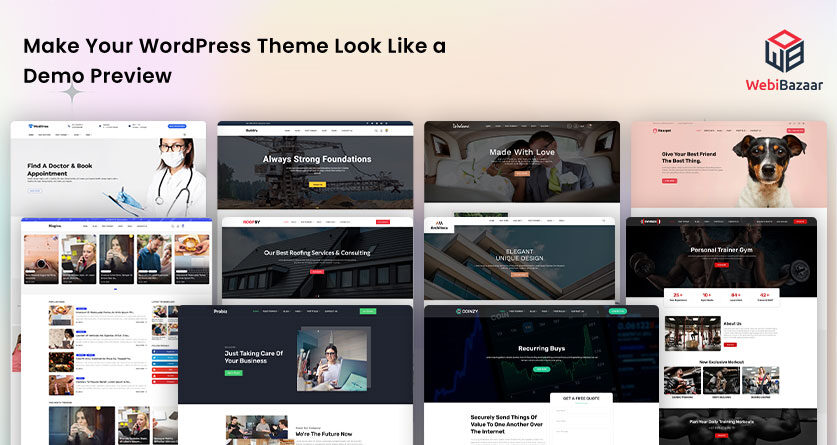
Credit: www.webibazaar.com
Installing Your Selected Theme
Accessing the WordPress Dashboard is easy. Type “/wp-admin” at the end of your site URL. Enter your username and password. You will see the dashboard. It is the control center of your website.
Navigating to the Theme Directory is the next step. Look for “Appearance” in the sidebar. Click on it. Then choose “Themes.” You will find many themes here. Search for your chosen theme using the search bar.
Activating the New Theme is simple. Click on the theme you want. You will see an “Activate” button. Click it. Your theme is now live. Visit your site to see the change. The theme looks like the demo now. You did it!
Importing Demo Content
Setting up a WordPress theme to look like the demo is simple. First, import demo content using the theme’s built-in import tool. This adds sample posts, images, and settings to match the demo layout.
Locating Demo Files
Demo files show the theme’s look. They are usually in a zip file. Download the zip file from the theme’s website. Save it on your computer. Check the file for images and text. These files help make your site look like the demo. Make sure the files are not too big. Large files can slow down your site.
Using The WordPress Importer
Go to your WordPress dashboard. Click on “Tools.” Choose “Import.” Install the WordPress Importer plugin. Click “Run Importer.” Select the demo file. Click “Upload file and import.” Follow the steps on the screen. This will add demo content to your site. Now your site looks like the demo. Check the site for any errors. Fix them to make sure everything works well.

Credit: mhthemes.com
Customizing Theme Settings
Choose a layout that fits your style. You can try different ones. Some themes have a grid layout. Others have a list view. Check each layout to see how it looks. Make sure it’s easy to read. You want your site to be neat and nice. Keep things simple. Don’t clutter the page with too many elements.
Colors make your site look good. Many themes have preset colors. You can pick the one you like most. Bright colors catch the eye. Soft colors feel calm. Choose colors that match your brand. Use no more than three colors. Too many colors can confuse visitors.
Fonts are important for reading. Choose a font that is clear. Some fonts are fancy. Others are plain. Make sure the text is big enough. Small text is hard to read. Bold important words. This helps them stand out. Align text to the left for easy reading. Good typography makes your site look professional.
Configuring Menus And Widgets
Menus are key to navigate a website. Start by going to the Dashboard. Find the Appearance tab. Click on Menus. Create a new menu. Add items like Home, About, and Contact. Assign the menu to a location. Use the Primary Menu spot. Save changes. Done!
Widgets add extra features to your site. Locate the Appearance tab again. Click on Widgets. You will see a list of available widgets. Choose one. Drag it to the Sidebar area. Customize it. Add text, links, or images. Press Save. Your sidebar is now more useful. Simple!

Credit: az-theme.net
Optimizing For Performance
Caching plugins make your website fast. They store copies of your pages. This reduces server load. It helps pages load quickly. Use a popular caching plugin like WP Super Cache. It is free and easy to use. Install it from the plugin section. Activate it and select recommended settings. This will improve your site’s speed. Faster sites keep visitors happy.
Large images slow down websites. Compressing them makes them smaller. This helps pages load faster. Use tools like TinyPNG or ImageOptim. These tools reduce image size without losing quality. Upload your images there. Download the compressed version. Replace old images with new ones. Your site will be faster and more efficient.
Ensuring Mobile Responsiveness
Test your website on different devices. Phones, tablets, and computers. Each device shows the website differently. Check if buttons work well. See if pictures look clear. Fix any problems you find. Make sure the text is easy to read. Use online tools to test. These tools show how your site looks on many screens.
Adjust theme settings for mobile devices. Responsive settings change how your site looks. Check the layout on small screens. Make sure it looks neat. Change font size if needed. Adjust margins and padding for better view. Use theme options to tweak. Preview changes before saving. Test the site again after tweaking.
Regular Theme Updates
Keep your theme fresh. Check for updates often. Updates fix bugs and improve security. Log in to WordPress dashboard. Go to Appearance and then Themes. See if there is an update available. Click update if needed. This is simple and keeps your site safe.
Always back up before updating. Backups save your site data. Use a plugin like UpdraftPlus for easy backups. Install the plugin from the WordPress store. Click on the backup button. Wait until the backup finishes. Now, you are ready to update your theme without worries.
Frequently Asked Questions
How To Install A Free WordPress Theme?
To install a free WordPress theme, navigate to your dashboard. Click on “Appearance” then “Themes. ” Search for your desired theme and click “Install. ” Activate the theme to make it live on your site. This process is straightforward and doesn’t require any coding skills.
Can I Customize A Free WordPress Theme?
Yes, free WordPress themes are customizable. Use the WordPress Customizer for changes like colors, fonts, and layouts. Some themes offer advanced customization options or additional settings. Always check theme documentation for specific customization guidelines to ensure you maximize its features.
Do Free Themes Include Demo Content?
Many free themes offer demo content for setup guidance. Importing demo content helps replicate the theme’s demo appearance. Use the theme’s documentation or import tools provided to add demo content. This helps in understanding how to structure your website effectively.
Are Free WordPress Themes Seo-friendly?
Most free WordPress themes are SEO-friendly. They are designed with clean code and responsive design, enhancing search engine visibility. Always check if the theme supports SEO plugins for better optimization. A well-coded theme can improve your site’s search rankings.
Conclusion
Setting up a free WordPress theme like the demo is simple. Follow the steps, customize, and watch your site come alive. Remember, practice makes perfect. Tweak your settings until satisfied. Explore the theme’s features and make them your own. Don’t rush the process.
Take your time to learn. Enjoy the creative journey with WordPress. Your site will reflect your unique style. Soon, your website will look professional and appealing. Keep experimenting and growing your skills. Happy blogging!


