
Are you ready to take your WordPress site to the next level with the MH Magazine theme? This powerful theme is perfect for creating a professional and eye-catching website without getting tangled in complicated coding.
Whether you’re a blogger, a news publisher, or just passionate about sharing your stories, MH Magazine offers the perfect blend of style and functionality. Imagine transforming your website into a captivating experience for your readers, keeping them engaged and coming back for more.
In this guide, you’ll discover step-by-step instructions to set up the MH Magazine theme effortlessly. So, get comfortable, and let’s unlock the full potential of your website together!
Choosing The Right Theme
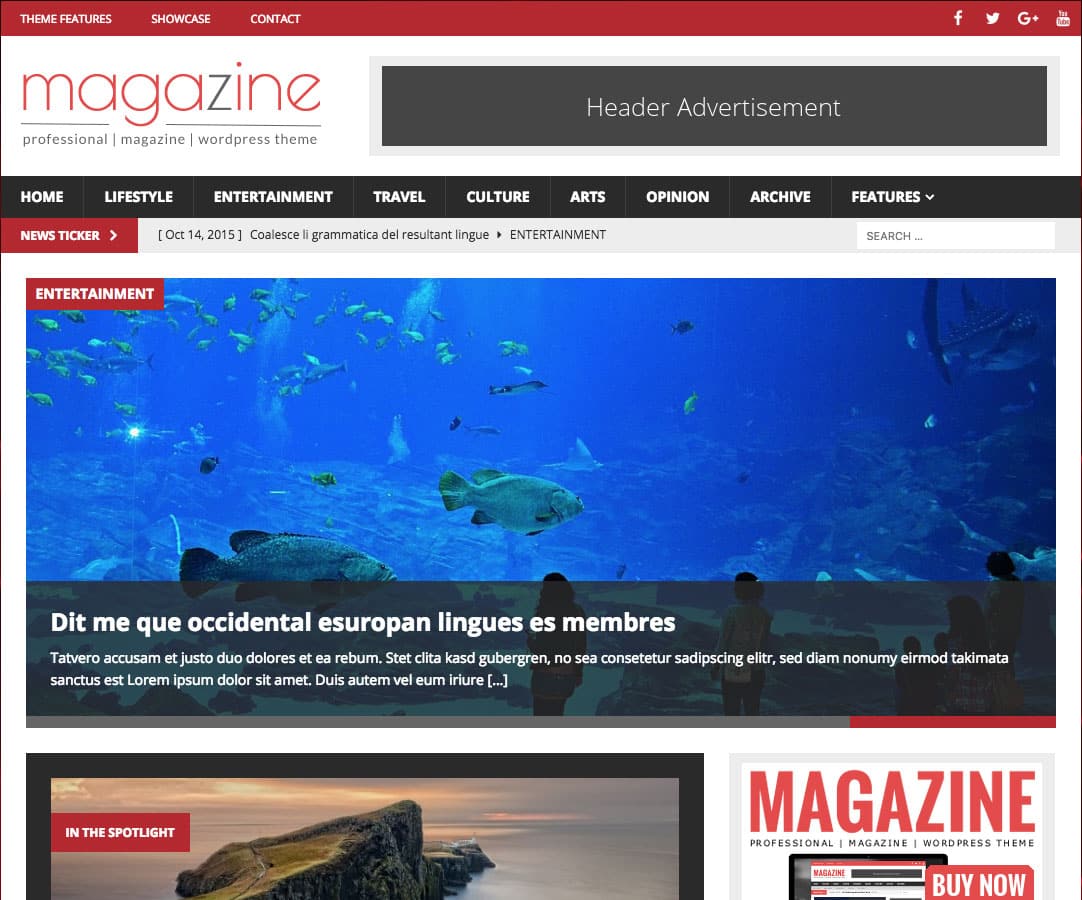
The MH Magazine theme is very popular. It is perfect for blogs and news sites. This theme is responsive and looks great on any device. You can customize it easily. The theme has many layout options. You can choose the one that fits your style.
MH Magazine offers unique features. It is faster than many other themes. The loading speed is impressive. Many themes are slow. But MH Magazine is quick. It also has a clean design. Other themes might look cluttered. But this one is tidy. It focuses on content.
Installing Mh Magazine
Visit the MH Magazine website. Choose the version you want. Click the download button. Save the file to your computer. The file is usually a ZIP file. Remember the location where you saved it.
Go to your WordPress dashboard. Find the Appearance menu. Click on Themes. Select Add New. Click Upload Theme. Choose the saved ZIP file. Click Install Now. Wait for the upload to finish.
After uploading, click Activate. Your theme is now ready. Customize it to suit your needs. Enjoy your new MH Magazine theme!
Configuring Basic Settings
Begin by logging into your WordPress dashboard. Go to the Appearance tab and click on Customize. Select the Header option. You can change the logo and add a site title. Choose a simple header style that fits your brand. Adjust colors to match your theme. Save your changes.
Scroll down in the Customize section and click on Footer. Here, you can add widgets like social media links or text. Decide what information is important for your footer. Choose a clean design for easy reading. Ensure the footer text is visible. Save your settings to apply them.

Credit: wordpress.org
Customizing The Layout
Widgets make your website look good. They are small blocks on your site. You can add text, images, and more. Choose widgets that fit your site. Put them in the right places. This makes your site easy to use.
Some widgets show recent posts. Others show a search bar. Drag and drop widgets into your sidebar. This is easy to do. It helps visitors find things fast. Change widgets to fit your style. This makes your site look unique.
Sidebars are important parts of your site. They can have links, ads, or menus. Choose what you want in your sidebar. Make it helpful for users.
You can make the sidebar on the left or right. Change the size if needed. A good sidebar helps visitors. They find what they need quickly. Test different layouts to see what works best. This can make your site better.
Enhancing Visual Appeal
Enhancing visual appeal with the MH Magazine theme on WordPress involves selecting vibrant layouts and customizing color schemes. Adjust fonts for readability and incorporate widgets to highlight content effectively. This theme offers flexibility, allowing users to design attractive pages that engage visitors instantly.
Choosing Color Schemes
Color schemes make your site beautiful. Pick colors that match your brand. Use soft colors for a calm look. Bold colors make your site stand out. Choose colors that are easy to read. Avoid too many colors. This keeps the site clean. Test different colors. Find what looks best.
Incorporating Images And Logos
Images and logos add life to your site. Use clear, bright images. Pictures should tell a story. Logos make your brand unique. Keep logos simple. Place them at the top. Users see them first. Use logos that fit your color scheme. This makes your site consistent. Change images often. Keep the site fresh.
Optimizing For Seo
SEO plugins help your website rank better. They provide tools to improve your content. Use plugins like Yoast SEO or All in One SEO. These plugins guide you to write better. They suggest improvements for your posts. Install them from the WordPress plugin store. Activate the plugin after installation. Follow the setup wizard for initial settings. They make SEO tasks easy and simple.
Meta tags are important for search engines. They help search engines understand your page. Use the SEO plugin to add meta tags. Write a clear title for your page. The title should be short and catchy. Add a meta description too. This tells what your page is about. Keep it under 160 characters. Use keywords in both title and description. This helps in better search visibility.
Improving Performance
Setting up the MH Magazine theme on WordPress boosts site performance. Customize layouts with ease. Ensure fast loading times by optimizing images and using caching plugins.
Caching Solutions
Caching helps load webpages faster. It saves parts of a webpage for later use. This means less work for your computer. Use plugins like WP Super Cache. They store webpage data. Visitors get the saved version. This speeds up their experience. Always update your cache plugin. An updated plugin works better. It fixes bugs and improves speed.
Optimizing Images
Images can slow down your website. Make them smaller without losing quality. Use tools like TinyPNG or ImageOptim. These tools reduce image size. Smaller images load quicker. This improves website speed. Always check image sizes before uploading. Large images take longer to load. Smaller images make your site faster.
Credit: sunnyhq.io
Ensuring Mobile Responsiveness
Mobile responsiveness means your site works well on phones. Always check your site on different devices. Tablets, phones, and desktops. Use tools like Google’s Mobile-Friendly Test. It helps find problems quickly. Changes on one device might not work on another. Testing ensures users get a smooth experience. A responsive site keeps visitors happy. Happy visitors stay longer. Longer visits mean more engagement.
Change settings for mobile view in the WordPress dashboard. Check font size and button placement. Ensure images are not too big. Big images slow down loading times. Fast loading keeps users interested. Menus should be easy to tap. Small menus frustrate users. Test all links. Make sure they work well on touch screens. Adjust settings often for best results.
Securing Your Site
Setting up the MH Magazine theme on WordPress enhances site security. Start by installing the theme from the WordPress dashboard. Customize settings to match your site’s needs, ensuring a secure and visually appealing layout.
Installing Security Plugins
Protect your site with security plugins. These plugins keep bad people out. They scan for viruses and stop attacks. Some popular plugins are Wordfence and Sucuri. They are easy to install. Just go to your dashboard. Then, click on Plugins and Add New. Type the plugin name in the search box. Click Install Now and then Activate. That’s it! Your site is now safer.
Regular Backup Strategies
Backing up your site is important. It keeps your data safe. Use plugins like UpdraftPlus or BackWPup. They save copies of your site. You can store backups in the cloud. Google Drive or Dropbox are good choices. Set backups to run weekly. This way, if something breaks, you can restore it quickly.
Utilizing Support And Resources
Theme documentation is your friend. It helps you understand features. Detailed guides can show you how to use the theme. Step-by-step instructions make it easy. This is useful for beginners. You can find troubleshooting tips. Common issues are solved with the documentation. Keep it handy while setting up. It will save you time.
Community forums are full of helpful people. They share advice and solutions. Ask questions if you need help. Many users have similar problems. You can learn from their experiences. Helpful discussions happen all the time. It’s a place for sharing ideas. Support is always available. Join and be part of the community.

Credit: mhthemes.com
Frequently Asked Questions
How Do I Install Mh Magazine Theme?
To install MH Magazine, log into your WordPress dashboard, navigate to ‘Appearance’, then ‘Themes’. Click ‘Add New’ and search for MH Magazine. Click ‘Install’, then ‘Activate’. You can now customize it through the ‘Customize’ option under ‘Appearance’.
Can I Customize Mh Magazine Theme Easily?
Yes, MH Magazine is highly customizable. Use the WordPress Customizer to modify colors, fonts, and layouts. Add widgets to enhance functionality. Explore theme options for more advanced settings. Customization is straightforward and user-friendly.
Is Mh Magazine Theme Mobile Responsive?
Yes, MH Magazine is mobile responsive. It automatically adjusts to various screen sizes, ensuring a seamless user experience. Mobile responsiveness is crucial for SEO and user engagement. Your content will look great on smartphones and tablets.
What Plugins Work Best With Mh Magazine?
MH Magazine supports many plugins. Popular choices include Yoast SEO for optimization, WPForms for contact forms, and Jetpack for security. Consider using caching plugins for faster loading. Ensure compatibility for optimal performance.
Conclusion
Setting up the MH Magazine theme is straightforward. Follow the steps carefully for best results. Customize features to match your brand’s style. Utilize the theme’s options to enhance user experience. Check mobile responsiveness to reach more readers. Regular updates keep your site secure and efficient.
Explore plugins to expand functionality. Remember, a well-structured site attracts more visitors. Enjoy the process and watch your website grow. Always keep your audience in mind. They appreciate a user-friendly and appealing design. With these tips, your WordPress site will thrive.


