
Ever wondered how WordPress fits into your digital toolbox? You’re not alone.
Whether you’re a seasoned developer or a curious newcomer, understanding the role WordPress plays can be a game-changer for your projects. Imagine boosting your website’s performance with the right tools. Picture elevating your online presence effortlessly. WordPress offers that promise, and more.
You might be asking, “What exactly can WordPress do for me? ” You’re about to discover the hidden potential that can transform your digital experience. Stick around, as we unravel the layers of WordPress, revealing why it’s a cornerstone in web development. Unlock the secrets that can propel your site to new heights. You won’t want to miss this!

Credit: registrationmagic.com
WordPress User Roles
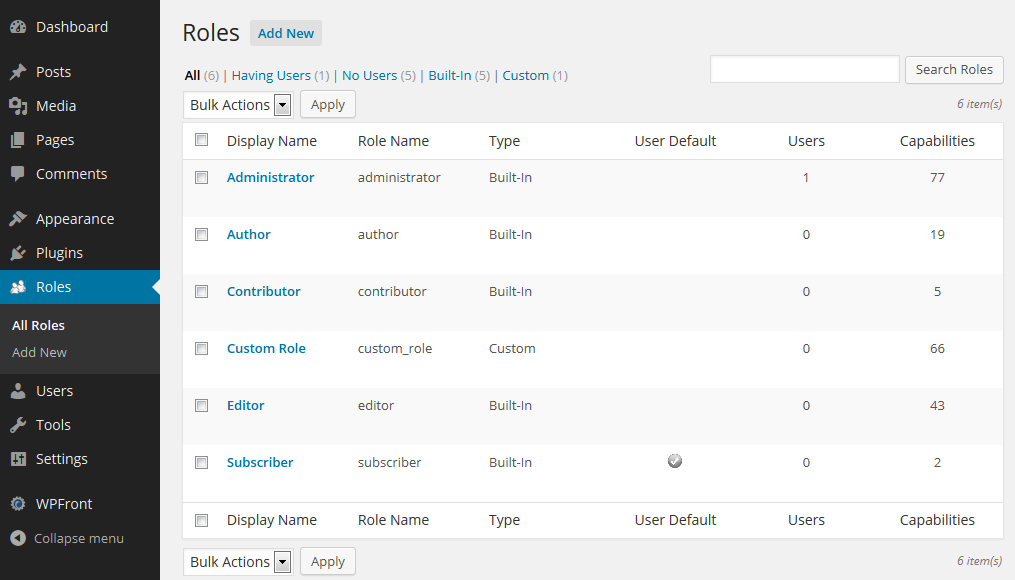
The Administrator can do anything on the site. They can change settings, add new users, and delete content. This role is like the boss of the site. Only trusted people should have this role. It is very powerful.
An Editor can manage posts. They can edit, publish, and delete any post. Editors do not change site settings. They focus on content. This role is important for content control.
The Author can write and publish their own posts. They cannot edit others’ posts. Authors have less power than editors. They focus on creating their own content.
A Contributor can write but not publish. They submit posts for review. An editor or admin must approve. Contributors help create content but have limited power.
A Subscriber can read posts and comment. They cannot write or edit posts. Subscribers have the least power. They are mostly readers and followers.
Credit: simplyscheduleappointments.com
Checking User Roles In WordPress
Log in to your WordPress site. Use your admin username and password. Once logged in, the dashboard is the first page you see. The dashboard is the control room for your website. Everything starts here.
Find the left-hand menu on the dashboard. Look for the Users section. It’s usually near the bottom. Click on it. A list of all users will appear. You can see who has accounts.
Each user has a role. Roles are listed next to user names. Roles can be Administrator, Editor, Author, or Subscriber. This tells you what they can do on your site. Knowing roles helps manage your site better.
Modifying User Roles
First, log in to the WordPress dashboard. Navigate to the “Users” tab on the left side. You will see a list of users. Click on the user you want to change. Look for the “Role” dropdown menu. Choose the desired role from the list. Then, click “Update User” to save changes. Always ensure to select the right role. Each role has different permissions. Be careful while assigning roles.
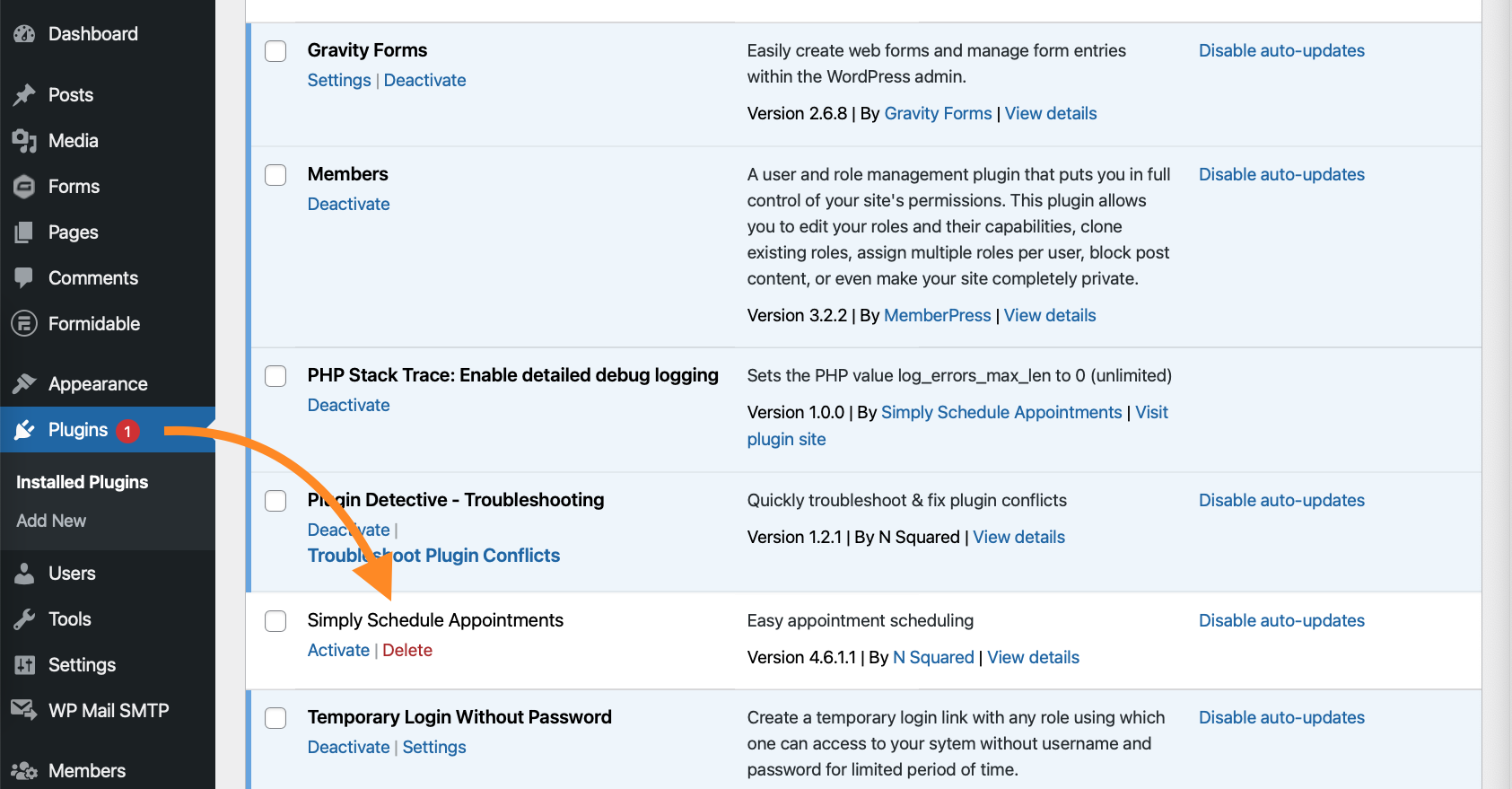
Plugins can help in managing roles. Go to the “Plugins” tab in the dashboard. Search for role management plugins. Some popular ones include Members and User Role Editor. Install and activate the plugin. Once activated, go to the plugin settings. You can now customize roles easily. These plugins offer more control over user permissions. Choose a plugin that fits your needs.
Credit: wpfront.com
Role Management Best Practices
Each team member needs the right role. This helps keep the site safe. Admins have the most power. They can change settings. Editors handle posts and pages. Authors write and publish. Contributors write but need approval. Subscribers only view. Choose roles that fit each person’s job. This keeps the site running well.
Check roles often. People change jobs. Roles need updates. Remove users who are not active. This protects your site. Make a list of current roles. Ensure everyone has the right access. Fix any mistakes quickly. This helps avoid problems later.
Troubleshooting Role Issues
WordPress roles can act strange sometimes. Users might face issues like incorrect permissions or missing roles. These problems can affect site functionality. Site admins might notice users can’t access certain pages. Or, users might see features they shouldn’t.
To fix role issues, use plugins like User Role Editor. This tool helps adjust user permissions. Another option is Members plugin. It offers easy role management. Always back up your site before making changes. This prevents data loss. For advanced solutions, custom code can be written. But, this requires coding skills. Consult with an expert if unsure.
Frequently Asked Questions
How To Check User Roles In WordPress?
To check user roles in WordPress, go to the dashboard. Click on “Users” to see the list. Each user has a role displayed next to their name. This helps you manage permissions and access levels efficiently.
What Roles Are Available In WordPress?
WordPress offers several default roles: Administrator, Editor, Author, Contributor, and Subscriber. Each role has different capabilities and access levels. You can manage these roles to control what each user can do on your site.
Can I Create Custom Roles In WordPress?
Yes, you can create custom roles in WordPress using plugins. Plugins like User Role Editor allow you to modify capabilities. This way, you can tailor user roles to suit specific needs for your website.
How To Change A User’s Role In WordPress?
To change a user’s role, go to the “Users” section in the dashboard. Click on the user’s name, select a new role from the dropdown, and update. This lets you quickly adjust permissions.
Conclusion
WordPress plays a vital role in website management. It offers flexibility, allowing users to customize their sites easily. With various plugins and themes, you can enhance site functionality. Simple tools help beginners create professional-looking websites without coding. Manage content effortlessly with its intuitive interface.
Users can handle SEO settings to boost visibility. WordPress supports different media types, enriching user engagement. Regular updates ensure security and performance improvements. Easy access to analytics helps track progress. Explore WordPress to understand its diverse roles. It empowers users to build strong online presences.


