
Have you ever found yourself scrolling through endless WordPress themes, wondering how they will actually look on your site? You’re not alone.
Choosing the right theme for your WordPress site is crucial, yet many find themselves stuck in a cycle of doubt and indecision. Imagine transforming that uncertainty into confidence, knowing exactly how a theme will fit your vision before you even hit the ‘activate’ button.
This article is here to guide you through the process, giving you the tools and insights to preview and visualize your chosen WordPress theme with ease. Get ready to unlock the secrets that will empower you to make informed decisions, ensuring your website stands out just the way you envisioned. Keep reading to discover how you can turn theme selection into a rewarding experience, saving time and eliminating guesswork.
Choosing The Right Theme
Understand what you want from your WordPress theme. Think about your site’s purpose. Is it a blog, a store, or a portfolio? Each type needs a different theme. Consider your audience. What will they like? A clean look or a colorful one? Plan for growth. Your theme should handle more content in the future. Check for features you need. Do you want a slider or a gallery? Make a list of these needs. It helps in choosing the right theme.
Many themes are popular for a reason. Visit the WordPress theme directory. It has many free themes. Look at ratings and reviews. They tell you if a theme is good. Try some top-rated themes. Install them to see how they look. Explore themes that fit your needs. Don’t rush. Take your time to find the best one.
Credit: www.greengeeks.com
Using Theme Demos
Many websites offer demo sites for themes. These demos show how a theme looks in action. Visit the theme’s page to find a demo link. Click the link to view the demo site. You can see the layout, colors, and features. This helps you decide if the theme fits your needs. Always check different pages of the demo site. Each page might show different features.
Demo sites often allow you to interact with features. Click buttons and links. Explore menus and sliders. This gives a feel of how the theme works. Try changing settings, if possible. Observe how the site responds. This interaction helps understand the user experience. Make sure the features match your needs. If the demo is not interactive, look for videos or screenshots. These can also show features in action.
Previewing Themes In WordPress
Theme preview plugins help see themes. They are easy to use. Install them from the WordPress plugin store. Search for “Theme Preview” in the store. Click “Install” and then “Activate.” Now, explore themes without changes. It is safe. Try different looks for your site. No risk to your current design.
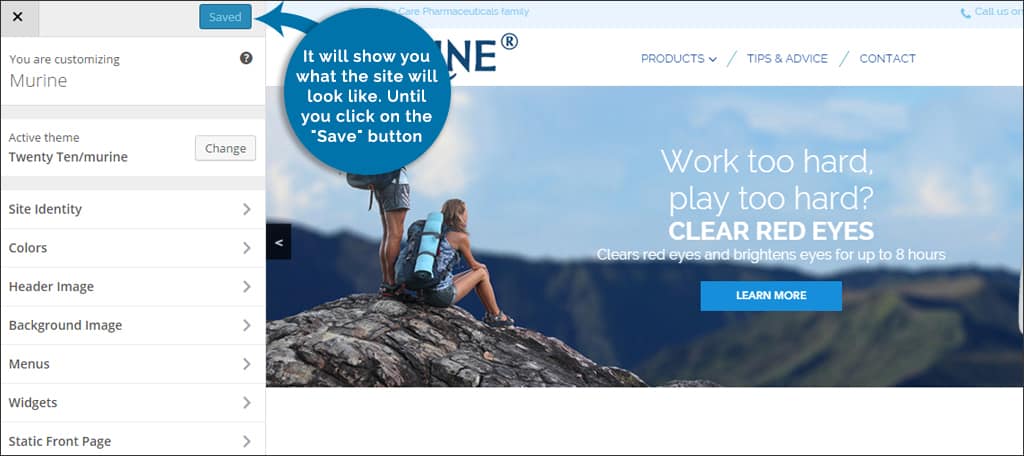
The WordPress Customizer is a great tool. It allows theme previews. Open it from the dashboard. Click “Appearance” and select “Customize.” Choose a new theme and hit “Live Preview.” See changes instantly. No effect on the live site. Make adjustments. Check colors, fonts, and layouts. Save changes if you like them. If not, just exit. Your site remains the same.
Testing With Local Installation
Try a local WordPress installation to explore theme designs easily. It helps preview themes without affecting a live site. Customize and test styles safely on your computer, ensuring your website looks perfect before going live.
Setting Up A Local Server
Install a local server on your computer. Choose tools like XAMPP or MAMP. These tools help create a server on your computer. They are easy to install. Follow their setup guides. Once installed, start the server. Make sure it is running well. Check for any errors. You need a database for WordPress. Create one using your server tool. Name it anything you like. This database stores your theme data.
Importing And Testing Themes
Download your desired theme. Save it to your computer. Open your WordPress folder. Find the themes directory. Place your theme file there. Then, log into your WordPress dashboard. Go to the theme section. Locate the new theme. Activate it to test how it looks. Check for any issues. Make sure all features work. Test different pages. Adjust settings if needed.
Utilizing Staging Environments
A staging site lets you test a WordPress theme. It is a copy of your live site. You can make changes here safely. This helps you avoid breaking your main site. It is a smart way to try new themes. Many hosting services offer staging sites. It’s a great tool for learning. You see how your site looks with new themes. No risk involved. Just peace of mind.
Staging sites are like practice grounds. Live sites are what visitors see. You make changes on the staging site first. You test them well. Then, you apply them on the live site. This keeps your main site safe. It reduces errors. Your visitors always see a working site. Staging environments are helpful for testing. They are essential for theme changes. Using them is wise.

Credit: themeforest.net
Leveraging Feedback
Preview how a WordPress theme will look by using feedback tools. These tools help visualize design and layout changes. Leverage feedback to choose the best style for your website.
Gathering User Opinions
It’s important to ask others what they think. This helps you see if your theme looks good. Friends and family can give their thoughts. Online forums are useful too. You can post pictures there. People will comment on what they see. Make sure to take notes. Save all the useful feedback. This way, you can make your theme better.
Making Informed Decisions
You need to know what users like. Understand their needs and wants. This helps in choosing the right theme. Compare different themes. Look at colors and fonts. Check if the theme works on phones. Think about the user experience. Ensure the theme is easy to use. This will help you make smart choices.
Avoiding Common Pitfalls
Explore theme demos to see a WordPress theme’s appearance before installation. Use theme preview options to test design elements. This helps avoid common pitfalls and ensures the chosen theme fits your website vision.
Recognizing Overload Issues
Many themes have too many features. This can slow down your website. Heavy themes take longer to load. This makes visitors unhappy. Choose a theme that is fast. Simple themes often work best. They load faster and are easier to use. Check theme speed before using it.
Ensuring Mobile Compatibility
Most people use phones for browsing. Your theme must work on all devices. Test it on a phone and a tablet. If it looks bad, pick another theme. Responsive themes are important. They adjust to any screen size. This makes sure everyone can see your site well.

Credit: qodeinteractive.com
Frequently Asked Questions
How Can I Preview A WordPress Theme?
You can preview a WordPress theme by using the live demo feature. Most theme developers offer a live demo on their website. This allows you to see the theme’s design and functionality before purchasing or installing it.
Can I Customize A Theme Before Buying?
Yes, some platforms provide customization options before purchase. Tools like ThemeForest allow you to tweak settings in their demos. This helps you understand how the theme fits your website’s needs.
Is The WordPress Customizer Useful For Previews?
The WordPress Customizer is a great tool for previews. It lets you make changes and see them instantly. You can adjust colors, fonts, and layouts to visualize your website’s appearance.
What Are Theme Testing Plugins?
Theme testing plugins simulate themes without affecting your live site. Plugins like Theme Test Drive allow you to test themes safely. They ensure your site’s functionality remains intact while exploring design options.
Conclusion
Exploring WordPress themes can be exciting. You now know how to preview them. This helps avoid surprises after installation. Try different themes to find your perfect fit. Remember to check for mobile responsiveness. This ensures your site looks great on all devices.
Experiment with colors and layouts. Make your site unique and inviting. Previewing saves time and frustration. You’ll feel confident in your choice. With these steps, your WordPress site will shine. Enjoy creating a site that reflects your style. Happy designing!


