
Have you recently switched to a new WordPress theme only to find that it’s not quite what you expected? Perhaps your site’s aesthetics have taken a hit, or the functionality just isn’t right.
You’re not alone. Many WordPress users face this dilemma and feel trapped in their new theme, unsure of how to revert back to the familiar and reliable old one. But worry not! This guide is here to help you effortlessly navigate the process of returning to your previous theme.
Imagine the relief you’ll feel once your site looks and performs just the way you want it to. Your peace of mind is just a few clicks away. Keep reading to discover how you can easily regain your site’s original charm without any hassle.

Credit: github.com
Reasons To Switch Back To A Previous Theme
Sometimes a new theme might not look right. It can be confusing. Old themes can feel more familiar and easy to use. They may have a better layout. Some themes load fast and work well on all devices. New themes might slow down your website. This can be bad for visitors. It’s important to check how fast your site runs. The old theme may also have features you like more. New themes might not have these features. It’s good to think about what you need. Keep your site simple and easy to navigate. This makes visitors happy.
Credit: help.one.com
Preparing For The Theme Reversion
Always back up your website before changes. Use a plugin for this task. Plugins make backups easy. Choose one that is simple to use. A good backup keeps your data safe. Save the backup file on your computer. This ensures you have a copy. In case something goes wrong, you can restore it. Safety first!
Take notes on your theme. Write down all settings. Capture color codes, fonts, and layout details. You can use screenshots for visual aid. Save these in a folder on your computer. This helps in restoring settings later. Keep your website looking the same. No detail is too small to document.
Accessing The WordPress Dashboard
First, open your browser and go to your WordPress login page. Enter your username and password. Click the “Log In” button. This will take you to the WordPress Dashboard. The Dashboard is like a control center. Here, you can change settings, manage posts, and more.
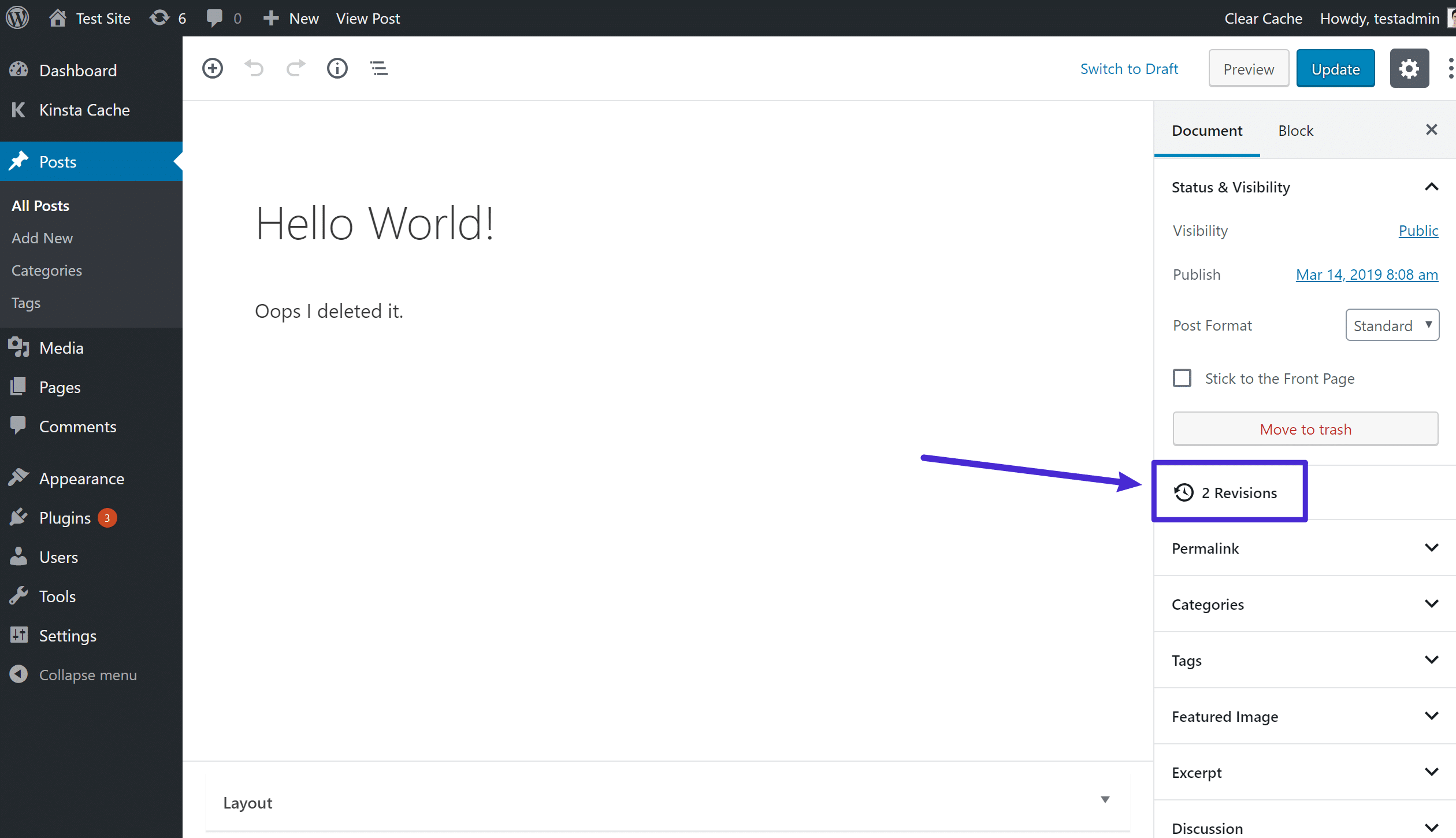
Look at the left side of the screen. You will see a menu. Find and click on “Appearance.” It has a paintbrush icon. This opens a new page. Here, you can see all your themes. To choose a theme, click on it. Then, click the “Activate” button. This will change your website’s look back to the old theme.
Credit: kinsta.com
Locating Installed Themes
Find the WordPress Dashboard. Click Appearance. Then click Themes. This shows all themes. You need to find the old theme. Look through the list. The theme you want might be there. Sometimes themes have special names. These names can help you find them.
Look at each theme carefully. Find the theme with the familiar look. Check the theme name. The old theme name is important. Remember its design or color. It might be easier to spot. Some themes have notes or dates. These can help you decide which is the old one. Themes usually show a preview. Use this preview to confirm your choice.
Activating The Old Theme
Find your WordPress dashboard on the left side. Go to Appearance and click Themes. A list of themes will show up. Look for your old theme. Click on the Activate button. This button is under the theme’s name. Your old theme will now be active. It is that simple!
Check the front end of your site. Make sure it looks like before. You can see changes immediately. Also, review the custom settings. They may need tweaking. If everything is fine, your old theme is back. Enjoy your familiar layout!
Restoring Previous Customizations
Switching back to an old WordPress theme is straightforward. Navigate to the dashboard, select “Appearance,” then “Themes. ” Find the previous theme and activate it to restore your original customizations. This quick process ensures your site looks just the way it used to.
Reapplying Custom Css
Custom CSS changes the look of your site. It makes your site unique. You can easily reapply these changes. Go to your WordPress dashboard. Find the “Appearance” tab. Click on “Customize”. Look for the “Additional CSS” option. Paste your saved CSS code here. Your old design should return. Always save your changes. Check your site to see the effect. If it looks different, double-check your CSS code. Sometimes small errors can change everything.
Configuring Widgets And Menus
Widgets add extra features to your site. Menus help users navigate. Go to the “Appearance” tab. Click on “Widgets” to set them up. Drag your widgets back to their places. Menus can be found under “Menus” in the same tab. Restore your old menu items. Don’t forget to save your settings. Visit your site to make sure everything works. Adjust if needed. Keep your site easy to use.
Testing The Reverted Theme
Switching back to a previous WordPress theme is straightforward. Navigate to the dashboard, select “Appearance,” then “Themes. ” Choose your old theme and click “Activate. ” Test your site thoroughly to ensure everything displays correctly. This process helps regain familiarity and comfort with your previous design.
Checking Website Functionality
Ensure all links work. Click each link and check. Check the menu and see if it opens. Try to fill out a form. Make sure it sends the data. Examine the sidebar. See if widgets appear correctly.
Ensuring Responsive Design
Use different devices for testing. Start with a phone. Does the site look good? Try a tablet next. Is everything fitting well? Check on a computer. Does it display correctly? Test in both portrait and landscape modes. Verify all images resize nicely. Ensure text is readable at all sizes.
Troubleshooting Common Issues
Switching back to an old WordPress theme can be simple. Visit the dashboard, select ‘Appearance,’ then ‘Themes. ‘ Choose your previous theme and activate it. This process restores your site’s previous look without hassle.
Handling Missing Widgets
Sometimes, widgets disappear after changing themes. First, check the Widgets section in your dashboard. See if they are still there. If not, try adding them back. Go to Appearance and then Widgets. Drag and drop them to the sidebar. Always save changes before leaving the page. This ensures everything stays in place.
Resolving Style Conflicts
Old themes may have different styles. This can cause conflicts. To fix, look at the Custom CSS section. Remove any unwanted styles. You can find this in the Customizer. Make sure to check the Preview before applying changes. If problems persist, consider using a child theme. This allows easier style adjustments without affecting the main theme.
Best Practices For Future Theme Changes
Always save a copy of your site. This is important. Backups protect your work. Use plugins for easy backup. Save copies on your computer too. Check your backup regularly. Ensure it is complete. This helps you restore your site. Backups save time and stress. They keep your site safe.
A child theme is smart. It keeps changes safe. You don’t lose edits when updating. Create a child theme first. Use WordPress tools for this. It’s easy and quick. A child theme helps you experiment. It is a safe playground. Protect your original theme. Always use a child theme for tweaks.
Frequently Asked Questions
How Do I Revert To An Old Theme On WordPress?
Go to your WordPress dashboard, navigate to “Appearance” then “Themes”. Find your old theme and click “Activate”. Ensure your content and settings are compatible with the old theme. Backup your site before making changes to prevent data loss. Check your site for any display issues post-theme activation.
How Do I Go Back To The Default WordPress Theme?
To revert to the default WordPress theme, access your WordPress dashboard. Navigate to “Appearance” and select “Themes. ” Activate the default theme, often named “Twenty Twenty-Three” or similar. Ensure your changes are saved. This process restores your site to the default theme efficiently.
How Do I Go Back To Previous Design In WordPress?
Access your WordPress dashboard. Go to “Appearance” > “Themes. ” Activate your previous theme to revert the design.
How Do I Rollback To An Older Version Of WordPress?
To rollback WordPress, backup your site, then download the desired version. Use an FTP client to replace core files. Reinstall plugins and themes as needed. Always ensure compatibility and test your site after the rollback.
Conclusion
Switching back to an old WordPress theme is simple. Follow the steps. Choose your theme carefully. Check compatibility with plugins. Backup your site before changes. Test the theme after reactivation. Ensure everything works smoothly. Don’t rush the process. Take time to review settings.
A familiar theme can enhance user experience. It brings comfort and ease. Remember, changes impact your site’s look and feel. Stay informed and make adjustments thoughtfully. Your site reflects your vision. Keep it user-friendly and efficient. Happy blogging!


