
Unlocking the full potential of your WordPress site can feel like an endless quest. But what if you could simplify the process of expanding your website without starting from scratch?
Imagine effortlessly creating new pages by reusing your existing theme. Sounds like a dream, right? This guide will show you exactly how to do just that, saving you time and effort while ensuring consistency across your site. You might wonder why reusing a theme is such a game-changer.
Well, it’s all about efficiency and maintaining a cohesive look that reflects your brand. Plus, it’s a savvy way to maximize your resources. As you read on, you’ll discover practical tips and insider secrets to make this task not only achievable but also enjoyable. Dive into this article and unlock the secrets to transforming your website with ease.
Choosing The Right Theme
Picking a flexible theme is key. It helps in creating new pages easily. Flexible themes allow many changes. You can adjust colors and fonts. You can also change layouts. This means your website can look unique. Check if the theme supports plugins. Plugins add more features. A theme with many options is good. It lets you make pages that fit your needs.
Design consistency is very important. It keeps your website looking neat. When all pages match, users are happy. They find information quickly. Consistent design builds trust. It shows professionalism. Check if the theme has uniform styles. Look at headings, fonts, and colors. A good theme makes all pages look similar. This helps in keeping the brand image strong.
Setting Up A Child Theme
Child themes are very useful. They help keep your site safe. You can update your parent theme without losing changes. This means your site is always fresh. Child themes let you customize your site. But you don’t break the main theme. It’s a smart way to make changes. You keep the original theme intact. You can also experiment with designs. If you make a mistake, the main theme is still okay. This gives you peace of mind.
Start by making a new folder. This is for your child theme. Name it anything you like. Inside, make a new file. Call it `style.css`. This file is important. Add some lines to it. The first line is the theme name. Also, add the template name. This links to the parent theme. Activate the child theme in WordPress. Go to the dashboard. Click on themes. Then, click activate. Your child theme is now ready. Make changes safely.
Customizing Page Templates
To reuse a theme, change the template files. These files control how a page looks. Locate the template file in the theme folder. Use a text editor to open it. Make small changes to the HTML or PHP code. Save and refresh the page. Check the new look. Keep backups of original files. This helps in case of mistakes.
Custom CSS can change a page’s style. Add it through the WordPress dashboard. Go to Appearance and then Customize. Find the Additional CSS option. Write new CSS rules here. Use CSS to change colors, fonts, and sizes. Preview the changes live. This is a safe way to test styles. Save changes when happy with the look.
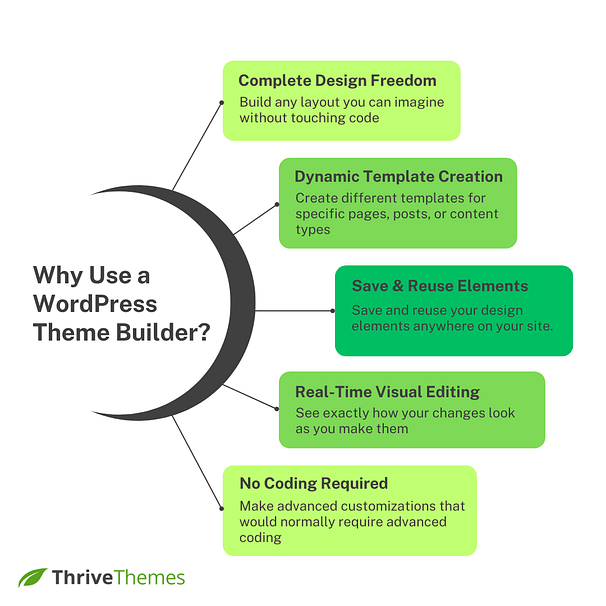
Credit: thrivethemes.com
Utilizing WordPress Page Builder
WordPress has many page builder plugins. These help in creating pages easily. Elementor is one of the favorites. It offers drag-and-drop features. Another popular plugin is WPBakery. It provides many design options. Beaver Builder is also user-friendly. Each plugin has unique tools. They make page building fun and simple. Choosing the right plugin depends on your needs. Always look for ones with good reviews. This ensures quality and reliability.
Adding new pages to themes is straightforward. Most page builders work with existing themes. This integration keeps your site’s look consistent. Builders like Elementor fit well with many themes. They adapt to different styles easily. Using them does not need coding skills. Select the elements you need. Place them where you want. The result is a smooth and cohesive design. This method saves time and effort.
Leveraging Theme Shortcodes
WordPress themes often come with built-in shortcodes. These are like small codes to make things easier. You can add them to any post or page. They help you add features without coding. For example, you can insert a gallery or a button. Just copy and paste the shortcode. It saves time and effort. Always check your theme’s documentation. It will show you what shortcodes are available. This way, you can make your website more interesting.
Sometimes, built-in shortcodes are not enough. You may want something unique. You can create your own custom shortcodes. First, open your theme’s functions.php file. Be careful while doing this. Then, write your shortcode function. This function tells WordPress what to do. Once done, add it using the ‘add_shortcode’ function. Now, you have your new shortcode. It can make your pages look special and different. This is how you can reuse themes smartly.

Credit: www.cloudways.com
Incorporating Widgets And Plugins
Widgets and plugins can make your pages better. They add new features. You can make your pages more interesting. Plugins can help with many tasks. They can make pages faster. They can add special effects. Widgets allow for easy customization. You can change how your page looks. You can add menus or slideshows. Try different widgets to see what fits. Some plugins help with SEO. Others help with security. Choose the ones that match your needs.
Enhancing Functionality
Improve your page’s functionality with the right plugins. Find plugins that add value. Look for popular ones with good reviews. Make your pages work well. Ensure they are easy to use. Users will like quick and simple pages. You can add contact forms. You can add social media buttons. Think about what users want. Make sure your pages are user-friendly. Add features that help users.
Choosing Compatible Plugins
Select plugins that work with your theme. Check plugin compatibility first. Read details before downloading. Some plugins might not work well. Choose plugins with high ratings. Read user comments for insights. Check if updates are regular. Updated plugins often work better. They fix bugs and issues. Use plugins that are light. Heavy plugins slow down pages. Light plugins keep pages fast. Fast pages are good for users.
Testing New Pages
Creating new pages in WordPress is simple with theme reuse. Start with a familiar template. Customize design elements like colors and fonts to suit your needs. This saves time and ensures consistency across your site.
Ensuring Responsive Design
Every page must look good on all devices. Responsive design is key. Check how pages appear on phones, tablets, and computers. Adjust layout to fit different screens. Use tools to test responsiveness. Fix any issues immediately. It’s important for user satisfaction. Happy users stay longer on your site.
Cross-browser Compatibility
Web pages must work on all browsers. Test pages on Chrome, Firefox, Safari, and Edge. Each browser may display things differently. Fix any display issues you find. It’s crucial for reaching more users. Use browser testing tools for easy checks. Ensure every user has a smooth experience.
Credit: www.inogic.com
Maintaining Theme Updates
Parent themes often get updates. These updates fix bugs and add features. It’s important to keep your parent theme updated. This ensures your site runs smoothly. Child themes rely on parent themes. Child themes help you customize your site. They allow changes without losing updates.
Always have a backup before updating. Backups save your work. They protect against mistakes. Use plugins to create backups. Backup plugins are easy to use. They store your site safely. Choose a plugin that suits your needs. Regular backups keep your site safe.
Frequently Asked Questions
How To Duplicate A Theme Page In WordPress?
To duplicate a theme page, use a plugin like “Duplicate Page”. It allows you to easily clone pages with one click. After duplication, customize the content as needed. This method saves time and ensures consistency across your website’s design.
Can I Reuse Themes For Multiple Pages?
Yes, you can reuse themes for multiple pages. Utilize WordPress’s template functionality to create consistent layouts. Customize each page individually while maintaining the overall design. This approach streamlines website management and enhances user experience.
What Are Page Templates In WordPress?
Page templates in WordPress define layout and design for specific pages. They allow customization beyond the default theme appearance. You can assign different templates to pages for varied layouts. This feature helps create unique page designs effortlessly.
How Do I Customize A Reused Theme Page?
To customize a reused theme page, use WordPress’s built-in editor. Adjust elements like text, images, and layout. You can also leverage plugins for advanced customization options. This flexibility allows you to tailor each page to your specific needs.
Conclusion
Creating new pages with a reused theme in WordPress is straightforward. It saves time and ensures design consistency. Start by duplicating a theme that fits your needs. Customize it to align with your new page’s goals. Remember, each element should serve a purpose.
Keep your design clean and user-friendly. Check responsiveness across devices to ensure accessibility. Regular updates keep your site fresh and secure. Now, you can efficiently manage and expand your WordPress site. Enjoy the ease of building new pages with a familiar theme.
Happy creating!


