
Are you struggling with your WordPress theme settings and desperately want to bring back your original setup? You’re not alone.
Many WordPress users find themselves in a bind after making changes that just don’t work out as planned. Whether you’re dealing with an unexpected glitch, trying out new features, or simply experimenting, knowing how to restore your theme settings can save you from a lot of headaches.
Imagine the relief of having everything back to its perfect state with just a few simple steps. Intrigued? Read on to discover how you can effortlessly restore your WordPress theme settings and regain control of your website.
Credit: wpmarmite.com
Backup Current Theme Settings
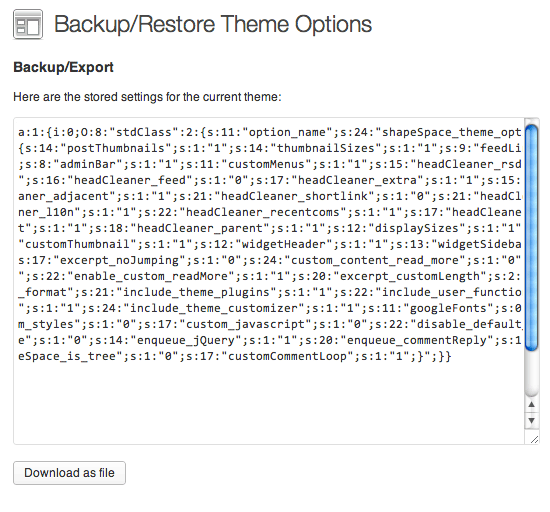
Export your theme options first. This helps save your settings. In WordPress, go to your theme’s options panel. Look for the export button. Click it and save the file to your computer. This file will help restore settings later.
Backup plugins make the job easy. Many plugins are free. UpdraftPlus and Duplicator are popular choices. Install a plugin from the WordPress plugin directory. Follow the steps to back up your theme. Save the backup file securely. It helps if things go wrong.
Manual methods are another way. Use a file manager or FTP client. Access your WordPress files. Locate the wp-content/themes folder. Copy your theme folder to your computer. This method is good for advanced users. It ensures you have a copy if needed.
Identify Theme Settings Source
Backup files can save your day. They often hold the original theme settings. Check your computer or cloud for these files. Restoring from them is simple. Backup files are like treasure chests. Finding them is the first step.
A staging site is a practice ground. It mirrors the live site. It can have the original theme settings. Comparing it with the current site helps. Look for differences. Staging sites offer a safe space to test changes.
Developers know themes best. They offer guidance on restoring settings. Contact them through support channels. They can provide old settings files. Theme developers are helpful allies in solving theme problems.
Restore Via Theme Options Panel
Discover the simplicity of restoring theme settings in WordPress using the Theme Options Panel. Access this feature within your WordPress dashboard. Easily revert to previous configurations with a few clicks, ensuring your site maintains its intended look and functionality.
Import Settings
Start by finding the Theme Options panel in WordPress. Look for an Import button or tab. Click on it to start importing settings. Upload the backup file you have saved earlier. Ensure the file is compatible with your theme version. The process will restore the theme settings to their original form.
Adjust Customizations
After importing, you may need to tweak a few settings. Check if any customizations were lost. Adjust the colors, fonts, or layout to match your previous look. This ensures your website retains its original style. Always save changes after adjusting.
Verify Theme Functions
Lastly, ensure all theme functions work well. Test the navigation, sliders, and widgets. Make sure everything is functioning smoothly. If something is off, revisit the settings. Fix any issues for a seamless experience.

Credit: wordpress.com
Use Customizer For Restoration
Start by logging into your WordPress dashboard. Look for the Appearance section. Click on Customize to open the Customizer. This tool lets you change many settings. It’s a handy tool for theme changes.
Find the Reset button in the Customizer. This button helps to reset settings. It returns them to default. Be careful before using it. All changes will be lost.
Some themes have a backup option. This allows you to restore old settings. Check if your theme offers this. Use the Import/Export feature if available. It can bring back your preferred settings easily.
Database Restoration Process
Start by logging into the cPanel. Look for the database section. Click on the phpMyAdmin icon. This will open the database manager. Choose the right WordPress database. Ensure the database matches your website. Double-check the name to avoid errors.
Once in phpMyAdmin, locate the Import tab. Click to open the import page. Select the SQL file you want to restore. Ensure the file is correct. Click Go to start the import. Wait for the process to complete. You’ll see a success message if all goes well.
After importing, conflicts might arise. Check the website performance. Look for missing themes or settings. Verify the theme settings. If issues persist, consider restoring a different backup. Always keep a backup of your original settings.
Utilize WordPress Backup Plugins
Choosing a reliable plugin is important. Popular options work best. They have good reviews and many users. Look for easy-to-use features. Check if it has automatic backup options. That saves time and effort.
Restoring is easy with the right plugin. First, go to the backup section. Find the latest backup file. Click on restore. Wait a bit. Your settings will come back. Make sure the process completes.
Compatibility is key. Ensure the plugin works with your WordPress version. Some plugins update often. Others do not. Check the plugin details. It should match your theme and settings. This avoids problems later.
Troubleshoot Common Issues
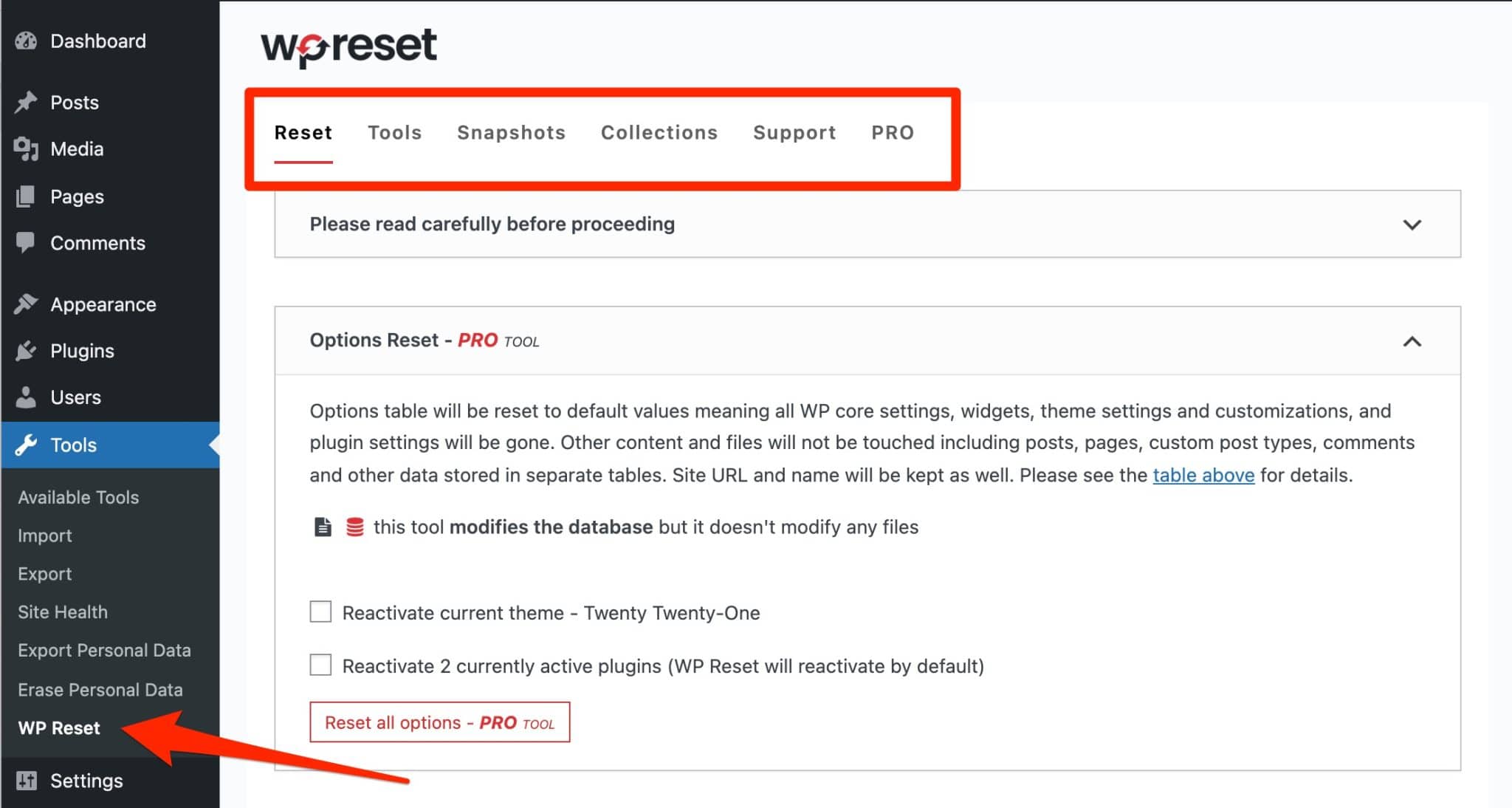
Restoring theme settings in WordPress often solves design issues. Start by accessing the theme’s settings panel. Then, click “Reset” to restore default settings easily.
Resolve Theme Conflicts
Theme conflicts can cause trouble. First, deactivate all plugins. Then, activate them one by one. Check the site after each activation. This helps find the problem. Sometimes, themes clash with plugins. In such cases, contact the theme’s support team. They can offer solutions.
Fix Broken Links
Broken links can confuse visitors. Use a broken link checker tool. It will list all broken links. Update or remove them. Ensure all links point to the right pages. Broken links can affect site ranking. Keep your site healthy by checking links often.
Handle Missing Files
Missing files can cause errors. Check your theme folder. Make sure all files are present. If files are missing, re-upload the theme. Always keep a backup of your theme. A backup helps in restoring lost files easily. Regularly check your theme files to avoid issues.
Credit: digwp.com
Frequently Asked Questions
How Do I Back Up My WordPress Theme Settings?
To back up your WordPress theme settings, access your WordPress dashboard. Navigate to ‘Appearance’ and select ‘Export’ under your theme options. Save the export file to your computer. This file contains your current theme settings, allowing you to restore them later if needed.
Can I Restore Theme Settings Without A Backup?
Restoring theme settings without a backup is challenging. However, some themes have default reset options. Check your theme’s settings for a reset option. Alternatively, contact your theme’s support for assistance. Regular backups are crucial for preventing data loss and ensuring easy recovery.
What Tools Help Restore WordPress Theme Settings?
Several plugins can help restore WordPress theme settings. Popular choices include UpdraftPlus, Duplicator, and All-in-One WP Migration. These tools allow you to back up and restore your site, including theme settings. They offer user-friendly interfaces, making the restoration process straightforward.
Why Did My Theme Settings Change Unexpectedly?
Theme settings might change due to updates, plugin conflicts, or accidental modifications. Updates can overwrite settings. Plugins may interfere with theme functionality. Always review changes before saving. Regularly back up your site to prevent unexpected issues from affecting your theme settings.
Conclusion
Restoring theme settings in WordPress is simple. Follow the steps carefully. Make sure to back up your settings first. This prevents any accidental loss. Use the WordPress dashboard for efficient restoration. It guides you through each step. Check your theme documentation for specific instructions.
Every theme has unique settings. Be patient and double-check changes. This ensures a smooth process. Ask for help if needed. Community forums are great resources. They offer advice and support. Successfully restoring theme settings enhances your website. It maintains your desired look and functionality.
Enjoy your refreshed WordPress site!


