
Have you ever switched your WordPress theme, only to find that you miss the look and feel of your previous design? You’re not alone.
Choosing the perfect theme can be a daunting task, and sometimes, a new theme doesn’t quite capture the essence you were going for. Maybe it didn’t integrate well with your existing content, or perhaps it just doesn’t have the functionality you need.
Whatever the reason, the good news is that you can bring back your old theme with ease. Imagine the relief of seeing your familiar layout again, complete with all the customizations you loved. This guide will walk you through the simple steps to restore your previous WordPress theme, ensuring a seamless transition without the headache of losing your personalized touches. You’ll learn how to navigate potential pitfalls and regain that perfect look for your site. Ready to bring back the theme that feels like home? Keep reading to discover how you can do it effortlessly!

Credit: blogvault.net
Backup Your Current Theme
Backups keep your work safe. If things go wrong, you can fix them. Themes can break or get lost. A backup brings it back. Important files stay safe with backups. Even mistakes can be fixed with a backup. You save time and stress. Every site needs a backup. It’s like a safety net.
Many tools help with backups. Plugins make it easy. They save your theme in one click. Some tools are free. Others cost money. Pick the one you like. UpdraftPlus is popular. BackupBuddy is good too. Each tool has different features. Choose what fits your needs.
Identify Your Previous Theme
Check your computer for old theme files. Look in the Downloads folder. Search for any backup or zip files. These files might have your old theme. You can also check your email. Sometimes theme files are sent there. Look for any emails from theme sellers. You may find theme attachments in those emails.
Go to your WordPress dashboard. Click on Appearance and then on Themes. You will see a list of themes. The active theme is at the top. Look for your old theme in the list. Sometimes the theme name is different. Check for similar names. You can also click on Theme Details. This shows more information about each theme.
Access WordPress Dashboard
First, log in to your WordPress Dashboard. Use your username and password. The dashboard is where you manage your site. You can find all settings here. It looks like a control panel. On the left, see a menu with options. This menu helps you move around. It’s like a map for your site.
Navigating The Dashboard
Look for the Appearance tab. It’s on the left menu. Click on it. This opens a new page. Here, you see different themes. Themes change how your site looks. You can switch them easily. It’s fun and simple.
Locating Theme Options
Find the Theme Options under Appearance. This is where you can see your themes. Choose the one you want. It might be your old theme. Click to activate it. Your site will change back. It’s quick and easy. Now, enjoy your familiar look.
Install And Activate Previous Theme
Search for the theme name in the WordPress repository. Click on the Install button. Wait for the installation to complete. Click Activate to use the theme. Your old design is back!
Locate your theme files on your computer. Go to the WordPress dashboard. Click on Appearance then Themes. Click Add New. Upload your theme file. Click Install Now. Activate the theme once installed.
Restore Theme Settings
The Theme Customizer helps you change settings easily. Open it in your dashboard. Look for the gear icon or the word “Customize.” Click to open. Adjust settings like colors, fonts, and layout. Save changes by pressing the Save button. This keeps your settings safe. You can try different options. Just ensure to save before you exit.
Saved settings can be imported. First, find the Import/Export option. This is usually in the customizer. Click on it. You will see Import Settings. Click to upload your saved file. The file brings back your old settings. Make sure the file is correct. Then, press Import. Your old theme settings will return. Check to see if all looks right.
Verify Theme Restoration
After restoring your theme, check your site’s appearance. Make sure it looks as expected. Look at the colors, fonts, and layout. Everything should match your previous setup. Visit different pages to see if the design is consistent. If anything looks off, it might need tweaking. Compare it with old screenshots if you have any. This helps ensure nothing is missing.
Test the theme functionality by clicking on buttons and links. See if they work properly. Check your site’s speed and load times. Ensure all plugins are functioning well. Forms should submit correctly. If you find problems, consider re-installing the theme. Test on different devices like phones and tablets. Make sure your site is responsive and user-friendly.
Troubleshoot Common Issues
Themes can cause compatibility problems with plugins or WordPress updates. First, check if your theme is up-to-date. If not, update it. Next, deactivate plugins one by one. This helps find which plugin causes issues. Use the WordPress debugger to see error messages. These messages show where the problem is. Sometimes, changing the PHP version helps. Try using a lower PHP version if errors occur. Always backup your site before making changes. This keeps your data safe.
Broken links make sites look unprofessional. Use a link checker tool to find broken links. These tools show which links are broken. Fix links by updating their URL. If a page no longer exists, use a 301 redirect. This sends users to a new page. Always double-check links after updates. This ensures all links work well. Keep your site neat and user-friendly.
Credit: help.one.com
Maintain Theme Updates
Keeping your WordPress theme up to date is important. Automatic updates can help with this. They ensure your theme stays current. This can prevent many problems. Outdated themes might not work well. They can also have security risks. Automatic updates can fix these issues. They help your site run smoothly.
Setting automatic updates is simple. Most WordPress themes support this feature. Go to your WordPress dashboard. Find the theme settings. Look for the update options. Enable automatic updates. This will help keep your theme updated.
Always keep an eye on your theme. Check for any future changes. Some updates might change your site’s look. You might need to adjust settings. Regular monitoring helps catch these changes early. This way, your site remains just how you want it.
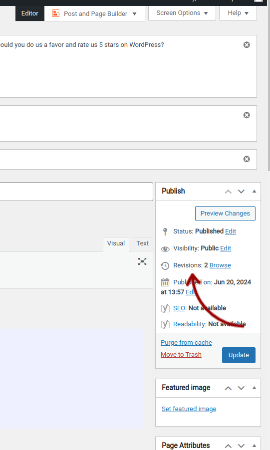
Credit: www.boldgrid.com
Frequently Asked Questions
How Can I Restore My Old WordPress Theme?
To restore your previous WordPress theme, navigate to Appearance > Themes in your WordPress dashboard. Search for your old theme and click “Activate. ” Ensure that all theme settings and customizations are properly configured after activation. Always back up your site before making changes to avoid data loss.
Is It Possible To Recover Theme Customizations?
Yes, recovering customizations is possible if you have a backup. Use a backup plugin or your hosting provider’s backup feature. Restore your theme settings from the backup. Remember to regularly back up your website to avoid losing customizations in the future.
What If My Old Theme Is Missing?
If your old theme is missing, try downloading it again from the original source. Check your theme’s official website or WordPress repository. If you purchased the theme, contact the developer or marketplace for assistance in retrieving it.
Will Restoring A Theme Affect My Content?
Restoring a theme generally doesn’t affect your website’s content. However, some layout or styling changes might occur. Always preview changes in a staging environment before applying them to the live site. Backup your site to ensure data safety.
Conclusion
Restoring your WordPress theme can be simple. Follow each step carefully. Backup files are essential. Keep them updated regularly. Check for compatibility with plugins. Update themes often. This prevents future issues. Practice patience during the process. Mistakes happen. Learn from them.
Ask for help if stuck. Online forums provide support. Remember, themes can enhance your site. Choose one that suits your brand. Stay calm and organized. Your previous theme will be back soon. Enjoy a smooth WordPress experience. Keep exploring new features.
Stay curious and informed. Your site deserves the best care.


