
Have you ever accidentally deleted a theme in WordPress and felt a wave of panic? You’re not alone.
Many WordPress users have faced this heart-stopping moment. But here’s the good news: you can restore that deleted theme, and it’s simpler than you might think. Imagine regaining control without the stress or frustration of starting from scratch. You’ll discover step-by-step instructions to bring back your beloved theme, ensuring your site looks just as you envisioned.
Stay with us, and you’ll not only learn how to restore your theme but also gain peace of mind knowing your WordPress site is in good hands. Ready to turn a potential disaster into a simple fix? Let’s dive in and get your theme back where it belongs.
Credit: enginetemplates.com
Checking The Trash Folder
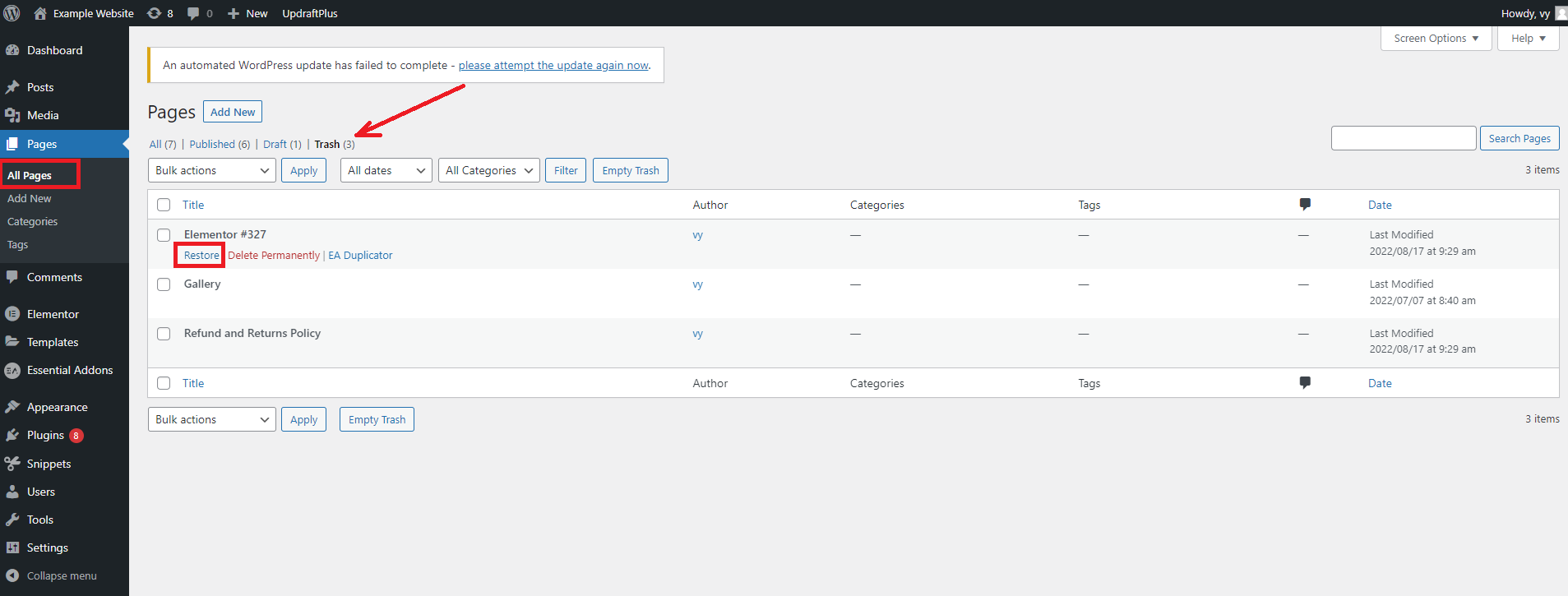
Always start by checking the Trash Folder in WordPress. Deleted themes often end up here. The Trash Folder is like a safe spot for removed items. You can find it in the themes section. Look for the theme you want back. If it’s there, you’re in luck. Just click Restore to bring it back to life. This action won’t take long. It’s quick and simple.
If the theme isn’t in the Trash Folder, don’t worry. There are other ways to get it back. But the Trash Folder is the first place to check. It saves time and effort. Always remember this easy step. It’s the first move in getting your theme back.
Restoring From Backups
Many hosting providers offer automatic backups. These can save your deleted theme. Check your hosting account. Look for the backup section. Select a recent backup. Restore it to get your theme back. Always check the backup time. Make sure it has the theme you need. If unsure, contact support. They can guide you.
Backup plugins are helpful. They keep copies of your site. Popular ones include UpdraftPlus and BackupBuddy. Open your plugin dashboard. Find the backup you need. Click restore. Your theme will come back. It’s wise to set up regular backups. This ensures you don’t lose data. Plugins can be a lifesaver.
Reinstalling The Theme
First, visit the WordPress repository. Search for your theme. Click on the download button. Save the theme file on your computer. It’s important to ensure the theme is the same version. This prevents compatibility issues. Once downloaded, you can proceed with installation.
Check your computer for a local backup of your theme. Locate the theme files. Make sure they are complete. Log in to your WordPress dashboard. Go to the Appearance menu. Click on Themes, then Add New. Select Upload Theme. Choose the theme file from your computer. Click Install Now. Finally, activate the theme.
Using Ftp For Restoration
Restoring a deleted WordPress theme is easy with FTP. Connect to your server using an FTP client. Then, upload the theme files to the appropriate folder.
Accessing Your WordPress Files
FTP is a tool that helps manage website files. First, install an FTP client on your computer. FileZilla is a popular choice. Open the FTP client and enter your website’s FTP details. You need the host, username, and password. Find these in your hosting account. Connect to the server. You will see your website files. Locate the wp-content folder. This folder contains themes and plugins. Click to open it.
Uploading Theme Files Via Ftp
Locate the theme files on your computer. Select the theme files you want to restore. Drag them into the wp-content/themes folder in the FTP client. Wait for the upload to finish. After uploading, check your WordPress admin panel. Go to the Themes section. Verify the theme appears in the list. Activate it if needed. Your theme is now restored.
Contacting Support
Need to restore a deleted theme in WordPress? Contacting support can help you recover it. Start by reaching out to your hosting provider or WordPress support team. They can guide you through the process and assist in retrieving your theme files from backups.
Reaching Out To Theme Developers
Sometimes themes disappear. Contact the theme developer for help. Developers know their themes best. Send them a clear email. Explain the problem simply. Include theme details. Write the theme name and version. Share your WordPress version too. Some developers have support forums. Check their website for contact information. Responses may take time. Be patient. Developers often help quickly.
Consulting Hosting Provider Support
Hosting providers can be helpful. They manage your website’s server. Contact them if the theme is gone. Explain the issue clearly. Hosting providers can restore backups. Ask if they have a recent backup. Backups can save lost themes. Providers usually have chat support. Use live chat for fast replies. Email support is slower. Check their support hours. Some providers offer 24/7 help. This makes it easier to reach them.

Credit: jetpack.com
Preventing Future Loss
Keeping your WordPress site safe is important. Always make regular backups of your site. It helps to save your theme and data. Use plugins like UpdraftPlus or BackupBuddy. These tools are easy to use. They can save your site automatically. Store backups on an external drive or cloud service. This way, you can restore your site anytime.
Version control helps track changes. It can prevent mistakes. Use tools like Git for this task. Git saves every change in your theme. You can undo changes if needed. It helps in restoring deleted themes. Learning Git is easy and it is very helpful. Many developers use it daily. It is a smart way to manage your site.

Credit: wordpress.com
Frequently Asked Questions
How Can I Recover A Deleted WordPress Theme?
If you have a backup, restore it via your hosting provider. Alternatively, check your WordPress admin under Appearance > Themes. If the theme is not there, you might need to reinstall it manually using a downloaded copy from the theme’s official source.
Is It Possible To Restore Themes From Backups?
Yes, restoring from backups is possible. Check with your hosting provider or use a WordPress backup plugin. Ensure the backup includes your themes folder. Follow the instructions to restore the specific theme you need.
What Should I Do If My Theme Backup Is Missing?
If your theme backup is missing, try downloading the theme again from the original source. Check your hosting provider for any available server backups. It’s important to regularly back up your WordPress site to prevent data loss.
Can I Reinstall A Deleted Theme Manually?
Yes, you can reinstall a deleted theme manually. Download the theme’s zip file from a trusted source. Upload it to WordPress via Appearance > Themes > Add New. Activate the theme and restore any custom settings if needed.
Conclusion
Restoring a deleted WordPress theme is straightforward. Start by checking your backups. They often hold the original theme files. If backups aren’t available, download the theme again from its source. Reinstall it through the WordPress dashboard. Ensure you activate the theme once restored.
Customizations may need reapplication. Regularly back up your site to avoid future issues. This keeps your themes safe and secure. Keep your site organized. It helps prevent accidental deletions. Handling themes with care is essential. Your WordPress site deserves this attention.
Always stay prepared for any mishaps.


