
Are you overwhelmed by the number of themes cluttering your WordPress dashboard? You’re not alone.
Many WordPress users find themselves in a similar situation, having experimented with various themes only to leave them lingering unused. Not only can these inactive themes slow down your site, but they can also pose security risks. Understanding how to efficiently remove these uploaded themes is crucial to keeping your website running smoothly and securely.
Imagine the peace of mind you’ll feel knowing your site is clean, optimized, and free from potential vulnerabilities. Ready to take control and streamline your WordPress experience? Let’s dive into the simple steps you can take to remove unwanted themes and enhance your website’s performance.
Credit: www.greengeeks.com
Accessing The WordPress Dashboard
First, log in to your WordPress account. Use your username and password. The dashboard is the main screen. Here, you can control your site. Look for the sidebar on the left. It has many options. Find the “Appearance” tab. Click it to see more choices. One of them is “Themes”. Click on it. This shows all your themes. You can now manage them easily.

Credit: visualmodo.com
Navigating To The Themes Section
Start by going to your WordPress dashboard. Find the Appearance tab on the left. Click on it to open more options. Choose Themes from the list. You will see all your installed themes here. The active theme is displayed at the top. Other themes are shown below it. You can remove any theme not in use.
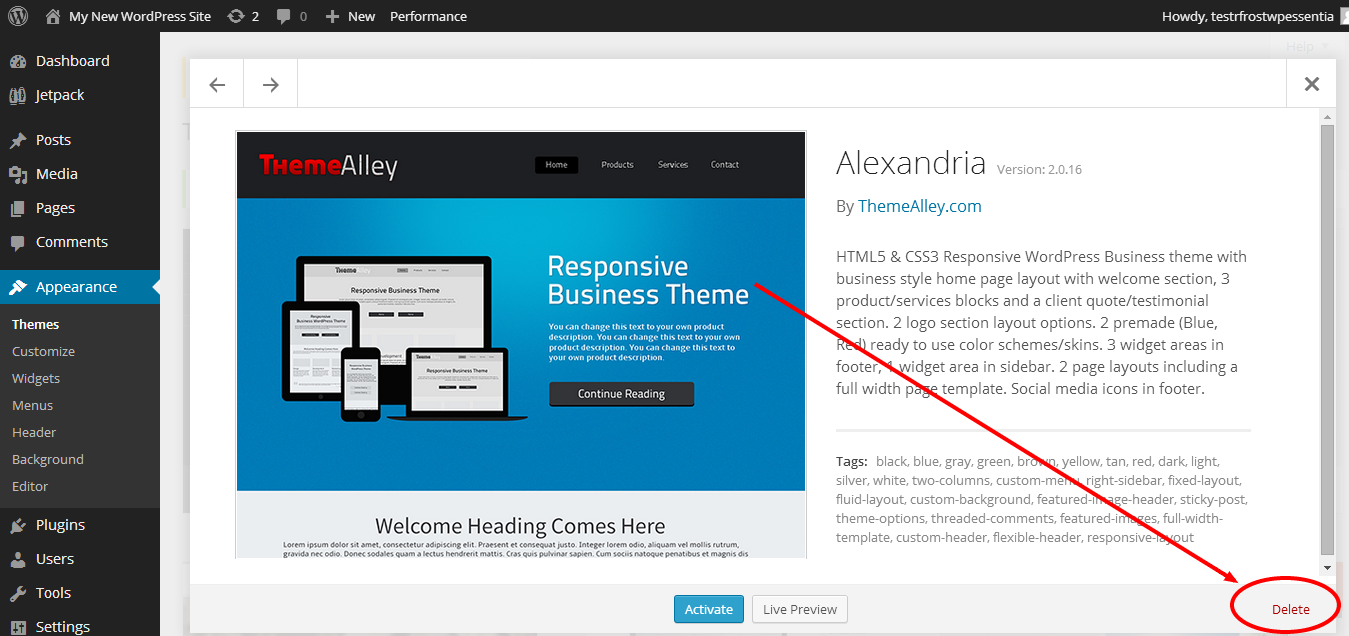
To delete a theme, hover over it. You will see an option to delete. Click on Theme Details first. In the bottom right, find the Delete button. Click it to remove the theme. Always check you are not deleting the active theme. Removing unused themes helps keep your site tidy. It also saves space and improves performance.
Identifying Active And Inactive Themes
In WordPress, themes help design your site. But not all themes are in use. Some are active, while others are inactive. The active theme is the one your site is using right now. It’s easy to spot. Just go to your WordPress dashboard. Click on Appearance, then Themes. The active theme will have a label.
Inactive themes are not in use. They sit quietly in the background. You can remove these to save space. First, identify which themes are inactive. Make sure you don’t delete the active theme. Deleting inactive themes can help your website run better. Always keep a backup before removing anything. It’s smart to be careful.
Deactivating The Current Theme
Switching to a default theme is simple. First, go to the WordPress Dashboard. Click on “Appearance” and then “Themes”. Here, you will see all your themes. Hover over a default theme like “Twenty Twenty-One”. Click “Activate” to switch. Your current theme is now deactivated. WordPress uses the default theme instead. This step ensures no theme is active when you remove it. Switching takes only a few clicks. It is a quick process.
Verifying theme deactivation is easy. After switching, check your website. The site should now show the default theme. If not, try clearing your browser cache. Sometimes, old data can cause issues. You can also check under “Themes” in your dashboard. The active theme should be the default one. If everything looks good, the theme is deactivated. Now, you can safely remove the unwanted theme.
Removing Inactive Themes
Find the theme you want to delete. Go to your WordPress dashboard. Click on Appearance and then Themes. All your themes will appear. Hover over the inactive theme. A Theme Details button will show up. Click it. A new window will pop up. Look for the Delete button in the bottom right corner.
After clicking delete, a prompt will ask you to confirm. Click OK to remove the theme. This action is permanent. The theme will no longer be in your list. Make sure you want to remove it. Check if it is not active first. You don’t want to delete an active theme by mistake.
Credit: www.domain.com
Using Ftp For Theme Deletion
Connecting to the FTP server is the first step. You need an FTP client like FileZilla. Enter your FTP credentials. These include the hostname, username, and password. Click “Connect” to access your server files. Make sure you connect securely.
After connecting, locate the themes directory. It’s usually in the “wp-content” folder. Double-click “wp-content” to open it. Then, find the “themes” folder. This folder contains all your uploaded themes. Always check twice before deleting.
To manually delete themes, click the theme folder you want to remove. Right-click and choose “Delete”. Confirm the deletion when prompted. The theme will be removed from your site. Be careful not to delete active themes. This could cause site issues.
Ensuring Website Functionality
It’s crucial to check your site’s look after theme changes. Themes can change the way your site looks. Broken links and missing images can happen. Always ensure everything appears as it should. This keeps your site looking good for visitors. A neat site means happy users. Happy users stay longer.
Site performance affects user experience a lot. Slow sites can lose visitors. Test your site speed after removing a theme. Use online tools to check your speed. Fast sites are better for everyone. Make sure your site runs smoothly. A smooth site is a successful site.
Managing Theme Files In Hosting Panel
Start by logging into your hosting panel. Look for the File Manager option. It’s usually in the control panel section. Click on it to open. You’ll see a list of files and folders. Navigate to the public_html folder. This is where WordPress files are stored. Find the wp-content folder next. Inside, there’s a themes folder. Here, you can see all your themes.
Open the themes folder to see your themes. Find the theme you want to delete. Right-click on it. Choose the delete option from the menu. Confirm the action if asked. This will remove the theme from your site. Always be careful. Make sure the theme is not active. Otherwise, it might cause problems.
Best Practices For Theme Management
Keeping themes updated is very important. New updates fix bugs and add new features. An outdated theme can cause problems. Always check for updates in your WordPress dashboard. WordPress makes it easy to update themes. Just click “Update” when you see it. Updating keeps your site safe and fast.
Unused themes take up space. They can slow down your site. It is good to remove them. Go to your WordPress dashboard. Look for themes you do not use. Click “Delete” to remove them. This keeps your site clean and fast. Always keep only the themes you need. This is a good habit to have.
Frequently Asked Questions
How Do I Delete A Theme In WordPress?
To delete a theme in WordPress, navigate to Appearance > Themes. Select the theme you want to remove, click “Theme Details”, and then click “Delete”. This will permanently remove the theme files from your WordPress installation.
Can I Remove Themes Via Ftp?
Yes, you can remove themes via FTP. Connect to your server using an FTP client. Navigate to wp-content/themes, locate the theme folder, and delete it. This will remove the theme from your WordPress site.
What Happens When I Delete A Theme?
When you delete a theme, all files associated with it are permanently removed. It won’t affect your active theme or site settings. Ensure you have a backup if you want to restore it later.
Is It Safe To Delete Unused Themes?
Yes, it is safe to delete unused themes. Removing them can improve site performance and security. Unused themes can potentially be exploited if they contain vulnerabilities. Always keep your site clean and updated.
Conclusion
Removing uploaded themes in WordPress is simple. Follow the right steps. Start by accessing your WordPress dashboard. Navigate to “Appearance” and then “Themes. ” Select the unwanted theme. Click “Delete” to remove it completely. This frees up space and enhances site speed.
Regular theme management keeps your site secure. It prevents unnecessary clutter. Always back up your site before changes. This ensures safety. Now, enjoy a clean and efficient WordPress site. Manage your themes regularly for best performance. Keep it organized and user-friendly.
Happy blogging!


