
Imagine visiting your website and feeling a sense of pride as you admire your carefully crafted content. But then, you notice an out-of-place tagline on your WordPress theme that just doesn’t fit your brand’s voice.
It’s like a tiny pebble in your shoe – not a big deal, but annoying enough that you can’t ignore it. You’re not alone. Many WordPress users find themselves stuck with a generic tagline that diminishes the uniqueness of their site.
You might wonder if it’s possible to remove or change it without diving into complex coding or risking your site’s functionality. The good news? It is! In this guide, you’ll discover simple steps to effectively remove the tagline from your WordPress theme. Whether you’re a seasoned blogger or new to the world of websites, you’ll find these tips easy to follow and implement. By the end, you’ll reclaim control of your website’s appearance and ensure it reflects your personal or business identity perfectly. So, are you ready to enhance your website’s look and make it truly yours? Let’s dive in and uncover the secrets to a cleaner, more professional online presence.
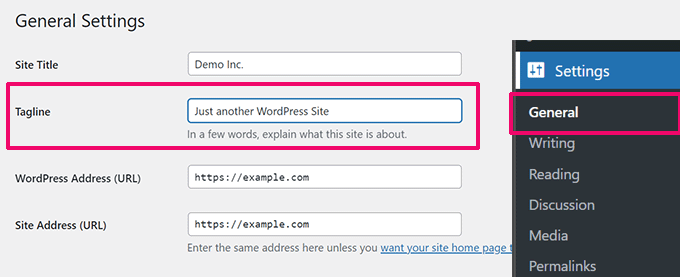
Credit: www.wpbeginner.com
Understanding WordPress Themes
WordPress themes are like clothes for your website. They decide how it looks and feels. Each theme has a unique style. Some are simple, others are fancy. Themes can change the layout and colors. They also affect the fonts and spacing. Choosing the right theme is important. It helps your site look good and work well.
Customization lets you make your site unique. You can change the background, text, and images. It helps your site match your brand. Customization can be easy or hard. Some themes have simple settings. Others may need coding skills. But customization is important. It makes your website special and personal.
Exploring The Tag Line Feature
The tag line is a short message. It tells visitors about your site. It is often under the site name. It can explain the site’s purpose. Many themes use it for branding. This helps your site stand out. Some use it for SEO benefits. It can help with search rankings. Others use it for a welcoming note. This makes visitors feel at home.
Tag lines are placed in different spots. Often found near the header. Some themes place them in the footer. This makes them less visible. Others put them in the sidebar. Some themes use them in the site description. They can be part of the home page. Sometimes, it’s in the main menu. This gives easy access to visitors. Each theme can vary in its design.
Methods To Remove The Tag Line
Open the WordPress dashboard. Click on Appearance. Select Customize. Find the Site Identity section. Look for the Tag Line field. Delete the text inside. Press Save. The tag line will disappear.
Access your WordPress files via FTP. Locate the header.php file. Open it for editing. Search for the site description code. Remove it carefully. Save changes. Check your site to confirm the removal.
Create a child theme. Copy the header.php file into the child theme. Edit the file. Remove the tag line code. Activate the child theme. This keeps changes safe. Future updates won’t affect your edits.
Using WordPress Customizer
Start by logging into your WordPress dashboard. Look for the Appearance menu. Click on it. Choose Customize. This will open the WordPress Customizer.
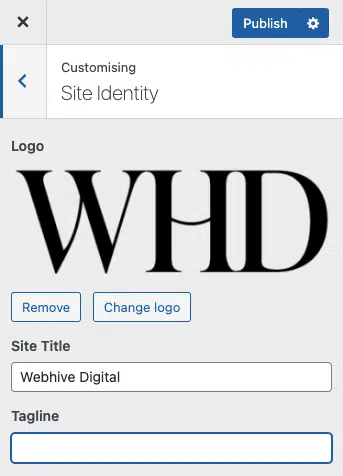
Inside the Customizer, find the Site Identity option. It is usually at the top. Click on it. You will see the Tag Line field.
Locate the Tag Line text box. To remove the tag line, clear the text box. To change it, type your new text. Always click Publish to save your changes. Now, check your site. The tag line should be gone or changed.
Direct Theme File Editing
Remove the tagline from a WordPress theme by editing the theme file directly. Access the theme’s header. php file and locate the tagline code. Delete or comment out this code to successfully eliminate the tagline from your site.
Identifying The Correct Files
Start by accessing your WordPress dashboard. Go to the Appearance section. Click on Theme Editor. Locate the theme files. Look for header.php or functions.php. These files often contain the tagline code. Be careful when choosing files. One wrong file can break your site.
Safely Editing Code
Before making changes, create a backup of your theme. Use an FTP client to download files. Open the file in a text editor. Search for tagline code. It might look like php bloginfo('description'); ?. Delete or comment out the code. Save changes and upload the file back.
Testing Changes
Refresh your website. Check if the tagline is gone. Sometimes, changes may not show. Clear your browser cache. Use another browser for testing. Ensure your site looks good. If broken, restore from backup. Repeat steps if needed.
Credit: webhivedigital.com
Creating And Using A Child Theme
A child theme helps keep changes when updating the main theme. Custom styles stay the same. Function changes remain intact. This avoids losing your work. It is a safe way to modify a theme. Beginners and pros both use child themes. They help in learning. They make experimentation easy. Mistakes can be fixed without harm. Try new designs with confidence.
- Create a new folder in the themes directory.
- Make a new style.css file. Add theme info.
- Import parent theme styles in style.css.
- Create a new functions.php file.
- Activate the child theme in your WordPress dashboard.
Use the functions.php file to change features. Add new code to this file. This changes how the site works. Avoid editing the parent theme. Changes here are safe. They will not disappear on update. You can add widgets or menus. Enhance user experience with ease. Keep the site running smoothly.
Troubleshooting Common Issues
Removing the tagline from a WordPress theme can help simplify your site. Access the theme customizer to find the tagline settings. Delete or replace the text to suit your preferences.
Reverting Changes
Sometimes, changes may not work. This could be frustrating. Reverting changes is a good solution. Go to your WordPress dashboard. Click on Appearance, then Customize. Find the section you changed. Reset settings back to default. Save your settings. Check your site. Is everything back to normal? If yes, then your problem is solved.
Handling Theme Updates
Theme updates can change settings. This may bring back the tagline. Check for updates regularly. Always backup your site first. Update the theme from your dashboard. Revisit the Customize section. Ensure the tagline is still removed. If not, repeat the steps to remove it again.
Restoring Site Backup
Backups are important. They save your site. If something breaks, restore a backup. Use your hosting control panel. Find the backup option. Choose a recent backup. Restore your site to that point. This can fix many issues. Always have backups ready.

Credit: www.reddit.com
Best Practices For Theme Customization
Always test your site after changes. This helps in keeping things smooth. Use different devices to check. Make sure the site looks good everywhere. Compatibility is key for user happiness. Tools like browser tests can help a lot.
Use child themes for changes. This keeps the original theme safe. If the main theme updates, your changes stay. Protecting the theme’s structure is important. This ensures the site works well.
Always keep a backup of your site. Regular backups save you from data loss. Update themes and plugins often. This keeps your site secure and fast. Backups are your safety net.
Frequently Asked Questions
How Can I Hide The Tagline In WordPress?
To hide the tagline, navigate to the WordPress customizer. Click on “Site Identity” and uncheck the “Display Tagline” option. This will remove the tagline from your site without deleting it entirely, allowing for easy reactivation later.
Is It Possible To Remove The Tagline Via Code?
Yes, you can remove it using code. Access the theme’s functions. php file and add a filter to remove the tagline. Alternatively, use CSS to hide it. This method is more technical but provides greater control over site appearance.
Can Plugins Help In Removing The Tagline?
Yes, plugins like “Custom CSS” can help hide or remove the tagline. Install a plugin that allows custom CSS input. Add the specific CSS code to hide the tagline. This is a simpler method for users unfamiliar with coding.
Will Removing The Tagline Affect Seo?
Removing the tagline may affect SEO if it contains keywords. Ensure your site’s SEO settings are optimized elsewhere. Add relevant keywords in other parts of the site, like headers and meta descriptions, to maintain SEO performance.
Conclusion
Removing the tagline from your WordPress theme is simple. Follow the steps carefully, and you’ll have a cleaner website. Remember, each theme might have slight differences. Always back up your site before making changes. This ensures no data loss. The process boosts your site’s professionalism.
Visitors will focus on your content, not the tagline. Experiment with the design. Customize it to reflect your brand. A clean design enhances user experience. Keep learning to improve your WordPress skills. Stay updated with new techniques. Happy editing and designing your unique site!


