
Are you tired of waiting for your WordPress site to load? That pesky preloader might be the culprit.
While preloaders can add a touch of style to your website, they can also frustrate visitors who prefer instant access to your content. It’s time to take control of your site’s performance and user experience. Imagine a faster, smoother browsing experience for your visitors, enhancing their satisfaction and encouraging them to stay longer.
In this guide, you’ll discover simple, step-by-step instructions on how to remove that preloader from your WordPress theme. Ready to transform your website’s speed and keep your audience engaged? Let’s dive in and make your site as efficient as it is beautiful.
Credit: zemez.io
Understanding The Preloader
Preloaders are animated graphics. They show before a website fully loads. They keep visitors entertained. Preloaders reduce bounce rates. They give the impression that the site is working. They help in maintaining user interest. Their main job is to make waiting less boring. Users see a sign that the site is loading. This is helpful on slower connections. It enhances user experience.
Preloaders come in many forms. Some show spinning circles. Others use progress bars. There are also animated logos. These are popular on branded sites. Some sites use loading dots. They bounce or change color. Sliding bars are common too. Each type serves the same purpose. They all aim to keep users engaged.

Credit: rehubdocs.wpsoul.com
Identifying The Preloader In Your Theme
Check your theme files for a preloader. Look in the header.php or footer.php files. Sometimes it’s found in a custom.js file. Open these files with a text editor. Search for the term “preloader”. This helps you find the code. Remove or comment out this code. Save the file changes. This might remove the preloader.
Open your website in a browser. Right-click and select “Inspect”. This opens the developer tools. Look for the Elements tab. Find any code related to the preloader. It might be a div with a class name like “preloader”. Write down the class name. Use this info to locate the code in your theme files.
Removing Preloader Via Theme Settings
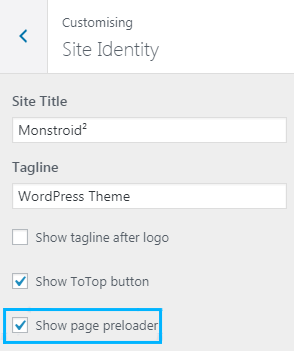
First, find the theme settings in your WordPress dashboard. Click on Appearance and then Customize. Look for options related to preloaders. Some themes have a Preloader section. Others may have it under General Settings.
If you cannot find it, check the theme documentation. It may help you locate the preloader options. Most themes make it easy to find these settings.
Once you locate the preloader settings, look for a toggle switch or checkbox. It usually reads “Enable Preloader”. Uncheck or turn this switch off. This action will disable the preloader on your site.
Some themes might require you to save changes. Look for a Save or Publish button. Click it to ensure your settings are updated. Your site should now load without a preloader.

Credit: www.templatemonster.com
Editing Theme Code To Remove Preloader
Accessing Theme Editor is the first step. Go to your WordPress dashboard. Click on Appearance and then Theme Editor. Always make a backup before changes. This keeps your site safe.
Modifying CSS Files helps in removing preloaders. In the editor, find the style.css file. Look for preloader-related code. It often starts with .preloader or similar. Delete or comment out these lines. Save your changes.
Next, check Adjusting JavaScript Files. Preloaders might have scripts. In the editor, look for JavaScript files. These files might be named script.js or main.js. Search for preloader functions. Remove or comment these parts. Save all edits.
Using Plugins To Disable Preloaders
Easily remove preloaders from your WordPress theme using plugins. These tools disable unwanted loading animations, improving page speed. Enhance user experience by streamlining your site’s loading process with a simple plugin installation.
Popular Plugins For Preloader Removal
Many WordPress users prefer plugins for removing preloaders. Some popular options include WP Preloader Plugin, Disable Preloader, and Preloader Plus. These plugins make the process simple and quick.
WP Preloader Plugin is easy to use. It offers various settings for customization. Disable Preloader removes preloaders with minimal effort. Preloader Plus provides advanced features for a tailored experience.
Steps For Plugin Installation And Use
Start by navigating to your WordPress dashboard. Click on Plugins and then Add New. Search for your chosen plugin. Click Install Now and then Activate.
After activation, go to Settings and find your plugin. Configure the settings as needed. Save changes to disable the preloader.
Testing Site After Preloader Removal
Removing the preloader can make your site load faster. Check if the site speed is better now. Use tools like Google PageSpeed Insights. Measure the loading time on different devices. This helps you know if things are working well. Faster sites keep visitors happy. They stay longer and explore more.
Users should find the site easy to use. Test the navigation. Can users find pages quickly? Look at the content layout. Is everything in place? Make sure images load properly. The site should look nice on phones too. A smooth experience keeps users coming back. Happy users mean a successful site.
Troubleshooting Common Issues
Removing the preloader in a WordPress theme can enhance site speed. Navigate to the theme’s settings and disable preloader options. If unavailable, access the theme’s code and remove or comment out preloader scripts.
Resolving Display Problems
Sometimes, a preloader might not disappear. This can confuse users. First, check your theme settings. Some themes have preloader options. You may need to disable these settings. Next, inspect your custom CSS. Incorrect CSS can cause display issues. Look for CSS rules affecting the preloader. Remove or fix them if needed. Another solution is to clear your browser cache. Old cache can cause display problems. Refresh and check your site again.
Handling Plugin Conflicts
Plugins may conflict with preloaders. Start by deactivating all plugins. Enable them one by one. This helps identify the conflicting plugin. Once found, update or replace the plugin. Sometimes, the plugin code causes conflicts. Check for errors in the plugin code. Fix these errors if possible. Contact the plugin developer if needed. Also, ensure WordPress and plugins are updated. Older versions can cause conflicts. Regular updates ensure smoother functionality.
Frequently Asked Questions
How Do I Disable Preloader In WordPress?
To disable the preloader in WordPress, you typically need to access the theme settings. Navigate to the theme’s customization panel. Search for preloader settings and simply toggle it off. If unavailable, you might need to edit the CSS or JavaScript files directly via the theme editor.
Can Preloader Affect Website Speed?
Yes, preloaders can impact perceived website speed. While they visually indicate loading, they might delay content visibility. Optimizing scripts and images can reduce loading time. Ensure your site is well-optimized to minimize reliance on preloaders for a better user experience.
Is Removing Preloader Beneficial For Seo?
Removing preloaders can be beneficial for SEO. Faster loading times improve user experience, positively influencing search rankings. Preloaders might delay content visibility, potentially affecting user engagement metrics. Optimize your site to ensure quick loading, enhancing both SEO and user satisfaction.
How To Customize Preloader In WordPress Theme?
To customize a preloader, access your theme’s settings or CSS files. Look for preloader options and modify colors, shapes, or animations as desired. If customization options are limited, consider using a plugin for more advanced preloader customization features.
Conclusion
Removing a preloader in your WordPress theme can enhance user experience. It makes your website load faster and look cleaner. Always remember to back up your files before making changes. This prevents any accidental loss of data. Follow the steps carefully for a smooth process.
A better-performing site can lead to happier visitors. Keep your website updated for the best results. Stay informed and explore new techniques regularly. Your efforts will pay off in improved site performance. Enjoy a more efficient and appealing website today.


