
Do you ever find yourself staring at your WordPress site, wishing you could tweak just one little thing—like removing the header? You’re not alone.
Whether it’s for a cleaner look, better branding, or simply a fresh start, getting rid of that pesky header can make a world of difference in your website’s appearance. But before you start poking around and potentially causing chaos, there’s good news.
This guide will walk you through the process step-by-step, ensuring you can say goodbye to that unwanted header without breaking a sweat. Imagine the satisfaction of seeing your site exactly how you envisioned it. Ready to make that dream a reality? Let’s dive into the nitty-gritty of header removal on WordPress themes. Your ideal website look is just a few clicks away!
Accessing WordPress Dashboard
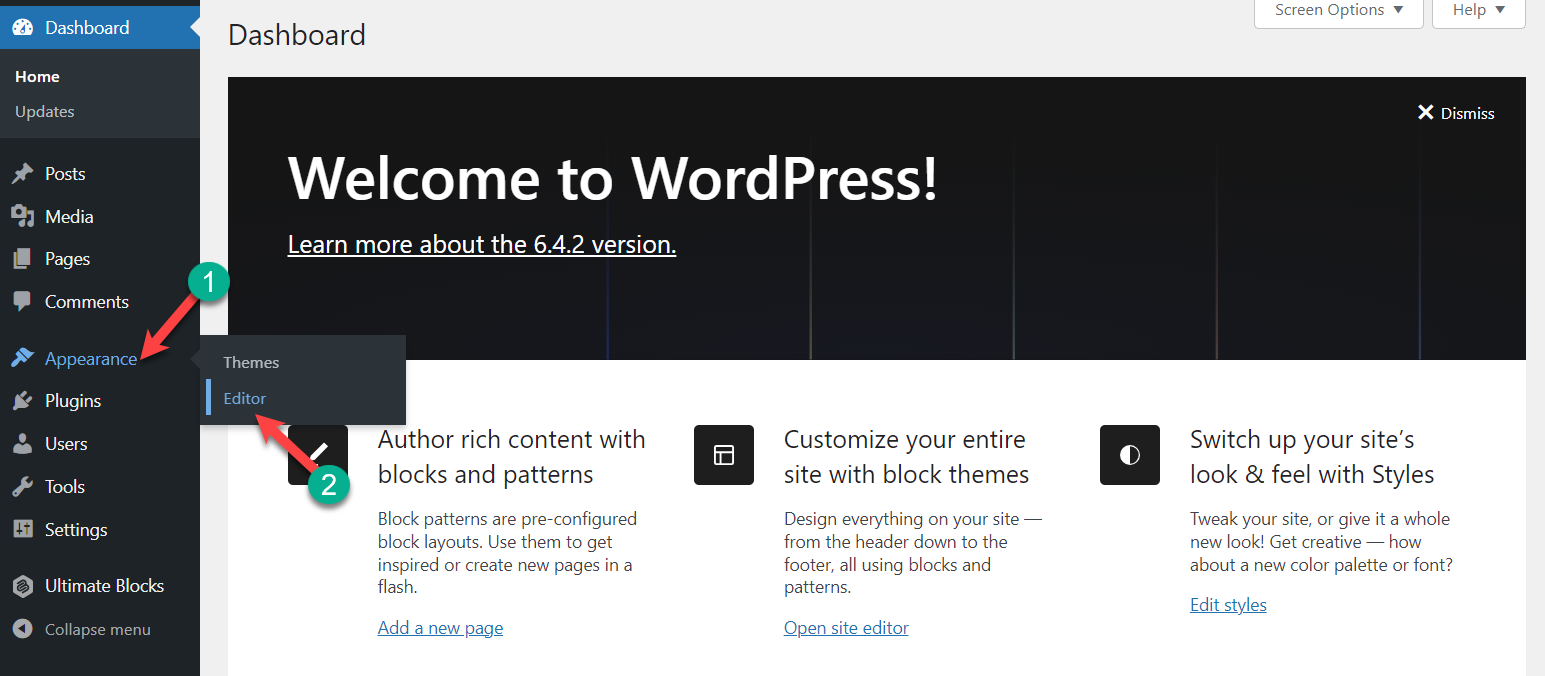
You must first log in to your WordPress dashboard. Find the login page by adding “/wp-admin” to your website’s URL. Enter your username and password. Once inside, you see the dashboard. It has many options. Look for the Appearance menu on the left side. Click on it. Next, find the Editor under Appearance. This allows you to edit theme files. Be careful when editing. You might break the theme if not careful. If unsure, make a backup first. It protects your site from mistakes. Some themes might not allow direct edits. In such cases, consider using a child theme. A child theme is safer to edit. It keeps changes even after updates. With these steps, you can remove the header safely.
Navigating To Appearance Settings
To remove the header from your WordPress theme, start by logging into your WordPress dashboard. Locate the menu on the left side of the screen. Click on Appearance. This section controls how your site looks. Here, you will find various options. Choose Customize to open the theme editor. The editor allows changes to your site design.
Look for the Header section. Different themes might have different settings. Some themes offer easy header removal. Others might need coding changes. Check for a Hide Header option. If available, simply click to hide. This option might be under Header Settings. Save changes once done. If no option is available, you may need custom CSS.
In some cases, Theme Documentation helps. It provides steps specific to your theme. Explore forums or ask for help from theme developers if needed. Always save backups before making changes. Mistakes can occur, and backups keep your site safe.
Using Theme Customizer
Explore the Theme Customizer to remove headers in WordPress themes. Navigate to Appearance, then Customize, and select Header. Choose the option to hide or disable the header for a cleaner look. This simple adjustment enhances design flexibility without coding.
Locating Header Options
Find the Theme Customizer in the WordPress dashboard. Look for the “Appearance” tab. Click it. Then, choose “Customize.” This opens the customizer. Here, search for header options. Some themes have this under “Header.” Others place it in “Layout.” Every theme is a bit different. So, explore the menu carefully.
Disabling Header Display
Once in header options, find the display settings. Some themes have a toggle switch. Turn it off to hide the header. Others may have a checkbox. Uncheck it to remove the header. Changes might not show instantly. Click “Publish” to save. Then, visit your site. See if the header is gone. If not, clear your browser cache. This might help. If still visible, your theme may not support this change.
Editing Theme Files
Start by logging into your WordPress dashboard. Go to Appearance and click Theme Editor. A warning message might appear. Click Proceed to continue. You will now see a list of theme files on the right side.
Look for a file named header.php. This file contains the header code. Click on it to open. You will see lines of code. Find the lines that define the header. They usually start with .
Carefully delete the header section. Make sure to only remove the header code. Do not touch other parts of the file. After deleting, click Update File to save changes. Refresh your website to see the header removed.
Utilizing Custom Css
Custom CSS helps to hide or modify elements on a webpage. It is easy and quick. You don’t need coding skills. You can add CSS code to remove the header from your WordPress theme.
Adding Custom Css Code
Find the customizer in WordPress. Go to the dashboard. Click “Appearance,” then “Customize.” Choose “Additional CSS.” Here, you can add your custom code.
Hiding Header With Css
Add the following code to hide the header:
header {
  display: none;
}
This code will remove the header from view. It is simple and effective. Your changes will appear after saving.
Credit: ultimateblocks.com
Employing A Child Theme
A child theme allows safe modifications to a WordPress theme without altering the main files. To remove a header, edit the child theme’s style. css and functions. php. This approach ensures updates won’t overwrite changes, maintaining a seamless design.
Creating A Child Theme
Begin with making a new folder for your child theme. Add a style.css file inside. Write a few lines in this file. Mention your child theme’s name and its parent theme. This helps WordPress know the connection. Create a functions.php file next. Use this file to enqueue the parent theme’s styles. This keeps the design consistent.
Overriding Header Template
Copy the header.php file from the parent theme. Paste it into your child theme folder. Open the copied file. Remove the header code you wish to change. Save the file and check your site. The header should now be different. Remember to keep a backup before making changes. This protects your original work.
Using Plugins For Header Removal
Plugins can help remove headers easily. First, choose the right plugin. Many plugins are free and work well. Some popular ones include Remove Headers and Header Footer Builder. Check reviews before you select.
Choose plugins with good ratings. Read user feedback. Check compatibility with your theme. Make sure it supports your version of WordPress. Avoid plugins with no updates.
After installation, find the settings page. Most plugins have easy instructions. Follow them step by step. Adjust settings to hide or remove the header. Preview changes to ensure they look good. Save changes once done. Repeat if needed.

Credit: thewebsitearchitect.com
Testing Changes
Verifying header removal is easy. First, open your website in a browser. Look at the top of the page. Is the header gone? If it is, you did it right. If not, check your steps again. Sometimes, themes have hidden settings. Make sure you saved all changes. Refresh the page to see updates. Clearing browser cache might help. This ensures you see the latest version.
For resolving display issues, check different devices. Use a phone and a tablet. Headers might still show on smaller screens. Adjust settings for each device. Also, test on different browsers. Chrome, Firefox, and Safari can show pages differently. Fix any problems you find. Your site should look good everywhere.
Credit: www.lverbeeck.com
Frequently Asked Questions
How Do I Remove The WordPress Header?
To remove the WordPress header, access your theme’s header. php file. Locate the header code and delete it. Alternatively, use a custom CSS plugin to hide it. Always back up your theme files before making changes to prevent data loss or errors.
Can I Remove The Header Without Coding?
Yes, you can remove the header without coding. Use a theme customizer or page builder with header options. Some plugins also allow header removal. These tools offer user-friendly interfaces, making the process simple and coding-free for beginners.
Does Removing The Header Affect Seo?
Removing the header can affect SEO if not done properly. Headers often contain important navigation links and branding elements. Ensure essential links and information are relocated to maintain SEO performance. Consult an SEO expert if unsure about the impact on your site.
Is There A Plugin To Hide WordPress Header?
Yes, several plugins can hide the WordPress header. Plugins like “Hide Title” or “WP Header” enable easy header management. These plugins offer straightforward options to hide or customize headers without altering code. Always check plugin compatibility with your theme and WordPress version.
Conclusion
Removing the header from your WordPress theme is simple. It improves your site’s look. Follow the steps above to make your site unique. Each theme has different options, so check yours carefully. Don’t forget to backup your site first. This helps avoid losing important data.
Try different looks and see what fits best. Practice makes perfect. Test your changes to ensure your site looks great. A cleaner design attracts more visitors. Keep your site fresh and easy to navigate. Your efforts will pay off with a smoother user experience.
Happy editing!


