
Are you struggling with unwanted elements cluttering your WordPress theme? Whether it’s a pesky sidebar, an unnecessary footer widget, or a distracting header image, these elements can detract from your site’s appeal and effectiveness.
You want a clean, streamlined website that reflects your brand and enhances user experience, but these unwanted components stand in your way. Imagine the satisfaction and sense of control you’ll feel as you navigate a sleek, customized WordPress theme that perfectly aligns with your vision.
This article will guide you through simple, step-by-step methods to effortlessly remove those unwanted elements from your WordPress theme. You’ll discover how easy it can be to transform your website into a polished, professional platform that captures your audience’s attention. So, let’s dive in and take the first step towards creating the perfect online presence for you and your brand.
Understanding WordPress Themes
WordPress themes have a special structure. They are like a book. The cover is the style. The pages are the code. Themes have many files. Each file has a job. Some files show the header. Others show the footer.
These files use PHP and CSS. PHP makes the site work. CSS makes it look nice. Understanding these helps you change themes.
There are two types of themes. Parent themes are the main ones. They have all the parts. Child themes are copies. They let you make changes. Changes do not affect the parent. This keeps updates safe.
Using a child theme is smart. It keeps your work safe. You can change things. The parent theme stays the same. This is a safe way to edit.
Identifying Elements To Remove
Headers and footers are often cluttered. They may contain unnecessary links. Sidebars sometimes have too many widgets. Remove extra widgets to clean up. Advertisements can slow down the site. Keep only essential ads. Social media buttons can be distracting. Use them wisely to enhance user experience.
Right-click on the page. Choose “Inspect” to view the source code. Look for HTML elements you want to remove. Check for div and span tags. Pay attention to classes and IDs. Identify CSS styles linked to these elements. Understanding the code helps in safe removal.
Using WordPress Customizer
Find the WordPress Customizer in your dashboard. Click on Appearance, then select Customize. This opens the Customizer tool. Use it to change your theme. You can hide or remove parts you don’t need. This tool is very handy. It helps you make your site look just right. Play around to learn more.
CSS helps hide parts of a theme. Open the Customizer again. Look for Additional CSS under the menu. Add your CSS code here. It makes things disappear. Use this method to hide unwanted elements. Learn CSS to do more. It gives you power over your site. Keep practicing to get better.

Credit: crocoblock.com
Editing Theme Files
Open your WordPress dashboard. Look for the Appearance tab. Click it. Now, find the Theme Editor option. Click on it. You will see a list of files. These are your theme files. Be careful here. Editing these files can be risky. Always make a backup first. This keeps your site safe.
PHP files control your theme’s features. Find the file you want. Click to open it. Remove unwanted elements. Make changes carefully. Small mistakes can break your site. Always save your changes. Then, check your website. Make sure everything works fine. If not, restore from your backup. Practice makes perfect. Keep learning and improving.
Creating A Child Theme
Child themes keep your changes safe when updating. A main theme update can remove edits. Child themes help keep your custom work. They make it easy to change theme files. Without losing changes in updates. Child themes are simple. They are fast to set up. They are a smart way to edit themes.
First, create a new folder. Name it like your theme, add ‘-child’. Inside, make a style.css file. Add details about your theme. Copy template files you want to change. Put them in the child folder. Use functions.php to add new code. Keep it simple. Use the child theme in WordPress. Activate it. This keeps changes safe.
Credit: elementor.com
Using Plugins To Remove Elements
Plugins offer a simple way to remove unwanted elements from a WordPress theme. They help customize your site without needing code knowledge. Enhance your website’s look by easily hiding or changing parts you don’t need.
Recommended Plugins
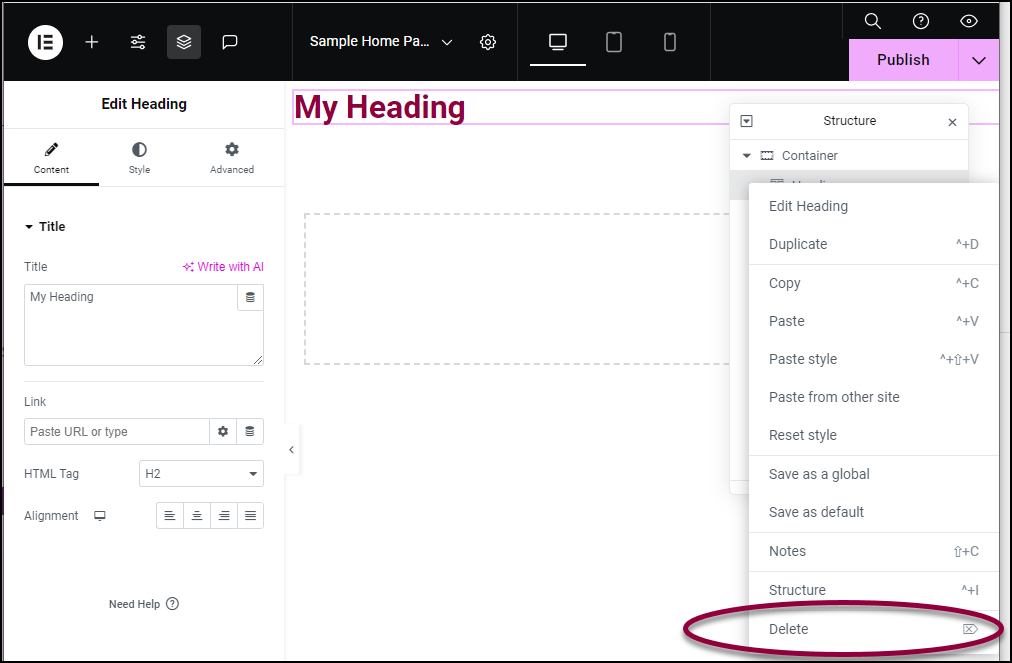
Plugins can help remove elements from your WordPress theme. Some plugins are popular and easy to use. Elementor is a great choice for beginners. It lets you hide or delete parts with a few clicks. WP Hide & Security Enhancer is another option. It offers more security features while managing elements. Remove Widgets is simple and focuses on removing widgets quickly. Always check reviews before picking a plugin.
Configuring Plugin Settings
After you install a plugin, adjust its settings. Open the plugin’s dashboard from your WordPress admin panel. Look for the sections where you can make changes. Turn off or delete parts you do not need. Be careful not to remove important parts. Test your site after changes. Make sure everything works fine. Save changes and exit the settings menu when done.
Testing Changes
Previewing in Different Browsers can show if the changes work. Open the site in Chrome, Firefox, and Safari. See how it looks in each. You might notice differences. Each browser can show the site differently. Check if any elements are missing or look strange. This helps to catch problems early.
Ensuring Responsiveness is important for all devices. Test on phones, tablets, and computers. Make sure text and images fit well. Resize your browser window. See if elements move or change size. This will help ensure everything works for all users. Responsive design makes sure everyone can access your site easily.
Troubleshooting Common Issues
Removing elements from a WordPress theme can be tricky. Start by accessing the theme editor. Locate the specific code section in the theme files. Delete or modify the unwanted elements carefully to ensure smooth functionality and appearance. Save your changes and check your site for any issues.
Dealing With Broken Layouts
Sometimes, removing elements can break the layout. This makes the page look strange. To fix this, check the CSS files first. Look for any missing styles. Restore any missing codes. Sometimes, elements rely on other parts. Ensure all needed parts are still there. Refresh the page often. This helps see changes. Use the WordPress Customizer. It shows a preview of changes. This helps spot errors early. If the problem stays, restore a backup. This brings back the old layout. Always keep a backup before changes. This makes fixing errors easy.
Restoring Original Settings
Mistakes happen while editing themes. To go back, use the WordPress theme reset plugin. It restores settings to default. This is like pressing a reset button. Make sure to back up first. This saves your current work. Check the theme documentation. It may offer solutions or reset options. If unsure, ask for help in forums. Many WordPress users share advice there. Sometimes, a new theme update can also help. It fixes bugs and improves features.
Credit: wpastra.com
Frequently Asked Questions
How Can I Safely Remove Theme Elements?
To safely remove elements, use a child theme. This ensures changes are preserved after updates. Alternatively, use the “Customizer” or “Additional CSS” in WordPress. Backup your site before making modifications. Consider consulting documentation for specific theme instructions to avoid errors.
Can I Use Plugins To Remove Elements?
Yes, plugins like “Code Snippets” allow element removal without editing core files. They offer a safer and easier way to customize themes. Search for plugins that fit your needs. Always check compatibility with your theme and WordPress version before installation.
What Are Common Elements To Remove?
Common elements include headers, footers, sidebars, and widgets. You might also want to remove specific menus or unwanted sections. Use the theme’s options or custom CSS for removal. Identify the elements you wish to remove before starting modifications.
Will Removing Elements Affect My Site’s Performance?
Removing elements can improve performance by reducing load times. Fewer elements mean less data processing, enhancing user experience. Ensure you remove unnecessary elements carefully to avoid breaking site functionality. Test site speed after changes to confirm improvements.
Conclusion
Removing elements from a WordPress theme is a simple process. You need to know where to look and what to do. First, find the unwanted element in the theme’s code. Then, edit or delete it carefully. Backing up your site before making changes is crucial.
This ensures safety if something goes wrong. Practice makes perfect, so don’t rush. Take your time to learn and adjust. With patience, you will customize your site easily. Soon, your website will look exactly how you want it. Enjoy your new, cleaner WordPress theme.


