
Are you looking to give your WordPress website a fresh and modern look with the latest CSS features? Updating your theme to use new CSS can transform your site’s appearance and functionality, making it more appealing and user-friendly.
Imagine a website that not only captures your visitors’ attention but also keeps them engaged with seamless navigation and stunning visuals. You’ll discover simple and effective steps to revamp your WordPress theme using the latest CSS techniques. Whether you’re a seasoned developer or a WordPress newbie, these insights will help you enhance your site effortlessly.
Ready to upgrade your website and take it to the next level? Let’s dive in!
Setting Up Your Development Environment
First, install a code editor like Visual Studio Code. This helps in writing and editing code. Next, get Node.js and NPM. They help manage packages. Finally, install Git for version control. It keeps track of changes. These tools are essential for developing themes.
Start by setting up a local server. Use XAMPP or WAMP for this. They create a local environment for WordPress. Download WordPress from the official site. Extract the files into the server’s root directory. Next, create a database using PHPMyAdmin. Use this database for your WordPress site. Now, open your browser and go to localhost. Follow the instructions to install WordPress. Your site is now ready for theme development.
Understanding Css Changes
CSS now has some new features. These features make websites look better. They help with design and layout. New CSS can make pages faster. This makes users happy. It also helps with responsive design. This means the site looks good on phones and computers.
One feature is flexbox. It makes items fit well in a box. Another is grid layout. It helps place items in rows and columns. There is also CSS variables. They save time and make updates easy. Media queries help make sites work on all screen sizes. These features make sites look nice and work well.
Modifying Your Theme
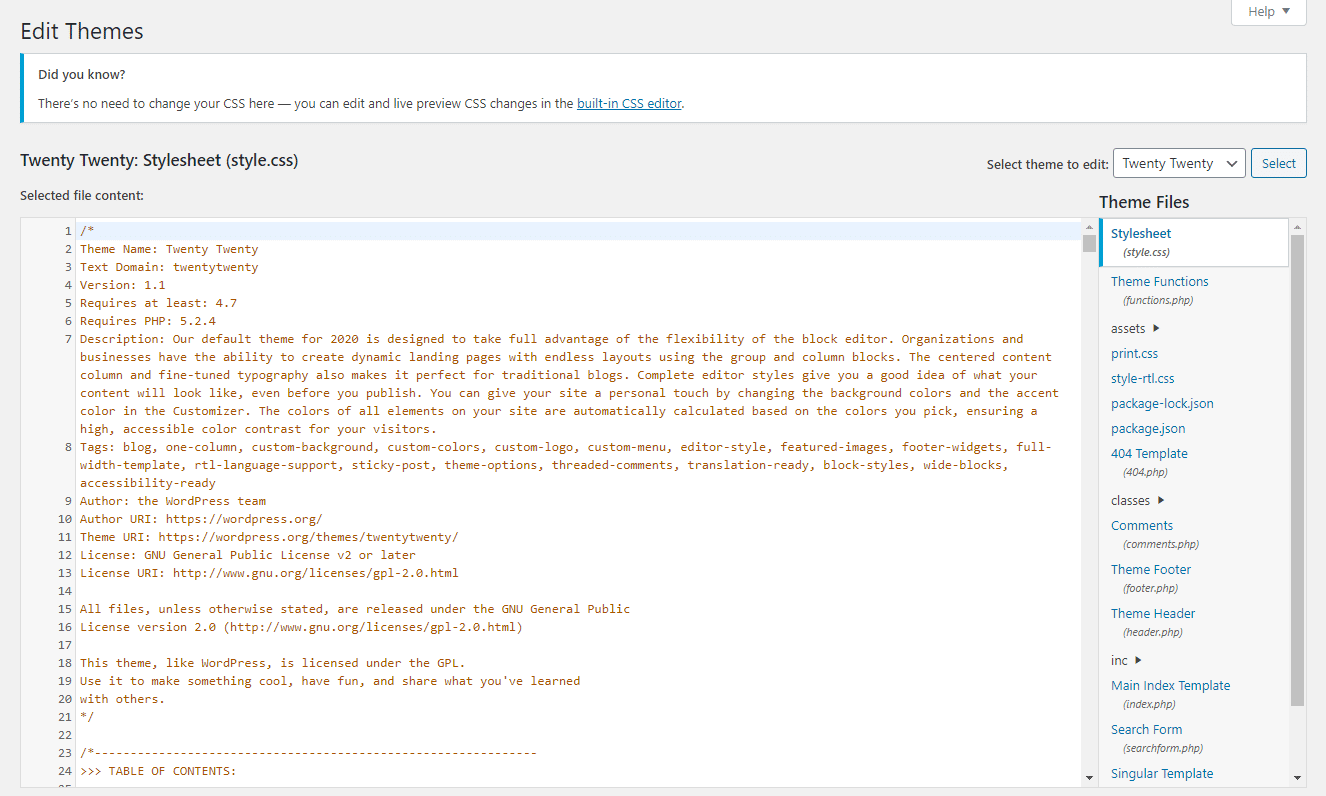
Find your theme files in the WordPress folder. Go to the wp-content folder. Open the themes folder. Check for your theme name. Inside, there are many files. Look for style.css. This file holds the theme’s styles. You can change how your website looks here. Be careful when editing. Always make a backup first. Use a text editor to make changes.
Open the style.css file with a text editor. You can change colors, fonts, and layout. Use simple CSS code for changes. For example, body {color: blue;} changes the text color. Save your changes. Refresh your website to see changes. If something breaks, restore the backup. Always test changes on a small scale first. Small steps help prevent big problems.
Credit: kinsta.com
Implementing New Css Features
Responsive design is key. It helps your site look good on all screens. Use media queries to adjust styles. Make text and images resize smoothly. Test on different devices. This ensures everything works. Keep designs simple and clean. Avoid clutter on small screens.
CSS Grid and Flexbox make layouts easy. CSS Grid is for complex layouts. It uses rows and columns. Flexbox is for simpler tasks. It aligns items in a row or column. Both tools help organize content. They make your site look modern and neat. Experiment with both. Find what works best for your theme.
Testing And Debugging
Checking browser compatibility is important. Every browser is unique. Themes may not look the same on all. Use tools to test your theme. Tools like BrowserStack can help. They show how your theme looks on different browsers. Make sure CSS rules work everywhere. Check for missing styles or errors.
Addressing common issues helps in fixing bugs. Some themes break on small screens. Others may have layout problems. Check the theme on mobile and tablets. Test on different screen sizes. Fixing these issues makes your theme better. Use online forums for help. Many developers share solutions.

Credit: learn.wordpress.org
Optimizing Performance
Minifying CSS files helps make websites faster. It removes spaces and comments. This makes the file smaller. Smaller files load quicker. This helps the site perform better.
Leveraging caching techniques is another way to boost speed. Cached files are stored for later use. When visitors return, the browser uses these saved files. This means pages load faster. Quicker loading keeps users happy. It also helps with search rankings.
Ensuring Accessibility
Accessible styles help everyone use your site. Use contrast colors for text and background. This makes text easy to read. Choose font sizes that are large enough. This helps those with vision problems. Make sure links and buttons are big and easy to click. Add alt text to images. This helps people who can’t see the images. Use clear headings for better navigation.
Use tools to check how accessible your site is. Tools can find errors in your design. They show how your site works for everyone. Test with screen readers. These help people who can’t see. Check your site on different devices. This ensures everyone can use it. Fix any problems tools find. This makes your site better for all.
Credit: 10web.io
Deploying Your Updated Theme
Always create a backup before making changes. This keeps your site safe. Use a plugin like UpdraftPlus or BackupBuddy. Save your backup in a safe place. You can use cloud storage. Check the backup to ensure it works. This step avoids losing your hard work.
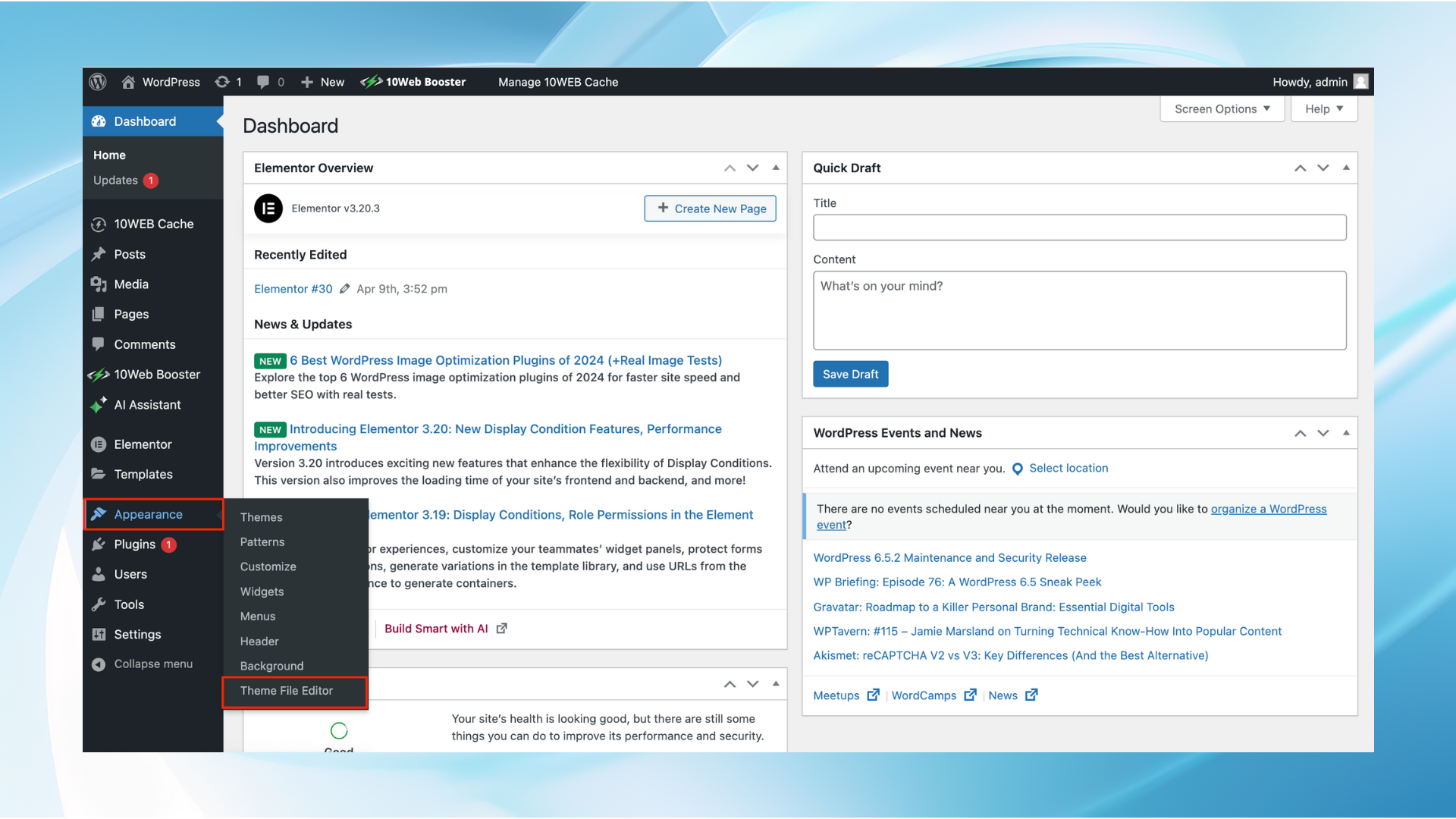
Log into your WordPress dashboard. Go to Appearance and click on Themes. Select Upload Theme to add your new files. Choose your updated theme file from your computer. Click Install Now and wait. After installation, click Activate. Check your site to see the changes.
Frequently Asked Questions
How Do I Update My WordPress Theme Css?
To update your WordPress theme CSS, access the theme editor in the WordPress dashboard. Navigate to Appearance > Theme Editor, then select the stylesheet (style. css) to edit. You can add or modify CSS rules here. Always backup your files before making changes to avoid losing data.
Can I Use Custom Css In WordPress Themes?
Yes, you can use custom CSS in WordPress themes. Navigate to Appearance > Customize in your dashboard, then select Additional CSS. Here, you can add your custom CSS rules. This allows you to modify styles without editing the theme’s core files, ensuring updates won’t overwrite your changes.
What Tools Help With WordPress Theme Css Editing?
Several tools can assist with WordPress theme CSS editing. Popular ones include CSS Hero, SiteOrigin CSS, and WordPress Customizer. These tools offer user-friendly interfaces to make CSS changes without coding knowledge. They help you preview changes live, ensuring your theme’s design remains consistent and visually appealing.
How Do I Ensure Css Changes Are Responsive?
To ensure CSS changes are responsive, use media queries in your stylesheets. Media queries allow you to apply different styles based on screen size. Test your site on various devices to ensure compatibility. Tools like Chrome DevTools can simulate different screen sizes, helping you refine responsive designs effectively.
Conclusion
Creating a WordPress theme with new CSS is straightforward. Follow clear steps and see results. Update your theme regularly. Keep CSS simple and organized. Test changes on different browsers. Ensure responsive design for all devices. Use online resources for learning and support.
Experiment with different styles. Explore new CSS features. Enhance your site’s look and feel. Boost user experience effectively. Enjoy customizing your WordPress site with ease. Stay updated with CSS advancements. Your site can look fresh and modern. Engage visitors with a visually appealing design.


