
Are you looking to enhance your WordPress site’s navigation experience? A dynamic secondary menu might just be the missing piece you need.
Imagine a website where your visitors can effortlessly find the information they’re looking for, leading to a smoother user experience and, ultimately, higher engagement. In this guide, you’ll discover how to create a dynamic secondary menu in a WordPress theme that adapts to your users’ needs.
Whether you’re a seasoned developer or just getting started, you’ll find easy-to-follow steps that will transform your site’s navigation. Keep reading, and unlock the secret to a more intuitive and responsive website.
Understanding Dynamic Menus
Dynamic menus are smart. They change based on what a user does. These menus show different links to different people. For example, a logged-in user sees special links. This makes navigation easy and personal. Dynamic menus make a site feel alive. They adapt to fit each user. This is why many websites use them. They are not fixed like static menus. They offer a better user experience.
Dynamic menus have many advantages. They improve website navigation by showing relevant links. Users find what they need faster. This saves time. These menus also make sites look modern. They change based on user actions. This keeps the website fresh and engaging. Businesses benefit too. They can show special promotions to certain users. Dynamic menus help in organizing content. They make websites more efficient.
Setting Up Your WordPress Environment
Picking a theme is crucial. It decides how your site looks. Responsive themes work well on all devices. SEO-friendly themes help your site rank better. Popular choices include Astra and OceanWP. Check reviews before choosing. This ensures you pick the best theme.
Plugins add features to your site. Menu plugins help manage menus. Elementor lets you design easily. Yoast SEO improves your site’s search ranking. Plugins are found in the WordPress plugin store. Install them from your dashboard. Always keep them updated for security.
Creating A Secondary Menu
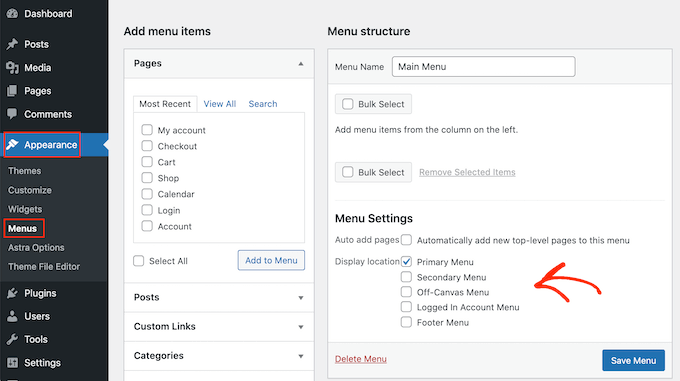
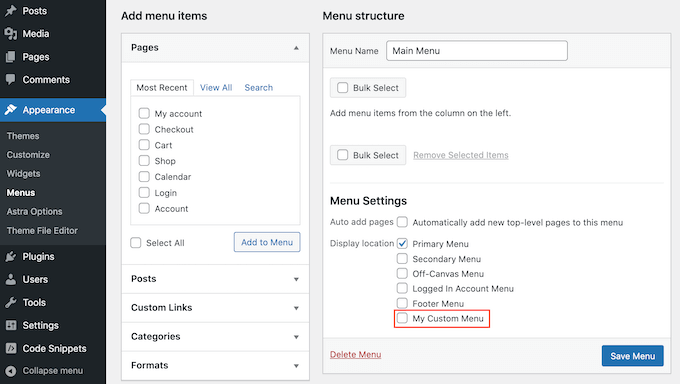
First, go to your WordPress dashboard. Look for the Appearance tab on the left. Click on it. Then, choose Menus. This is where you can make a new menu. It is important to choose the right theme location. Check the box for Secondary Menu. This will make your menu show up where you want.
Next, add items to your menu. Click on the pages you want. Then, press Add to Menu. Your pages will move to the right. You can also add links. Just paste the URL and name it. Drag items to arrange them. Put your most important links at the top. This way, people will see them first.
Making The Menu Dynamic
Conditional logic helps make menus smart. It shows different items based on rules. For example, a logged-in user sees a special menu. A visitor sees something else. Use WordPress functions for this. is_user_logged_in() checks if a user is logged in. Place this inside your theme code. It decides what menu to show. This makes your site interactive. Visitors see what they need.
PHP code helps customize your menu. Add PHP in your theme files. It controls menu appearance. Use wp_nav_menu() to display menus. PHP checks conditions. It shows items based on user roles. You can create custom menus for different users. This makes your site dynamic. Visitors enjoy a tailored experience. PHP code is powerful. It can change how your menu works.
Customizing Menu Appearance
Enhance your WordPress site by creating a dynamic secondary menu. Use the theme settings to adjust appearance easily. This allows for better navigation and a tailored user experience.
Styling With Css
CSS helps in making your menu look nice. Add colors to your menu. Make it stand out. Change the font size. Use bold text for main links. Try different background colors. Make hover effects. These effects change colors when you move your mouse. Add borders to your menu. Borders make it look neat. Use spacing between links. It makes reading easy. Keep the design simple and clean.
Enhancing User Experience
Users like easy menus. Keep menu items clear. Use short and simple words. Arrange menu items well. Important links come first. Make sure users find what they need. Add a search bar. It helps users quickly. A well-designed menu saves time. Users feel happy and return again. Test your menu on different devices. Make sure it works well everywhere. Happy users mean a successful website.

Credit: docs.themeisle.com
Testing And Debugging
Create a dynamic secondary menu in a WordPress theme using testing and debugging techniques. Ensure menu responsiveness by identifying errors through careful inspection. Modify code to enhance functionality and user experience efficiently.
Checking Menu Functionality
Ensure the secondary menu shows on your site. Click through each menu item. Make sure they lead to the correct pages. If a link is broken, check the URL. URLs must be accurate for the menu to work.
Look at the menu on different devices. It should work on phones, tablets, and computers. Check if the menu items are easy to tap on small screens. Fix any problems you see.
Resolving Common Issues
Sometimes, the menu does not update. Clear the browser cache to see changes. If the menu is still wrong, check your theme settings. Make sure the menu is set to “Secondary.”
Another problem is the menu not showing. Go to the WordPress dashboard and ensure the menu is assigned. If it still does not show, check for theme updates. An outdated theme might cause issues.
Future-proofing Your Menu
Menus need to work with future theme updates. Themes change often. Always update your menu for these changes. Check menu options in WordPress. Use themes that support updates. This keeps your menu working well. A broken menu is bad for users.
Make sure your menu adapts to theme changes. Test it after every update. Check links and appearance. Fix any errors you find. A dynamic menu adjusts itself. This keeps your site looking good.
Plugins can affect menus. Always check plugin compatibility. Some plugins may break your menu. Test your menu with different plugins. Use plugins that support menu changes. This ensures a smooth experience for users.
Credit: www.wpbeginner.com
Credit: www.wpbeginner.com
Frequently Asked Questions
How Do I Create A Dynamic Secondary Menu In WordPress?
To create a dynamic secondary menu, go to your WordPress dashboard. Navigate to Appearance > Menus. Create a new menu or select an existing one. Add the desired pages, posts, or categories. Save your changes. Ensure your theme supports secondary menus by checking in Appearance > Customize.
Can I Customize The Secondary Menu Appearance?
Yes, you can customize the secondary menu’s appearance. Use the WordPress Customizer under Appearance > Customize. Navigate to the Menu section. Adjust colors, fonts, and layout to match your theme. Some themes offer additional customization options or require CSS for further styling.
Is A Plugin Needed For Dynamic Secondary Menus?
No, a plugin isn’t necessary for dynamic secondary menus. Most modern WordPress themes support multiple menu locations, including secondary menus. However, if your theme lacks this feature, consider using a plugin like “Max Mega Menu” or “WP Responsive Menu” for advanced menu options.
What Themes Support Dynamic Secondary Menus?
Many WordPress themes support dynamic secondary menus. Popular options include Astra, OceanWP, and GeneratePress. These themes offer flexibility and customization options for multiple menus. Always check the theme’s documentation or support forum to ensure it meets your menu needs.
Conclusion
Creating a dynamic secondary menu in WordPress enhances user experience. It makes navigation smoother and keeps visitors engaged. With easy steps, you can customize menus to fit your theme. Adding dynamic elements will make your site feel more interactive. Users can find what they need quickly.
This improves satisfaction. Don’t forget to test the menu before finalizing. Ensure it works well on all devices. A well-crafted menu can boost your site’s accessibility. Explore different styles and functionalities. Keep your audience in mind. With practice, you’ll get it right every time.
Happy designing!


