
Have you ever felt overwhelmed trying to load CSS in your WordPress theme? You’re not alone.
Many WordPress users find themselves tangled in a web of confusion when it comes to styling their sites. But what if I told you that mastering this process is easier than you think? Imagine transforming your website’s look with just a few simple steps.
By the end of this article, you’ll be equipped with the know-how to make your WordPress theme shine, enhancing your site’s appeal and user experience. Ready to take control of your website’s style and make it truly yours? Let’s dive in and simplify the process of loading CSS in your WordPress theme.
Credit: www.hostinger.com
Enqueue Css Files
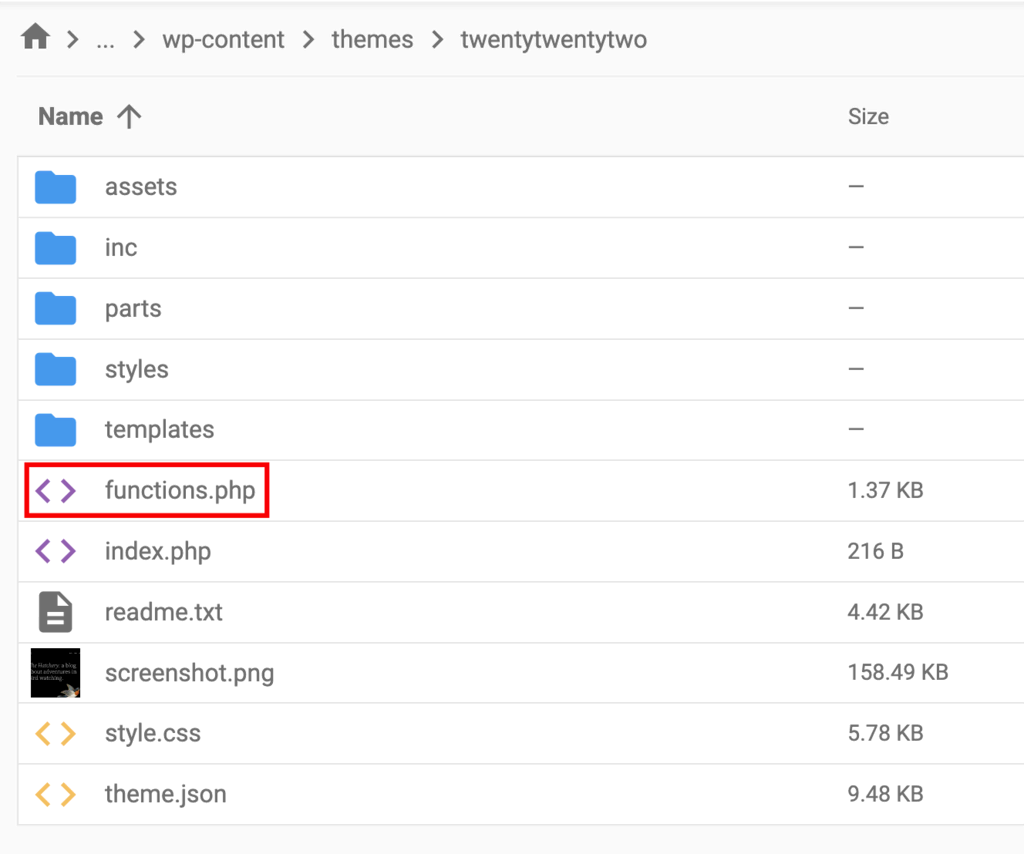
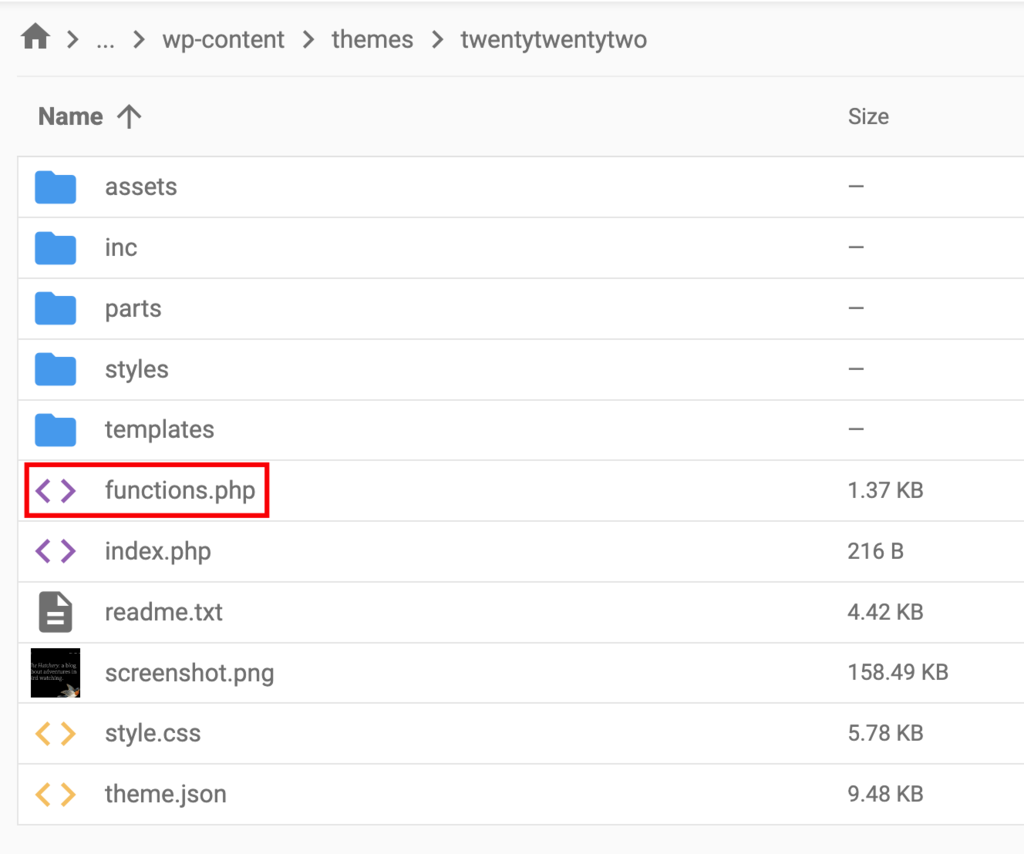
First, open the functions.php file in your theme folder. This file helps in adding custom functions. You can tell WordPress to load CSS files here. Loading CSS is simple. Just write the code in this file.
Use wp_enqueue_style to add CSS. This function is smart. It makes sure files load properly. Add the function inside functions.php. Write it like this:
wp_enqueue_style('style-name', get_template_directory_uri() . '/css/style.css');
Replace style-name with your file name. Replace /css/style.css with your file path. This ensures your design loads well. Keep your site looking good.
Register Css Styles
Start by creating a path for your stylesheet. You need to locate your theme folder. This is where your style.css file lives. Use get_template_directory_uri() to get the folder path. Add /style.css at the end. This gives you the full path. Now your theme knows where to find the CSS.
Sometimes, styles should load only on certain pages. Use conditional tags in WordPress. These tags check which page is being viewed. You can load CSS only when needed. This helps to keep your site fast. Fast sites are happy sites.
Load Css In Header
Use wp_head to add CSS to the WordPress header. This is a simple way to include styles in your theme. Add a function to your theme’s functions.php file. This function should hook into wp_head. It will run when WordPress builds the page header.
Use the wp_enqueue_style function within your custom function. This is the recommended way to load CSS. It helps avoid conflicts with other themes or plugins.
Prioritize loading essential styles first. This helps pages load faster. Place critical CSS directly in the header. Other styles can load later. This method improves user experience. It ensures the most important styles are seen first.
Load Css In Footer
Loading CSS in the footer can improve page speed. Use the wp_footer function to enqueue scripts. This function is part of WordPress hooks. It executes actions at the bottom of the page. Add your CSS file using the wp_enqueue_style function. Place this code in your theme’s functions.php file. Make sure the wp_footer is called in your theme’s footer.php file. This ensures your CSS loads properly.
Enqueue Scripts With Wp_footer
Enqueuing scripts in the footer can help reduce load times. Scripts placed in the footer load after page content. This is crucial for performance. The wp_footer action allows scripts to load later. This action must be called correctly. Misplaced calls might break functionality. Always test your changes on different devices.
Performance Considerations
Loading CSS in the footer can speed up site performance. It reduces initial load time. This improves user experience. Users see content faster. It also frees up server resources. This benefits high traffic sites. Test your site after changes. Make sure everything works smoothly. Consider mobile performance too.
Load Css For Admin Panel
To style the admin panel, load CSS with admin_enqueue_scripts. This helps you add custom styles that only show in the admin area. First, use the function keyword. Name your function. Inside, use wp_enqueue_style. This function loads your CSS file. You must give it a name. Also, a path to your CSS file. Finally, hook your function to admin_enqueue_scripts. This makes sure your styles only affect the admin area.
Here’s a simple example. First, create a function. Call it my_admin_styles. Next, use wp_enqueue_style. Pass in a name like 'admin-style'. Also, a file path like get_template_directory_uri() . '/css/admin-style.css'. Finally, add add_action('admin_enqueue_scripts', 'my_admin_styles');. This line connects your function to the right hook.
Load Css Conditionally
Loading CSS for specific pages can make your site faster. Use WordPress functions to add CSS only where needed. For instance, use wp_enqueue_style() in your theme’s functions.php file. Wrap it in a conditional statement. This checks if a certain page is being viewed. If yes, load the CSS file. This method avoids loading unnecessary styles.
Different users need different styles. Use conditional logic to load CSS based on user roles. Admins might need more styles than regular users. Use current_user_can() to check the user’s role. Load the CSS file accordingly. This keeps the interface clean for each user type. It also improves site performance.
Troubleshooting Css Loading Issues
Easily fix CSS loading problems in your WordPress theme by adding stylesheets properly. Use the functions. php file to enqueue your CSS files, ensuring they load correctly. This method keeps your site’s design consistent and prevents display issues.
Debugging Enqueue Errors
Some themes have errors in the enqueue process. Check the functions.php file. Ensure the wp_enqueue_style function is used. This function loads CSS files correctly. Missing this step can cause issues. Use the correct file path. Double-check for typos. Errors here stop CSS from loading.
Conflicts With Other Plugins
Plugins sometimes conflict with theme CSS. Deactivate plugins one by one. This helps find the problem plugin. Some plugins override theme styles. They add their own CSS files. This can cause a style conflict. Check plugin settings for options to disable their styles. Choose plugins that support your theme. Keep everything updated to reduce conflicts.
Credit: www.hostinger.co.uk

Credit: www.youtube.com
Frequently Asked Questions
How To Enqueue Css In WordPress Theme?
To enqueue CSS in a WordPress theme, use the `wp_enqueue_style()` function. Place this function inside your theme’s `functions. php` file. This ensures your styles are loaded properly. Always use the `wp_enqueue_scripts` action hook to call your enqueue function. This is the recommended method for adding CSS.
Why Use Wp_enqueue_style In WordPress?
Using `wp_enqueue_style()` ensures your CSS files load efficiently. It prevents conflicts and duplicate loading. This function manages dependencies and versioning automatically. It’s the WordPress standard for including styles. Following best practices helps maintain theme compatibility and functionality.
Where To Add Custom Css In WordPress?
Add custom CSS in the WordPress Customizer under ‘Additional CSS’. Alternatively, use the theme’s `style. css` file. For more control, consider a child theme. Avoid modifying core files directly. This ensures your changes are update-proof. Using a plugin for custom CSS is another safe option.
How To Load Multiple Css Files In WordPress?
To load multiple CSS files, call `wp_enqueue_style()` separately for each file. Ensure each file has a unique handle. Use the `wp_enqueue_scripts` action hook. This method maintains proper loading order and dependency management. Keeping your CSS organized improves site performance and maintainability.
Conclusion
Loading CSS in a WordPress theme enhances website appearance. Follow the steps shared earlier for a smooth process. Begin by understanding the theme structure. Use WordPress functions to integrate CSS effectively. Always test changes to ensure compatibility. Remember, proper CSS implementation boosts site speed and user experience.
This is crucial for retaining visitors. Regular updates keep your theme fresh and efficient. Stay organized with your files and code. Experiment with CSS styles to improve design. Your site will look better and function well. Keep learning and applying new techniques.
Your WordPress theme will thrive with well-loaded CSS.



