
Have you ever wondered what PHP version your WordPress site is running on? Knowing your PHP version is crucial for maintaining a smooth and secure website.
Outdated PHP versions can make your site vulnerable and slow. But don’t worry; figuring out which version you have is simpler than you might think. You’ll discover quick and easy ways to identify your PHP version, ensuring your WordPress site runs efficiently and safely.
Get ready to empower yourself with this essential knowledge and take control of your site’s performance. Stay with us, and unlock the secrets to optimizing your WordPress experience!
Importance Of Knowing Php Version
PHP is the language that helps your website work. Every website using WordPress runs on PHP. Knowing your PHP version is important. Why? Because it affects your site’s speed and safety. Old versions of PHP can make your website slow. They might not be safe either. New PHP versions have improvements. They make your site faster and more secure.
Developers update PHP to fix bugs. Bugs are like little errors. Fixing bugs makes websites better. Some plugins need a certain PHP version. If you have the wrong version, plugins may not work. This can cause your site to break. Always check your PHP version. Make sure it is up-to-date. Keeping your PHP version current is a good practice.
Checking Php Version Via WordPress Dashboard
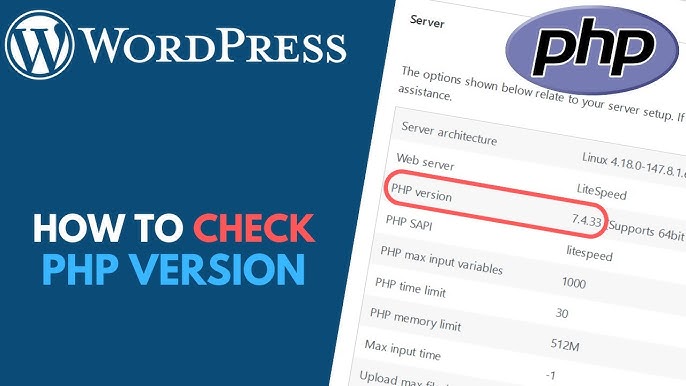
First, log in to your WordPress dashboard. Navigate to the Tools section. Click on Site Health. This area shows valuable information about your site. Look for the Info tab. Here, you will find various details about your site. It’s important to check these regularly. You might see warnings or suggestions.
In the Info tab, search for Server section. This section reveals your PHP version. The version number is clearly listed. Make sure to note it down. PHP version affects your site’s performance. Always keep it updated. It’s essential for security too. Understanding this helps you manage your site better.
Using Php Info File
To create a PHP info file, open a text editor. Type php phpinfo(); ? and save the file as info.php. This line of code will show your PHP version and other details. Make sure you save the file in the UTF-8 format.
You need to upload the info.php file to your server. Use an FTP client like FileZilla to connect. Drag and drop the file into your website’s root directory. This folder is usually called public_html or www. Double-check that the file is in the right place.
Open a browser and type http://yourwebsite.com/info.php. Replace “yourwebsite.com” with your domain. The page will load and display lots of information. Look for the line that says PHP Version. This tells you what PHP version you have. Keep this page open for other details too.

Credit: wp-rocket.me
Checking Php Version Via Hosting Control Panel
Discovering your PHP version in WordPress is simple through your hosting control panel. Log in to your hosting account. Navigate to the PHP settings or information section to find the version details. This is a quick way to ensure compatibility with your WordPress site.
Accessing Cpanel Or Similar
First, log in to the hosting control panel. It might be called cPanel or something else. Find the PHP settings or PHP configuration. This section holds important details. You need to locate the PHP Version information here. It is usually displayed clearly. Sometimes, it may be under a tab or a menu. Look for a number like 7.4 or 8.0. These numbers show the PHP version. Make sure to note it down. This helps in future updates or changes. You can now check if it’s compatible with your WordPress version. Knowing the PHP version is important. It ensures your website runs smoothly.
Utilizing Command Line Interface
To find your PHP version, open the server shell. This is like a special computer screen. You will type commands here. Ask your hosting provider for help. They can show you how to open the shell. Once there, you can start checking things.
Type the command: php -v. Press the Enter key after typing. This will show your PHP version. It’s important to have the right version. Some features need newer versions. Always check to keep your website safe.
Credit: www.youtube.com
Common Issues And Troubleshooting
Discovering your PHP version in WordPress helps troubleshoot compatibility issues. Navigate to the Tools section, then select Site Health. Click on Info and scroll to Server to find the PHP version listed. This information aids in maintaining a smooth website experience.
Incompatible Plugins Or Themes
Plugins and themes may not work with new PHP versions. This causes errors or crashes. Check compatibility before updating PHP. Visit plugin and theme websites. They usually list compatible PHP versions. Always update plugins and themes first. This helps prevent issues.
Updating Php Safely
Backup your site before updating PHP. Use a plugin or host backup. Update PHP in small steps. Go from one version to the next. Test your site after each update. Look for errors or problems. Fix issues before moving to the next PHP version. Updating PHP improves speed and security. Make sure your site works well after each update.
Credit: wedevs.com
Frequently Asked Questions
How Can I Check My Php Version In WordPress?
You can check your PHP version via your hosting control panel or WordPress dashboard. Use plugins like “Display PHP Version” for easy access. Alternatively, contact your hosting provider for details. Always ensure your PHP is updated for better security and performance.
Why Is Knowing My Php Version Important?
Knowing your PHP version ensures compatibility with WordPress themes and plugins. Outdated PHP versions can lead to security vulnerabilities and performance issues. Keeping PHP updated ensures optimal website functionality and security enhancements, providing a better experience for your visitors.
Can I Update My Php Version In WordPress?
You can’t update PHP directly from WordPress. You need to access your hosting control panel or contact your hosting provider for assistance. Ensure compatibility with your themes and plugins before updating to avoid issues.
What Php Version Is Recommended For WordPress?
WordPress recommends using PHP version 7. 4 or higher. Newer versions offer better performance and security features. Always check compatibility with your themes and plugins before upgrading. Regularly updating PHP ensures your site runs smoothly and securely.
Conclusion
Checking your PHP version is crucial for WordPress health. It ensures compatibility and security. Regular updates prevent errors and improve performance. Use simple tools or plugins to find your PHP version. Stay informed about updates and changes. This keeps your website running smoothly.
Don’t ignore this important step. It’s easy and quick to check, and it makes a big difference. Always prioritize your website’s security and functionality. Keeping track of PHP versions is part of responsible website management. Your WordPress site deserves the best care.


