
Are you ready to give your WordPress site a fresh look or boost its functionality? Updating your WordPress theme is a crucial step to ensure your website stays secure and up-to-date with the latest design trends and features.
But how do you do it without risking the look and feel you’ve carefully crafted? In this guide, you’ll discover simple steps to install updates to your WordPress theme with ease and confidence. Whether you’re a seasoned website owner or a beginner, this article will empower you with the knowledge to keep your site running smoothly and looking its best.
Dive in and find out how you can effortlessly enhance your site today!
Preparing For Update
Before updating, it’s vital to backup your site. This will keep your data safe. Use plugins like UpdraftPlus or BackupBuddy. They are easy to use. Ensure your files and database are saved. This protects against any problems. A backup is like a safety net. It helps if something goes wrong.
Ensure the new theme version is compatible with your site. Check the theme’s changelog. Look for any updates or fixes. It’s important to ensure your plugins will still work. Visit the theme’s support page. Check for any known issues. This helps to avoid future problems. Compatibility checks are a must.
Credit: www.inmotionhosting.com
Manual Update Process
Updating a WordPress theme manually involves downloading the latest version from the developer’s website. Afterward, access the WordPress dashboard, navigate to ‘Appearance’ and ‘Themes,’ then upload the new theme file. Ensure to activate the updated theme to enjoy new features and improvements.
Download Latest Theme Version
First, visit the theme developer’s website. Find the latest version of your theme. Click the download button. Save the theme file to your computer. Ensure it’s a .zip file.
Deactivate Current Theme
Go to your WordPress dashboard. Click on Appearance, then Themes. Find your active theme. Click on the Deactivate button. Your site will now use a default theme.
Upload New Theme Version
In the WordPress dashboard, go to Appearance and Themes. Click on Add New, then Upload Theme. Select the .zip file you downloaded. Click the Install Now button.
Activate Updated Theme
After installation, click Activate. This will enable the new theme version. Check your website for any issues. Ensure everything looks good.
Automatic Update Via WordPress Dashboard
Find the WordPress dashboard on your website. Click on Appearance. Choose Themes from the menu. Look for the theme you want to update. Click on the theme. Find the Enable Auto-Updates button. Click it to turn on automatic updates. This helps keep your theme up-to-date.
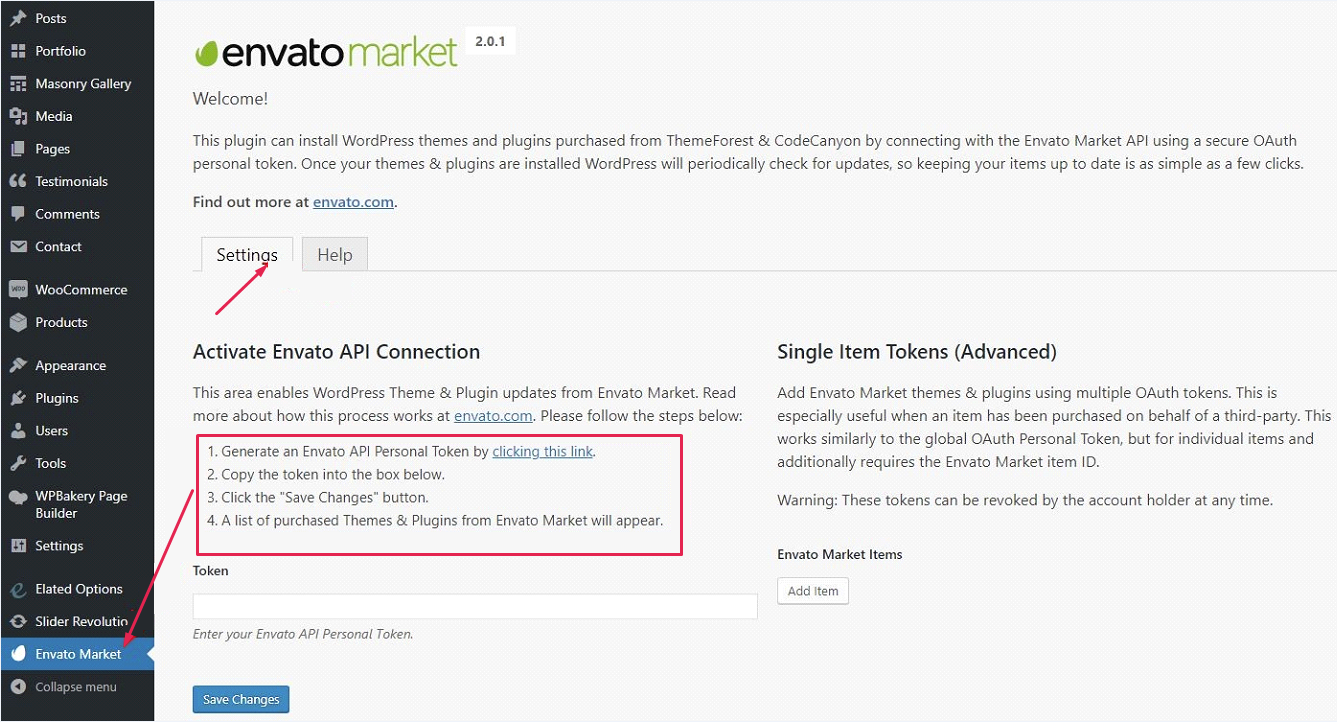
Go to the WordPress dashboard. Find Updates in the menu. Click on it. See the list of available updates. Look for your theme in the list. Click Update to start the process. Wait for the update to complete. Your theme is now up-to-date. This keeps your site safe and fresh.
Credit: helpcenter.qodeinteractive.com
Updating Via Ftp
First, open your FTP client. You need your FTP credentials. These are like a key to your website. Type them in carefully. After this, connect to your website server. You will see many folders. Don’t worry, they are all part of your website.
Find the wp-content folder. Inside, look for the themes folder. This is where all your themes live. Choose the theme you want to update. Make sure it’s the right one.
Download the new theme files. Keep them ready on your computer. Delete the old theme files from the server. Be careful here. Next, upload the new files. This will replace the old ones. Check your site after this. Everything should look fresh and new.
Post-update Checks
Ensure your WordPress theme update is successful by performing essential post-update checks. Verify website functionality, inspect design elements, and test plugins for compatibility. These steps will help maintain a smooth user experience and prevent potential issues after installation.
Test Site Functionality
After updating your WordPress theme, check your site’s functionality. Navigate through each page. Ensure all links work as expected. Look at images and videos. Make sure they display correctly. Test any contact forms. They should send messages without issues. Interactive elements like buttons must respond properly. If you find any errors, note them. You might need to adjust settings. Sometimes, plugins can cause conflicts. Disable them one by one. This helps find the cause of the problem. Always have a backup before making changes.
Clear Cache
Clearing the cache helps show the latest version of your site. Browsers store old files to load faster. This can hide updates. Use a plugin to clear the cache. Most plugins have this feature. Look for “clear cache” in their menu. After clearing, refresh your site. Check if changes appear. If not, clear your browser’s cache too. This step ensures visitors see your updated content. If issues persist, contact your hosting provider for help.
Credit: www.wpzoom.com
Troubleshooting Common Issues
Check your theme for missing images or broken links. These elements can break when a theme updates. Navigate through your website. Look for parts that don’t work as expected. Sometimes, styles might not load correctly. This can affect the look of your site. Ensure that all plugins are up-to-date. Plugins can cause conflicts with the theme. Deactivate them one by one to find the issue.
Save a backup of your theme before updating. This step helps in case of errors. Use the backup to go back to an older version. Access your site’s files through FTP. Replace the current theme files with the backup. This method restores your site to its last good state. It’s important to test everything after reverting. Ensure that all parts of your site work again. Regular backups can prevent long-term issues.
Frequently Asked Questions
How Do I Update My WordPress Theme Safely?
To update your WordPress theme safely, first back up your website. Then, navigate to the WordPress dashboard. Locate the “Themes” section under “Appearance,” and click “Update” if available. Ensure compatibility with plugins to prevent issues.
Can I Update WordPress Themes Automatically?
Yes, you can enable automatic updates for WordPress themes. Go to the “Themes” section under “Appearance” in your dashboard. Click on “Theme Details” and select “Enable Auto-updates. ” This ensures your theme is always up-to-date with the latest features and security fixes.
What Should I Do Before Updating A Theme?
Before updating a WordPress theme, back up your website. Check for compatibility with plugins and customizations. Review the theme’s changelog for potential impacts. Testing updates in a staging environment is also recommended to prevent issues on your live site.
How Can I Manually Update A WordPress Theme?
To manually update a WordPress theme, download the latest version from the theme provider. Access your website’s file manager via FTP. Navigate to the “wp-content/themes” directory, and replace the existing theme folder with the new one. Ensure you have a backup before proceeding.
Conclusion
Updating your WordPress theme is crucial for site performance. Follow steps with care to avoid errors. Always back up your site before starting. This ensures data safety. Choose themes compatible with your WordPress version. Check for theme updates regularly. This keeps your site secure and running smoothly.
Use reliable sources for downloading themes. Avoid harmful files that can damage your site. Follow the guidelines, and your WordPress experience will improve. Regular updates mean better functionality. So, keep your theme current and enjoy a seamless website experience. Happy updating!


