
Are you ready to give your WordPress.com site a fresh look? Installing a new theme can transform your website’s appearance and functionality, making it more engaging for visitors.
But where do you start? If you’ve ever felt overwhelmed by the technical side of WordPress. com, you’re not alone. The good news is that installing a theme is easier than you might think, and we’re here to guide you through each step.
Imagine your site with a sleek, professional design that captivates your audience and boosts your credibility. By the end of this article, you’ll be equipped with the knowledge to choose, install, and customize the perfect theme for your WordPress. com site. Let’s dive in and unlock the potential of your website together!
Choosing The Right Theme
Think about what your website needs. Is it for a blog, a shop, or a portfolio? Different websites need different themes. A blog theme will highlight posts. A shop theme will show products. A portfolio theme will display images or projects. Know the purpose before choosing a theme.
There are many themes. Some are free. Some cost money. Free themes are great for beginners. Paid themes offer more features. Look at theme reviews. Check user ratings. See if the theme is popular. Popular themes often have good support. Choose a theme that fits your need and budget.
Features matter. Some themes have custom colors. Others have special fonts. Think about mobile devices. Many people use phones to browse. A good theme looks nice on mobile and desktop. Check for fast loading times. Slow themes can lose visitors. Choose a theme with useful features.
Credit: www.greengeeks.com
Accessing The WordPress Dashboard
Accessing the WordPress Dashboard lets you easily install themes. Navigate to “Appearance,” then select “Themes” to explore options. Choose a theme and click “Install” to activate it for your website.
Logging Into Your Account
First, open your web browser. Go to the WordPress login page. Enter your username and password. Click the “Login” button. You will see your dashboard.
Navigating To The Dashboard
The dashboard is your control center. Look for the menu on the left. Find the “Dashboard” option. Click it to access. Here, you can manage your site. Change settings or add new content.
Searching For Themes
Installing a theme on WordPress. com is simple. First, log into your dashboard. Next, navigate to “Appearance” and click “Themes. ” Browse and select your desired theme. Finally, click “Activate” to apply the theme to your site. Enjoy a fresh look and feel for your WordPress.
com website with ease.
Using The WordPress Theme Directory
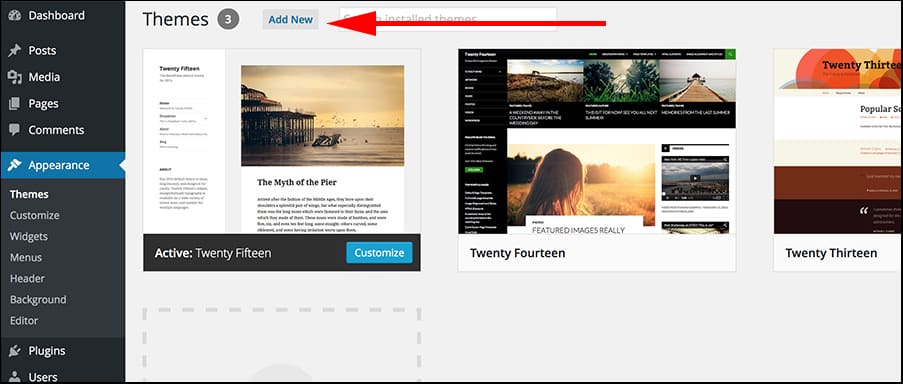
Finding the right theme is important. The WordPress Theme Directory is a great place to start. It’s easy to use. First, go to your WordPress dashboard. Look for the Appearance tab. Click on Themes. Now, click Add New. You will see many themes. Browse through them.
There are free and paid themes. Free themes are a good choice. Paid themes have extra features. You can choose what fits your needs. Some themes are colorful. Some are simple. Pick one that matches your site style.
Filtering By Category And Features
Use filters to find a theme faster. Filters help you sort themes. Select by Category like Blog or Business. Choose features like colors or layouts. Click on Feature Filter. Pick the options you want. Themes will show based on your choices. This makes it simple to find the perfect theme.
Credit: www.elegantthemes.com
Installing A Free Theme
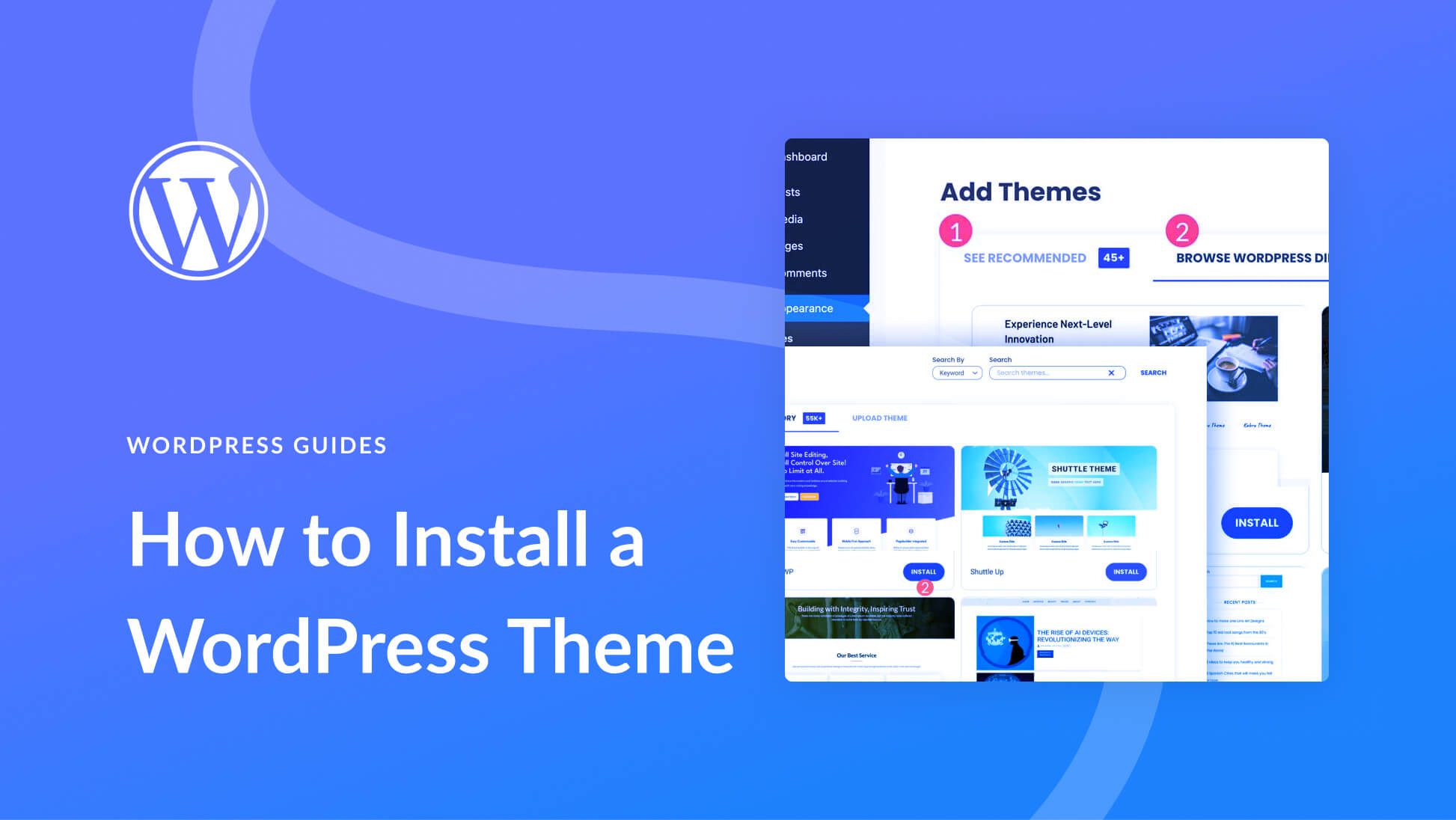
Selecting a Theme from the Directory is easy. First, log into your WordPress dashboard. Find the “Appearance” tab on the left side. Click on it. You will see a list of options. Click on “Themes”. You will enter the theme directory. Browse the themes. Pick the one you like. Check its ratings and reviews. This helps you choose a good theme. Click the “Install” button. Wait for it to finish.
Activating the Theme is the next step. After installation, you will see an “Activate” button. Click on it. Now the theme is active on your site. Visit your site to see the new look. If you don’t like it, you can change it. Go back to the theme directory. Choose a different theme. Repeat the steps to install and activate.
Installing A Premium Theme
Choose a theme from a trusted marketplace. Check reviews and ratings. Make sure it fits your needs. Pay for the theme. Save the receipt. You might need it later. Download the theme file. Keep it safe on your computer.
Log into your WordPress account. Go to your dashboard. Find “Appearance” on the left side. Click on “Themes”. Look for the “Upload” option. Click it. Select the theme file from your computer. Upload it. Wait for the upload to finish.
After uploading, see the new theme listed. Click “Activate”. Your website changes instantly. Check your site. Make sure it looks good. You can now customize it. Change colors, fonts, and layout. Enjoy your new look!
Customizing The Installed Theme
First, go to your WordPress dashboard. Click on Appearance. Then select Customize. This opens the theme customizer. It lets you change theme settings easily.
Inside the customizer, find Layout options. Choose the layout you like. Next, click on Colors. Pick colors that match your style. Save changes after you finish.
Widgets add extra features to your site. In the customizer, click Widgets. Drag and drop them to your sidebar. For menus, go to Menus in the customizer. Add pages to your menu. Arrange them in the order you like. Click Save when done.
Checking Theme Responsiveness
Themes must work on all screens. Test on phones, tablets, and computers. Each device shows the theme differently. It should look good everywhere. Use online tools to test easily. These tools help you check many devices. A responsive theme changes size and shape. Check images and text. They should not break or look odd. If they do, the theme needs fixing. Good themes make websites easy to read. Always choose themes that change smoothly.
Mobile users are many today. Websites must be easy to use on phones. Check buttons and links. They should be easy to click. Fonts should be clear. Make sure pages load fast. Slow pages annoy users. Mobile-friendly sites are loved by visitors. Use themes that help quick loading. Remember, most people use phones to browse. Create a nice experience for them. A mobile-friendly theme is a great choice. It makes browsing fun and easy.
Troubleshooting Common Issues
Installing a theme on WordPress. com often faces challenges like compatibility issues or upload errors. Ensure your theme supports WordPress. com by checking its compatibility before downloading. If upload errors occur, try clearing your browser cache or switching browsers for better results.
Resolving Compatibility Problems
Compatibility issues can stop a theme from working. First, check if your theme needs a specific version of WordPress. Update WordPress if needed. Next, check if plugins are causing trouble. Deactivate them one by one. See if the theme works after each change. This helps find the problem plugin. Some themes need specific settings on the server. Contact your host if you face server issues. They can help fix the settings.
Addressing Performance Concerns
Slow websites upset visitors. Themes can slow down sites. Optimize images to speed up your site. Large images take longer to load. Use plugins that compress images. This helps make them smaller without losing quality. Also, use caching plugins. They store parts of your site. This makes it load faster. Check your hosting plan too. Shared hosting can slow sites. Consider upgrading to a better plan if needed.
Maintaining Your Theme
Installing a theme on WordPress. com enhances your site’s look. Start by navigating to your dashboard. Select “Appearance” and then “Themes. ” Choose from free or premium options. Preview your selection to see how it fits. Once satisfied, click “Activate” to apply the theme instantly.
Updating Your Theme Regularly
Themes get better with updates. New features make them work well. Updating keeps your site secure and fast. Old themes might break with new changes. Check for updates often. Use the WordPress dashboard. It will show if updates are needed. Click on “Update” to make it new. Easy and quick.
Backing Up Customizations
Your theme might have special customizations. These make it look unique. Backing up saves your changes. Use a plugin for easy backups. Save the backup to your computer. If something goes wrong, you won’t lose changes. Backups keep your site safe. Don’t forget to do it often.

Credit: wpmarmite.com
Frequently Asked Questions
How To Start Installing A Theme On WordPress.com?
To install a theme on WordPress. com, log into your account. Navigate to “Appearance” in the dashboard. Click on “Themes” to browse available options. Choose a theme you like and click “Activate” to apply it to your site.
Can I Upload Custom Themes On WordPress.com?
WordPress. com does not allow uploading custom themes for free plans. To upload custom themes, upgrade to a Business or eCommerce plan. With these plans, you can use third-party themes by uploading them through the “Themes” section in the dashboard.
Are Free Themes Available On WordPress.com?
Yes, WordPress. com offers a variety of free themes. You can find them by navigating to “Themes” under the “Appearance” section in your dashboard. Browse through the collection and activate the one that suits your needs best.
How To Customize A WordPress.com Theme?
To customize a theme, go to “Appearance” and click “Customize”. Here, you can modify colors, fonts, and layout settings. Make changes according to your preferences, and preview them in real-time. Once satisfied, click “Publish” to apply the customizations.
Conclusion
Installing a theme on WordPress. com is simple and fun. Start by selecting a theme that fits your style. Follow the easy steps outlined in this guide. Customize your theme to make it your own. Remember, a good theme enhances user experience.
It helps your blog stand out. Take time to explore different options. Adjust settings to match your vision. WordPress. com offers many themes to suit your needs. Enjoy creating your unique online presence. Your blog deserves a theme that reflects you.
Happy blogging!


