
Are you looking to enhance your WordPress website by customizing a child theme? Including a PHP file in your child theme can unlock a world of possibilities, allowing you to add unique functionalities without altering the core parent theme.
This means you can make your website truly yours while keeping updates intact and hassle-free. In this guide, we’ll show you exactly how to do it in simple, straightforward steps. Whether you’re a seasoned developer or just starting out, understanding this process will empower you to take full control of your site’s functionality.
Ready to dive in and make your website stand out? Let’s get started!
Understanding Child Themes
A child theme is a theme that inherits features from another theme. It allows you to make changes without touching the parent theme’s files. This keeps your changes safe when updates happen. You can add new styles and functions easily.
Making a child theme means your website stays secure. Updates don’t erase your work. It gives you flexibility to tweak designs. You can experiment without fear of losing data. Child themes are great for learning and testing new ideas.
Credit: jetpack.com
Setting Up A Child Theme
Start by making a new folder in the themes directory. This folder is your child theme directory. Name it something easy, like my-child-theme. Ensure the name is unique. This helps to avoid any conflicts.
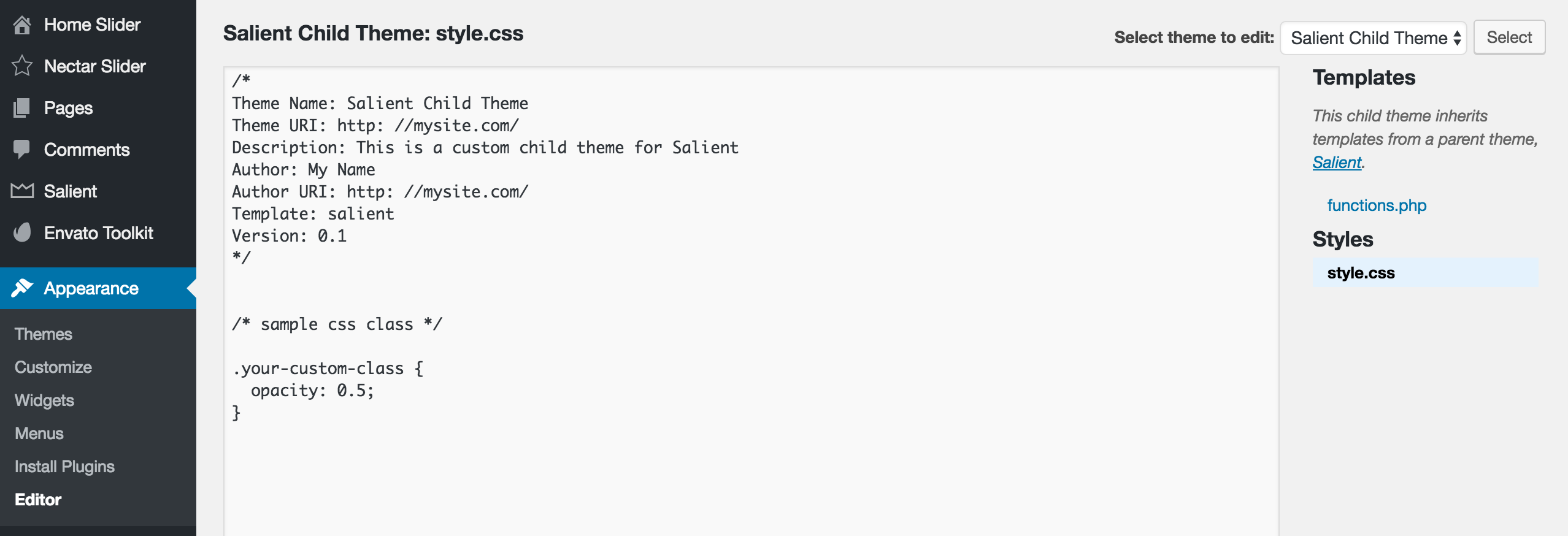
Inside your child theme folder, create a file named style.css. This file tells WordPress about your child theme. At the top, add a comment block. Include the theme name and template. The template should be the name of the parent theme. This links the child theme to the parent.
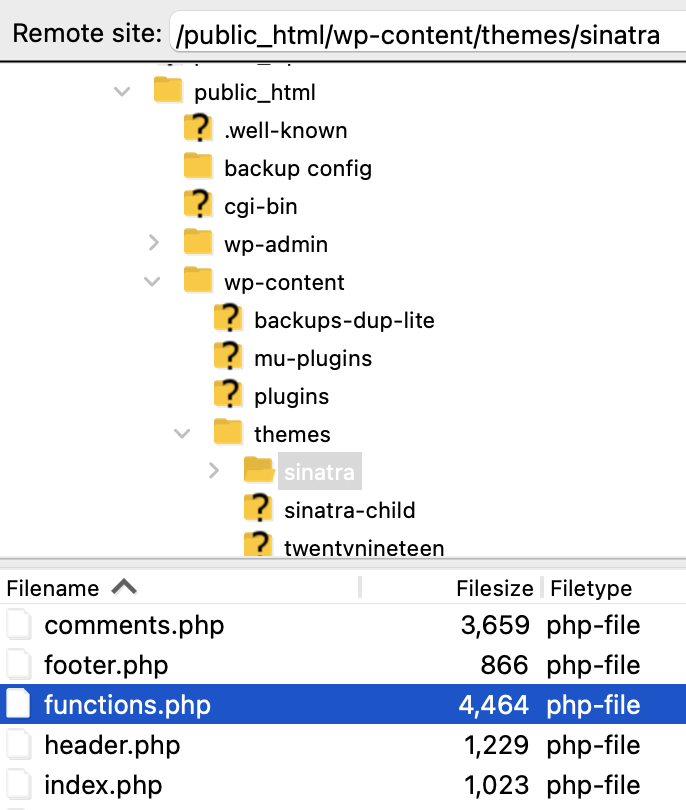
Open the functions.php file in your child theme folder. You might need to create it first. Add a function to enqueue the parent theme’s styles. Use wp_enqueue_style to add the parent theme stylesheet. This makes sure the child theme gets all the parent styles. Write clean code to avoid errors.
Including Php Files
Find the exact location of the PHP file. This is crucial. Use the get_stylesheet_directory() function. This function helps to get the right path. It is essential in a child theme. Always double-check the file path. Mistakes can cause errors.
The require_once function includes the file only once. It’s helpful to prevent duplicate code. Place this code in your theme’s functions.php. It ensures the file is loaded only once. Errors stop the page if the file is missing. So, ensure the file exists. This function is safe and reliable.
The include function adds the file each time it runs. It’s useful for non-essential files. Errors show warnings, but the page continues. Good for files that aren’t critical. Use it in the functions.php file. Always check if the file path is correct. This ensures smooth operation.

Credit: jetpack.com
Best Practices For Php File Inclusion
Keep your PHP files neat and tidy. Create a dedicated folder for them. Name your files clearly. Use names like header.php or footer.php. This makes them easy to find. Organizing files helps in tracking changes. Easier updates too.
Parent themes can clash with child themes. Use unique functions in your PHP files. Avoid using the same function names as the parent theme. This prevents errors. Check the parent theme’s code. Ensure your code is different. Use prefixes in function names. Like child_header() instead of header().
Test your PHP files. Check for errors before publishing. Use tools like PHP error logs to spot mistakes. Run your site in debug mode. This shows any issues. Fix errors quickly. This keeps your site running smoothly.
Common Issues And Troubleshooting
Struggling to include a PHP file in a WordPress child theme? Ensure the file path is correct and compatible with WordPress standards. Misplaced files or incorrect syntax can cause errors, hindering your site’s functionality.
File Path Errors
Sometimes, the file path is not correct. This can stop your code from working. Always check the path of your file. Make sure it matches the real path. You can use get_stylesheet_directory() function to find the correct path. If the file path is wrong, the PHP file will not load.
Function Redefinition
Functions can have the same name by mistake. This causes errors. Always use unique names for functions in your child theme. This helps to avoid problems. If you see a “cannot redeclare” error, check your function names. Make sure they are not repeated.
Theme Update Conflicts
Theme updates can break your child theme. They can change files you edited. Keep a backup of your child theme files. After an update, check if everything works. If not, compare your files with the new update. Fix any conflicts you find.
Additional Resources
Explore helpful guides and tutorials for including PHP files in your WordPress child theme. Find coding examples and step-by-step instructions. Enhance your theme’s functionality with ease.
Online Tutorials
Online tutorials can help you learn about WordPress. Many websites offer free lessons. These lessons show how to use PHP files in child themes. Videos are great for learning. They show each step clearly. Some sites have quizzes to test your knowledge. Always choose trusted websites for learning.
WordPress Developer Handbook
The WordPress Developer Handbook is a useful tool. It has all the details about WordPress. You can learn how to add PHP files safely. The book explains each part well. It’s good for beginners and experts. Keep it handy for quick reference. This book is always updated with new information.
Community Forums And Support
Join community forums to get help from others. Many users share their experiences here. You can ask questions and get answers. These forums have many tips and tricks. WordPress also has official support. They solve problems fast. It’s great to have a community to learn from.
Credit: themenectar.com
Frequently Asked Questions
How Do I Include A Php File In WordPress?
To include a PHP file in a WordPress child theme, use the `include` or `require` function. Place your PHP file in the child theme directory, and reference it using `get_stylesheet_directory()`. This ensures your file is properly linked and functional within the child theme environment.
Why Use A Child Theme For Php Files?
Using a child theme for PHP files allows customization without altering the parent theme. This ensures updates don’t affect your changes. It maintains original functionality while adding new features. Child themes are essential for theme modifications, offering flexibility and security for your WordPress site.
Can Php Files Affect Site Performance?
Yes, PHP files can affect site performance if not optimized. Efficient coding and minimizing unnecessary operations can enhance speed. Always test your PHP files for errors and optimize queries. Properly managed PHP ensures your site runs smoothly, providing a better user experience.
Is It Safe To Include Php Files?
Including PHP files is safe when done correctly. Ensure files are from trusted sources and properly coded. Check for vulnerabilities and sanitize inputs to prevent security risks. Regular updates and audits keep your site secure. Following best practices ensures PHP file safety.
Conclusion
Embedding PHP files in a WordPress child theme enhances customization. It keeps your main theme untouched and safe. Follow the steps outlined for smooth integration. Ensure the PHP file paths are correct. Test your site after each change. Always back up your site before modifications.
This practice prevents data loss. Enjoy a more personalized WordPress experience. Experiment with different PHP files for added features. Keep learning and exploring to improve your site. Happy coding!


