
Are you ready to take your web application live? Hosting your web app on IIS 7 can seem daunting, but it doesn’t have to be.
Imagine the satisfaction of seeing your project finally available to users around the world. You’re about to learn the steps to make that happen, and it’s simpler than you think. This guide will walk you through the process, ensuring your web application is set up smoothly and efficiently.
By the end of this article, you’ll be equipped with the knowledge to confidently host your application in IIS 7, and you’ll wonder why you didn’t do it sooner. Stick around, and let’s get your app up and running!

Credit: learn.microsoft.com
Prerequisites For Hosting
Ensure your computer has enough RAM. At least 2GB is good. A dual-core processor is needed. Also, check the hard disk space. You need at least 1GB free. A stable internet connection is crucial. This helps in downloading updates. Make sure your system is running Windows Server 2008 or later.
Install IIS 7 on your system. This is the web server. You also need the .NET framework. Version 3.5 or higher is required. Get the SQL Server if your app needs a database. This helps manage your data. Ensure all software is up-to-date. Updates fix bugs and add features. Remember, licensed software is best.
Installation Of Iis 7
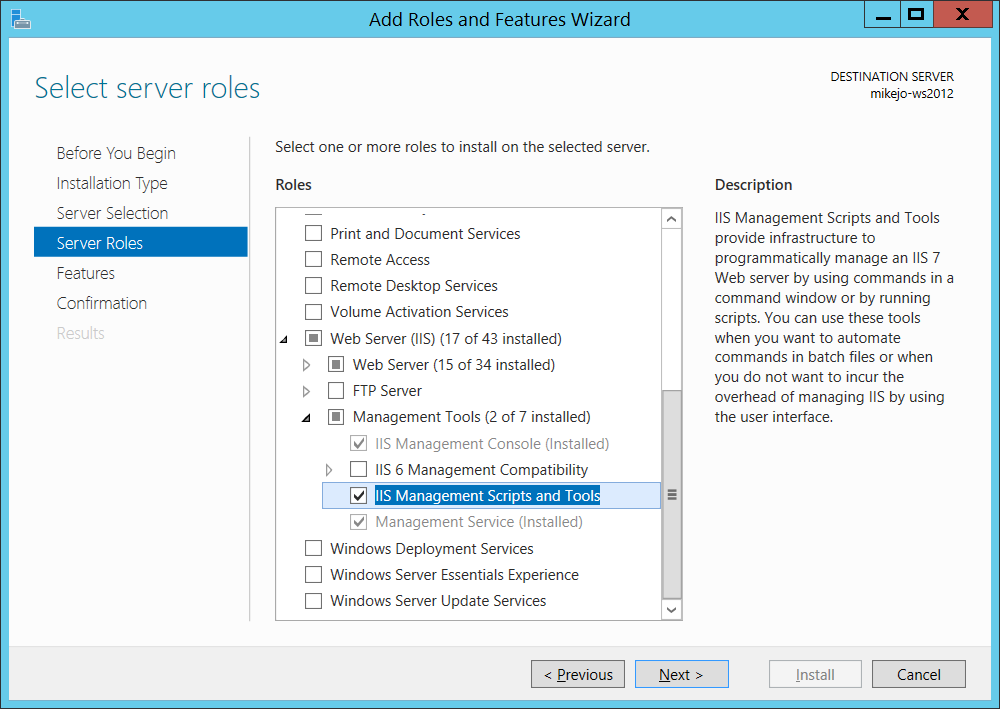
Open the Control Panel on your computer. Find Programs and Features. Click on it. Look for Turn Windows features on or off. Click it. A list will appear. Scroll down the list. Find Internet Information Services (IIS). Check the box next to IIS. Click OK to confirm.
- Open the Control Panel.
- Click Programs and Features.
- Select Turn Windows features on or off.
- Find Internet Information Services.
- Check the IIS box.
- Click OK to install.
Configuring Iis 7
Setting up a web application in IIS 7 involves configuring server settings and deploying files. Start by installing IIS 7 on your server. Then, create a new site and point it to your application folder. Adjust settings for your application’s needs.
Setting Up Application Pools
Application pools help manage web apps. They offer better security and performance. Each app pool runs one or more apps. If one app crashes, others stay up. It’s like having separate rooms for each app. Easy to set up too. Go to IIS Manager. Click on “Application Pools”. Choose “Add Application Pool”. Name your pool. Select the right .NET version. Click “OK”. Your app pool is ready.
Creating A New Website
Start by opening IIS Manager. Click on “Sites” in the left panel. Choose “Add Website”. A window pops up. Enter your site’s name. Choose the physical path where files are stored. Set the host name. This is your site’s address. Click “OK” to finish. Now, your site is set up. It’s ready to go live.
Deploying The Web Application
First, gather all your web files. Organize them in one folder. This folder is your web root. Next, use FTP to transfer files. FTP clients like FileZilla are easy to use. Enter your server details. Upload the web root folder to the server. Ensure all files are copied. Check the server for missing files. This step is crucial. Files must be correct. Double-check everything.
Open IIS 7 on your server. Find your application in the list. Click on it to open settings. Set the application pool. Match the .NET version needed. Adjust permissions for folders. Ensure they are correct. Enable necessary features. For example, authentication. Test the application. Make sure it runs smoothly. Fix any errors you find. Settings must be right. Each one is important.
Testing And Troubleshooting
Hosting a web application in IIS 7 involves precise steps. First, configure IIS settings for optimal performance. Next, ensure application files are correctly placed. Finally, troubleshoot by checking error logs to fix issues promptly.
Running Initial Tests
First, check if your web application works. Open the browser and type the URL. If the page loads, the site is okay. Sometimes, it may not work. Look for error messages. They help you understand what’s wrong. Check if IIS 7 is installed correctly. Make sure your application is set up correctly. Test different pages to see if they load.
Common Issues And Fixes
Some common issues might happen. The site could show a “404 error.” This means the page is missing. Check if the URL is right. Another problem is a “500 error.” It means server issues. Check server settings. Make sure permissions are correct. Sometimes, the application pool stops. Restart it and see if this fixes the issue. Look at logs for more clues. Logs show errors and problems.
Security And Permissions
Ensure files have the right permissions. This keeps the server safe. Only allow users who need access. Use the IIS_IUSRS group for this. Avoid giving full access to everyone. This can lead to security issues. Check permissions regularly. Make changes when needed. Keep your web application secure.
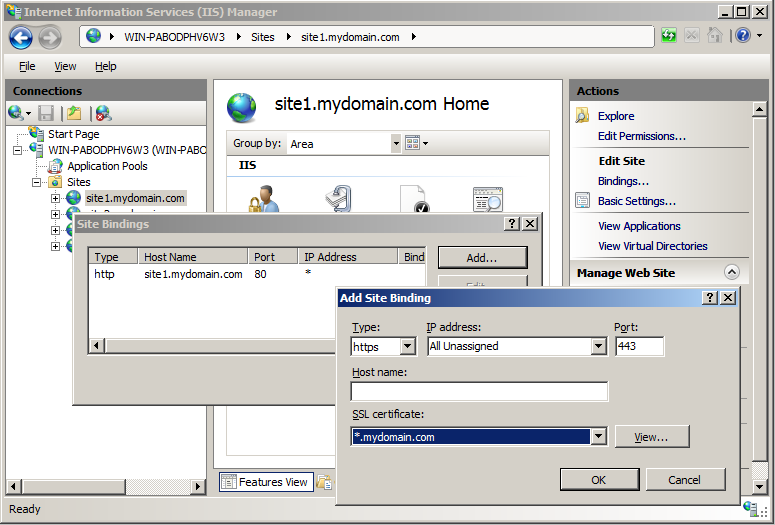
SSL certificates protect data. They use encryption. This keeps information private. Get a certificate from a trusted provider. Install it in IIS 7. Go to the Server Certificates feature. Follow the steps to install. Apply the certificate to your site. This makes your site secure for users.
Performance Optimization
Compression reduces file sizes. This helps web pages load faster. Enable compression in IIS 7 easily. Go to IIS Manager. Find Compression under the server settings. Check the boxes for static and dynamic compression. This boosts speed. Less data travels over the network. Users enjoy quicker access.
Caching stores data temporarily. It speeds up repeated visits. Set caching in IIS 7. Use Output caching for dynamic pages. Apply kernel caching for static files. Configure these in IIS Manager. Caching reduces server load. It improves performance. Users see faster responses. Happy users return more often.
Credit: learn.microsoft.com
Monitoring And Maintenance
Hosting a web application in IIS 7 requires careful monitoring and maintenance. Regularly check server performance and update security settings. This ensures smooth operation and protection from threats.
Regular Updates
Regular updates keep your web app safe. New updates fix bugs and enhance security. Always check for new updates in the IIS settings. Apply updates promptly to ensure your web application runs smoothly. This helps in preventing vulnerabilities. A well-updated system minimizes risks.
Log Monitoring
Log monitoring is crucial for web application health. Logs show the app’s activity and errors. Regularly check logs for unusual activity. This helps identify issues early. Use tools to automate log monitoring. Alerts can be set for specific activities. Automated monitoring saves time and effort. It ensures quick responses to problems.
Credit: www.sslshopper.com
Frequently Asked Questions
How To Host A Web Application On Iis?
To host a web application on IIS, first install IIS via Windows Features. Deploy your application files to the IIS server. Configure your site in IIS Manager by adding a new site, specifying the application’s folder path, and setting the binding.
Start the site to make it live.
How To Deploy And Publish A .net 7 App In Iis?
Deploy and publish a. NET 7 app in IIS by following these steps: Build the app, publish using Visual Studio, and configure IIS. Install the. NET Core hosting bundle, set up a new site in IIS, and point to the published folder.
Ensure proper permissions and start the application.
How To Run An Application In Iis?
Open IIS Manager. Select “Add Website” from the “Sites” menu. Enter site name, physical path, and binding details. Click “OK” to create the site. Set application pool settings. Start the site to run your application.
What Is The Difference Between A Site And An Application In Iis?
A site in IIS is a collection of applications and virtual directories. An application is a specific software program within a site, offering distinct functionalities. Sites serve as containers, while applications execute specific tasks. Each site can host multiple applications, providing varied services and features to users.
Conclusion
Hosting a web application in IIS 7 is straightforward. Follow each step carefully. Ensure your server meets the requirements. Configure IIS settings for optimal performance. Test your application thoroughly before going live. Regular updates keep your application secure. Troubleshooting is part of the process.
Don’t hesitate to seek help if needed. IIS 7 offers robust features for hosting. It’s reliable for web applications. Now, you’re ready to manage your web application effectively. Keep learning and adapting to new technologies. Happy hosting!


