
Imagine the power of automating tasks with a simple script accessible from anywhere. Hosting a Bash script on a web server opens up a realm of possibilities for you, whether you’re a developer, a system administrator, or someone who loves efficiency.
You gain the ability to run commands remotely, manage processes, and streamline operations with just a few clicks. You’ll discover step-by-step how to get your Bash script up and running on a web server, unlocking a new level of productivity.
If you’re ready to enhance your toolkit and simplify your workflows, you’re in the right place. Let’s dive in and make your script accessible to the web!
Choosing The Right Web Server
Apache and Nginx are popular web servers. Apache is known for its flexibility. It supports many modules. Nginx is famous for speed. It handles many requests well. Choose Apache if you want customization. Choose Nginx for better performance. Both servers can host Bash scripts. Each has pros and cons. Consider what you need most.
| Requirement | Details |
|---|---|
| Operating System | Linux or Unix recommended |
| RAM | At least 1 GB |
| Disk Space | Minimum 10 GB |
| Internet Connection | Stable and fast |

Credit: realpython.com
Preparing The Bash Script
Keep your code simple and easy to read. Use clear names for variables. This helps others understand your work. Break your code into small parts. Each part should do one job. This makes fixing problems easier. Comment on your code. Explain what each part does. This helps you and others. Use loops and functions to avoid repeating code. This saves time and effort. Check for errors often. This helps catch mistakes early. Test your script with different inputs. Ensure it works every time.
Bash scripts need correct permissions to run. Use the chmod command. This sets who can run your script. Use chmod +x to make your script executable. Be careful with permissions. Giving too much access is risky. Check permissions with ls -l. This shows current settings. Change permissions only when needed. Keep your script safe. Protect it from unwanted changes.
Setting Up The Server Environment
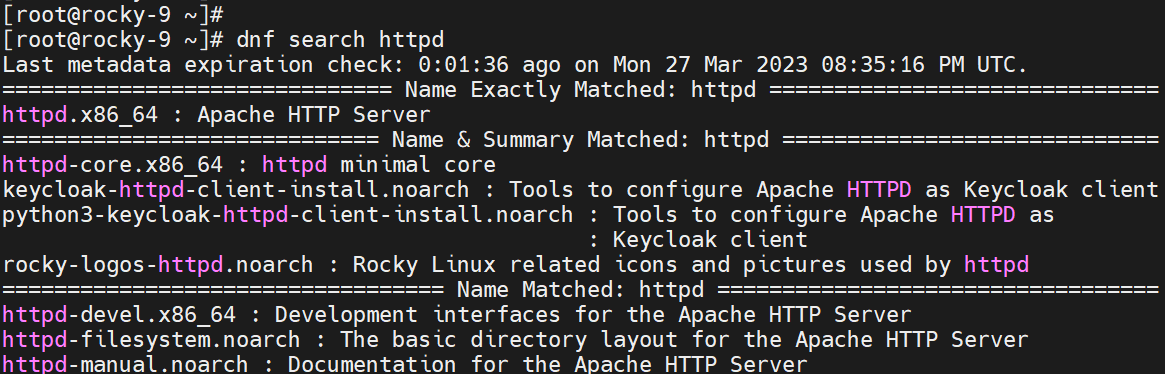
First, open your server’s terminal. Type sudo apt-get update to refresh your package list. Then, install the packages needed. Use sudo apt-get install bash to install Bash. Install web server software next. Apache or Nginx are good choices. Use sudo apt-get install apache2 for Apache. For Nginx, type sudo apt-get install nginx. After installation, check their status. Type systemctl status apache2 or systemctl status nginx.
Create a new user for the server. Use sudo adduser username. Replace “username” with your chosen name. Set a strong password. Give this user access to the server files. Type sudo usermod -aG sudo username. This adds them to the sudo group. Ensure proper permissions on script files. Use chmod to set them. Type chmod 755 script.sh for secure access.
Deploying The Bash Script
First, connect to your web server. Use a tool like FTP or SCP. This helps in transferring files. Make sure you have the correct login details. Without them, you can’t access the server. Once logged in, find the folder for your website. This is often called public_html or www. Upload your Bash script file here. It’s important to keep track of your files. This helps in easy management.
| Directory | Purpose |
|---|---|
| /home | Holds user directories |
| /var/www | Stores website files |
| /etc | Contains configuration files |
Organize your files well. This ensures easy access. Keep your script in the correct directory. It helps in running the script smoothly. You may need to change file permissions. This allows the server to execute your script. Remember, a clear structure avoids confusion.
Configuring Server To Execute Script
To run a bash script, first set execution permissions. This tells the server the script is safe. Use the chmod command to change permissions. Command example: chmod +x script.sh. This allows the script to execute. Check permissions with ls -l. Ensure user permissions are correct. User must have permission to execute. Check server settings. Sometimes, additional server configuration is needed.
Script Execution Permissions
Execution permissions are crucial. Without them, scripts won’t run. Use chmod to grant permissions. Set permissions to execute the script. Verify permissions with ls -l. Check for errors. Correct any permission issues. Double-check settings. Permissions must be accurate for script to run.
Automating Script Execution
Automate script execution with cron jobs. Cron runs scripts at set times. Use crontab -e to edit cron jobs. Schedule script execution times. Example: run every day at 2 PM. Use 0 14 in cron settings. Automation makes execution easier. Saves time and effort. Check cron logs. Ensure scripts execute correctly.
Testing The Script
Errors can stop scripts from running well. Syntax errors are common. Check for missing semicolons or brackets. Typos in commands can cause unexpected behavior. Examine each line carefully. Scripts may fail if permissions are incorrect. Ensure scripts have proper permissions. Debugging helps find problems early. Use error messages to understand issues. They guide you to the problem. Fix errors step by step.
Outputs show if scripts work correctly. Expected output is crucial. Compare it with the actual result. If outputs differ, check logic errors. Test scripts with sample data. This helps verify correctness. Clear outputs mean scripts run well. Log files record script activities. Use them to verify actions. Confirm outputs match expectations.
Securing The Bash Script
Safeguard your bash script by hosting it on a secure web server. Ensure your server has updated security features. Proper permissions and encryption help protect sensitive data.
Implementing Access Controls
Ensure only trusted users can run the script. Use passwords for protection. Set permissions carefully. Check who can read, write, and execute. Limit access to sensitive parts. Use user roles for control. Admins should have more access than users. Review permissions regularly. Update them if needed. Protect your files from unauthorized changes. Make sure your script is safe.
Avoiding Common Security Flaws
Watch out for common mistakes. Don’t leave scripts open to everyone. Avoid using simple passwords. Check for vulnerabilities regularly. Use tools to scan for security issues. Remove bugs quickly. Keep your server updated. Follow security best practices. Test scripts before going live. Look for errors or weaknesses. Keep an eye on logs for suspicious activity. Stay informed about new threats. Protect your script from hackers.
Credit: www.tecmint.com
Monitoring And Maintenance
Logs help you track what happens on your server. They show errors and important events. Checking logs daily is important. It keeps your server healthy. Use tools like Logrotate. It helps manage log sizes. Old logs get archived or deleted. This keeps your server tidy. Log files should be easy to read. Use simple formats for logs. This helps when you need to find issues fast.
Scheduled maintenance is crucial for server health. It keeps everything running smoothly. Plan maintenance tasks weekly or monthly. Tasks include updates, backups, and system checks. During maintenance, check for software updates. This keeps your server secure. Make sure to back up important data. It protects against data loss. Always inform users about maintenance. This avoids unexpected disruptions.
Credit: www.youtube.com
Frequently Asked Questions
How To Put Bash Script On The Web?
Upload your Bash script to a web server using FTP. Ensure the script’s permissions allow execution. Use HTML or PHP to call the script from a webpage, enabling users to run it. Always validate user input to secure your script from vulnerabilities.
How To Run Bash Script On Server?
To run a Bash script on a server, first upload your script file. Connect via SSH, navigate to the script’s directory, and use `chmod +x scriptname. sh` to make it executable. Execute the script with `. /scriptname. sh`. Ensure you have the necessary permissions and dependencies installed for successful execution.
How To Make A Bash Script An Executable?
To make a Bash script executable, use the command `chmod +x scriptname. sh`. Then run it with `. /scriptname. sh`. Ensure the shebang `#!/bin/bash` is at the top.
How To Run Bash On Windows Server?
Install Windows Subsystem for Linux (WSL) through PowerShell. Then, download a Linux distribution from Microsoft Store. Launch the distribution to access Bash. Ensure your server supports WSL for compatibility. Use Bash for scripting tasks and server management.
Conclusion
Hosting bash scripts on a web server is straightforward. Follow these steps carefully. Start with choosing a reliable web server. Upload your bash script securely. Set proper permissions for safety. Test your script to ensure functionality. Keep your server updated.
Regular monitoring helps maintain stability. Troubleshoot any issues promptly. Practice these tips to manage bash scripts efficiently. Hosting can enhance script accessibility and ease collaboration. Ready to take your bash scripts online? Implement these steps today and experience seamless hosting.
Stay proactive for best results. Embrace the simplicity of web hosting for bash scripts.


