
Are you struggling to locate an HTML file in your WordPress theme? You’re not alone.
Navigating through WordPress themes can feel like searching for a needle in a haystack, especially if you’re new to the platform. But don’t worry—this guide is here to help you find exactly what you’re looking for. Understanding where and how your HTML files are stored will not only save you time but also empower you to make the customizations you need without breaking a sweat.
Imagine the satisfaction of having complete control over your website’s design and functionality. Curious to know how? Let’s dive in and uncover the secrets to easily finding HTML files in your WordPress theme.
Locating Theme Files In WordPress
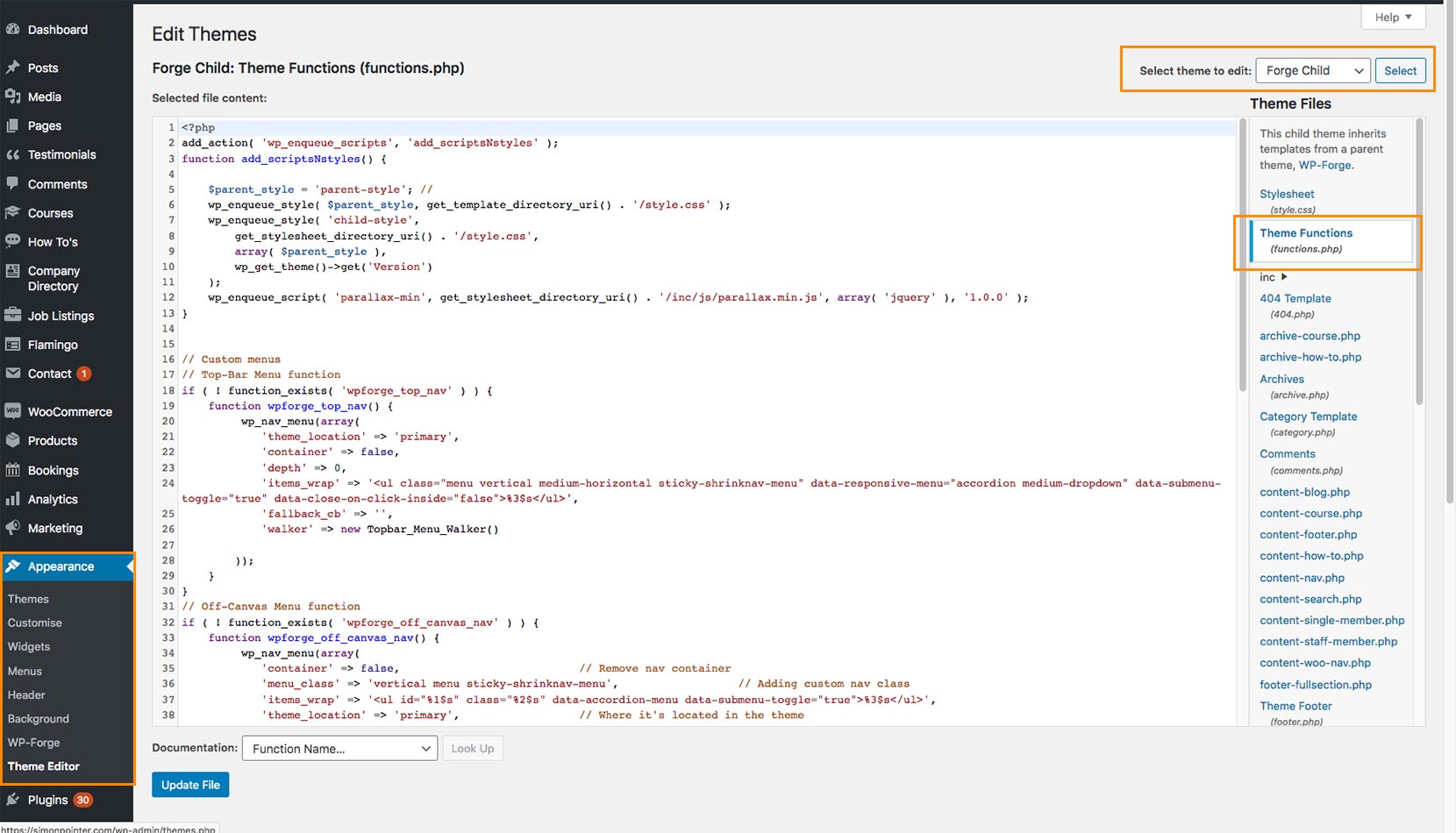
Themes are like clothes for your website. They change how it looks. To find the HTML files, first open your WordPress dashboard. Then, go to Appearance. Click on Theme Editor. You will see the theme files on the right side.
Look for files ending in .html or .php. These are the files you need. Sometimes, the HTML is inside PHP files. Be careful when you make changes. Changes can break your site.
Backup your theme before editing. This is very important. If something goes wrong, you can restore it. Always check the changes on your site.
Understanding WordPress File Structure
WordPress themes have many files. These files help to make your website look good. The main file is the style.css. This file has all the styles for your site. Another important file is functions.php. This file helps in adding features to your theme.
The index.php file is key. It is the main file that displays content. header.php and footer.php are also important. They show the top and bottom parts of your pages.
Inside your theme folder, you will find these files. They work together to make your website. Knowing these files helps you find the HTML file you need. Look in the theme folder to find them.
Accessing WordPress Dashboard
First, log in to your WordPress account. Use your username and password. Once logged in, you will see the Dashboard. The Dashboard is like a control room. It helps you manage your website. On the left, you see a menu with options.
Click on Appearance in the menu. Then, choose Theme Editor. This is where you find the theme files. Be careful while editing. Changes affect your site’s look. Always back up your files first. Happy editing!
Using File Manager In Hosting Panel
Locate the hosting panel. Log in using your details. Search for the File Manager option. This tool lets you see all your files. Click to open it.
Find the folder named public_html. This folder holds website files. Look for the wp-content folder inside it. Open this folder. Inside, find the themes folder. This folder has all theme files. Choose the theme you use. Click to open its files.
Utilizing Ftp Clients
First, get an FTP client like FileZilla. It’s easy to use. Download and install it on your computer. Next, you need FTP login details. These come from your hosting provider. Usually, the details include a host name, username, and password. Enter these in FileZilla. Once connected, you can see the files on your site.
Navigate to the public_html folder. This is where your site files are. Find the wp-content folder next. Inside, there’s a folder named themes. Open it. You will see all your theme files here. Look for files ending in .html. These are the HTML files you need.
Exploring Theme Editor
Start by logging into your WordPress dashboard. Look for the sidebar on the left. Click on Appearance. Then choose Theme Editor. This opens the editor. Now, you can see your theme’s files. Be careful here. Changes made can affect your site.
In the theme editor, files are listed on the right. HTML files might be in template parts or page templates. Look for files ending in .php. These files often contain HTML code. Open one and search for HTML tags. Examples are or
Common Html File Locations
The header and footer files are easy to find. They are usually in the theme folder. Often, they have names like header.php or footer.php. These files control the top and bottom of your site. They help with website navigation. Editing them changes the look of your site. Check the wp-content/themes folder. This folder holds all your theme files. Always be careful when changing them. Mistakes can break your site. Backup files before editing.
Page templates are special files. They are in the theme folder too. They have names like page.php or single.php. They control how pages show up. You can make custom page layouts here. They are in wp-content/themes. Look for templates that match your needs. Each template has different design elements. Choose wisely. Editing these changes page appearance. Like always, backup first. Mistakes here can affect your site badly.

Credit: stackoverflow.com
Using Plugins For File Searching
Recommended Plugins make finding files easy. They help you search your theme fast. Some plugins are free, while others may cost. Choose one based on your needs. They can find HTML, CSS, and more. Plugins like “File Manager” and “WP File Manager” are popular. They are easy to use and install. Remember, always backup your site first.
Searching for HTML Files is simple with these tools. Open the plugin and type the file name. Press search, and results appear quickly. You can edit files directly from the plugin. This saves time and effort. Be careful while editing. Mistakes can break your site. Always double-check before saving changes.
Editing Html Files Safely
Locating HTML files in a WordPress theme involves accessing the theme editor. Navigate through the WordPress dashboard to Appearance, then select Theme Editor. Carefully browse the files, typically within the header. php or index. php, to find the HTML content you need to edit safely.
Backup Practices
It is important to always backup your WordPress site before making changes. This ensures you have a copy if something goes wrong. Use plugins like UpdraftPlus or Duplicator. They are easy to use and can save your backups on cloud storage. Keeping a backup also helps if you need to restore your site quickly. Regular backups can save you from many problems.
Testing Changes
Always test your changes on a staging site first. A staging site is a copy of your live site. It allows you to test without affecting your main site. This way, if there is a problem, your visitors won’t see it. You can easily set up a staging site with plugins like WP Staging. Testing helps ensure everything works fine before going live.
Credit: www.wpbeginner.com
Troubleshooting Common Issues
Locating an HTML file within a WordPress theme involves navigating through the theme’s directory. Access the WordPress dashboard, select Appearance, then Theme Editor. Find and click the template file you need, usually ending in. php, as WordPress themes primarily use PHP files, not pure HTML.
Permission Problems
Sometimes, you can’t find your HTML files due to permission settings. Make sure you have access rights to view or edit files. Check file permissions using your file manager or FTP client. Files should have read and write permissions set correctly. If permissions are wrong, you may need to adjust them. Use your hosting control panel to change these settings. This can help you access the files you need.
File Not Found Errors
Sometimes, you might get a file not found error. This happens if the path is incorrect. Ensure the file path matches the actual location. Check if the file is in the right folder. Verify the spelling and folder names. Incorrect paths lead to errors. Use your theme editor to locate the right file. Double-check the file name and extension. Fixing these errors will help find your files.
Credit: simonpointer.com
Frequently Asked Questions
How To Find Html Files In WordPress?
Access HTML files via WordPress Dashboard or use an FTP client. Navigate to the theme editor for modifications.
How To Find The Html File Of A Website?
Open the website in your browser. Right-click on the page and select “View Page Source” or press Ctrl+U. This opens the HTML file in a new tab, revealing the website’s underlying code. Use this to analyze or understand the site’s structure.
Where Is Html Code In WordPress?
Find HTML code in WordPress by editing posts, pages, or theme files. Use the Text editor in the post/page editor. Access theme files via Appearance > Theme Editor. You can also use plugins for custom HTML insertion. Ensure backups before editing code to prevent errors.
Can You Get Html From WordPress?
Yes, you can get HTML from WordPress. Use the WordPress editor to switch to the HTML view. Alternatively, export the content, or use plugins to access and edit HTML. This allows customization of your website’s design and functionality.
Conclusion
Locating HTML files in WordPress themes can be tricky. But it’s manageable with the right steps. Start by accessing your theme folder. Use the WordPress dashboard or FTP client. Look for files labeled with common names like header. php or index.
php. These often contain HTML code. Remember, understanding basic HTML helps. It simplifies editing and customizing your theme. Regular backups prevent accidental changes. Keep your site secure. Practice regularly to improve your skills. With patience and practice, finding and editing HTML files becomes easier.
You control your site’s look and functionality. Your efforts create a unique web presence.


