

Are you trying to find your DNS host name and domain name but don’t know where to start? Understanding these terms is simpler than you might think, and it can make a big difference in managing your network or website.
You’ll discover clear, step-by-step ways to uncover your DNS host name and domain name quickly. By the end, you’ll have the confidence to handle this task on your own—no tech jargon, no confusion. Keep reading to unlock the easy methods that anyone can follow.
Basics Of Dns Host And Domain Names
Understanding the basics of DNS host names and domain names is important for managing websites and networks. These terms describe how computers and websites are identified on the internet. Knowing their differences helps you find and organize online resources easily.
What Is A Dns Host Name
A DNS host name is the specific name assigned to a device or server on a network. It helps identify one machine among many. For example, a computer or a server can have a host name like “server1” or “laptop123”.
This name works within a domain to locate the exact device. It is part of the full address used to reach a website or service.
What Is A Domain Name
A domain name is the readable address used to find websites on the internet. It represents an organization, company, or individual online. Examples include “example.com” or “mywebsite.org”.
Domain names make internet addresses easier to remember. They replace long numeric IP addresses with simple words.
Difference Between Host Name And Domain Name
The host name identifies a single device within a domain. The domain name points to a group of hosts or a website.
For instance, in “mail.example.com”, “mail” is the host name, and “example.com” is the domain name. The domain is broader, while the host is specific.

Credit: support.intermedia.com
Methods To Find Dns Host Name
Finding your DNS host name is simple with a few easy methods. These methods work on different devices and operating systems. Knowing your DNS host name helps with network troubleshooting and setup. It also improves your understanding of your internet connection.
Here are three common ways to find your DNS host name quickly and easily.
Using Command Prompt On Windows
Open the Command Prompt by typing cmd in the Start menu search. Press Enter to open it.
Type ipconfig /all and press Enter. Look for the “Host Name” entry in the results. This shows your DNS host name.
You can also type hostname and press Enter. This command displays your computer’s host name instantly.
Using Terminal On Mac And Linux
Open the Terminal app on your Mac or Linux device. You can find it in Utilities or search it.
Type hostname and press Enter. The Terminal shows your DNS host name immediately.
For more details, type scutil --get LocalHostName on Mac. It returns the local host name used on your network.
Checking Network Settings
On Windows, open Settings and go to Network & Internet. Select your active connection, then view its properties. The DNS host name may appear here.
On Mac, open System Preferences and click Network. Select your active connection and click Advanced. Check the TCP/IP tab for the DNS host name.
On Linux, open Network Manager and view your connection details. Look for the host name or DNS settings section.
Ways To Find Domain Name
Finding a domain name is simple with the right methods. A domain name is the address people use to visit a website. It helps identify a website on the internet. Knowing how to find a domain name is useful for many reasons. It helps check website ownership and verify site details.
Several easy ways exist to find a domain name. Each method suits different needs. Some work well for quick checks. Others provide detailed information about the domain. Understanding these ways makes the process faster and clearer.
Using Whois Lookup Tools
WHOIS lookup tools reveal domain name details. They show who owns a domain and its registration date. Many websites offer free WHOIS services. Just enter the domain or website name in the search box. The tool returns public data about the domain. This includes contact information and name servers.
WHOIS is useful for checking if a domain is taken or available. It also helps find contact info for domain owners. Some registrars provide more detailed WHOIS reports.
Checking Website Url
The website URL often shows the domain name clearly. The domain appears after “www.” or “http://” in the address bar. For example, in “https://example.com/page”, “example.com” is the domain. This method is fast and requires no tools. It works for any website you visit.
Look at the URL carefully to spot the domain name. Ignore subdomains or page names after the main domain.
Using Online Domain Checkers
Online domain checkers help find domain names and their status. These tools show if a domain is registered or free. Enter the desired domain name in the checker. The tool quickly reports availability and related suggestions. Some checkers also display domain age and history.
Domain checkers are useful for people who want to buy a domain. They provide instant information about domain status and options.

Credit: kb.leaseweb.com
Tools And Software For Quick Lookup
Finding the DNS host name and domain name is easier with the right tools. These tools help you get information fast. They save time and reduce errors. Some tools work on your computer, others as browser add-ons or mobile apps. Each option fits different needs and devices.
Popular Dns Lookup Tools
Several online tools offer quick DNS and domain name lookups. Websites like Whois.net and MXToolbox provide detailed DNS records. They show IP addresses, host names, and domain registrant info. These tools require no installation and work from any browser. Simply enter the domain name to get results instantly.
Browser Extensions For Domain Info
Browser extensions add convenience during web browsing. Extensions like DNS Checker or Domain Details show domain info with one click. They display DNS records, server location, and domain age. These tools are perfect for quick checks without leaving your browser. They support popular browsers like Chrome and Firefox.
Mobile Apps For Dns And Domain Names
Mobile apps let you check DNS and domain details on the go. Apps like Fing or DNS Lookup offer easy-to-use interfaces. They provide DNS records, ping tests, and traceroute functions. These apps work on both Android and iOS devices. Great for IT professionals and casual users alike.
Troubleshooting Common Issues
Troubleshooting common issues with DNS host names and domain names can save time and reduce frustration. Problems might stop your device from connecting to websites or services. Knowing how to fix these problems helps you stay online without delays.
Many issues arise from simple mistakes or network settings. This section covers common problems and easy ways to solve them. Clear steps guide you through fixing DNS and domain name troubles quickly.
Dns Host Name Not Found
This error means your system cannot find the DNS host name. Check if you typed the host name correctly. Even a small typo can cause this issue.
Try restarting your device to refresh network settings. Flushing the DNS cache also helps clear old data that causes conflicts.
Use the command prompt and type ipconfig /flushdns on Windows or sudo dscacheutil -flushcache on Mac. This resets the DNS resolver cache.
Domain Name Not Resolving
This problem occurs when the domain name does not translate to an IP address. It can stop web pages from loading.
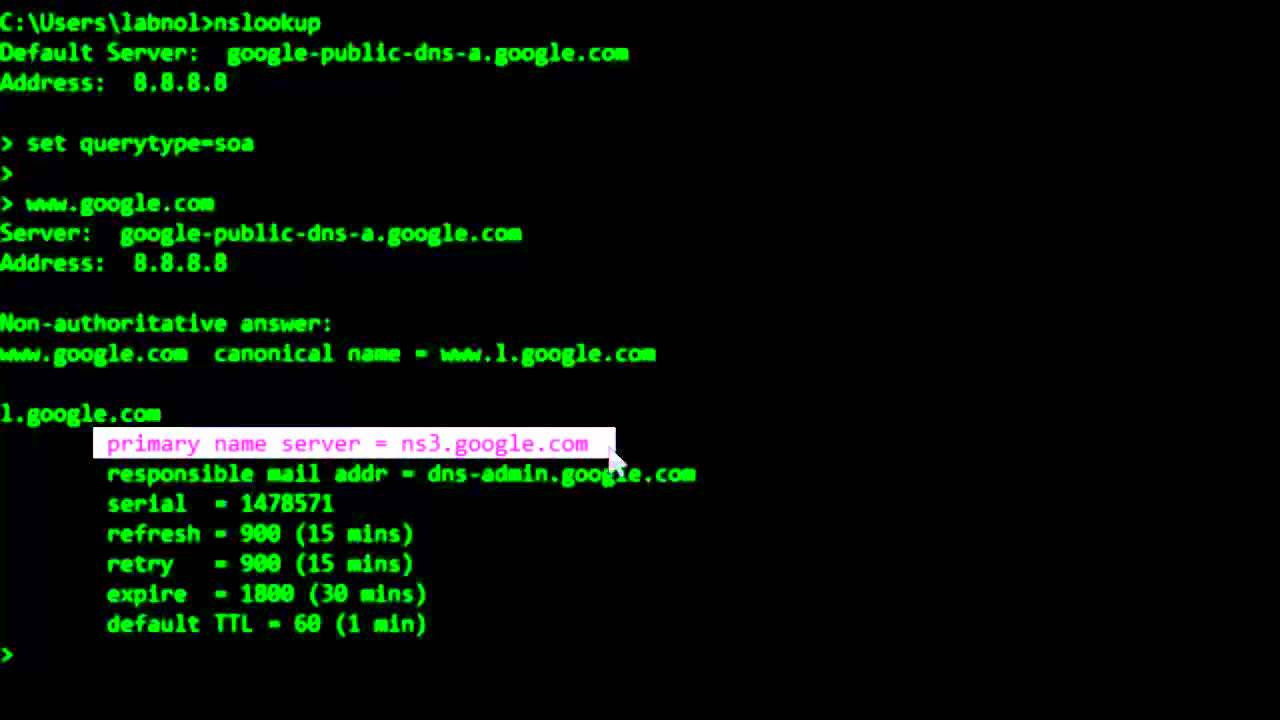
First, check your internet connection to ensure it is active. Next, try using a different DNS server, like Google’s (8.8.8.8) or Cloudflare’s (1.1.1.1).
Change your DNS settings in your network preferences. This switch often fixes resolution problems quickly.
Handling Network Restrictions
Network restrictions may block DNS or domain name access. Schools, workplaces, or public Wi-Fi often limit some sites or services.
Check if your network uses a firewall or proxy that restricts traffic. Ask the network admin for help or use a VPN to bypass limits safely.
Be cautious with VPNs and respect network rules. Sometimes, simple changes like switching to a mobile hotspot solve access issues.
Credit: www.youtube.com
Tips For Managing Dns And Domain Names
Managing DNS and domain names well helps keep websites running smoothly. It also protects your site from common issues. Small efforts in management save time and avoid problems later. Follow these tips to maintain control over your DNS and domains effectively.
Keeping Dns Records Updated
DNS records tell the internet where to find your website. Update these records after any change in hosting or server setup. Old records can cause site downtime or email issues. Check records regularly to ensure accuracy. Use simple tools to verify DNS settings quickly.
Securing Your Domain Name
Protect your domain name from theft or unauthorized changes. Enable domain lock or registrar lock features. Use strong passwords for your domain registrar account. Avoid sharing login details with many people. Keep contact information current to receive important alerts.
Regularly Monitoring Dns Status
Monitor your DNS status to detect issues early. Use monitoring services that check DNS uptime and performance. Watch for unusual changes or errors in records. Quick action helps prevent site outages or email failures. Regular checks keep your website reliable and accessible.
Frequently Asked Questions
What Is A Dns Host Name?
A DNS host name identifies a device on a network. It is used to map the device’s IP address to a readable name. This helps users and systems find devices easily across the internet or local networks.
How Do I Find My Dns Host Name On Windows?
Open Command Prompt and type hostname. Press Enter to see your DNS host name. Alternatively, use ipconfig /all to view detailed network info including the DNS host name.
What Is The Difference Between Host Name And Domain Name?
A host name identifies a specific device within a domain. A domain name represents the broader network or website address. Together, they form the full address used in DNS for internet navigation.
How Can I Find My Domain Name On A Mac?
Open Terminal and type scutil –get LocalHostName for your host name. Use dnsdomainname or check network settings to find the domain name on macOS.
Conclusion
Finding your DNS host name and domain name is easier than it seems. Use simple tools and commands to get the information quickly. Knowing these names helps you manage your network better. Always double-check the details to avoid mistakes. Practice these steps a few times to feel confident.
This knowledge supports your internet and website tasks well. Keep exploring and stay curious about how networks work.


