
Have you ever wondered how to tweak the copyright information on your WordPress site? You’re not alone.
Many website owners feel that their theme’s default copyright text doesn’t quite capture their brand’s essence. Updating it not only makes your site feel more personalized but also adds a professional touch. Imagine the satisfaction of seeing your own words, perfectly tailored to your audience, right there on your site’s footer.
In this guide, we’ll walk you through the simple steps to edit the copyright in your WordPress theme. You’ll discover just how easy it is to make this small change with a big impact. Ready to take control and leave your unique mark on your website? Let’s dive in!
Credit: mekshq.com
Locating The Copyright Section
Explore your WordPress dashboard. Go to Appearance and click Editor. Look for footer.php. This file holds the copyright details. Open it to explore the code.
Find the text with © symbol. This text is the copyright code. It usually has the site name and year. The code might look like this: © php echo date('Y'); ? Your Site Name. You can change the words to update. Always save your changes after editing.
Accessing Theme Files
Open your WordPress dashboard. Click on the Appearance tab. Select Theme Editor. You will see a list of theme files. Choose the footer.php file. This file often has the copyright text. Make changes to the text. Remember to save your changes.
Log into your hosting account. Locate the File Manager tool. Access your website files. Find the wp-content folder. Open the themes directory. Choose your active theme folder. Edit the footer.php file. Modify the copyright text. Save your changes. Check your site to see the updates.
Editing The Copyright Text
Open the WordPress Dashboard. Navigate to Appearance, then click on Theme Editor. Find the file named footer.php. This file controls the footer area. Look for the part that has the word “Copyright”. Change the text to your own. Be careful not to remove any important code. Save your changes. Refresh your website to see the new text.
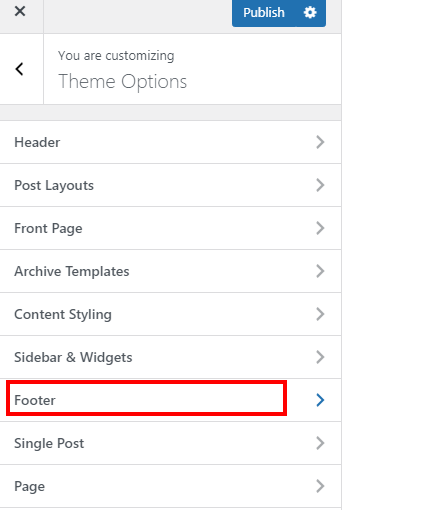
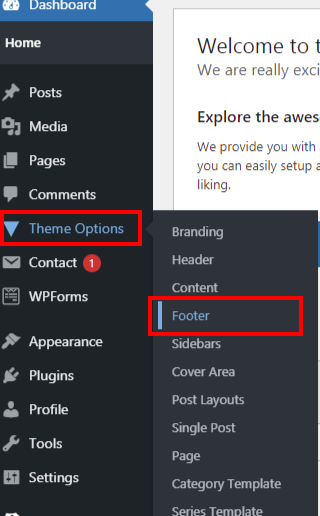
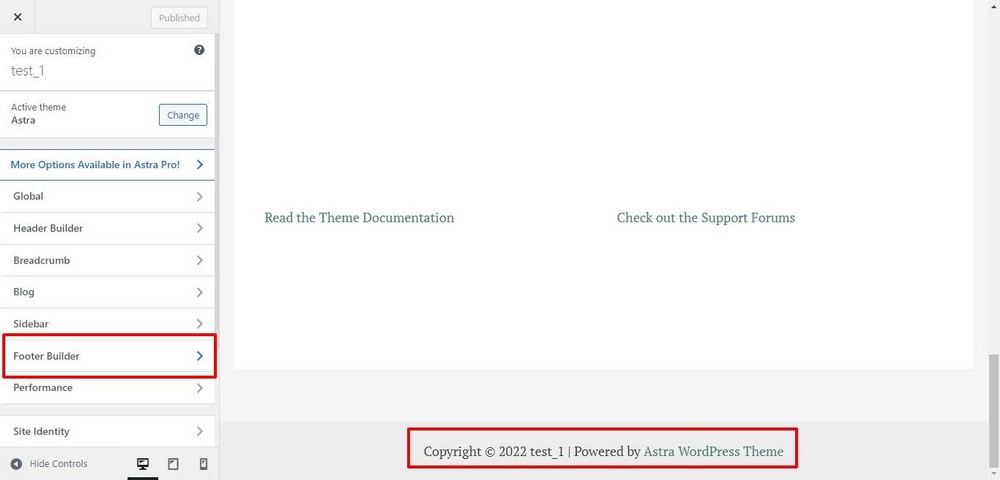
Go to the WordPress Dashboard. Click on Appearance, then choose Customize. Look for Footer settings. Some themes let you change the copyright here. Enter your new text in the box. Click Publish to save changes. Check your site to see the update.
Credit: mekshq.com
Ensuring Changes Are Saved
Saving and Publishing changes is very important. After editing the copyright, press the Save button. This stores your changes. Next, click Publish. This makes your new copyright visible to visitors.
Check if your theme has a customizer. Use it to change the copyright. Always hit save after editing. Sometimes themes have different save options. Look for a save draft or update button.
Verifying On Live Site
Visit your site to ensure edits are there. Open your website homepage. Scroll down to the footer. Check if the copyright text is updated. Refresh the page if needed. Ask a friend to look on their computer. This helps confirm the change is visible. If you don’t see changes, try clearing your browser cache. This refreshes the page properly. Always double-check your site after editing. This ensures visitors see the right information.
Troubleshooting Common Issues
Editing the copyright in a WordPress theme can be simple. Navigate to the theme editor in your dashboard. Locate the footer. php file and make the necessary changes.
Missing Copyright Section
Sometimes, the copyright section is not easy to find. Themes can hide it in different files. Check the footer.php file first. Some themes keep it there. If you can’t find it, try the functions.php file. This file might have the code you need. Be careful when editing these files. Always make a backup first.
Changes Not Displaying
Are your changes not showing up? This can be frustrating. First, clear your browser cache. Sometimes old data stays there. Refresh your page after clearing. If this doesn’t work, check your theme settings. Some themes have options to override changes. Disable these settings if needed. Lastly, check for plugin conflicts. Plugins can stop changes from showing. Disable plugins one by one to test.
Credit: www.wpcrafter.com
Best Practices For Copyright Editing
It’s crucial to follow the law when changing copyright. Always check the theme’s license. Some themes need you to keep the original copyright. Ask a lawyer if you’re unsure. This helps avoid legal trouble. Keep records of any changes you make.
Copyright info must be up-to-date. Change the year every January. This shows your site is current. Old dates can confuse users. They might think your site is not active. Regular updates build trust with visitors.
Frequently Asked Questions
How Do I Find The Copyright Section In WordPress?
To find the copyright section, navigate to the WordPress dashboard. Go to Appearance > Editor. Look for the footer. php file. This file typically contains the copyright text. If you use a theme builder, check its customizer or settings panel for copyright options.
Can I Edit WordPress Copyright Without Coding?
Yes, you can edit it without coding. Many themes have a built-in customizer. Go to Appearance > Customize. Look for the Footer section. Here, you can change the copyright text without touching code.
Is It Legal To Change The WordPress Theme Copyright?
Yes, it’s legal to change it. However, ensure you’re not violating the theme’s license. Some themes have specific guidelines. Always check the theme’s documentation or contact the developer for permission if needed.
What Tools Help Edit WordPress Theme Copyright?
Several tools can help, including theme editors and plugins. Use the WordPress Customizer for basic edits. Plugins like “Header Footer Code Manager” offer more control. Always back up your site before making changes.
Conclusion
Editing the copyright in a WordPress theme is simple. Follow the steps mentioned to customize your footer. Remember, always back up your site before making changes. It keeps your data safe. Use the WordPress Customizer for an easy editing experience.
This method is user-friendly for beginners. Try to keep your copyright text brief and relevant. It reflects professionalism and clarity. Regular updates to your theme ensure better performance. Stay updated and maintain your website’s appeal. Keep learning and exploring WordPress features.
Happy editing!


