
Are you tired of your WordPress theme not quite fitting your vision? Do you want to tweak the design or functionality just a bit, but feel lost when it comes to code?
You’re not alone. Many website owners face the same challenge. Shortcodes in WordPress themes offer a simple way to customize your site without deep diving into complex coding. But how exactly do you edit them? Imagine having the power to make your website look and function exactly as you want.
It’s not just a dream; it’s entirely possible. This article will guide you step-by-step, demystifying the process of editing shortcodes in your WordPress theme. You’ll learn how to make changes that truly reflect your brand and engage your audience. By the end, you’ll feel confident and empowered, ready to transform your site with ease. Keep reading, and unlock the potential to make your website uniquely yours.
Credit: www.a2hosting.com
Understanding Shortcodes
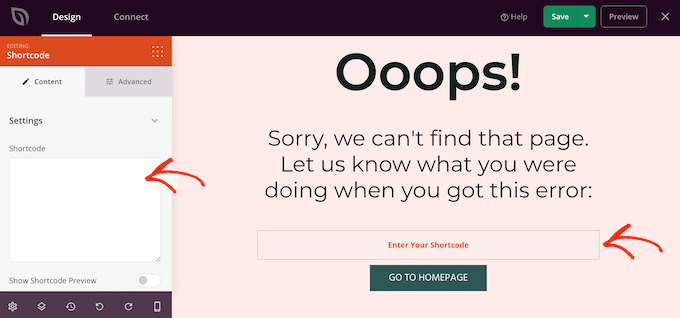
Shortcodes make it easy to add features to a WordPress site. They are small code pieces that do big tasks. These codes save time. No need to write long codes. Just use shortcodes.
Shortcodes help to add videos, galleries, and buttons easily. They are like magic words. Type them and see results. They make websites look better. Also, they help in adding more features.
Many themes use shortcodes. Sliders, columns, and social media icons are common. Shortcodes add them quickly. They make themes more flexible. Users can change things without coding. Themes look unique with shortcodes.
Locating Shortcodes In Themes
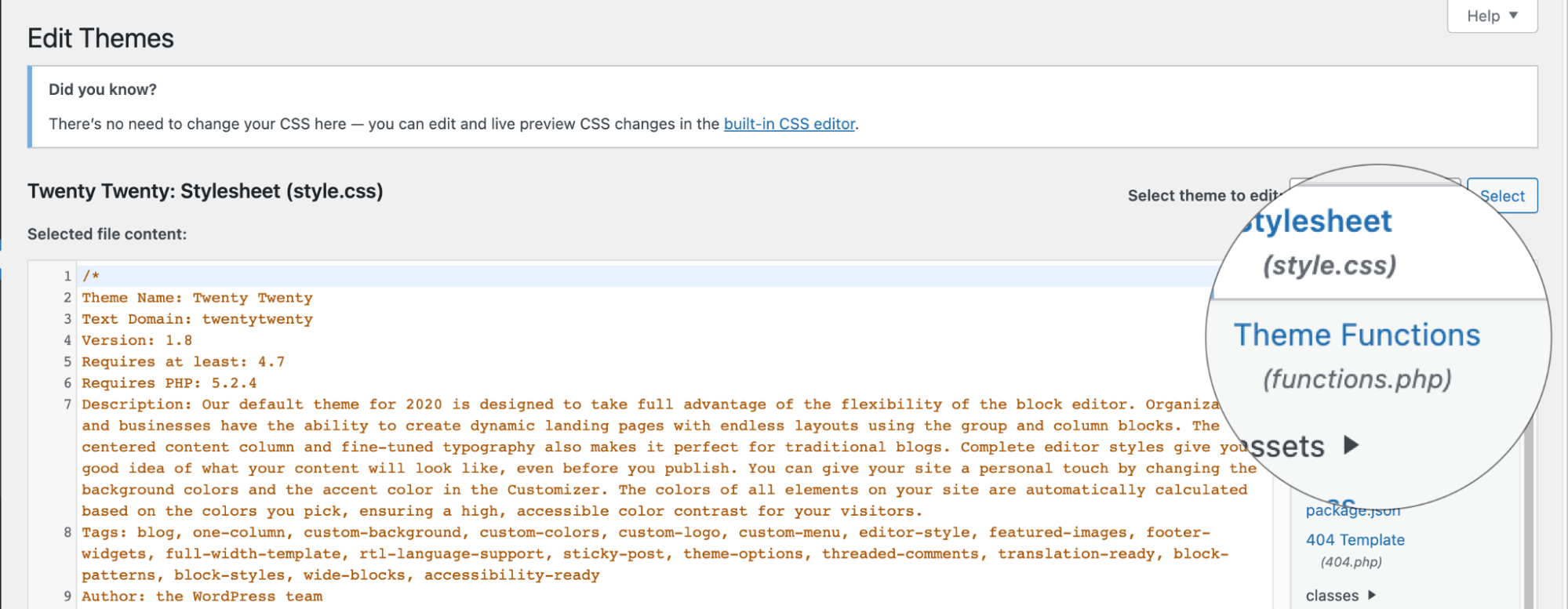
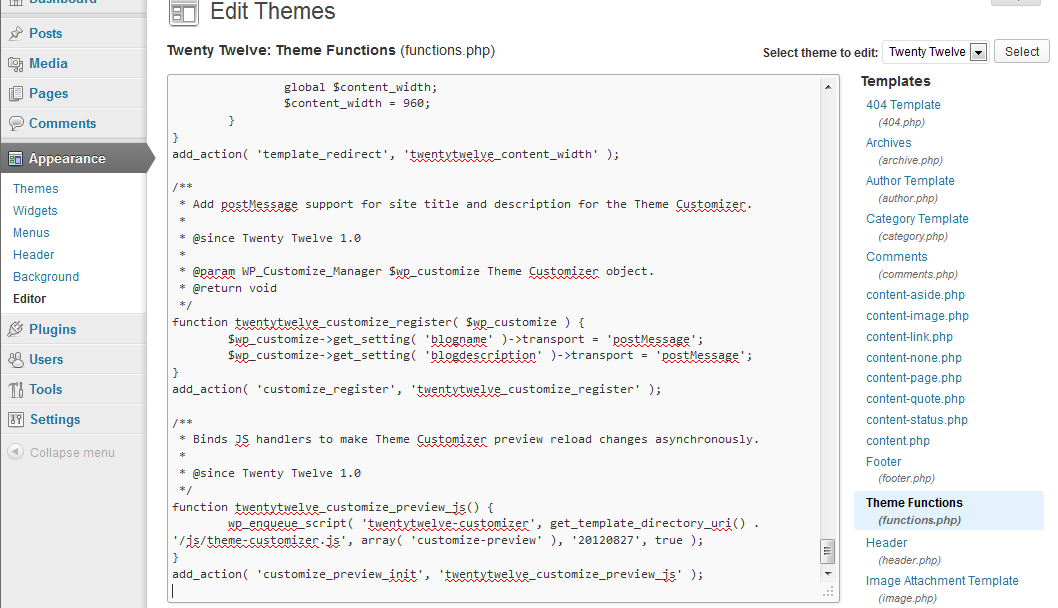
First, open your WordPress dashboard. Find the Appearance tab. Click on Theme Editor. You will see theme files. Look for files named functions.php. This file often contains shortcodes. Be careful while editing. Changes can affect your site.
Shortcodes are usually in PHP files. Check functions.php first. Also look for template files. These might have shortcodes too. Search for functions starting with add_shortcode. Such functions handle shortcodes. Note file names. This helps when editing.
Editing Shortcodes
Shortcodes are small pieces of code. They perform specific tasks. To edit them, go to your theme files. Find the functions.php file. Open it. You will see different shortcodes here. Each shortcode has its own function. Edit these functions carefully. A small mistake can break your site. Always make a backup first. Change the code as needed. Save your changes. Test the site to see if it works fine.
For advanced changes, use a child theme. This keeps your main theme safe. Create a child theme first. Add your new shortcodes here. Use hooks and filters. They make changes without touching the main code. You can also use plugins. They help in managing shortcodes. Always check compatibility with your theme. Ensure everything works smoothly.
Tools For Editing
Editing shortcodes in WordPress themes involves using tools like theme editors or plugins. These tools help modify code snippets in themes. Easily customize website functionalities by accessing the theme editor within WordPress.
Using WordPress Editor
The WordPress Editor is simple to use. First, go to your dashboard. Next, click on Appearance. Then, select Theme Editor. You will see files on the right. Find the file with shortcodes. Click to open it. Edit the code with care. Use proper syntax. Save your changes. Preview your site. Make sure everything works. If something breaks, undo changes. Always have a backup. This keeps your site safe.
Third-party Code Editors
Third-party editors offer more features. Notepad++ is a popular choice. Sublime Text is another option. These tools help with syntax highlighting. They make editing easier. Code completion saves time. You can find errors quickly. Download the editor first. Open the theme file on your computer. Make changes carefully. Save the file. Upload it back to your site. Check your site for errors. Good editors can prevent mistakes. Use them wisely.
Testing Changes
Previewing Edits is crucial when adjusting shortcodes. Small changes can impact the look. Always check your work before saving. Use the preview mode to see changes live. This helps spot mistakes early. Fixing errors is easier in preview mode. It saves time and effort. You can avoid breaking the site layout. Ensure the code is clean. Check for missing brackets or commas. These small errors can cause big problems. Test the changes on different devices. This ensures everything looks good everywhere. Review the color and font changes. Ensure they match the theme design.
Resolving Errors quickly is important. Errors can make the site look bad. Check the error logs for details. They help find what went wrong. Correct the code and test again. Use the preview to confirm fixes. Ask for help if stuck. Online forums are useful. Many experts share solutions there. Always back up your files. This protects your work from big mistakes.
Credit: www.wpbeginner.com
Best Practices
Editing shortcodes in WordPress themes involves accessing theme files. Locate the shortcode in the theme’s function file. Carefully modify the code to adjust its output or behavior. Save changes and refresh your website to view updates.
Backing Up Files
Always create a backup before editing shortcodes. This ensures you can restore the original files. Use a plugin or manual method for backups. Save your files in a safe location. This could be cloud storage or an external drive. Backups protect your work and keep it safe.
Maintaining Code Integrity
Keep the code clean and organized. Use proper spacing and indentation. This makes the code easy to read. Check for errors after each edit. Test the changes on a staging site first. This prevents breaking the live site. Ensure all shortcodes are closed properly. Missing a closing tag can cause errors.
Troubleshooting
Shortcodes might not work as expected. This can cause frustration. Ensure the shortcode syntax is correct. Double-check for missing brackets. Incorrect placement can lead to errors. Make sure the shortcode is in the right place. Sometimes plugins interfere with shortcodes. Deactivate conflicting plugins to see changes. WordPress updates can also affect shortcodes. Update your theme regularly. Keeping everything updated helps. Compatibility issues are common. Ensure your theme supports the shortcode. Some shortcodes require specific plugins. Install necessary plugins for functionality. Clear cache after making changes. This helps in seeing the updates. If problems persist, seek expert advice. Professional help can resolve complex issues.
Help is available when faced with shortcode issues. Online forums can provide solutions. Many users share tips. WordPress support forums are helpful. Experts often give advice there. Join WordPress communities. Ask questions and share problems. Documentation is a useful tool. Read theme manuals for guidance. Check plugin documentation too. Email theme developers for direct support. Some offer helpful responses. Consider hiring professionals if needed. They can offer tailored solutions. Always back up your site before making changes. It’s important for safety.
Credit: www.inmotionhosting.com
Frequently Asked Questions
How Do I Find Shortcodes In My Theme?
To find shortcodes in your WordPress theme, access your theme’s files using a file manager or FTP. Look for files like functions. php or shortcode. php. Alternatively, use a plugin like “Theme Editor” to search for shortcodes within your theme’s files directly from the WordPress dashboard.
Can I Edit Shortcodes Directly?
Yes, you can edit shortcodes directly by accessing your theme’s functions. php file. Make sure to create a child theme to prevent losing changes during updates. Alternatively, use a custom plugin to override or extend the shortcode functionality without altering core theme files.
Is It Safe To Modify Theme Shortcodes?
Modifying theme shortcodes is generally safe if done carefully. Always create a backup of your theme files before making changes. Use a child theme or custom plugin to preserve your modifications. Test changes in a staging environment to ensure they don’t affect your site’s functionality.
How Can I Customize Shortcode Output?
You can customize shortcode output by modifying its function in the theme’s functions. php file. Alternatively, use a plugin like “Shortcode Editor” for easier customization. Always test changes on a staging site first to ensure compatibility and avoid disrupting your live website.
Conclusion
Editing shortcodes in WordPress themes is simpler than it seems. Follow the steps and customize your site easily. Understanding shortcodes boosts your control over design elements. Practice makes perfect, so don’t hesitate to experiment. Remember, always back up your site before making changes.
This ensures you can recover if something goes wrong. Editing shortcodes opens up new possibilities for your website’s appearance. Enjoy the process and watch your site transform. With time, you’ll get more confident in making these tweaks. Keep learning and exploring new features.
Your website will reflect your unique style.


