
Are you looking to give your website a fresh, professional look without overhauling your entire design? One simple yet effective way to enhance your site’s appearance is by editing the header bar.
If you’re using the Highend Theme on WordPress, you’re in luck! This theme offers flexibility and customization options that can help you create a stunning header bar that stands out. Imagine having a website that captures your visitors’ attention from the moment they land on your page.
By mastering the art of editing your header bar, you can significantly improve user experience and keep your audience engaged. Ready to transform your website? Let’s dive into the step-by-step process of editing the header bar in the Highend Theme, ensuring your site leaves a lasting impression.
Customizing Header Bar
Open your WordPress dashboard. Find the Appearance tab. Click on it. Then choose Theme Options. Now you see many settings. Look for the Header section. Click to explore. You can change colors. Change fonts too. Make the header your own.
Inside the Header settings, you find options. Adjust the logo position. Pick a different style. Choose background colors. Play with the menu layout. Make it look nice. You want it to match your style. Save changes after editing. Check your site to see the updates.
Changing Logo And Title
Begin with uploading a new logo for your site. Go to the WordPress dashboard. Find the Appearance section. Click on Customize. Look for Site Identity. Here, you will see the logo option. Click on Select Logo. Choose the image from your library or upload a new one. Press Save to confirm changes. Your new logo will appear on the header.
Changing the site title is simple. Go to the dashboard. Click on Customize. Find the Site Identity section. Enter a new title in the Site Title box. Adjust the tagline below. Make it catchy and unique. Click Save when you finish. The title and tagline will show on your site.
Adjusting Menu Layout
Choose a menu style that fits your site. Go to the WordPress dashboard. Click on Appearance. Then select Customize. This opens the theme customizer. Next, find the Header section. Here, you can see different menu styles. Pick one that you like. Each style changes the menu look. Some styles may have more options.
Organize your menu items easily. First, go back to the dashboard. Click on Appearance again. Then select Menus. Here, you can add or remove items. Drag items to change their order. Create sub-menus by dragging items under another. Save changes after you finish. Now your menu is organized and neat. This helps visitors find things easily.

Credit: dailynorthwestern.com
Modifying Colors And Fonts
Easily change the colors and fonts of your header bar in the Highend Theme on WordPress. Navigate to the theme options and customize the header section to match your brand’s style. Effortlessly enhance the visual appeal of your website with these simple steps.
Choosing Header Colors
Select colors that match your website. First, access the theme options. Find the header settings. Choose a color that fits your style. This color should be easy on the eyes. It helps if it’s not too bright or dark. Consider the overall look. Make sure it matches your brand colors. A good choice keeps visitors happy.
Setting Font Styles
Fonts must be simple and readable. Go to theme options again. Locate the font settings. Pick a style that is clear. Avoid fancy scripts. They are hard to read. Choose a size that is not too small. Fonts should also match your site theme. Consistency is key. This makes your site look neat and tidy.
Adding Widgets And Extras
Adding social media links to your header bar is easy. First, go to the WordPress dashboard. Click on Appearance and then Widgets. Choose the Social Media widget. Drag it to the Header area. Enter your social media URLs. Save your changes. Now, your social media icons will show up. They help visitors connect with you. This makes your site more interactive.
A search bar helps users find content fast. Go to the dashboard again. Click on Appearance, then Widgets. Find the Search widget. Drag it to the Header section. Save your changes. Now users can search your site easily. This makes navigation simple. Users find what they need in seconds. It improves user experience a lot.
Responsive Design Considerations
Mobile users need a smooth experience. Make the header bar simple. Keep buttons easy to tap. Use clear fonts for easy reading. Reduce image sizes to load faster. This helps pages open quickly.
Ensure the menu works well on small screens. Test the menu for easy use. A mobile-friendly header improves user satisfaction. Happy users stay longer.
Try different screen sizes. Check how the header looks. It should look good on all devices. Use tools to see different views. This helps find issues early.
Fix problems quickly for a better user experience. A consistent header builds trust. Users feel confident using your site.
Troubleshooting Common Issues
Editing the header bar in the Highend Theme on WordPress can be tricky. Start by accessing the theme’s customization settings. Then, adjust colors, fonts, and layout to match your site’s style.
Resolving Display Errors
Highend Theme header might show display errors. These errors can be frustrating. Check the header settings in the WordPress dashboard. Ensure the theme is updated to the latest version. Sometimes, a plugin conflict causes display issues. Deactivate all plugins and reactivate them one by one. This helps find the problematic plugin. Clear your browser cache to see recent changes. If errors persist, contact theme support for help.
Fixing Alignment Problems
Header alignment issues are common. Adjust the header settings in the theme options. Use the drag-and-drop feature for easy fixing. Check if the header is centered correctly. If not, use custom CSS for adjustments. Visit the Customizer and find the CSS section. Add simple codes for better alignment. Ensure your screen size is set correctly. Different screens may affect header alignment. Regularly update your theme for best results.
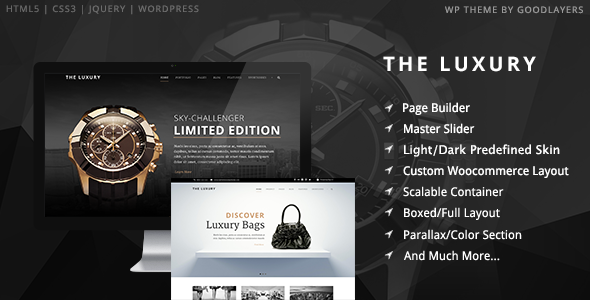
Credit: themeforest.net

Credit: musicrow.com
Frequently Asked Questions
How Do I Access The Header Bar Settings?
To access the header bar settings in the Highend Theme, go to your WordPress dashboard. Navigate to Appearance > Customize. Here, find the Header section. This section contains various options to edit and customize your header bar. Make sure to save any changes you make.
Can I Change The Header Bar Color?
Yes, you can change the header bar color in the Highend Theme. Go to Appearance > Customize in your dashboard. Find the Header section. Here, you will see options to customize colors. Choose your preferred color and save your changes to apply them.
How Do I Add A Logo To The Header?
To add a logo to the header, go to Appearance > Customize. In the Header section, find the Logo option. Click to upload your logo image. Make sure your image is the correct size. Save your changes to see the logo on your site.
Is It Possible To Modify Header Bar Layout?
Yes, you can modify the header bar layout in Highend Theme. Go to Appearance > Customize in your WordPress dashboard. In the Header section, look for layout options. Choose your desired layout and save changes. This customization helps in enhancing your site’s appearance.
Conclusion
Editing the header bar in Highend Theme is easy. Follow the steps mentioned. Customize the look to match your style. This enhances your site’s appeal and user experience. Practice makes perfect, so experiment with different options. Don’t hesitate to tweak settings until satisfied.
Remember, a well-designed header attracts visitors. It keeps them engaged. Feel free to revisit this guide for help. With patience, you can create a stunning header. Happy customizing!


